
Whenever I convert Sales Navigator URL to LinkedIn URL, I notice a significant increase in my networking effectiveness.
Simplifying these URLs makes them easier to share and increases click-through rates by making the links more recognizable and trustworthy.
For sales professionals and marketers, this small tweak can lead to improved accessibility and engagement.
In this article, I’ll talk about:
- 4 methods to convert your Sales Navigator URLs to LinkedIn URLs
- Why Convert Sales Navigator URLs?
- Understanding LinkedIn URLs – Public vs. Unique ID
Let’s dive deeper into how to use Sales Navigator to convert URLs and generate leads.
4 Methods To Convert Sales Navigator URL To LinkedIn URL
Now let’s see the 4 techniques to convert Sales Navigator profile URLs to normal LinkedIn URLs:
- Copy-paste the unique ID from the URL
- Use the Sales Navigator URL Converter
- Use a Google Sheet formula
- Use Evaboot LinkedIn Sales Navigator scraper
1. Copy-paste the unique ID from the URL
It’s easy to convert a Sales Navigator URL to a LinkedIn URL manually.
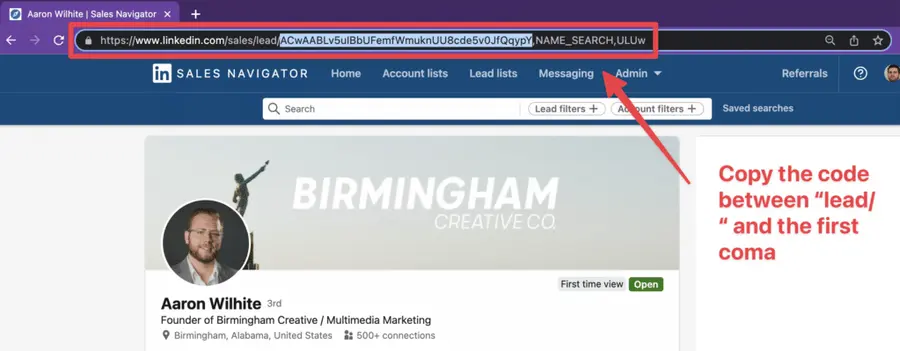
It’s a copy-paste. Step #1: copy-paste the code between “lead/” and the first comma.
Step #2: write “www.linkedin.com/in/” and paste the code you copied after that.
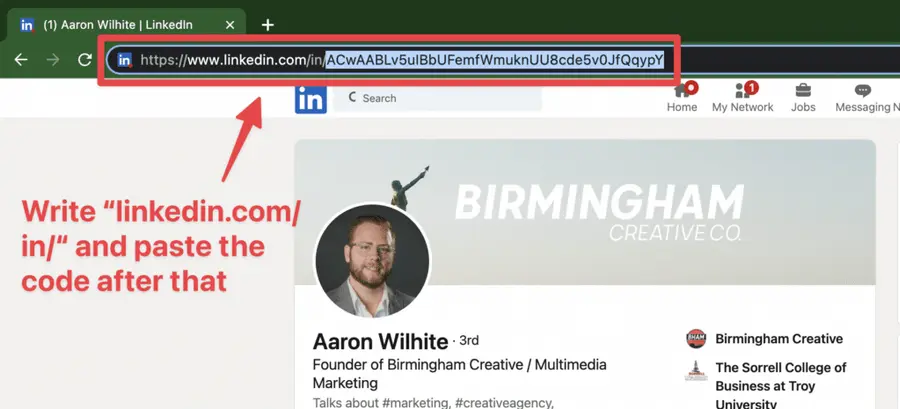
That’s it! You have just converted a Sales Navigator URL into a LinkedIn URL in 10 seconds.
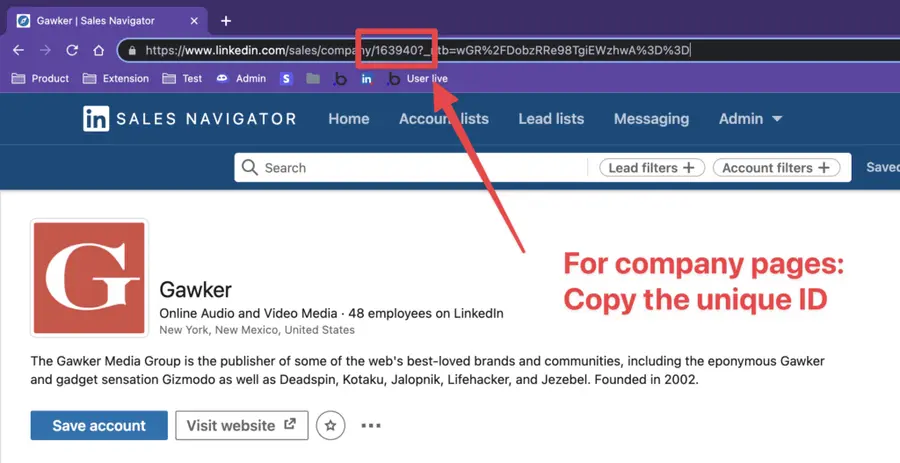
For the accounts, the process is pretty much the same.
Copy and paste the unique ID in the URL.
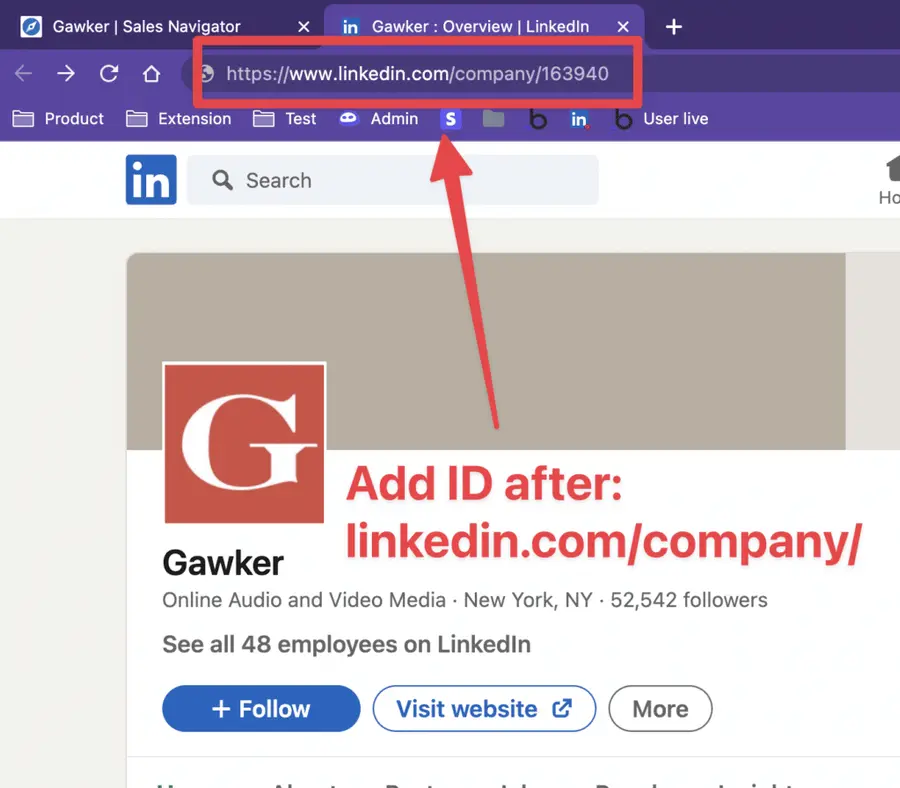
Then paste this ID after “https://www.linkedin.com/company/”
2. Use the Sales Navigator URL Converter
If you don’t want to deal with formulas or manual copy-paste, you can use our Sales Navigator URL Converter.
This tool instantly transforms messy Sales Navigator profile or company URLs into clean, standard LinkedIn links.
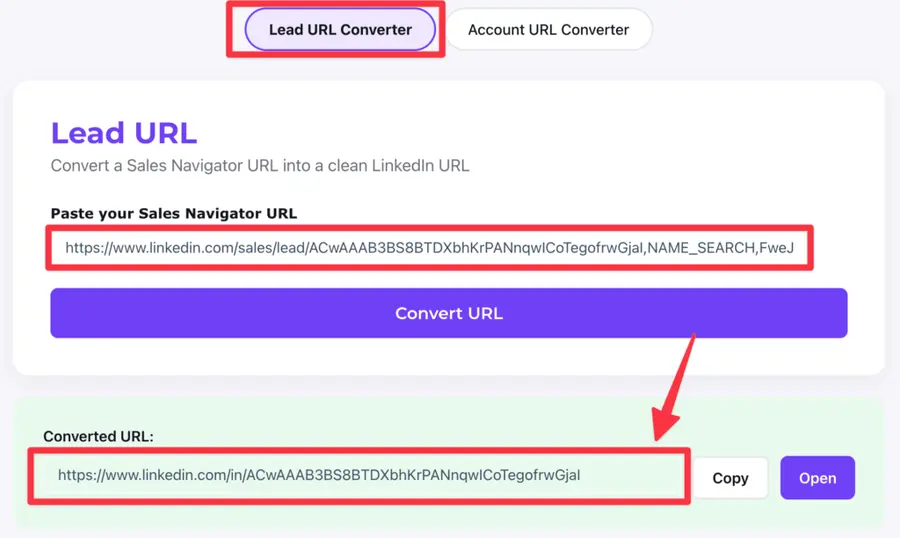
You just need to:
Step #1: Paste your Sales Navigator URL into the converter.
Step #2: Click “Convert URL”.
Step #3: Open the converted link in your browser, and LinkedIn will automatically redirects it to the clean public profile or company page.
It works for both Lead URLs and Account URLs.
These first two approaches work if you only have a few Sales Navigator URLs to convert. What about if you have hundreds of them? Answer in the next part…
3. Use a Google Sheet formula
If you have hundreds of Sales Navigator URLs, you can use a Google Sheet formula to convert them all at once.
Here is a Google Sheet formula you can copy-paste (edit the cell if necessary, here it’s A1)
This formula works exactly the same in Excel and Google Sheet.
=LEFT(SUBSTITUTE(A1,"https://www.linkedin.com/sales/people/","https://www.linkedin.com/in/"),SEARCH(",",SUBSTITUTE(A1,"https://www.linkedin.com/sales/people/","https://www.linkedin.com/in/"))-1)
Step #1: Create a Google Sheet or Excel file and add your LinkedIn Sales Navigator URLs in the first column.
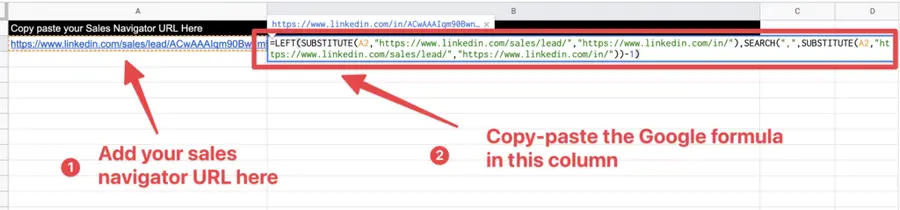
Step #2: Copy-paste the Google Sheet formula in the 2nd and apply the formula to all the cells of the columns, clicking and dragging.
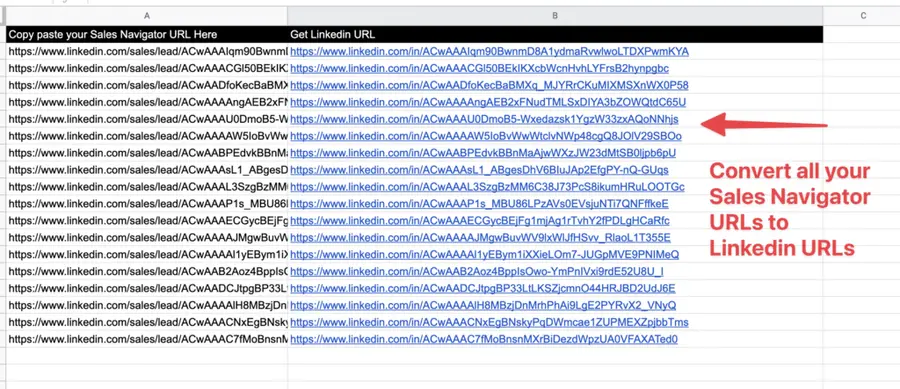
This process is more efficient than the manual one. But what if I told you there is a better way to optimize it?
It’s the third technique.
4. Use Evaboot LinkedIn Sales Navigator Scraper
Some tools can automatically convert Sales Navigator URLs to LinkedIn URLs while they are scraping your Sales Navigator searches.
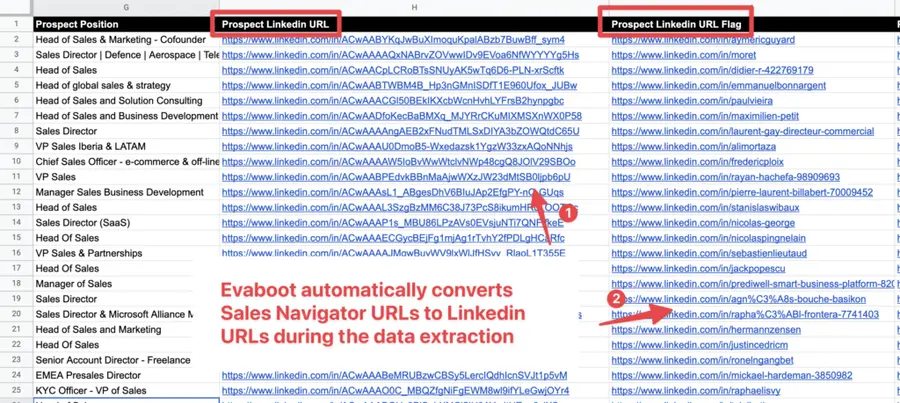
This is the case of Evaboot. One of the best Chrome browser extensions to export Sales Navigator leads into CSV files.
Evaboot automatically provides two types of LinkedIn URLs:
- The URL with the unique ID: https://www.linkedin.com/in/jb-jezequel-evaboot/
- The Custom URL: https://www.linkedin.com/in/ACwAABsx_DsB04Zr1kW4_LPmzlqRFQ-uIVI7uik
You can see that both LinkedIn profile URLs lead to the same profile.
The custom URL can be changed by the owner of the LinkedIn account, but the one with the unique ID doesn’t change.
That is why it’s better to store the “Unique ID URL” in your CRM.
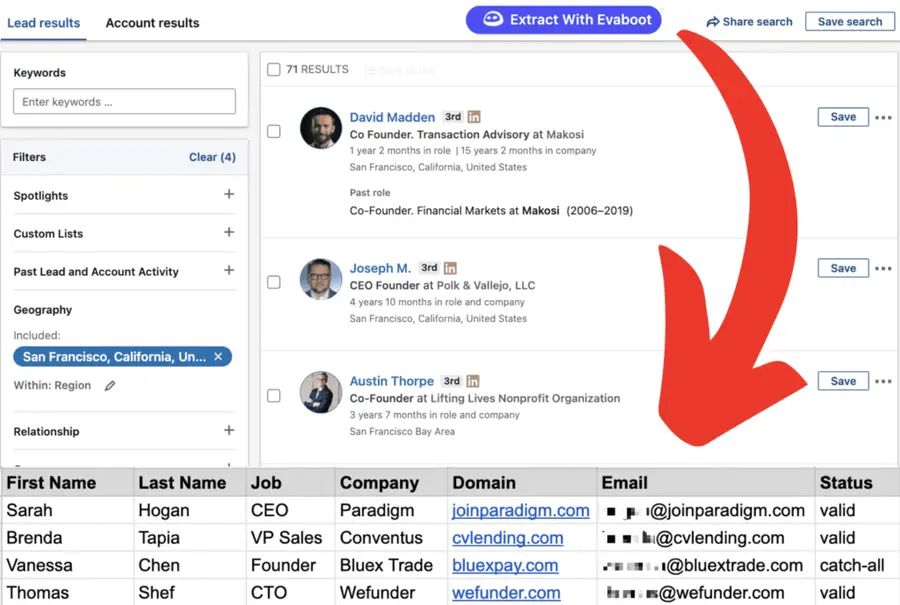
When you install the Evaboot Chrome extension, a new button, “Extract with Evaboot,” will be directly integrated into the Sales Navigator interface.
This button allows you to extract all the info available on LinkedIn Sales Navigator:
- Job position
- Number of connections
- Company Name
- Company website
- Number of employees in the company
- And 20 more data points
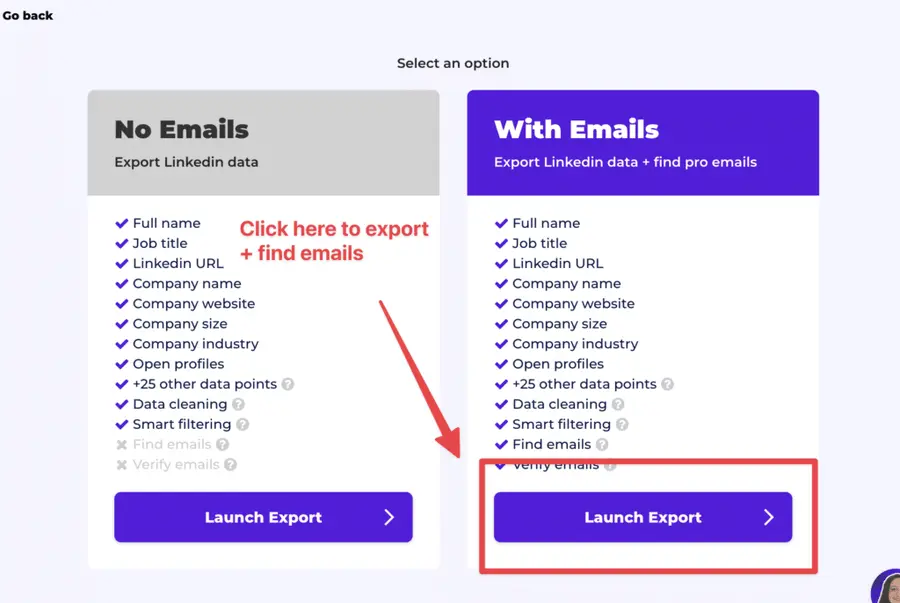
BONUS: if you are also looking for emails, you can add them to your CSV file with just one click from Evaboot.
A really easy way to build lead lists for your LinkedIn prospecting campaigns.
Select “With Emails” when you launch your export, and Evaboot will try to find and verify professional emails for the prospects in your list.
Why Convert Sales Navigator URLs?
Before getting into the technical part, let’s see why you need to convert your LinkedIn Sales Navigator URLs.
Here are the top reasons why this conversion is beneficial:
- Enhanced Accessibility
- Simplified Sharing
- Improved Click-Through Rates
- Better Integration with CRM and Automation Tools
1. Enhanced Accessibility
Standard LinkedIn URLs are easier to use and more recognizable than Sales Navigator URLs.
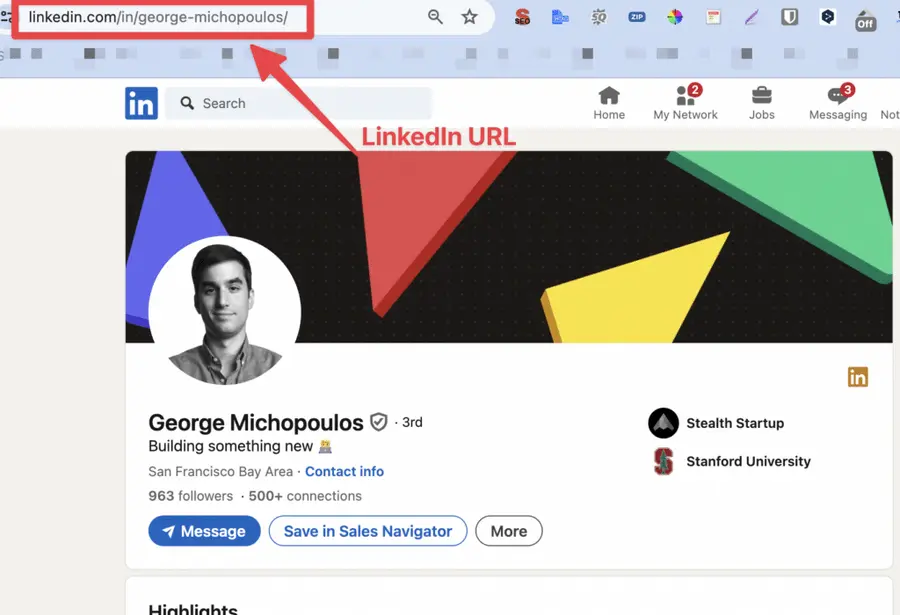
They are simpler and more intuitive, making them easier for recipients to understand and trust.
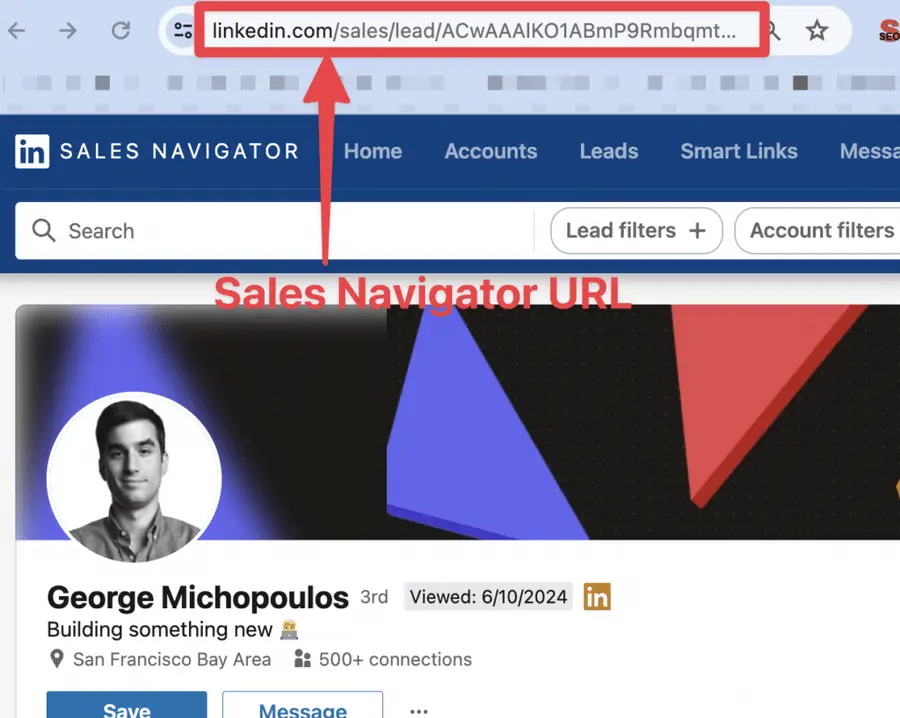
This can significantly improve the user experience, especially when sharing links with people who may not have a Sales Navigator subscription.
2. Simplified Sharing
Simplified URLs reduce the likelihood of copy and paste errors and make it easier for recipients to access shared profiles.
This is especially beneficial in email communications, social media posts, or other digital interactions.
3. Improved Click-Through Rates
Research shows that clear, descriptive URLs tend to have higher click-through rates.
Standard LinkedIn URLs appear more legitimate and trustworthy, encouraging more users to click on them than more complex Sales Navigator URLs.
This can lead to better engagement and more successful networking or marketing efforts.
4. Better Integration with CRM and Automation Tools
Standard LinkedIn URLs integrate more easily with various CRM systems and automation tools.
Many sales and marketing platforms are designed to handle standard LinkedIn URLs more efficiently, allowing for better tracking and managing leads and contacts.
This can streamline workflows and increase the efficiency of sales and marketing operations.
Understanding LinkedIn URLs – Public vs. Unique ID
When exporting leads from LinkedIn Sales Navigator, you’ll notice that profiles come with different types of LinkedIn URLs. Understanding these can help you use your data more effectively in CRM tools, outreach campaigns, or lead enrichment processes.
1. Public LinkedIn URL
A Public LinkedIn URL is the one you see when you visit a profile from a Google search or LinkedIn’s free version. It usually follows this format : www.linkedin.com/in/firstname-name/
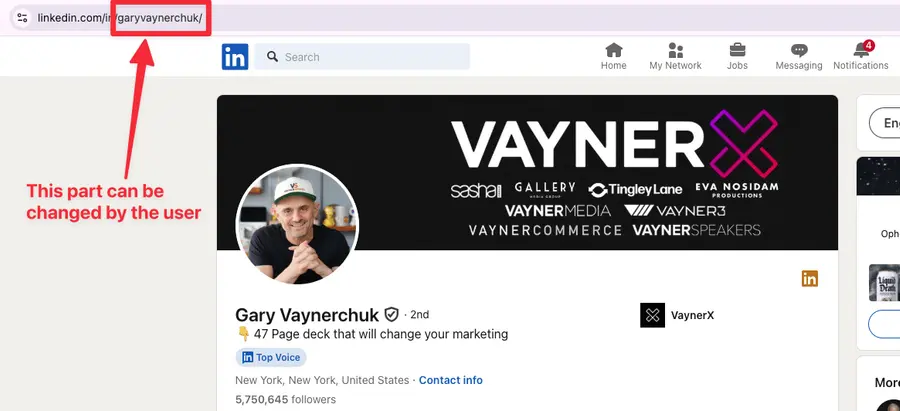
- This URL is static and easy to share, making it ideal for manual prospecting or referencing profiles.
- However, public URLs can be changed by the user at any time, which can create inconsistencies when tracking prospects. If a lead updates their LinkedIn handle, the old public URL will no longer work, leading to 404 errors in your CRM.
2. Unique LinkedIn ID URL
A Unique LinkedIn ID URL is different from a public URL because it includes a unique identifier assigned by LinkedIn.
As a reminder, a unique ID looks like this:
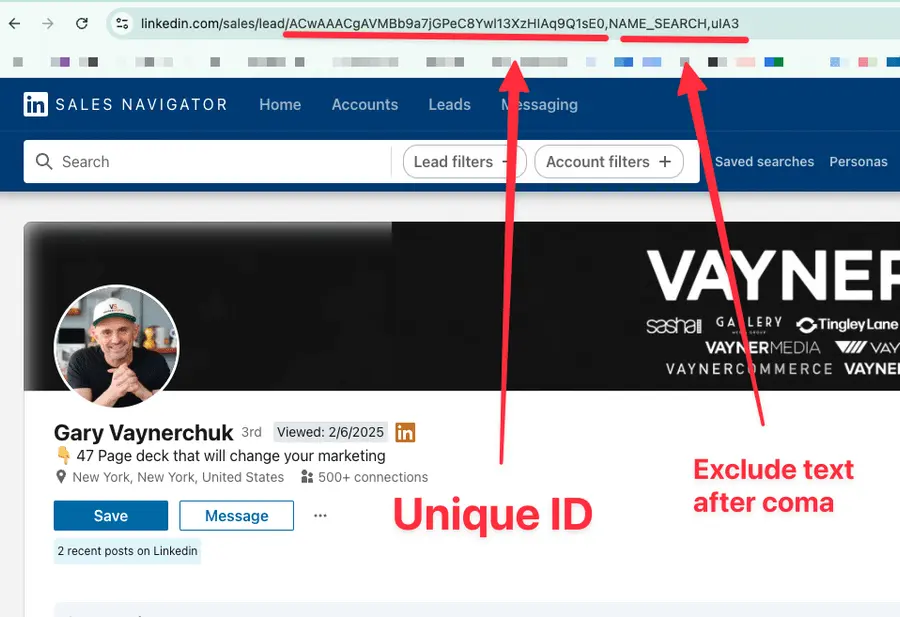
And this is how to get a unique LinkedIn ID URL:
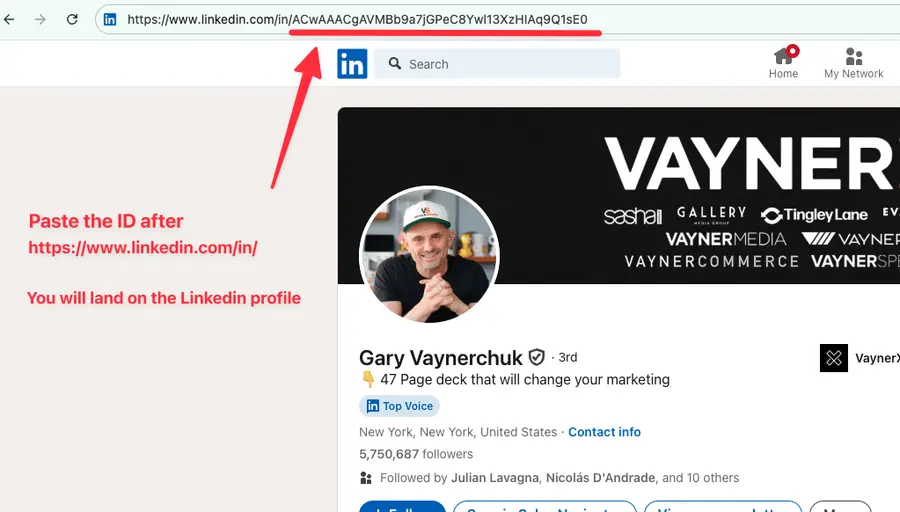
- This ID never changes, even if the user updates their public LinkedIn URL.
- Sales Navigator and LinkedIn’s API use this ID-based URL for internal tracking, making it the best option for integrating LinkedIn data into CRM systems.
Why Does This Matter?
When exporting leads from Sales Navigator, you’ll typically get the Unique ID URL, not the public URL.
If you’re enriching LinkedIn data outside of LinkedIn (e.g., using third-party tools), you may need to convert Unique IDs into Public URLs for better usability.
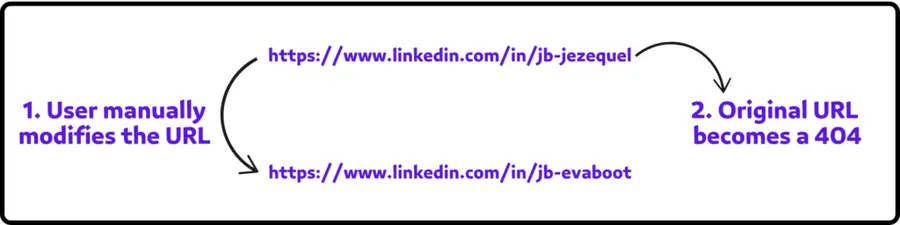
Best practice: Always store Unique ID URLs in your CRM for long-term tracking. Since public LinkedIn URLs can change, relying on them may result in lost profiles and broken links.
Conclusion
There are 3 ways to convert Sales Navigator URLs into LinkedIn URLs:
- Manually copy-pasting
- With a Google Sheet/Excel formula
- With Evaboot
The technique you choose depends on the number of URLs you convert and how often you need to perform this operation.
By following these methods, you can easily streamline your LinkedIn activities and learn how to use LinkedIn Sales Navigator at its best.
Select the one that better fits your needs!
FAQ
Can a sales navigator link be converted to a LinkedIn URL?
There are three ways to convert Sales Navigator URLs to LinkedIn URLs:
- Copy and paste the unique ID from the URL.
- Use a Google Sheets formula.
- Use Evaboot LinkedIn Sales Navigator scraper.
How can I convert a Sales Navigator profile URL to a normal LinkedIn profile URL?
Converting a Sales Navigator URL to a LinkedIn URL is easy:
- Step 1: Copy the code between “lead/” and the first comma in the URL.
- Step 2: Write “www.linkedin.com/in/” and paste the copied code afterward.


