
Want to connect LinkedIn Sales Navigator to Zapier and send leads directly to your CRM, Google Sheets, Slack, or cold email tool — without copy-pasting a single line?
You’re in the right place.
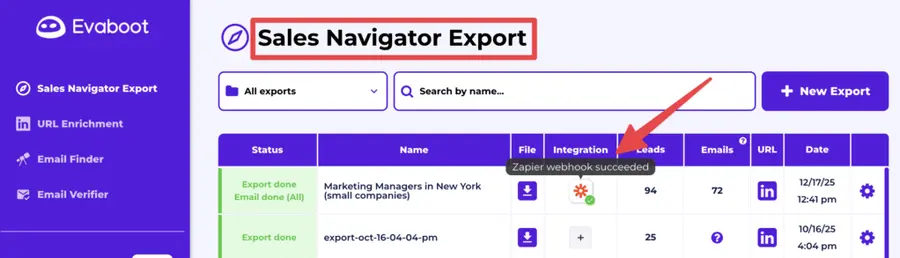
Instead of manually exporting CSVs from Sales Navigator and cleaning them up before importing them elsewhere, you can now automate the entire flow using webhooks. No code required.
In this guide, you’ll learn:
- How to Connect LinkedIn Sales Navigator to Zapier
- Best Use Cases to Automate with Sales Navigator + Zapier
- Why Automate Your LinkedIn Lead Workflow?
Whether you’re a solo founder, SDR, or growth marketer, this integration can help you build a faster, cleaner pipeline straight from LinkedIn, on autopilot.
Let’s dive in.
How to Connect LinkedIn Sales Navigator to Zapier
To automate your LinkedIn lead workflow with Zapier, you’ll need a tool that can extract leads from Sales Navigator and send them to Zapier using webhooks — that’s exactly what Evaboot does.
Here’s how to set up the integration in just a few minutes:
- Step 1: Create an Evaboot account
- Step 2: Find your Zapier Webhook URL
- Step 3: Set up your webhook inside Evaboot
- Step 4: Export your leads from Sales Navigator using Evaboot
Step 1: Create an Evaboot account
Start by creating an account on Evaboot.
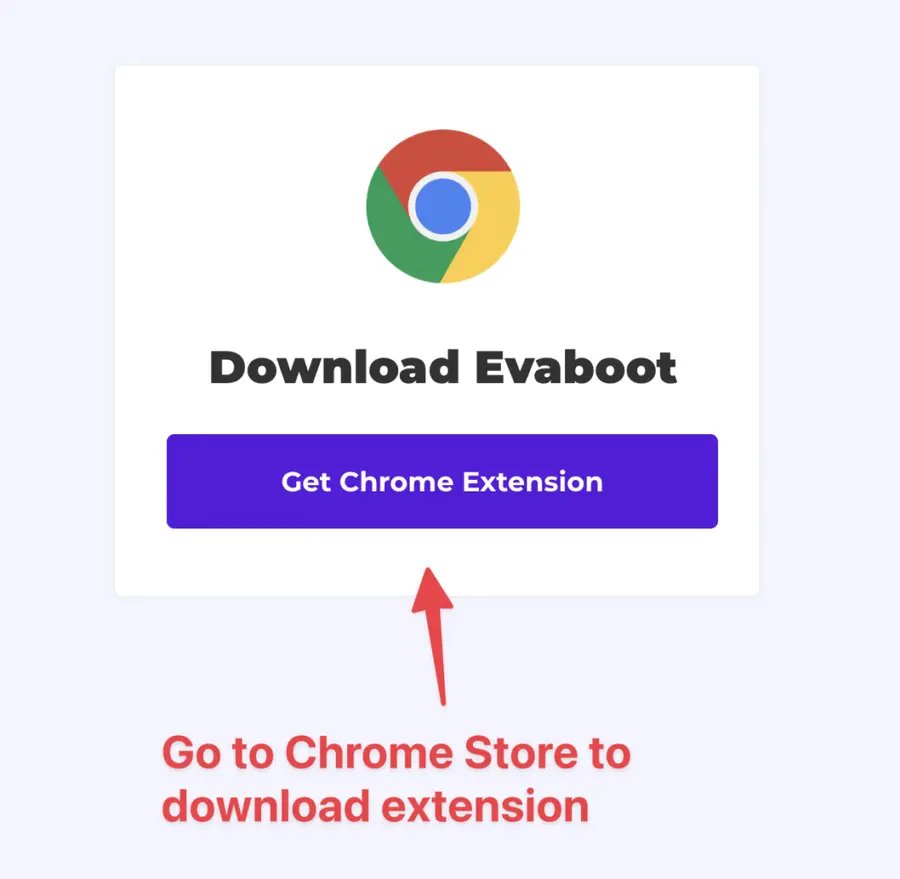
Once you’ve created your account, click on “Get Chrome Extension” to download it from the Chrome Web Store.
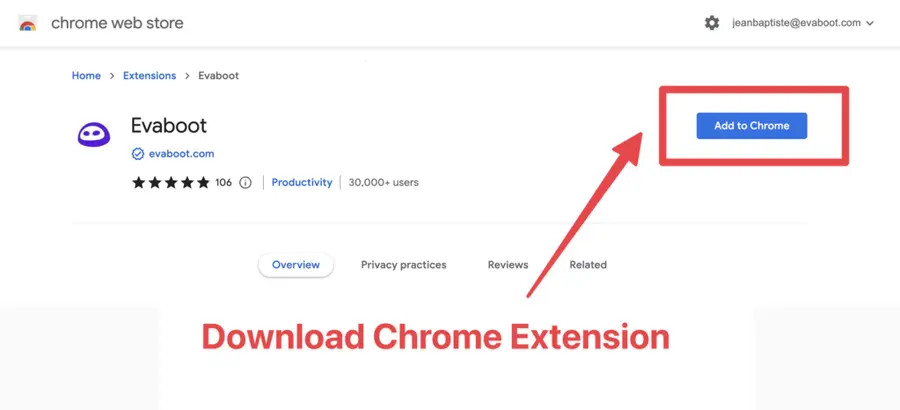
When on the Chrome Store page, click “Add to Chrome” to install the extension.
You’ll be automatically redirected to Sales Navigator. A popup will show you where the button is located.
Step 2: Find your Zapier Webhook URL
You can either follow the steps below, or watch this tutorial:
Head to Zapier and create a new Zap.
Start by adding a trigger.
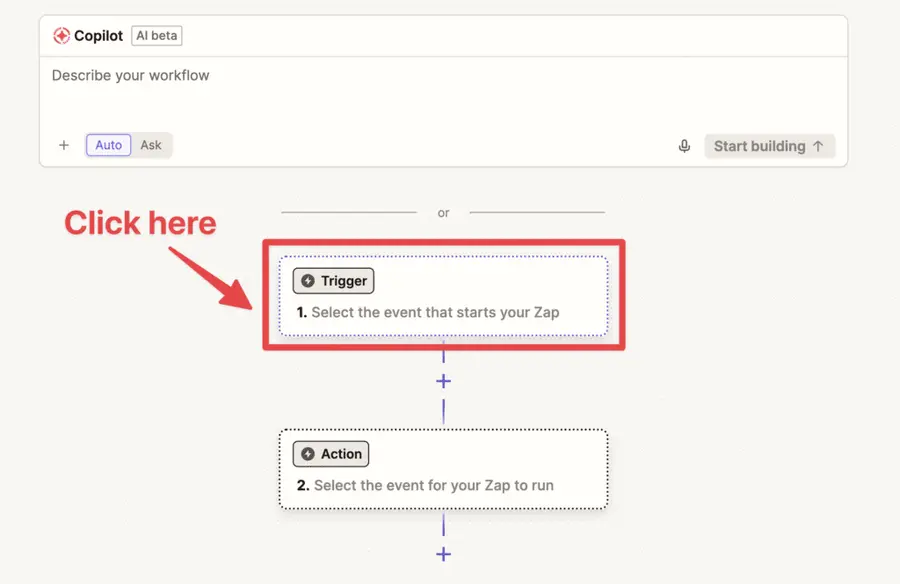
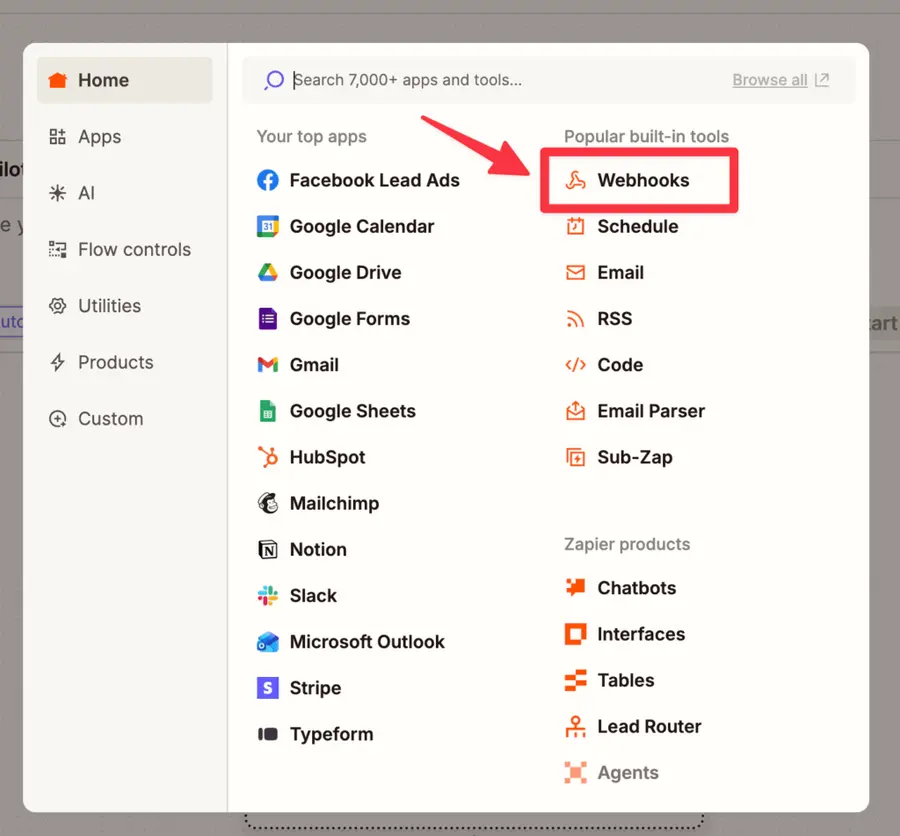
Choose “Webhooks”.
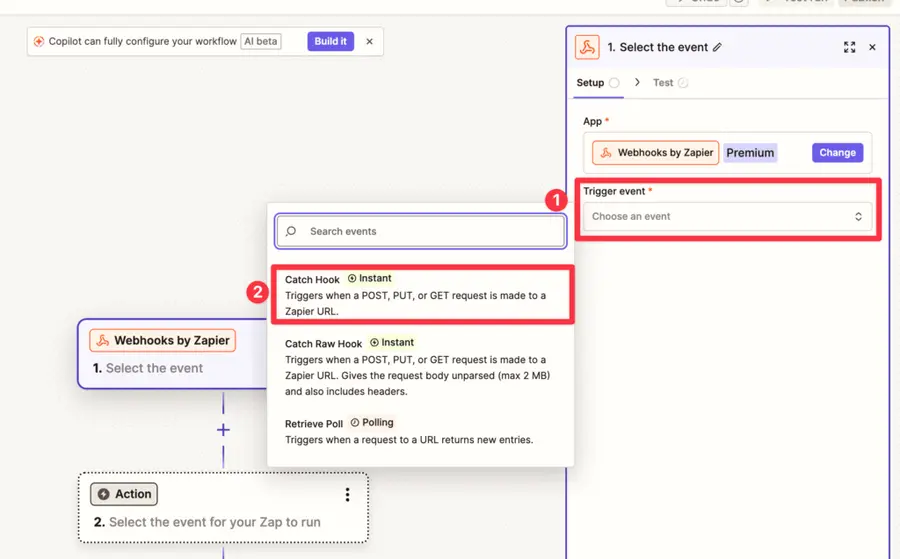
Then click on “Choose an event” and “Catch hook”.
Click on “Continue” until you reach this screen:
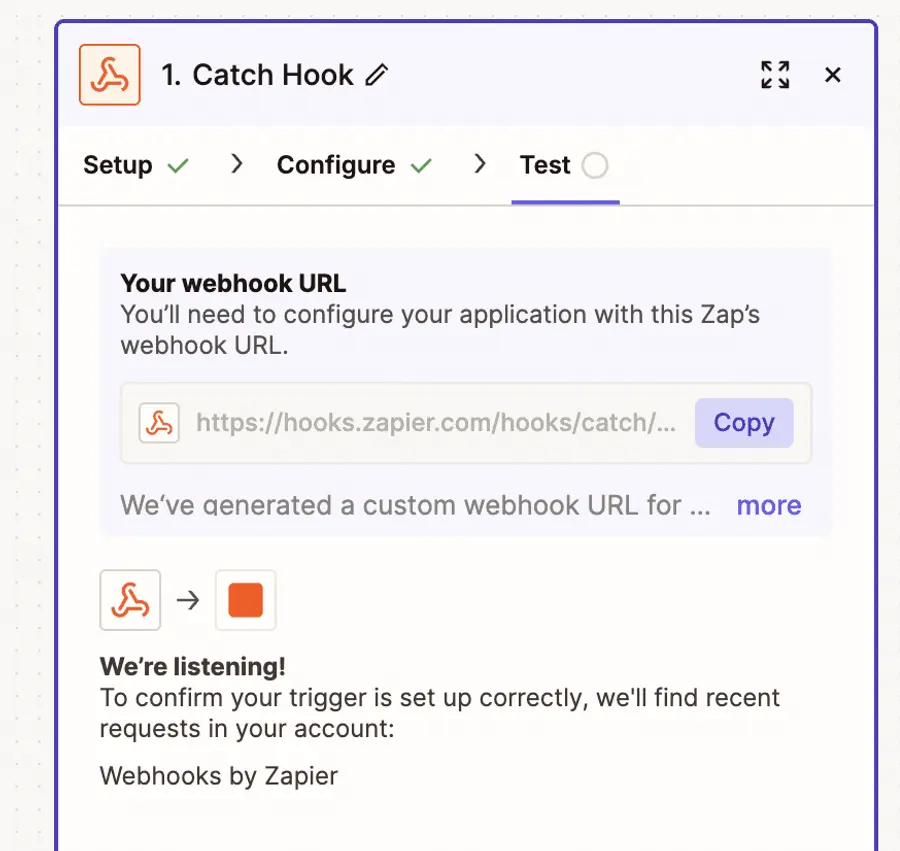
Zapier will give you a custom webhook URL.
Copy this URL and go to the next step.
Step 3: Set up your webhook inside Evaboot
Inside your Evaboot dashboard:
Go to the “Integrations” → “Webhooks” section.
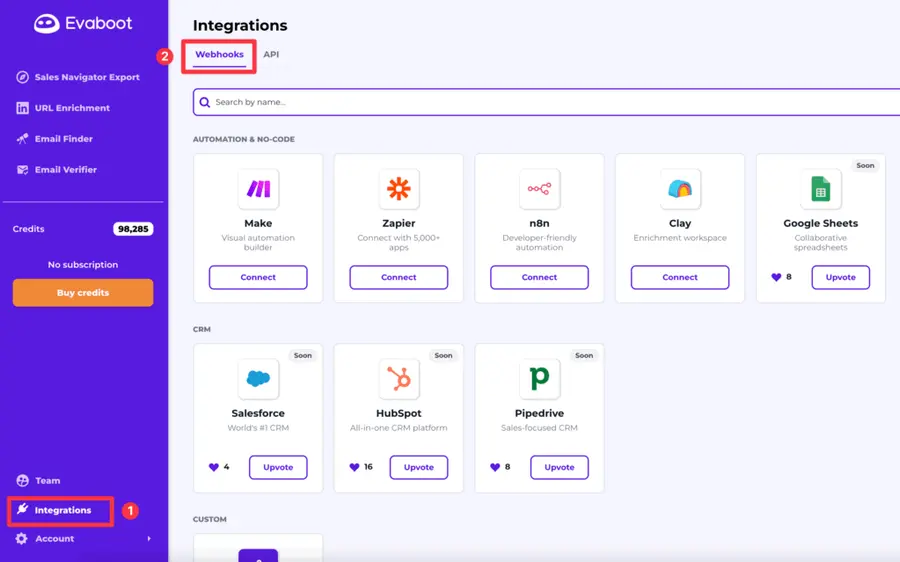
Select Zapier and paste your Zapier webhook URL.
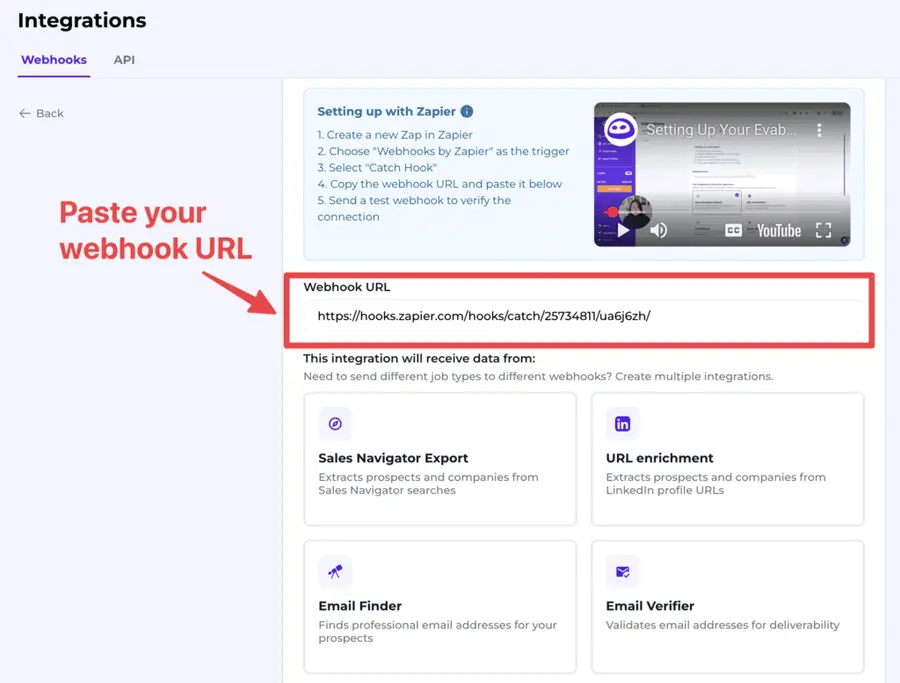
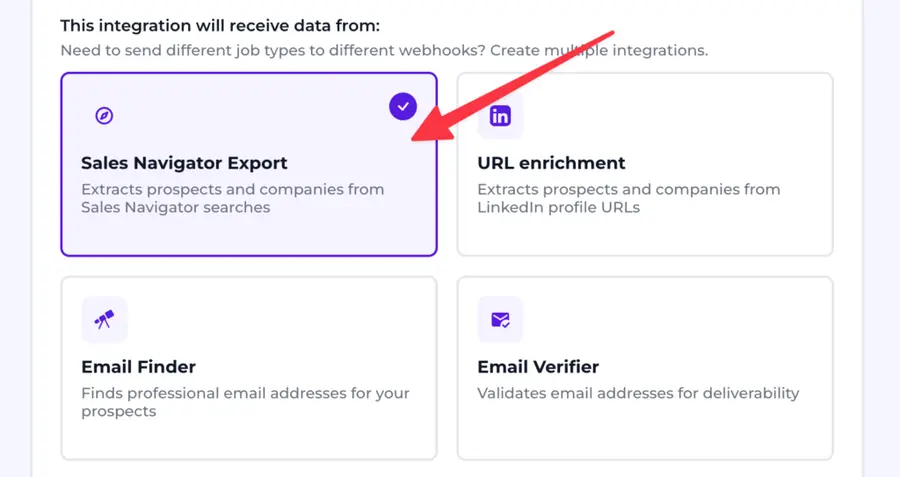
Choose “Sales Navigator export” as the type of data you want to send over.
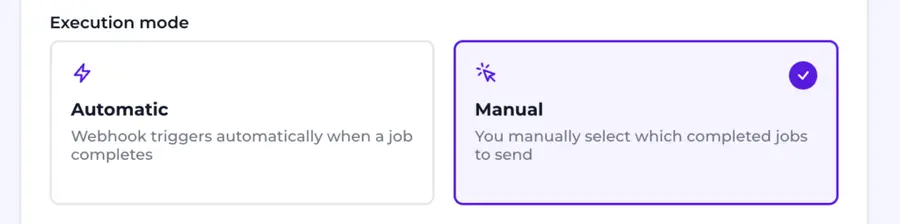
Decide whether you want manual or automatic execution.
You can only set up one automatic webhook. Once you set ip up, all your future exports will be sent to this automatically.
Name your export (optional) and click on “Test webhook”.
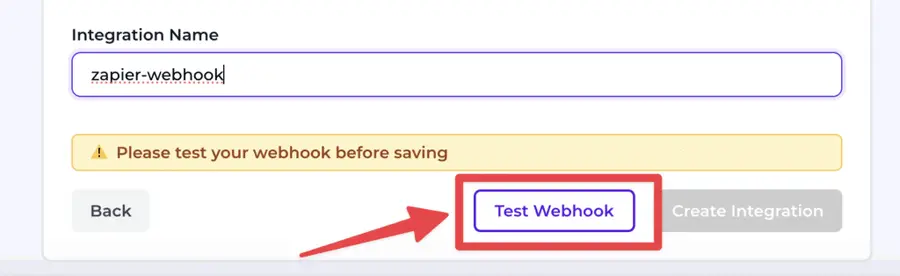
You always have to test before saving — this confirms the data is flowing correctly into Zapier.
If you run into any issues, you can copy the response details and send it to the Evaboot support chat.
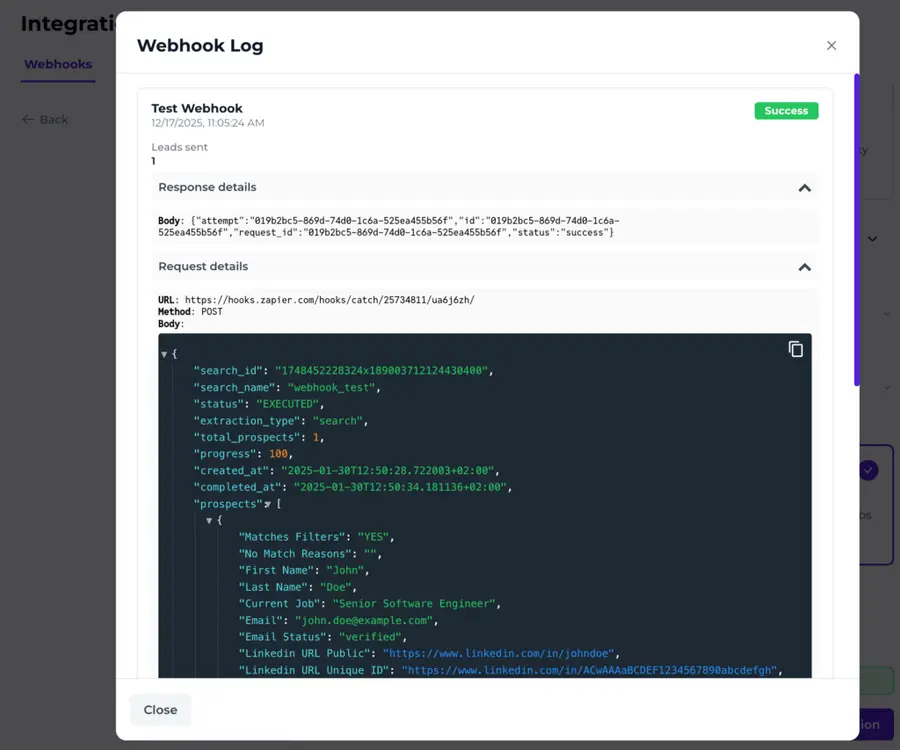
If everything looks good, click on “Create integration”. It will redirect you to the table with all your integrations.
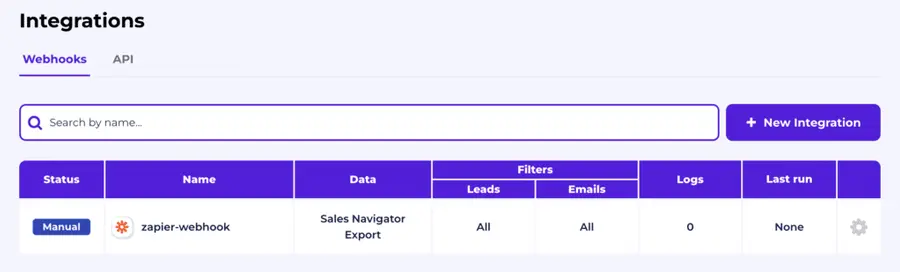
Step 4: Export your leads from Sales Navigator using Evaboot
Now that your Zapier webhook is connected inside Evaboot, it’s time to trigger your first data flow.
Go to Sales Navigator and create or choose the lead list you want to export. It can be:
- Lead Searches
- Lead Lists
- Account Searches
- Account Lists
- Saved Searches
Evaboot handles all the use cases.
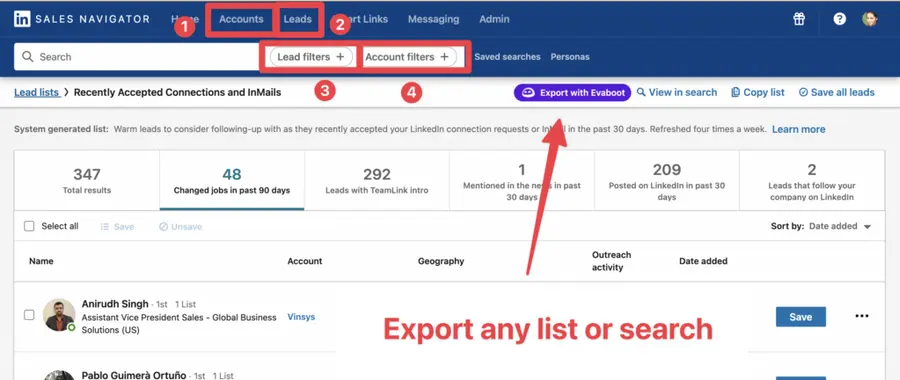
You can export specific tabs in your lead lists, such as “Changed jobs in the past 90 days.”
When you click “Export with Evaboot” you will be redirected to the Evaboot app.
Choose whether you want to find emails for these leads.
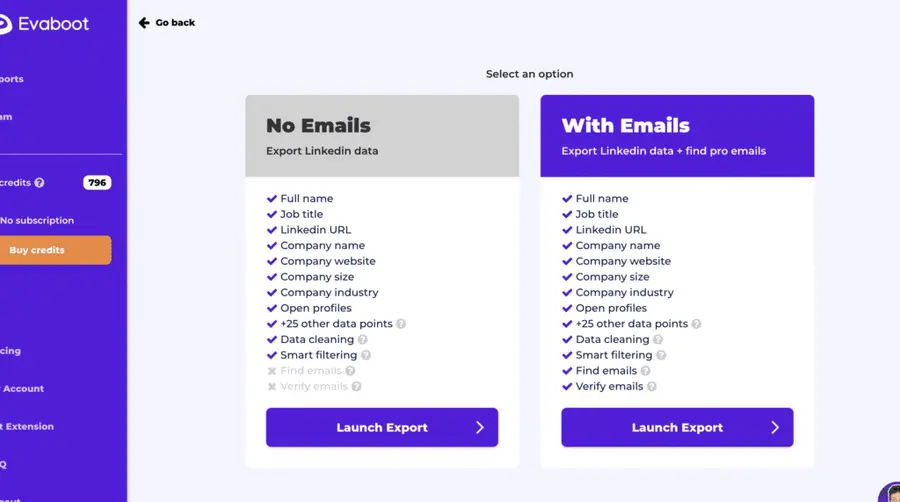
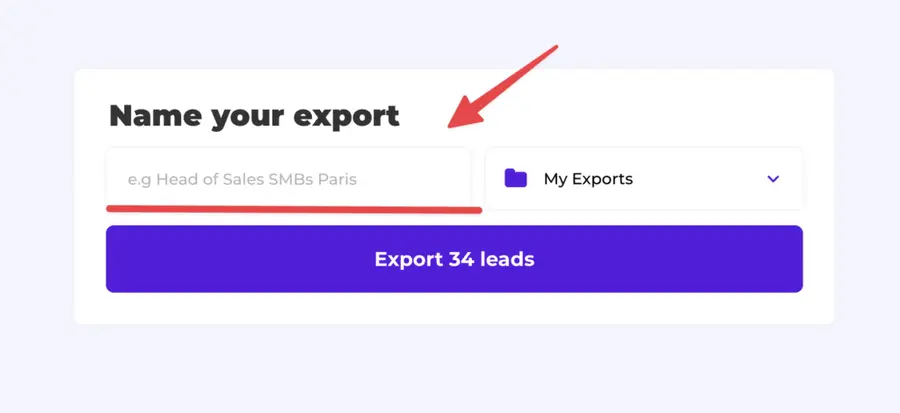
Give a name to your export and click on “Export leads”.
The estimated end date will appear on the left right after launching the export.
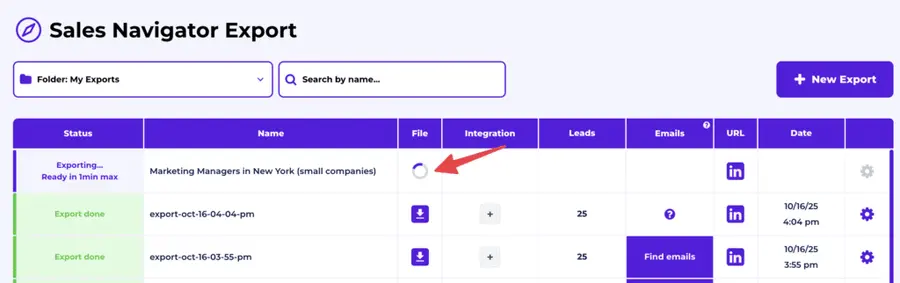
Evaboot will export your Sales Navigator leads in real-time.
That makes your lead generation process GDPR-compliant, in opposition to using databases.
After email enrichment is complete, your webhook will be triggered automatically if you set it up in automatic mode.
If you didn’t choose automatic mode, click on the “+” icon in the “Integrations” column.
Click it and choose your Zapier integration from the list.
Confirm the send.
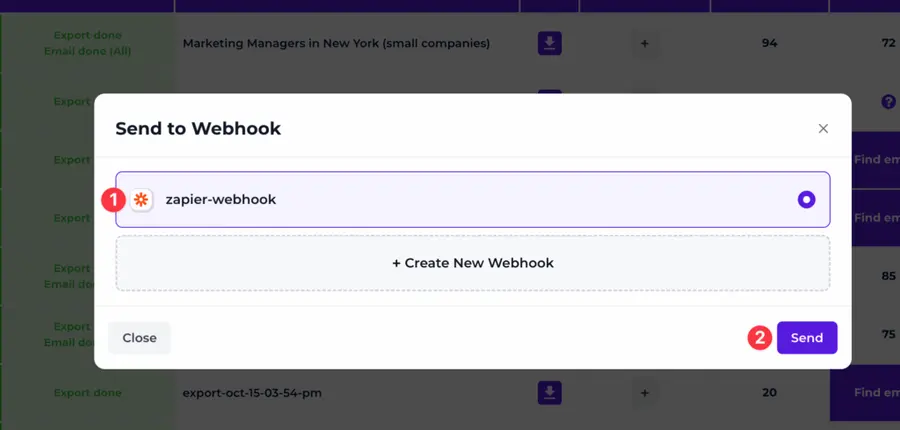
The webhook will be triggered instantly, and the data will be sent to Zapier.

Manual mode is useful if:
- You want to send only certain exports to Zapier.
- You want to run multiple webhooks for the same data type (Sales Navigator, Email Finder, etc.).
And here you go!
Best Use Cases to Automate with Sales Navigator + Zapier
Once you’ve connected Sales Navigator to Zapier using Evaboot’s webhook integration, the real power lies in what you do next.
Here are some of the most impactful workflows you can automate:
- Send LinkedIn leads to your CRM in real-time
- Trigger outbound emails or sequences
- Add new contacts to your newsletter or lead nurturing flows
- Get notified instantly when new leads are captured
- Sync Sales Navigator leads with Google Sheets for live reporting
1. Send LinkedIn leads to your CRM in real-time
Automatically push Sales Navigator leads into tools like HubSpot, Salesforce, or Pipedrive — no CSVs, no manual entry. Keep your CRM updated as you prospect.
This means your sales team gets real-time access to freshly scraped, verified LinkedIn leads without lifting a finger. No spreadsheet cleanup, no formatting errors.
Example:
- A sales rep exports a list of HR Directors from Sales Navigator.
- Evaboot enriches the list with emails, clean job titles, and company names.
- Zapier pushes those enriched leads directly into HubSpot as contacts — ready to trigger workflows or be assigned to sales.
Best for: Sales teams that want instant access to LinkedIn leads inside their CRM, without any spreadsheet handling.
2. Trigger outbound emails or sequences
Speed is everything in outbound.
Once your leads are enriched with Evaboot, you can use Zapier to automatically trigger cold email sequences in cold outreach platforms like Mailshake, Instantly, or Lemlist.
Example:
- A Sales Navigator list of CEOs is exported and enriched.
- Zapier sends each new contact into a Mailshake campaign.
- Personalized emails go out within minutes of export — while the lead is still fresh.
Best for: SDRs and growth marketers who want to move from lead discovery to inbox outreach automatically.
3. Add new contacts to your newsletter or lead nurturing flows
Not every lead is ready to convert right away.
You can send LinkedIn leads into tools like Mailchimp, ActiveCampaign, or ConvertKit to keep them warm with long-term content or offers.
Example:
- Marketing exports a list of Heads of Marketing at SaaS companies.
- Zapier adds them to an ActiveCampaign automation that shares a 5-part email course.
- Leads are gradually educated over time before being handed off to sales.
Best for: Marketing teams building nurture campaigns or lead scoring workflows.
4. Get notified instantly when new leads are captured
Want to alert your sales or success team the moment a target account appears?
Use Zapier to send notifications to Slack, email, or even Microsoft Teams when a new lead is added to your Evaboot export.
Example:
- A list of Series B tech companies is being exported.
- Every time a C-level contact is enriched, a Slack alert goes to the sales team with the contact’s info and LinkedIn profile.
- Reps jump in immediately to connect or start outreach.
Best for: RevOps teams or founders who want real-time alerts on VIP leads or ICP matches.
5. Sync Sales Navigator leads with Google Sheets for live reporting
If your team runs dashboards or reports in Google Sheets or Airtable, this automation will save you hours.
Skip the manual CSV upload: Zapier can send enriched leads to your spreadsheet automatically.
Example:
- You export a list of 300 marketing leaders.
- Each enriched contact appears in your Google Sheet with email, company, title, and LinkedIn URL — instantly.
- Your team can slice and dice the data, calculate response rates, or track outreach performance in real time.
Best for: Founders, freelancers, or marketers managing lead gen from spreadsheets or internal dashboards.
Why Automate Your LinkedIn Lead Workflow?
If you’re using LinkedIn Sales Navigator to generate leads, chances are you’re doing a lot of repetitive, manual work — exporting lists, cleaning data, uploading to your CRM, or copy-pasting into email tools.
That works… until it doesn’t.
Here’s why automating this workflow with Zapier (and a LinkedIn-compatible export tool) is a game changer:
- Save hours every week
- Respond to leads faster
- Eliminate data loss and human error
- Create smarter multichannel sequences
1. Save hours every week
Manually exporting and formatting CSV files can eat up several hours per week — especially if you’re working across multiple segments, geographies, or personas.
Is there any way to make CRM data entry less painful for SDRs? byu/Broad_Ad5455 inCRMSoftware
According to a HubSpot sales report, sales representatives dedicate only two hours daily to active selling. The rest is lost to admin tasks like data entry, lead cleanup, and manual exports.
With automation, you can eliminate these repetitive tasks, freeing up hours every week to focus on what actually moves the needle: booking meetings and closing deals.
2. Respond to leads faster
Speed-to-lead matters. The faster a lead hits your CRM, the faster you can start building a relationship.
Automations allow your team to trigger real-time workflows the moment a lead is added to your Sales Navigator list.
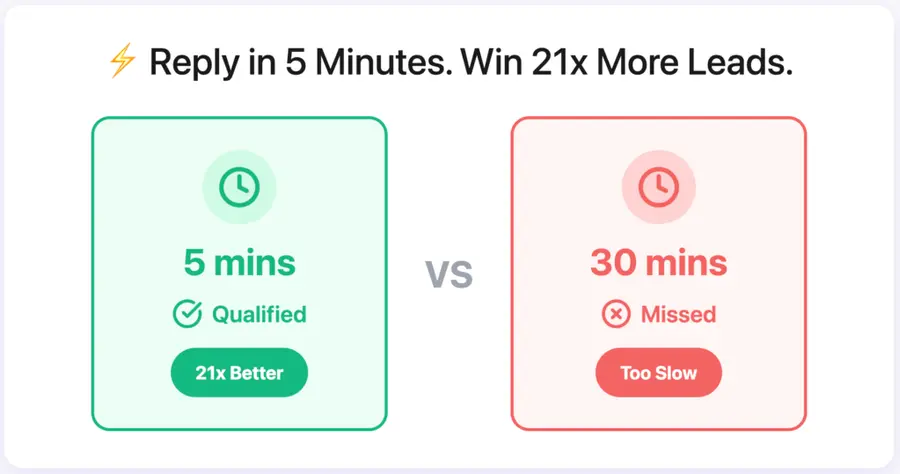
According to Harvard Business Review, replying within the first 5 minutes increases your odds of qualifying a lead by 21x compared to a 30-minute delay.
Imagine: you export a list of CHROs from LinkedIn at 10am. By 10:01am, they’re already in your CRM, assigned to a rep and entering a cold email sequence.
3. Eliminate data loss and human error
Reformatting spreadsheets leads to broken fields, mismatched names, and missed opportunities.
Automations ensure your data is structured, verified, and consistent across all systems — with no risk of typos or forgetting a column.
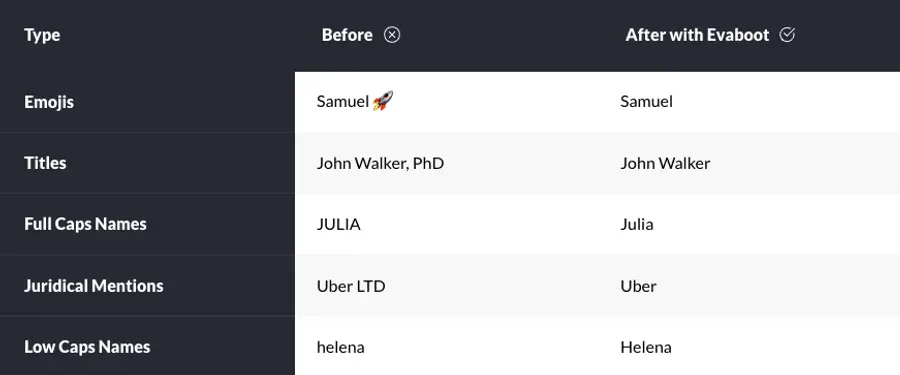
Evaboot extracts and cleans Sales Navigator exports (e.g., fixing casing, splitting first/last names), then Zapier sends the verified contacts into your CRM and outreach tool, without touching a single row in a CSV.
4. Create smarter multichannel sequences
Automated workflows make it easier to reach leads on multiple channels — email, Slack, LinkedIn, or even project management tools like Trello or Asana.
You can route high-priority leads to your team instantly, while letting others enter nurture flows.
Result: Every lead is contacted on the right channel at the right time, without letting anyone slip through the cracks.
Conclusion
If you’re still copying and pasting leads from LinkedIn Sales Navigator into spreadsheets… stop.
With Evaboot’s webhook integration, you can connect your Sales Navigator exports directly to Zapier, and automate your entire workflow from prospecting to outreach.
No more CSVs. No more manual uploads. Just clean, verified leads sent straight into your CRM, email sequence, or pipeline tool the moment they’re ready.
Set it up once, and let the automation run in the background while you focus on closing deals.
FAQs
Can I connect LinkedIn Sales Navigator directly to Zapier?
Not natively. LinkedIn doesn’t offer a public Zapier integration for Sales Navigator.
However, you can connect them using Evaboot — a tool that extracts leads from Sales Navigator and sends them to Zapier via webhooks.
What can I do with Sales Navigator + Zapier automation?
You can automatically send LinkedIn leads to your CRM (like HubSpot or Pipedrive), trigger outreach workflows in email tools, update lead tracking dashboards in Notion or Airtable, or send alerts in Slack — all in real time.
Does Evaboot clean and verify the emails before sending them to Zapier?
Yes, Evaboot enriches and verifies emails during the export process.
You only send clean, usable lead data to Zapier — no guesswork or manual cleaning needed.
Can I connect Evaboot to other tools besides Zapier?
Yes, Evaboot also supports Make.com, n8n, and custom webhooks — so you can connect to virtually any platform that supports webhooks.
Does LinkedIn Sales Navigator have an API?
Yes, but the LinkedIn Sales Navigator API is only available to LinkedIn partners and large enterprise accounts. Most users won’t get access.
If you’re looking for an alternative, Evaboot offers a no-code workaround: it lets you extract leads from Sales Navigator and send them to any tool using webhooks.


