
Do you want to manage and organize your lead lists in one place effectively?
Then, you only need to upload your lead list CSV files to LinkedIn Sales Navigator.
This feature saves you time and ensures your data is accurately mapped and ready to use.
In this guide, I’ll talk about:
- Why upload CSV to LinkedIn Sales Navigator?
- How To Upload CSV Files To LinkedIn Sales Navigator?
- Find Decision-Makers Inside the Companies You Uploaded
- Other Sales Navigator Advanced Features
- Questions About LinkedIn Sales Navigator CSV Uploads
Let’s see how you can get the most out of Sales Navigator using this advanced feature.
Why Upload CSV To LinkedIn Sales Navigator?
You’d need to upload CSV to Sales Navigator because you can import data from other B2B databases (Crunchbase, Wappalyzer, etc.), job boards, or CRMs (HubSpot, Salesforce, etc.) and put it in one place.
Instead of using the search engine to find target companies one by one, you can bulk upload your Excel file or CSV and save a lot of time.
But this is only possible when you have a Sales Navigator Advanced account (Team).
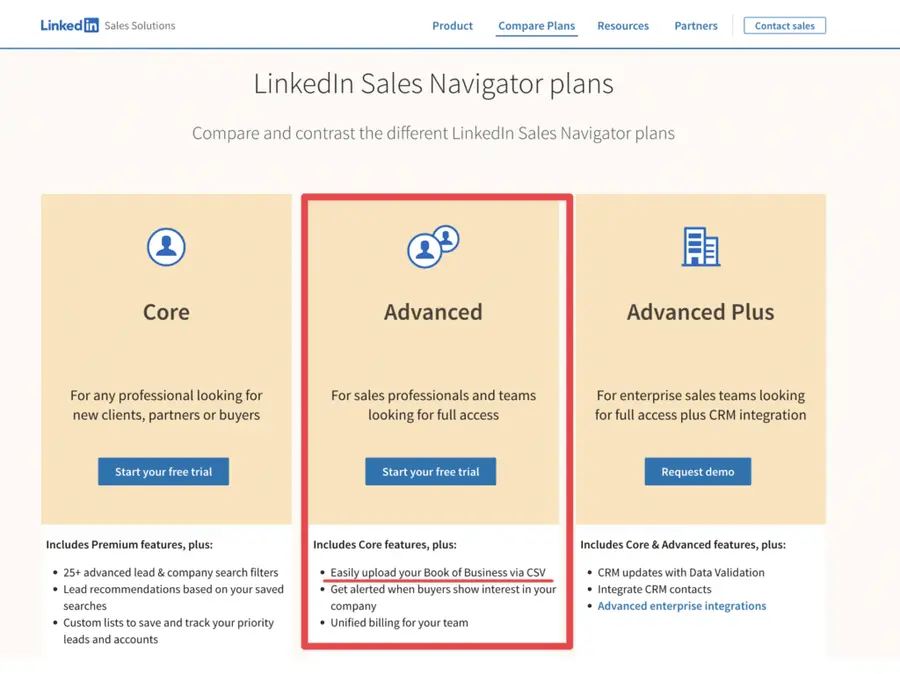
If you have Sales Navigator Core (Professional), you must upgrade your subscription to use this feature.
How To Upload CSV Files To LinkedIn Sales Navigator?
To upload a CSV to LinkedIn Sales Navigator, you need to:
- Go to the Account Lists tab
- Upload your CSV file
- Map the data inputs
- Let LinkedIn do the matching
1. Go to the Account Lists tab
In your LinkedIn Sales Navigator account, click on Accounts > Account list > Create an account list > Upload and Account from CSV.

Don’t forget that this option will only be visible if you have a Sales Navigator Advanced subscription.
2. Upload your file
When you click on the button, а pop-up will appear.
Follow these guidelines:
1. You can have a maximum of 1000 companies
2. Include at least the account name
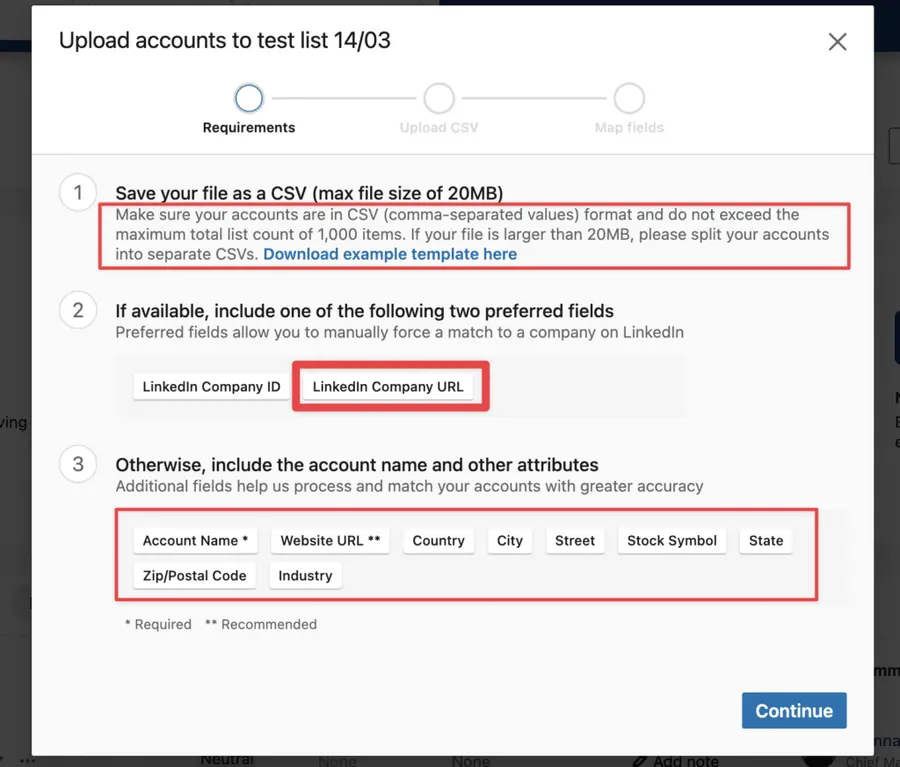
3. The more details you add (ID, Website, etc.…), the more likely LinkedIn is to match your CSV with the right companies.
So, when you upload an account list on LinkedIn Sales Navigator, provide as much data as possible.
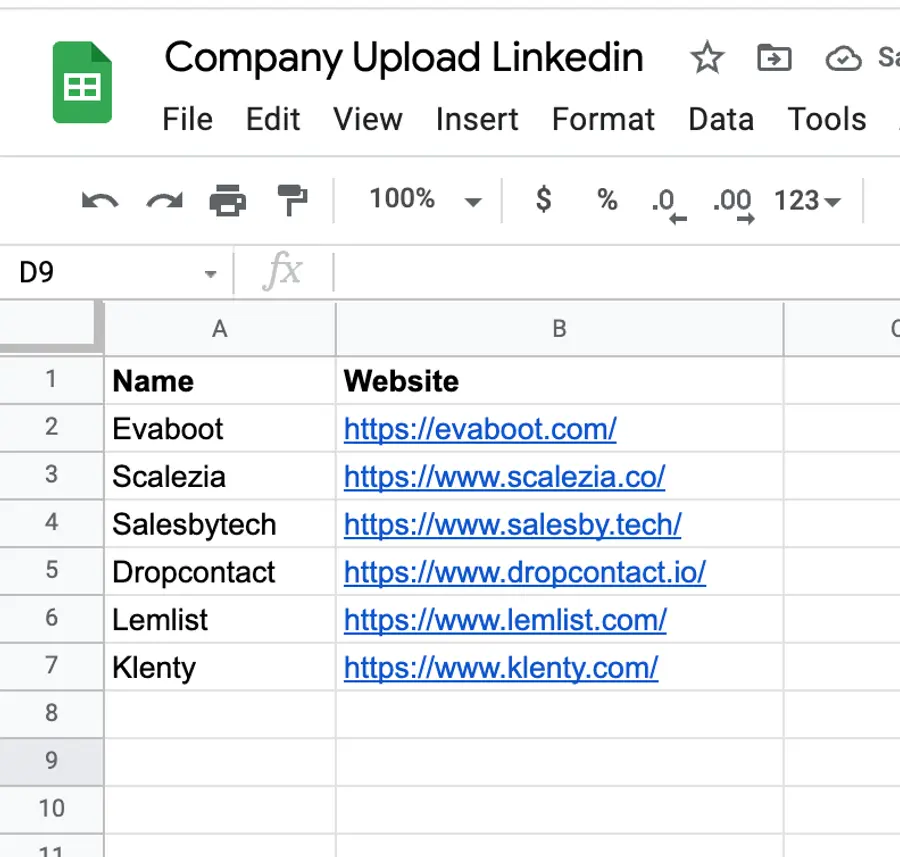
The best-case scenario is when you have the LinkedIn URL of the company page.
LinkedIn can easily retrieve the company in its database when you provide this information.
3. Map the data inputs
Once you upload your file, Sales Navigator will ask you to map its headers to the expected inputs.
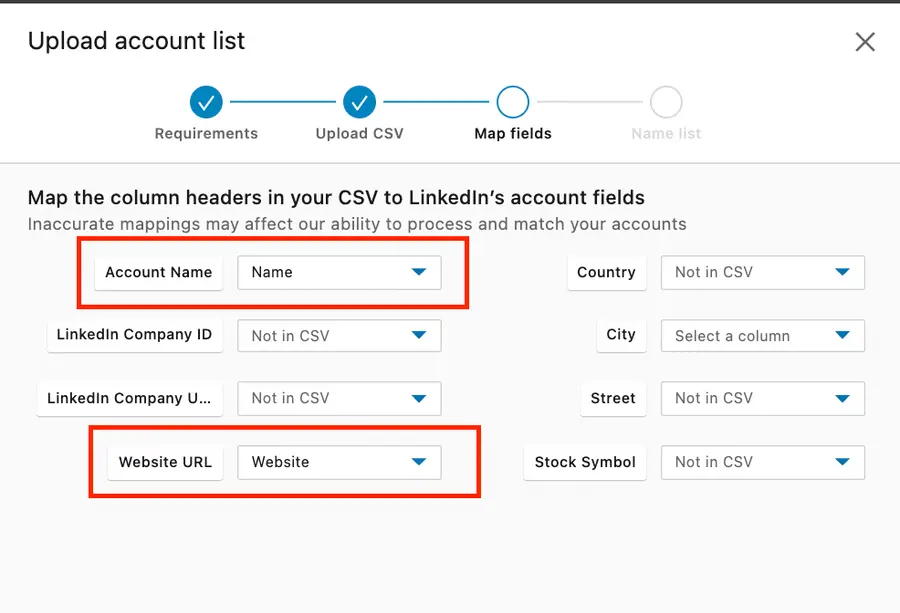
Associate the right column header with the right data and press launch.
4. Let LinkedIn do the matching
LinkedIn often takes 5–30 minutes to retrieve the companies, depending on your file size.

When you launch a CSV upload, a little tag “CSV” will appear next to the list’s name.
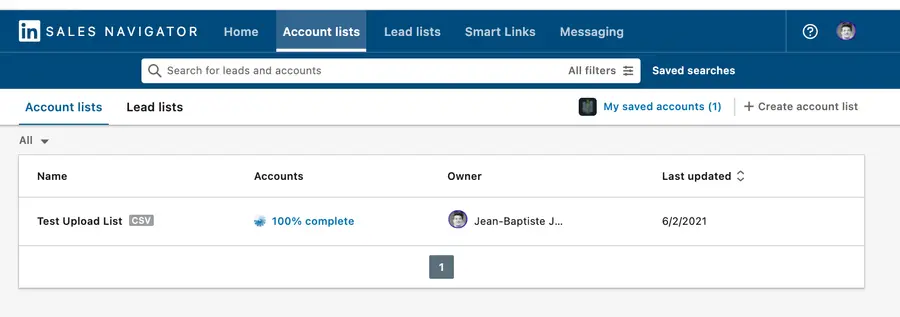
Once you get the list, you can start your LinkedIn outreach.
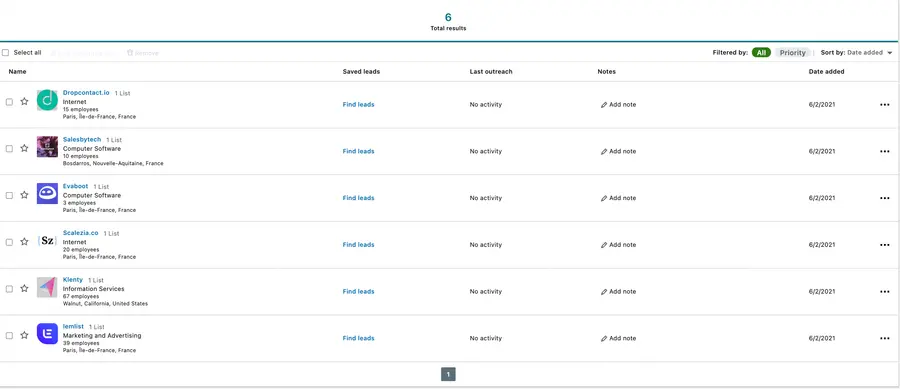
This example shows that the matching is perfect only by providing company names and websites.
However, Sales Navigator can make mistakes and associate companies in your list with the wrong LinkedIn company pages.
2 options here:
- Find the LinkedIn URLs of all company pages before the upload to ensure the matching is perfect.
- Don’t provide the LinkedIn URL, and you spend some time double-checking the results manually.
Personally, I prefer option 1, as double-checking data is painful.
Find Decision-Makers Inside the Companies You Uploaded
Now that you’ve uploaded your CSV file to LinkedIn Sales Navigator, the next step is identifying key decision-makers within those companies. Connecting with the right people ensures that your outreach efforts are targeted and effective.
Here’s how you can do it:
- Use Relationship Maps to Spot Key Contacts
- Leverage Advanced Search Filters
- Be Aware of Lead Search Limits
1. Use Relationship Maps to Spot Key Contacts
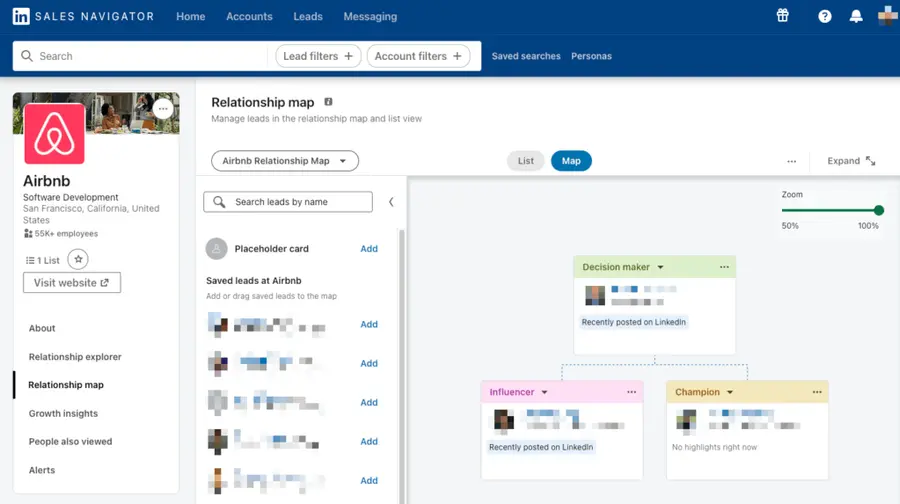
Once you’ve uploaded your target companies, Sales Navigator’s Relationship Maps help you quickly find relevant stakeholders.
These maps highlight key employees within each company, allowing you to filter out those with buying power.
2. Leverage Advanced Search Filters
Sales Navigator’s Advanced Search Filters enable you to find decision-makers based on job titles, seniority levels, and industry-specific keywords.
Here’s the exact process:
- Open Sales Navigator and go to Lead Search.
- Use the “Account List” filter. Select the account list you’ve created from your uploaded CSV.
- Add job titles. In the “Current job title” filter, enter relevant leadership roles like “CEO,” “Founder,” “Head of Sales,” “VP of Marketing,” etc.
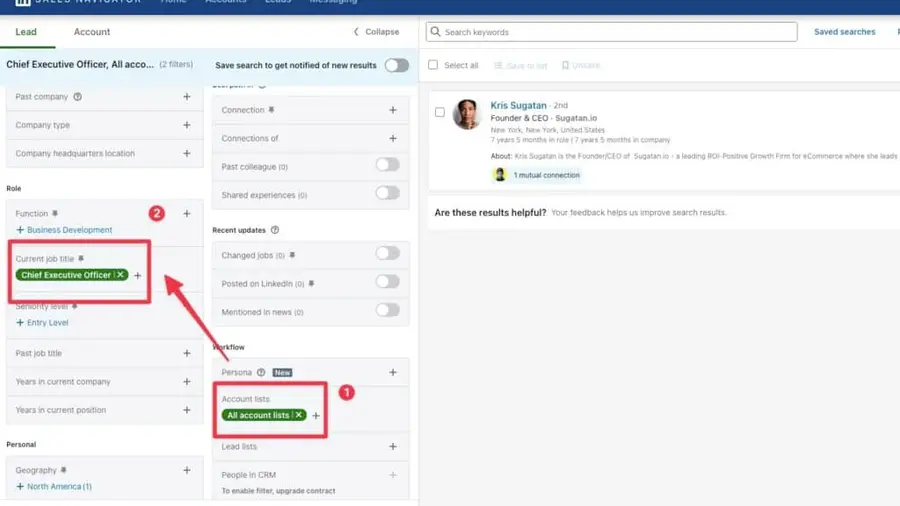
Apply filters and review results. You’ll now have a list of decision-makers within the companies from your CSV file, making your outreach more targeted and effective.
Watch this step-by-step video tutorial to see exactly how it’s done:
3. Be Aware of Lead Search Limits
Sales Navigator limits the number of profile searches you can perform each month. If you hit your search cap, you may have to wait until the next cycle to access more leads.
To bypass these limitations, consider saving key leads into custom lists as you find them and using filters strategically to avoid unnecessary profile views.
Check out this guide for more ways to find decision-makers on LinkedIn.
Other Sales Navigator Advanced Features
The CSV upload is not the only feature LinkedIn Sales Navigator Advanced offers.
This video compares Sales Navigator Advanced VS Core in detail.
It offers other features that can be useful for LinkedIn prospecting, like:
- Smart Links
- TeamLinks
1. LinkedIn Sales Navigator Smart Links
Sales Navigator Smart Links allows you to create Sales presentations and easily share and track your prospects’ interactions with this content.
When sharing Smart Links, you can track your viewers’ behavior and gain insights into what your prospects and customers are most interested in.
2. LinkedIn Sales Navigator TeamLink
LinkedIn Sales Navigator TeamLink allows sales teams to view their teammate’s connections.
TeamLink shows if people in your search results are among your teammates’ first-degree connections.
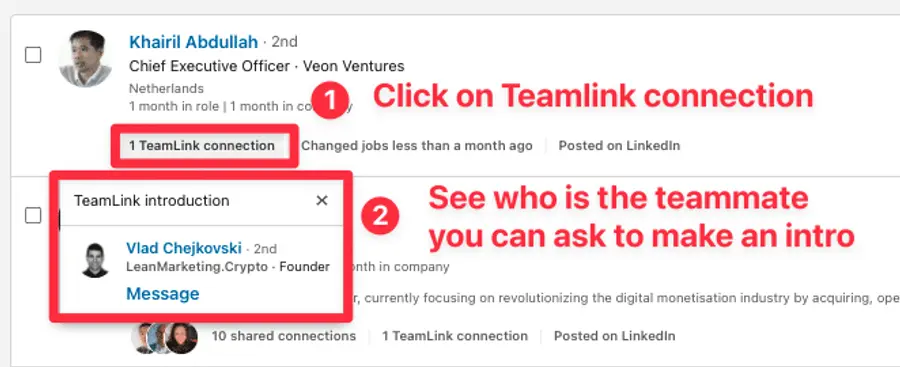
TeamLink harnesses the power of your entire team network to help you find the best path to a lead.
Questions About LinkedIn Sales Navigator CSV Uploads
Other common questions that people ask are:
- Can you import lead lists on Sales Navigator?
- What to do after uploading my CSV?
- What to do with collected data?
1. Can I upload Lead lists on Sales Navigator?
You can’t import lead lists on LinkedIn Sales Navigator; Sales Navigator only allows Account lists.
This feature would violate privacy rules, so LinkedIn can’t offer it.
2. What to do after uploading my CSV?
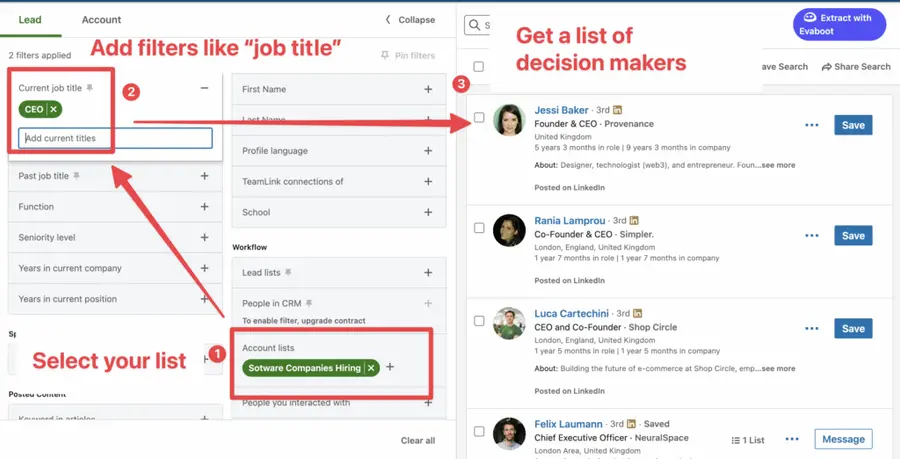
Once you have uploaded your CSV file, the best thing to do is to find the decision-makers inside the companies in your list. For that:
- Go to lead search
- Find the Workflow Section
- Select your list in the account list filter
- Add other filters to find decision-makers
Here is an example in which I’m retrieving all the CEOs of the companies in my CSV file.
3. What to do with collected data?
If you don’t know how to use all the Company and Lead Data you found on LinkedIn Sales Navigator, I have a hint: LinkedIn Lead generation.
These LinkedIn Accounts of all the leads and companies are a golden key for your prospecting game.
Here are several tips to consider if you decide to go further:
- Find LinkedIn Profiles and send connection requests.
- If the profile is not open, send LinkedIn InMails using hyper-personalized message templates.
- Use the Evaboot Chrome extension or third-party automation tools to find your leads’ account emails and phone numbers for multichannel outreach.
Conclusion
LinkedIn Sales Navigator’s CSV upload feature is a game-changer for efficient lead management and generation.
Following the simple steps to upload and map your CSV files, you can ensure that your contact data is accurately imported and ready for immediate use.
Use these insights to streamline your lead generation process, save time, and achieve your sales goals.
FAQ
How do I upload Excel to Sales Navigator?
Open LinkedIn Sales Navigator and go to the “Account Lists” tab. Click “Upload accounts” in the right corner and choose your CSV file.
This feature is only for Sales Navigator Advanced subscribers.
What is LinkedIn CSV import?
LinkedIn’s CSV file upload feature in the Admin Center helps Recruiter and Talent Hub admins manage users in bulk.
Admins download a template or existing user list, update it, and upload it back to the Admin Center.
You can use CSV file uploads in the LinkedIn Admin Center to add or update users on your account. You can also add users manually.
Use the included CSV template to create your file, making the process convenient and efficient.
How to upload a CSV file to LinkedIn Recruiter?
To upload a CSV file to LinkedIn Recruiter, follow these steps:
- Sign in to Recruiter.
- Hover over your profile picture at the top of the Recruiter or Talent Hub homepage and select “Go to LinkedIn Admin Center” from the dropdown.
- On the Users tab, click “Add New Users” and select “Add Users from CSV” from the dropdown.
- Click “Upload CSV” in the pop-up window.
- Select your CSV file from your computer to upload.


