
Sales Navigator personas is a game-changing tool that transform how sales professionals approach LinkedIn prospecting.
This powerful targeting feature help you identify and connect with your ideal prospects faster than ever before.
In today’s competitive B2B landscape, generic outreach simply doesn’t cut it. You need precision targeting that speaks directly to your ideal customer profile.
That’s where Sales Navigator personas come in.
In this comprehensive guide, we’ll explore:
- What Are Sales Navigator Personas?
- How To Create Sales Navigator Personas
- Use Personas In Lead Searches
- How To Export Lead Lists from LinkedIn Sales Navigator
- Benefits Of Using Personas In Sales Navigator
Ready to transform your LinkedIn prospecting strategy? Let’s dive in.
What Are Sales Navigator Personas?
Sales Navigator personas are customizable lead filters that help you define and target your ideal customer profiles within LinkedIn’s Sales Navigator.
These Personas streamline the prospecting process by allowing you to save predefined lead criteria into reusable templates.
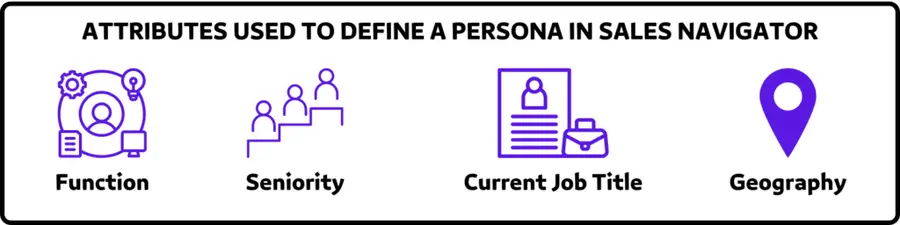
Each Persona is defined using a combination of:
- Function
- Seniority level
- Current job title
- Geographic location
Creating effective Sales Navigator personas requires understanding your target audience’s pain points, goals, and decision-making processes.
This strategic approach ensures your prospecting efforts focus on leads most likely to convert.
How To Create Sales Navigator Personas
Follow these steps to build personas on LinkedIn Sales Navigator:
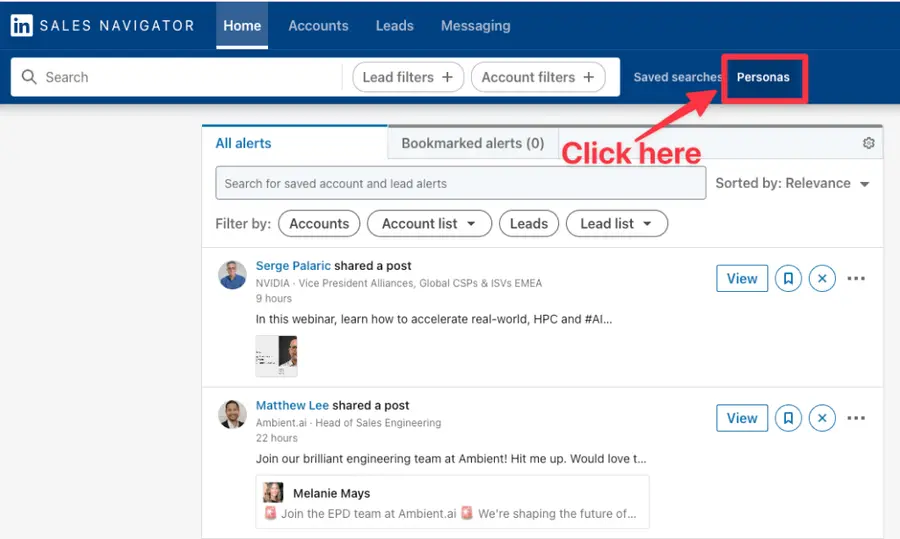
Navigate to the “Personas” section in your Sales Navigator dashboard.
You’ll find this feature in the main navigation menu, located near your saved searches.
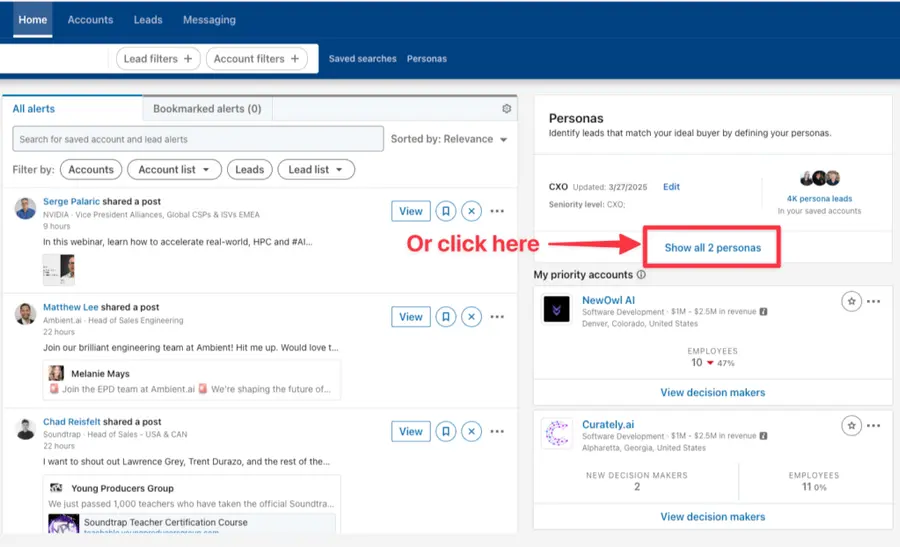
Or if you already have personas, you can click on “Show all X personas” in the “Personas” section on the right panel.
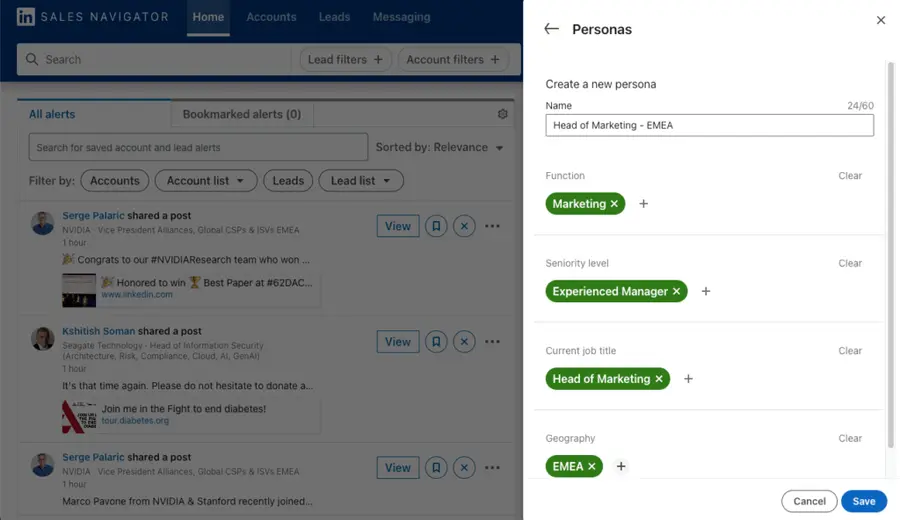
A sidebar will appear on the right. Click “Create a new persona +” at the bottom of the panel.
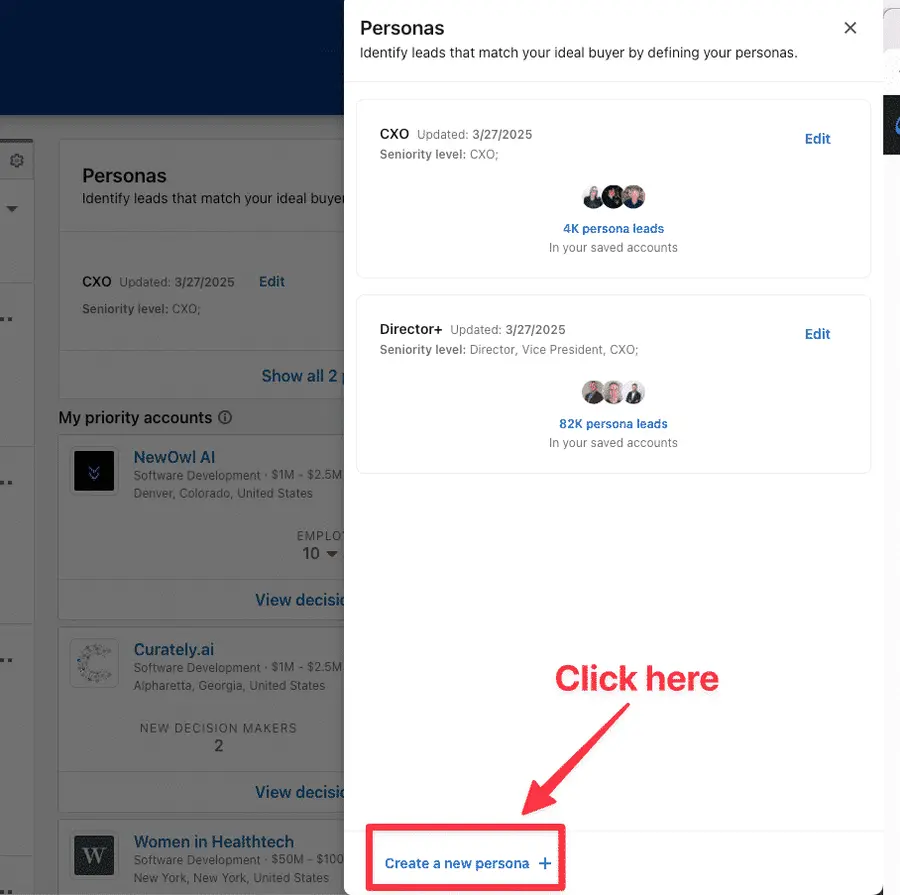
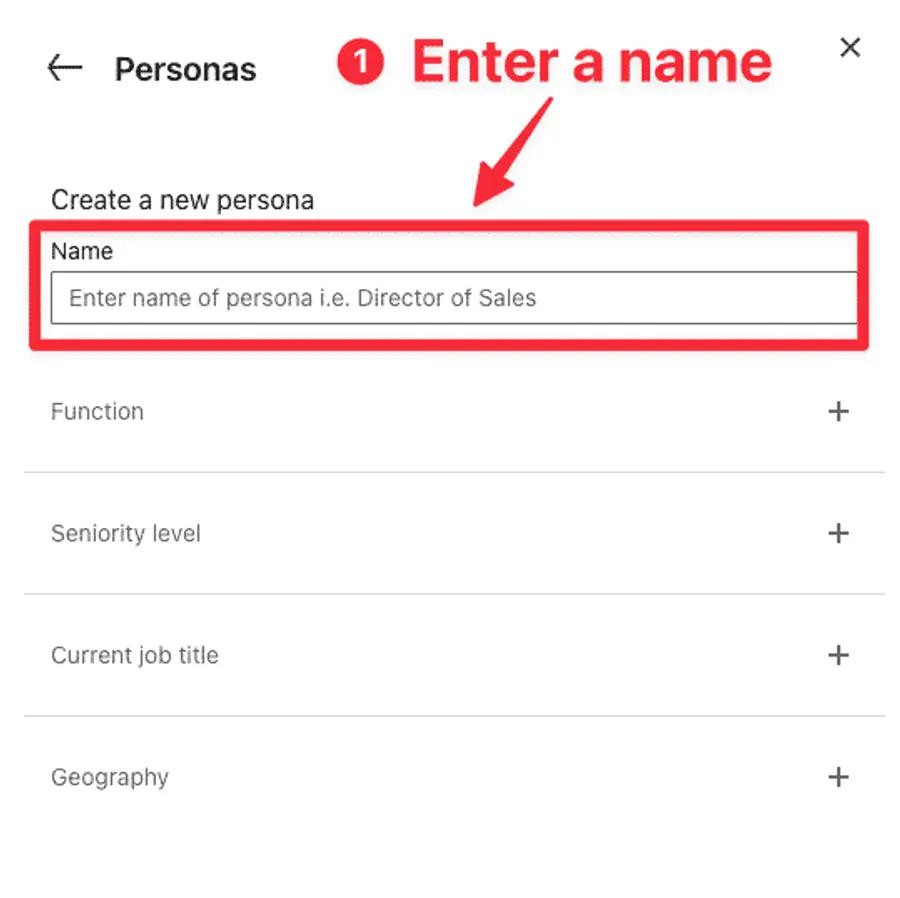
The right-hand panel will update to display the creation form.
Start by entering a name for the persona (up to 60 characters).
Choose clear, descriptive names that your entire team can understand.
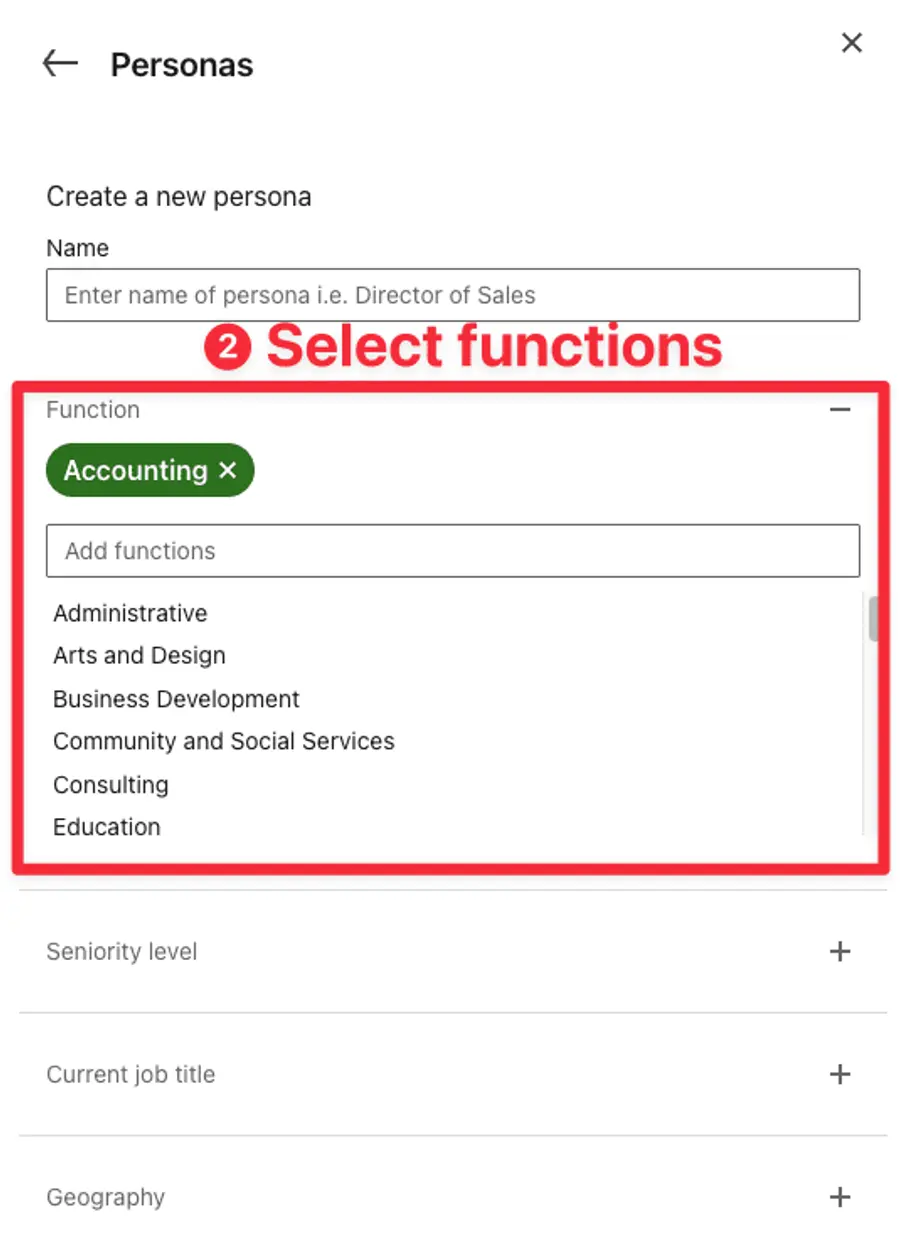
Then expand the ”Functions” field to search for and select functions.
Choose the primary role or department (Sales, Marketing, IT, Finance, etc.)
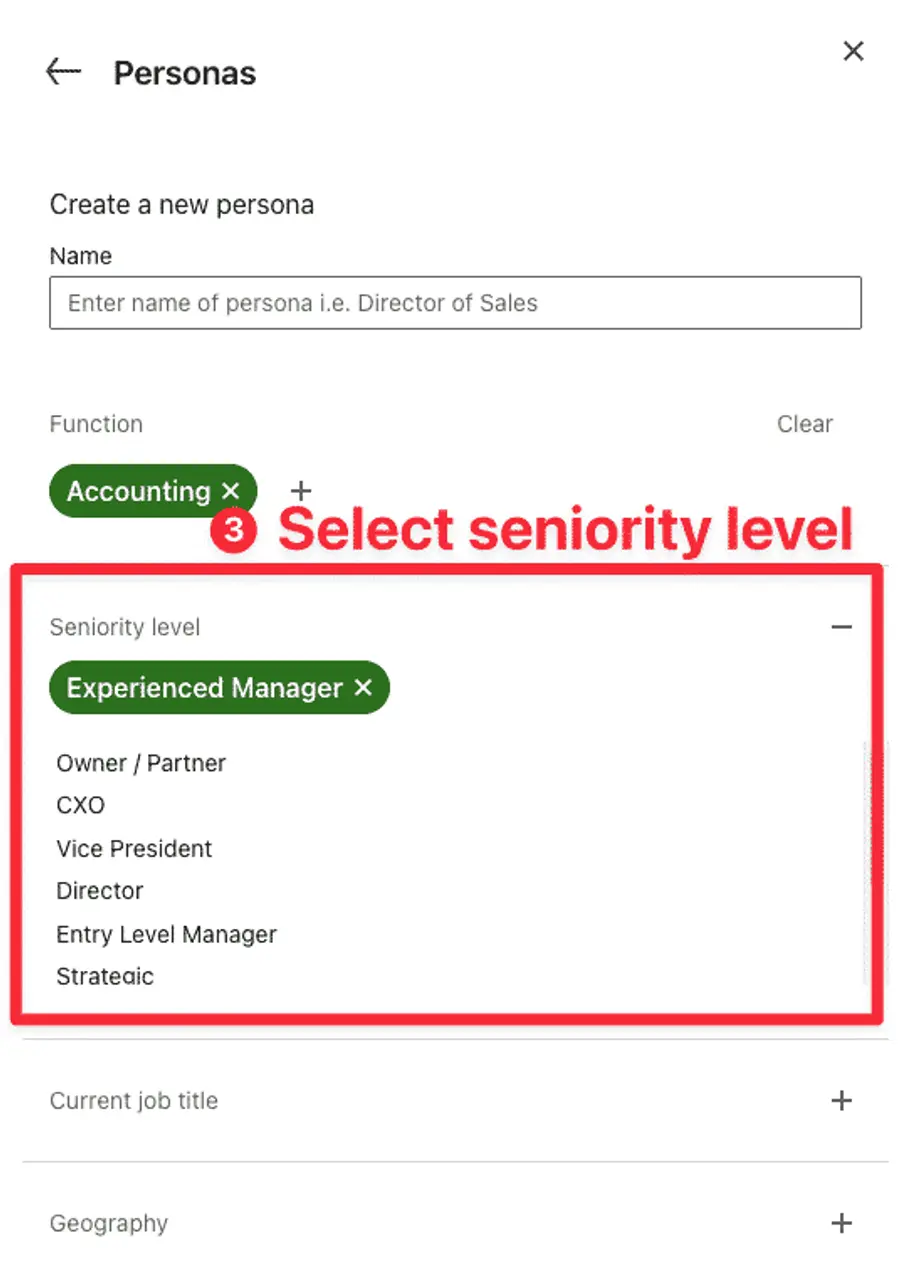
Do the same with the “Seniority level” field to search for and select seniority level.
Define decision-making authority, e.g. C-Level, VP, Director, Manager etc.
Continue with the “Current job title” field to search for and select current job titles.
Include specific titles your prospects typically hold.
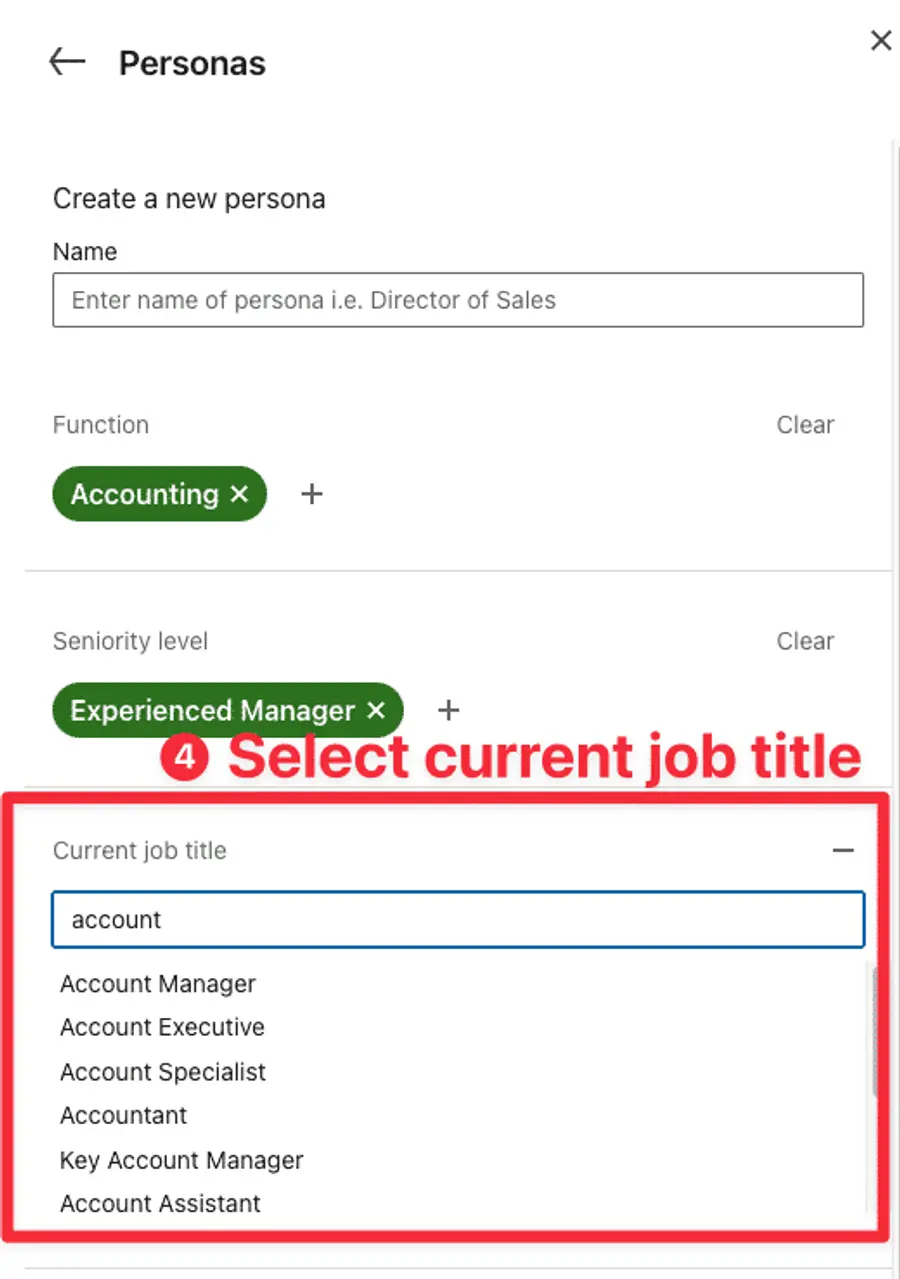
And finally, expand the “Geography” field to search for and select regions.
You can add either regions or postal codes, but not both simultaneously.
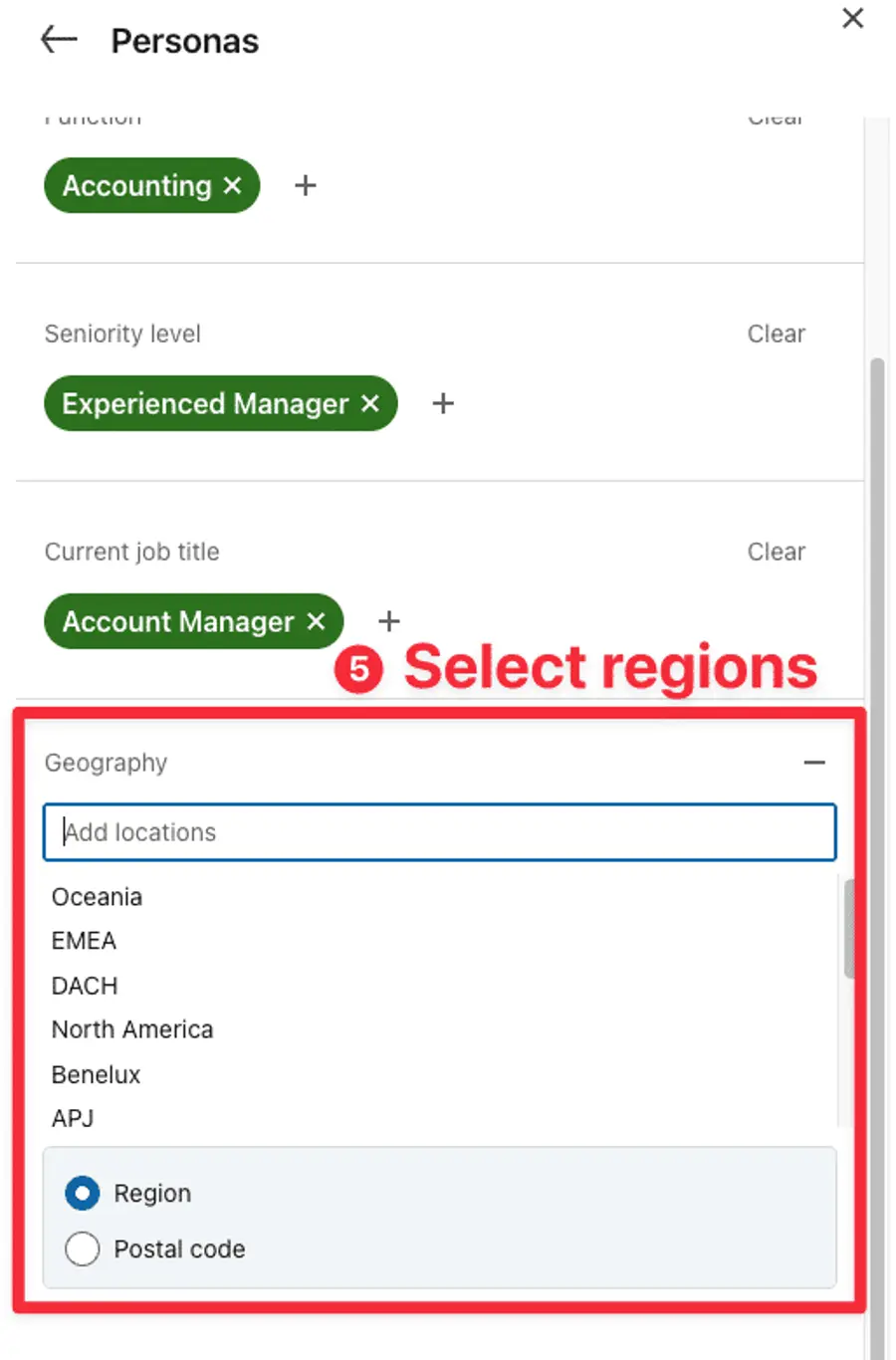
Once done, click the Save button in the lower-right corner.
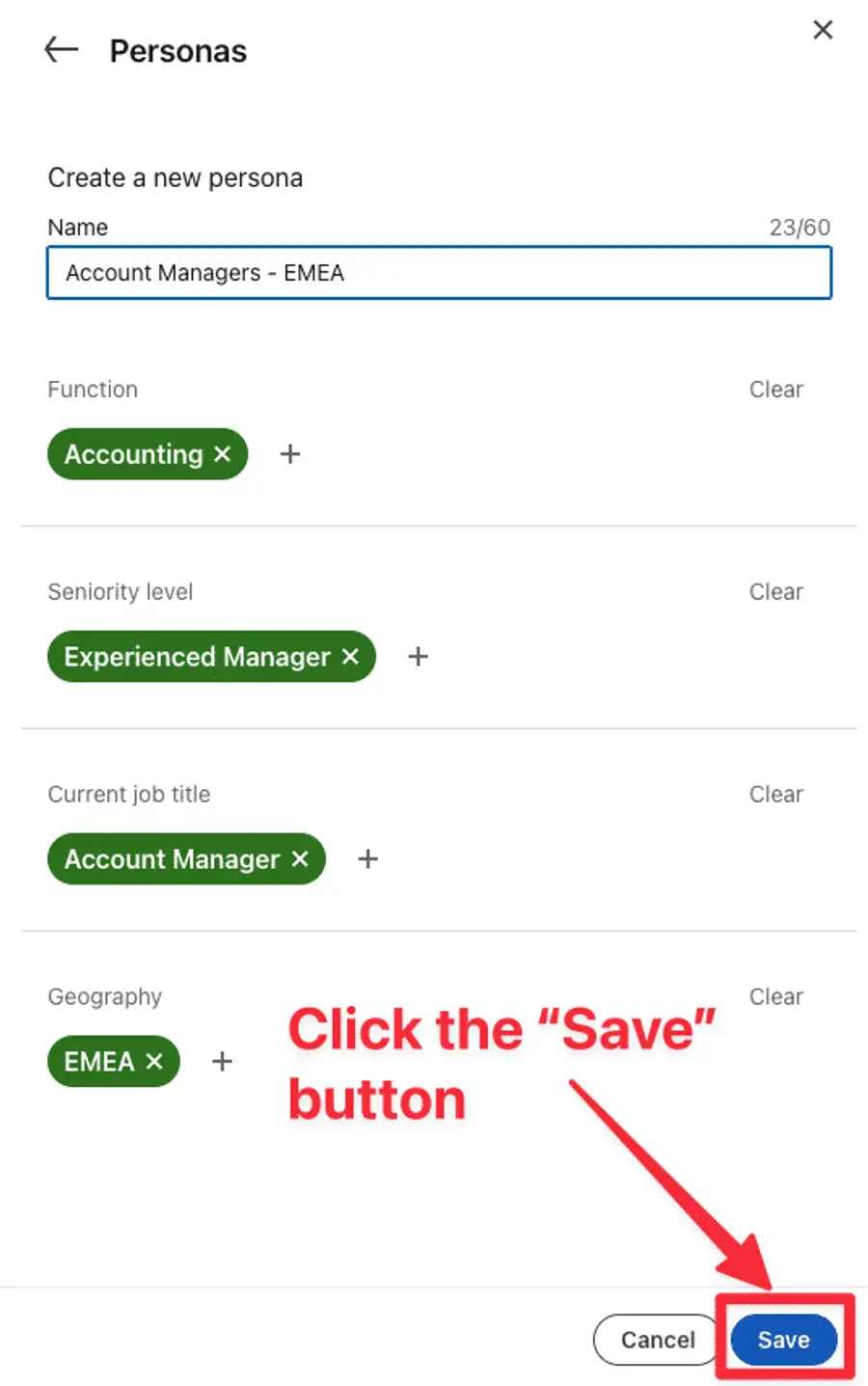
And here you go! Your Persona is saved and will appear on the initial panel with your others Personas.
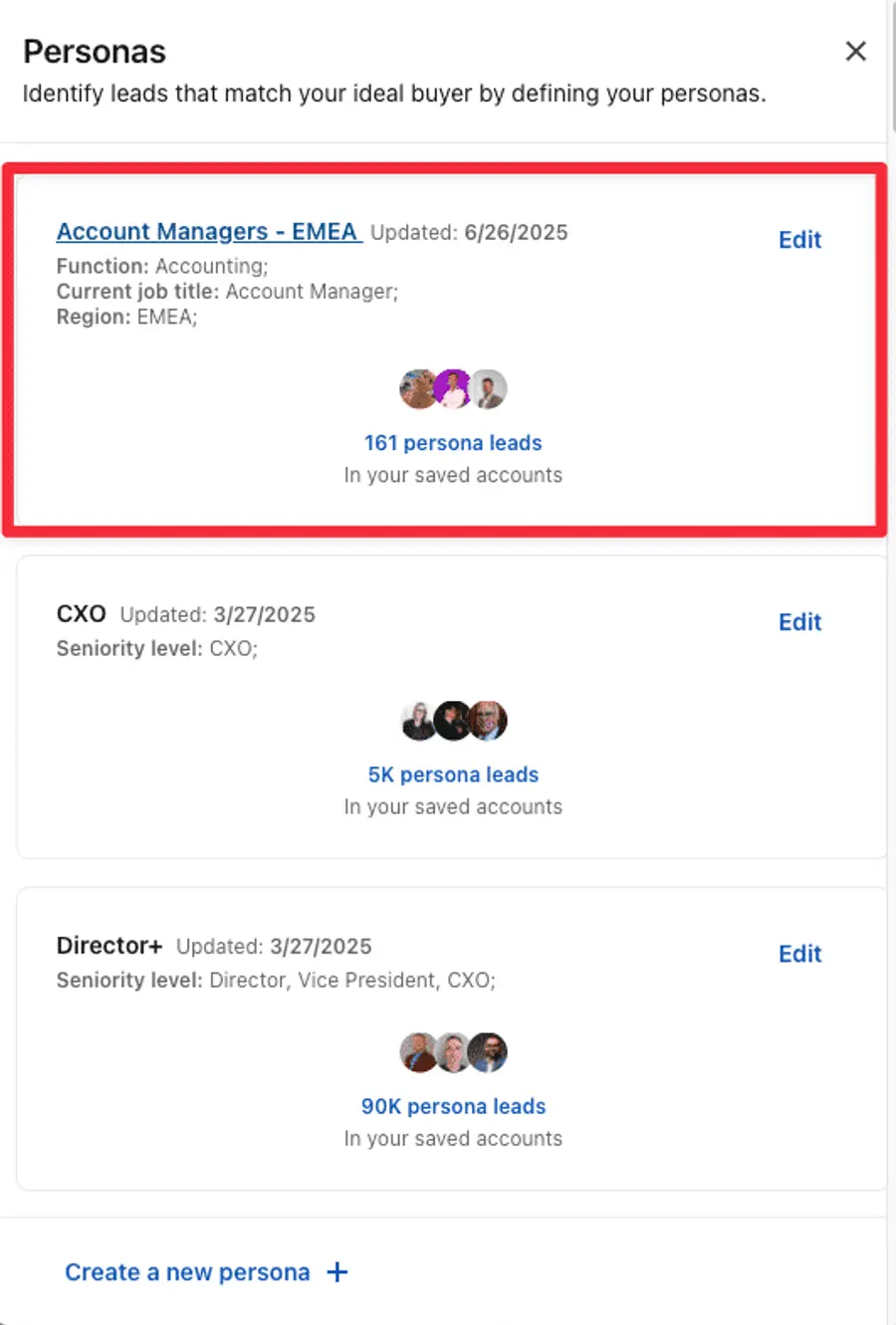
Remember to be specific but not overly restrictive. A persona that’s too narrow might limit your prospect pool, while one that’s too broad defeats the purpose of targeted prospecting.
Use Personas In Lead Searches
Now that your Persona is ready, you can start using it to find leads in Sales Navigator.
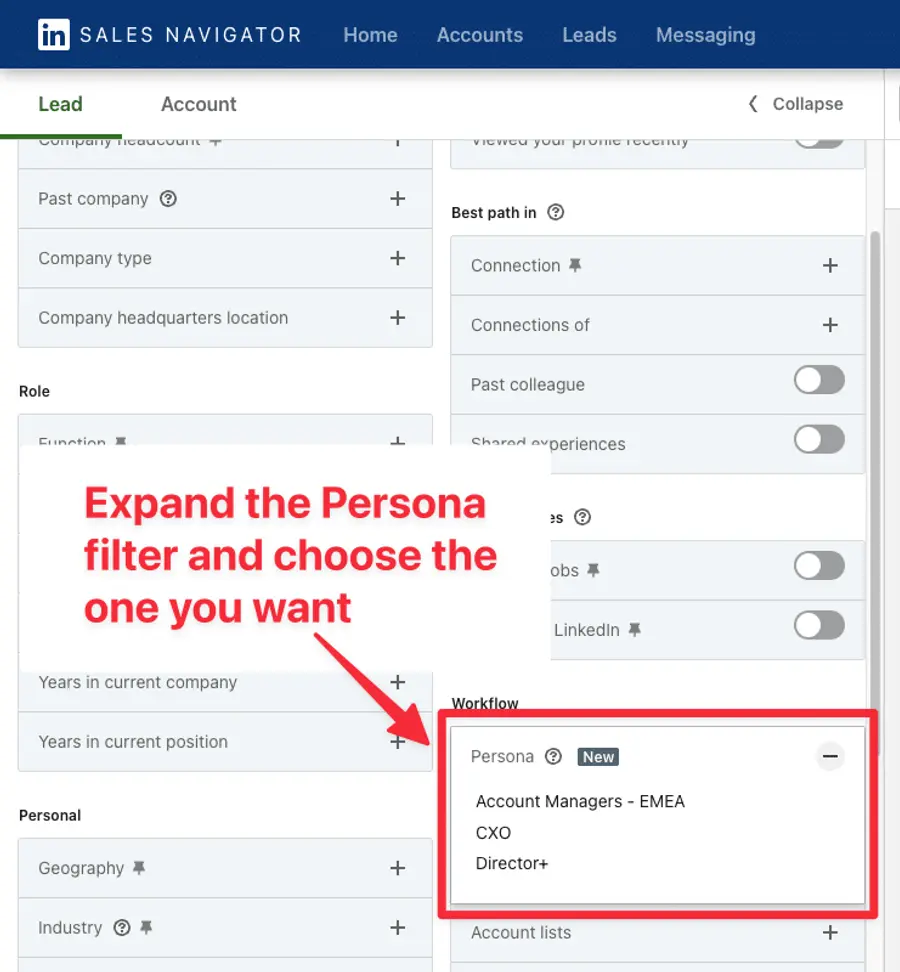
Go to the Lead search page, and expand the Persona filter in the “Workflow” section.
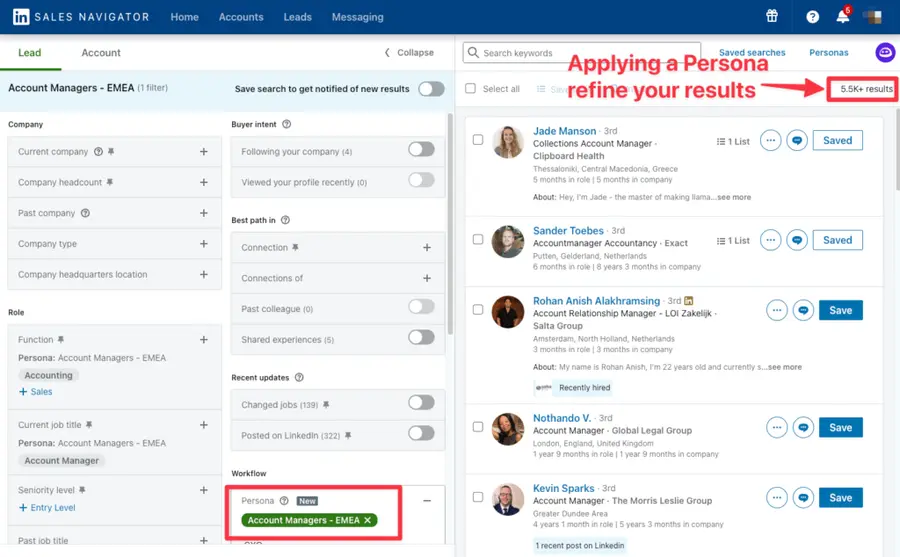
You will then see a list of all the Personas you created. Select the one you want.
This will immediately refine your results.
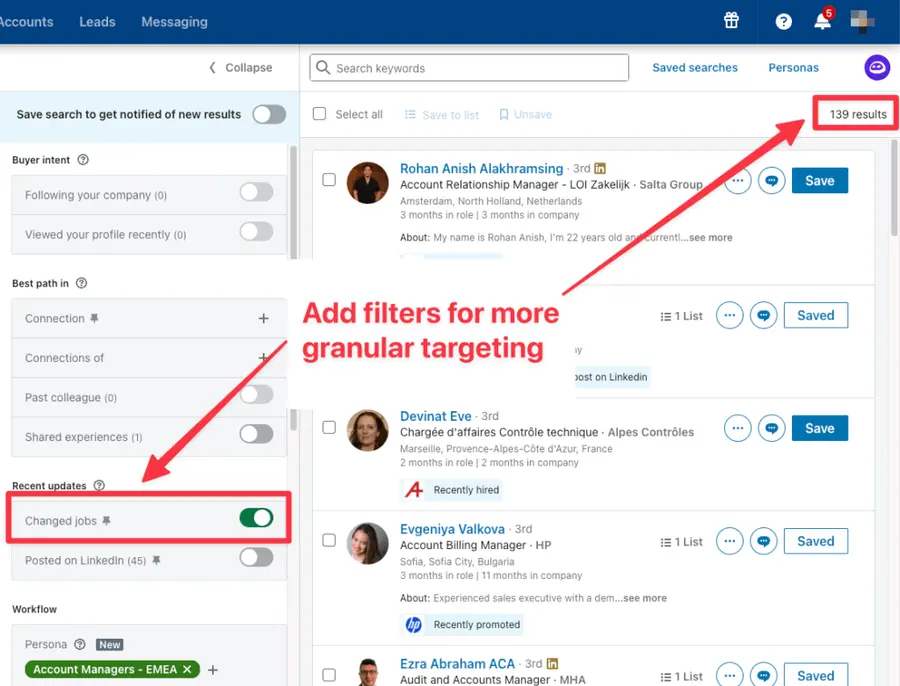
You can also combine personas with additional filters for more granular targeting.
For example, add filters for recent job changes or company growth.
These hyper-targeted searches allow you to prioritize outreach and significantly increase connection and response rates.
But identifying great leads is just step one.
What you do with those leads next is what really counts.
How To Export Lead Lists from LinkedIn Sales Navigator
To take full advantage of your Persona-driven searches, you need a simple, accurate way to extract lead data. That’s where tools like Evaboot come in.
Evaboot lets you cleanly and efficiently export your LinkedIn Sales Navigator lead lists, making it easier to integrate with your CRM or outreach workflows.
Here’s how to export leads from Sales Navigator:
- Create an Evaboot account
- Download the Chrome Extension
- Select your Sales Navigator lead or account lists
- Name and launch your export
- Download your cleaned list
1. Create an Evaboot account
Step 1 is to go to Evaboot and click “Sign up”. Then, create an account.
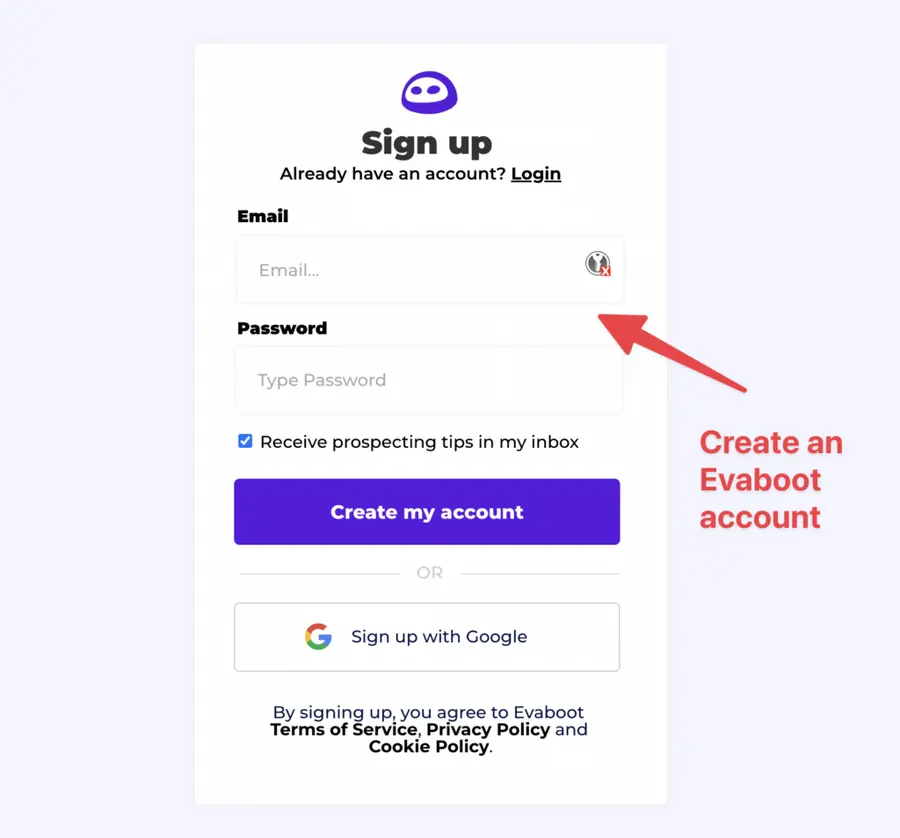
Once you’ve created your account, click on “Get Chrome Extension” to download it from the Chrome Web Store.
2. Download the Chrome Extension
When on the Chrome Store page, click “Add to Chrome” to install the extension.
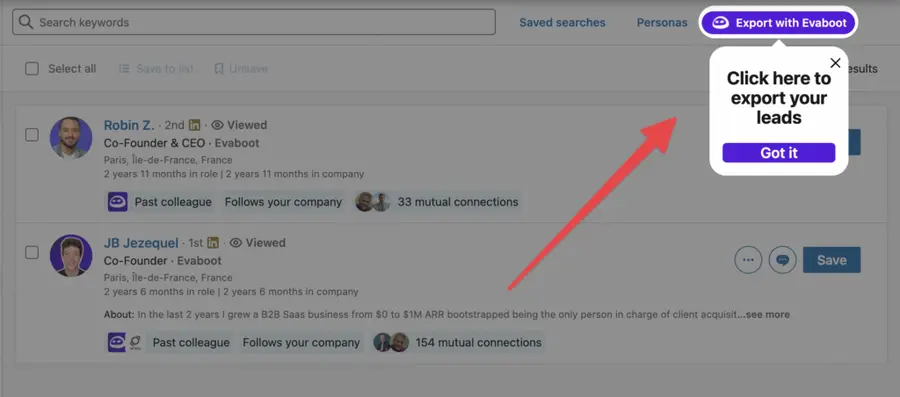
You’ll be automatically redirected to Sales Navigator. A popup will show you where the button is located.
3. Select your Sales Navigator lead or account list
Once the Chrome extension is installed, go to the list of leads or accounts you want to export. It can be:
- Lead Searches
- Lead Lists
- Account Searches
- Account Lists
- Saved Searches
Evaboot handles all the use cases.
The “Export with Evaboot” button is at the top of these LinkedIn Sales Navigator pages.
This is what it will look like for lead lists:
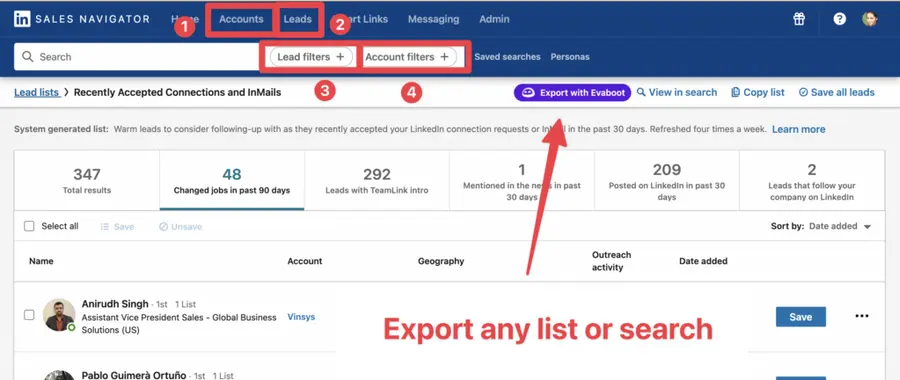
You can export specific tabs in your lead lists, such as “Changed jobs in the past 90 days.”
And this is what it will look like for account lists:
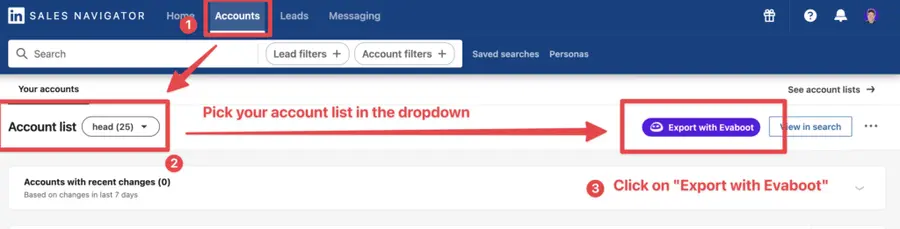
When you export account lists from the Sales Navigator with Evaboot, you get the following:
- Company Name
- Company Website
- Industry
- Specialties
- Employee Count
- Employee Range
- Location
- Company Linkedin URL
- Company Type
- Year Founded
- Company Profile Picture
- Company Description
Evaboot’s cleaning and filtering algorithms also clean and filter all this data.
4. Name and launch your export
When you click “Export with Evaboot” you will be redirected to the Evaboot app.
Choose whether you want to find emails for these leads.
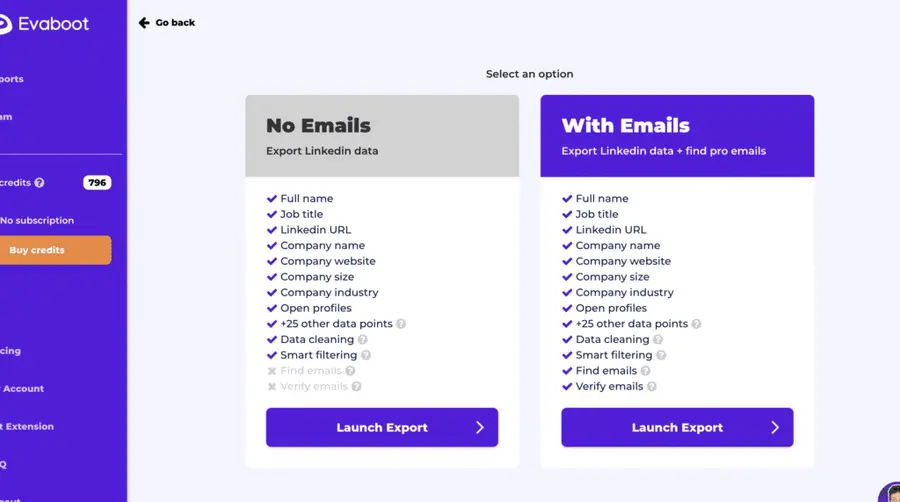
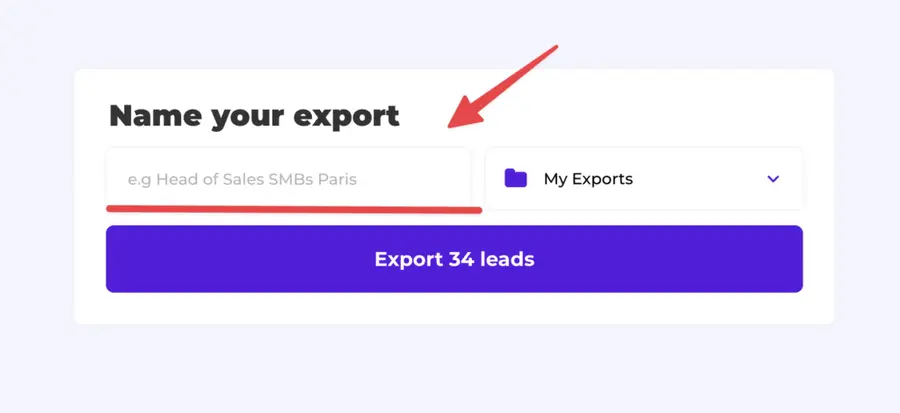
Give a name to your export and click on “Export leads”.
The estimated end date will appear on the left right after launching the export.
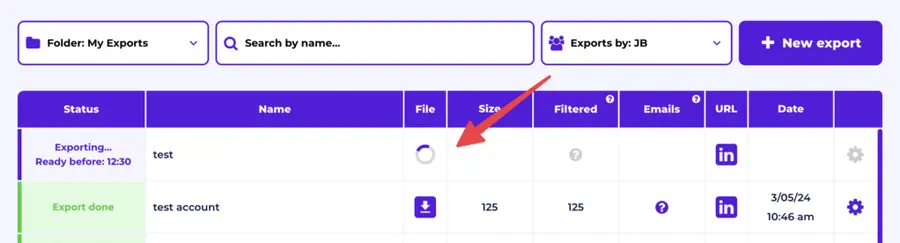
Evaboot will export all these leads in real-time.
That makes your lead generation process GDPR-compliant, in opposition to using databases.
5. Download your cleaned list
After the extraction is done, you will get an email. This email will have a link to download your lead list in a CSV file.
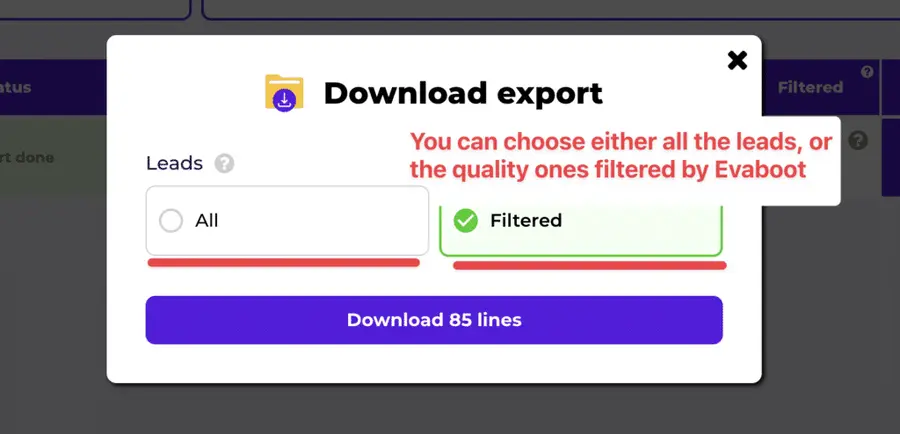
Choose the list type that you want to download. And you’re done.
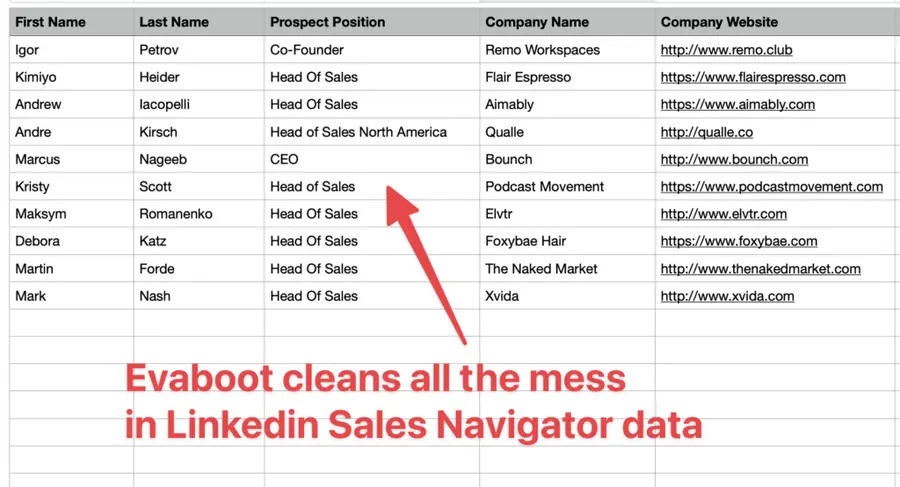
Evaboot does much more than export your list. It also cleans all the names and company names of your LinkedIn contacts.
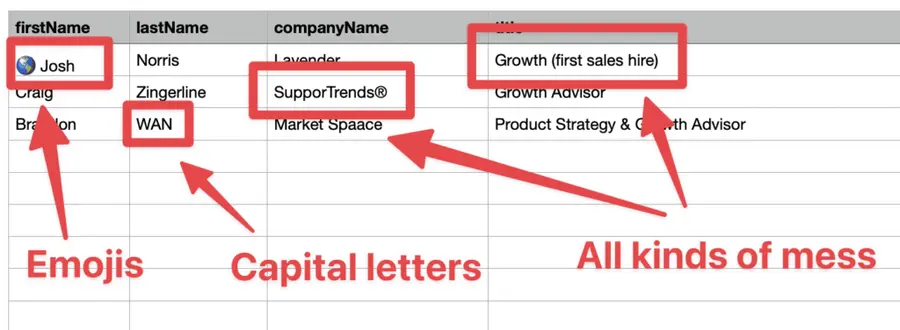
The data on LinkedIn is not clean.
Cleaning data from your sales navigator export can take hours if you do it manually.
Hopefully, the Evaboot cleaning algorithm takes care of all this work for you by automatically cleaning:
- First names
- Last names
- Company names
- Job titles
Nobody wants to spend hours cleaning Excel files. Better let robots do this boring job.
You will often find false positives in your LinkedIn Sales Navigator search results.
Even if you’re using super precise LinkedIn boolean search operators.

You will frequently find leads that don’t match the search filters you chose in the Sales Navigator search engine.
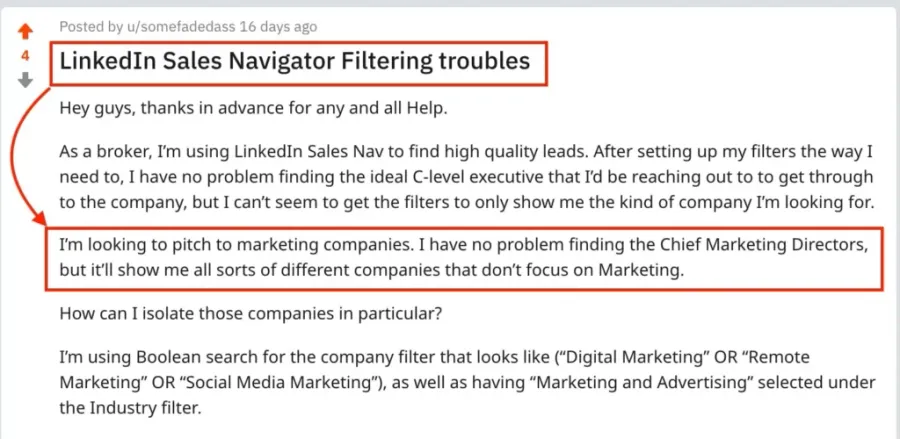
That’s why many people spend hours double-checking their search results manually.
This is a painful task, but it’s no problem.
Evaboot is the best Sales Navigator scraper.
Our algorithm checks your leads twice to make sure they fit your search filters.
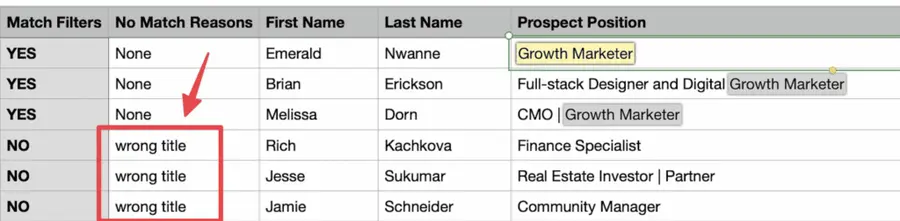
In this export, there’s a column named “No Match Reasons.” This column tells you if your leads really match your search filters.
If they don’t, we will explain why. In this example, the leads have the wrong title. The initial search was for growth marketers.
To reduce false positives in your Sales Navigator searches, check out our full Sales Navigator tutorial.
And here you go!
With this data, you can use multichannel outreach.
This will help you reach new prospects in many ways.
Benefits Of Using Personas In Sales Navigator
Sales Navigator personas offer three advantages that can dramatically improve your prospecting results:
- Streamlined Prospecting
- Personalized Messaging
- Advanced Lead Prioritization
1. Streamlined Prospecting
Personas eliminate the time-consuming process of manually setting search filters for each prospecting session.
Instead of spending 10-15 minutes configuring searches, you can activate a persona and start reviewing prospects immediately.
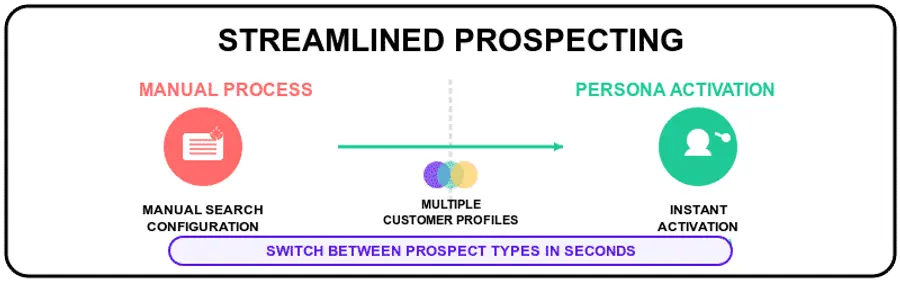
This efficiency gain is particularly valuable for sales teams managing multiple ideal customer profiles. With personas, you can switch between different prospect types in seconds rather than minutes.
2. Personalized Messaging
Persona data provides rich context for crafting targeted outreach messages.
When you understand a prospect’s role, seniority, and industry challenges, you can create personalized LinkedIn messages that resonate.
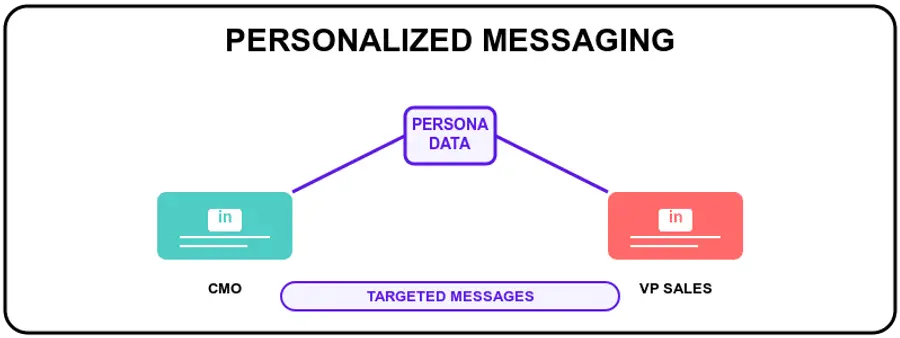
For example, a Chief Marketing Officer persona might focus on growth metrics and ROI, while a VP of Sales persona emphasizes pipeline efficiency and team performance.
3. Advanced Lead Prioritization
Personas help you focus on prospects with the highest conversion potential.
By defining specific criteria for each persona, you can prioritize outreach efforts based on prospect quality rather than quantity.
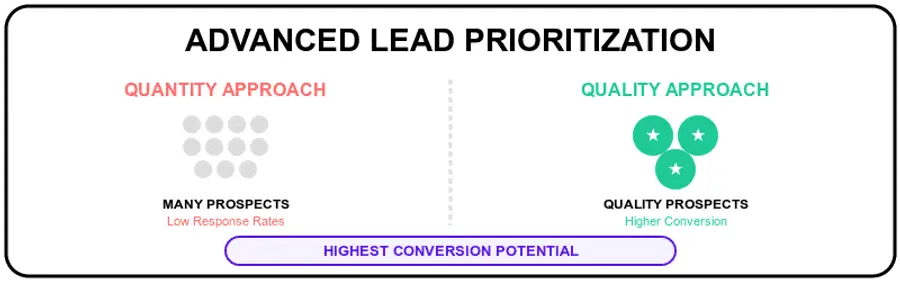
This targeted approach typically results in higher response rates and shorter sales cycles.
You’re connecting with prospects who are more likely to have budget, authority, and genuine interest in your solution.
Conclusion
Sales Navigator personas represent a fundamental shift from spray-and-pray prospecting to strategic, targeted lead generation.
By creating detailed profiles of your ideal customers and leveraging LinkedIn’s advanced search capabilities, you can dramatically improve your prospecting effectiveness.
Invest the time to develop comprehensive personas, and you’ll see significant improvements in lead quality, response rates, and overall sales performance.
FAQ
Can I Use Sales Navigator Personas in Both Lead and Account Searches?
No, the Personas filter is only applicable to lead searches.
However, when viewing an account page, the top card displays the available Personas associated with that account.
How Many Personas Can I Create?
LinkedIn Sales Navigator allows you to maintain up to five Personas at a time.
Two default Personas are provided initially (Director+ and CXO), and you can create three additional ones based on your targeting needs.
If needed, the default Personas can be edited or deleted to free up space for custom Persona setups.
How Do I Edit Personas?
You can update your existing Personas directly from three key areas in Sales Navigator:
- On the Homepage, go to the “Personas” section and select “Edit” next to the Persona you want to change.
- In the Relationship Explorer tab, click “Edit” beside the criteria of the relevant Persona.
- Within the Search view, open the “Personas” menu to access and adjust your Persona filters.
Is It Possible To Share Personas With Team Members?
While Sales Navigator doesn’t offer direct persona sharing, you can align team members by documenting persona criteria and naming conventions.
Create a shared document that outlines each persona’s targeting parameters.
This documentation ensures consistent persona usage across your team, even though each member must create their own personas manually.
Are Personas Useful For SMBs Or Just Enterprise Teams?
Sales Navigator personas benefit businesses of all sizes.
Small and medium businesses often have more focused target markets, making personas particularly valuable for precise targeting.
SMBs can use personas to compete more effectively against larger competitors by focusing on specific niches and delivering highly targeted messaging.


