
Running an agency means one thing: you need a constant flow of qualified clients.
Traditional prospecting methods eat up your time. Cold calling feels outdated. Email lists get stale fast.
Sales Navigator for agency owners changes the game completely.
This powerful LinkedIn tool helps you find decision-makers at companies that actually need your services. No more guessing. No more wasted outreach.
Want to build laser-targeted client lists? Looking to scale your agency’s lead generation?
This guide shows you exactly how to use Sales Navigator for agency owners to fill your pipeline with qualified prospects. I’ll be providing practical tips and insights on:
- Why Agency Owners Need LinkedIn Sales Navigator
- Setting Up Sales Navigator for Agency Success
- Advanced Sales Navigator Strategies for Agencies
- How To Export Lead Lists from LinkedIn Sales Navigator
- Outreach Strategies That Convert
Let’s dive in.
Why Agency Owners Need LinkedIn Sales Navigator
Agency owners face unique challenges. You’re not selling a simple product. You’re selling expertise, results, and long-term partnerships.

LinkedIn Sales Navigator for agency owners solves three critical problems:
- Finding the right decision-makers. Regular LinkedIn shows you basic job titles. Sales Navigator reveals the actual people who sign contracts and approve budgets.
- Targeting companies that need your services. Advanced filters help you find businesses showing growth signals, hiring patterns, or technology usage that indicates they need your help.
- Scaling your outreach efficiently. Manual prospecting takes forever. Sales Navigator automates lead discovery while keeping your outreach personal.
The result? More qualified conversations. Higher close rates. Predictable revenue growth.
Setting Up Sales Navigator for Agency Success
Getting started with Sales Navigator for agency owners requires strategic setup.
Here’s how to optimize your account:
- Choose the Right Plan
- Optimize Your LinkedIn Profile
- Define Your Ideal Client Profile
1. Choose the Right Plan
There are 3 LinkedIn Sales Navigator plans: Business (Core), Advanced (Team), or Advanced Plus (Enterprise).
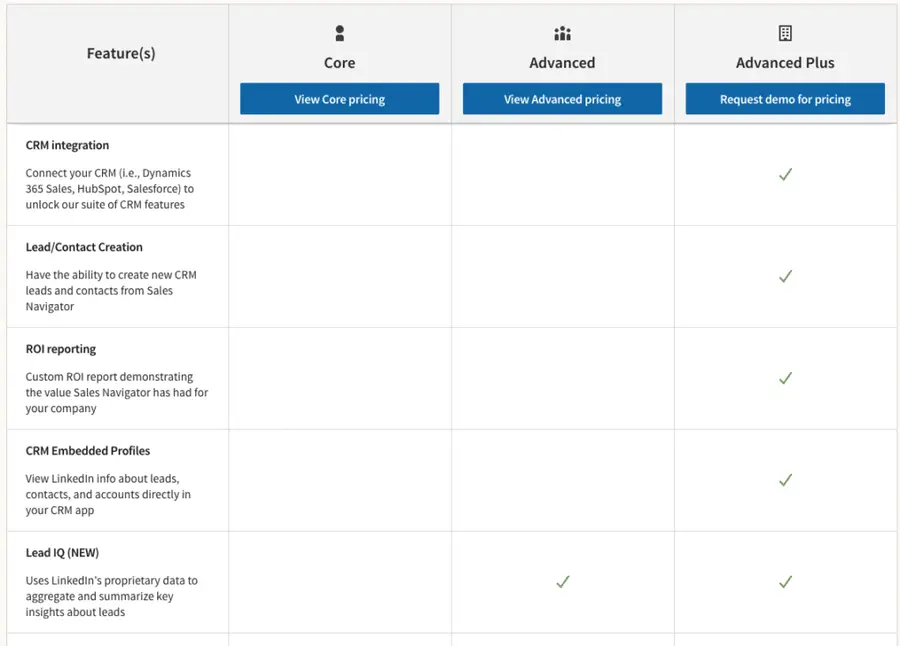
- Sales Navigator Core works for solo agency owners or small teams. You get advanced search filters, lead recommendations, and InMail credits.
- Sales Navigator Advanced suits growing agencies with multiple team members. It includes team collaboration features and CSV uploads.
- Sales Navigator Advanced Plus fits enterprise agencies. You get CRM integration and extended team features.
Most agency owners start with Core and upgrade as they scale.
2. Optimize Your LinkedIn Profile
Your prospects will check your profile before responding. Make it count.

Here are a few key elements to optimize on your LinkedIn Profile:
- Professional headshot: Use a clear, high-quality photo that builds trust.
- Compelling headline: Don’t just list your job title. Explain the results you deliver. For example: “I help SaaS companies increase MRR by 40% through content marketing.”
- Results-focused summary: Share specific client wins. Include metrics and case studies.
- Complete experience section: Show your track record with detailed descriptions of your agency work.
Want more tips to optimize your LinkedIn profile? Watch the video I made here:
3. Define Your Ideal Client Profile
Before searching, know exactly who you’re targeting.
- Company size: Are you targeting startups, mid-market, or enterprise clients?
- Industry focus: Which sectors do you serve best? Where do you have proven results?
- Budget indicators: Look for signals that companies can afford your services.
- Technology stack: What tools do your ideal clients use? This helps with targeting.

Clear targeting makes your Sales Navigator for agency owners strategy much more effective.
Advanced Sales Navigator Strategies for Agencies
Sales Navigator for agency owners shines with its advanced search capabilities.
Here’s how to find your ideal clients:
- Company-First Strategy
- Create an account list
- Find the right decision-makers
- Use Account IQ for Instant Company Insights
- Combine Sales Navigator and LinkedIn Ads
- Use Alerts for Perfect Timing
1. Company-First Approach
Start by finding the right companies, then identify decision-makers within them.
For that, you need to use company filters strategically.
Sales Navigator offers 14 search filters for accounts that would be perfect clients for your business.
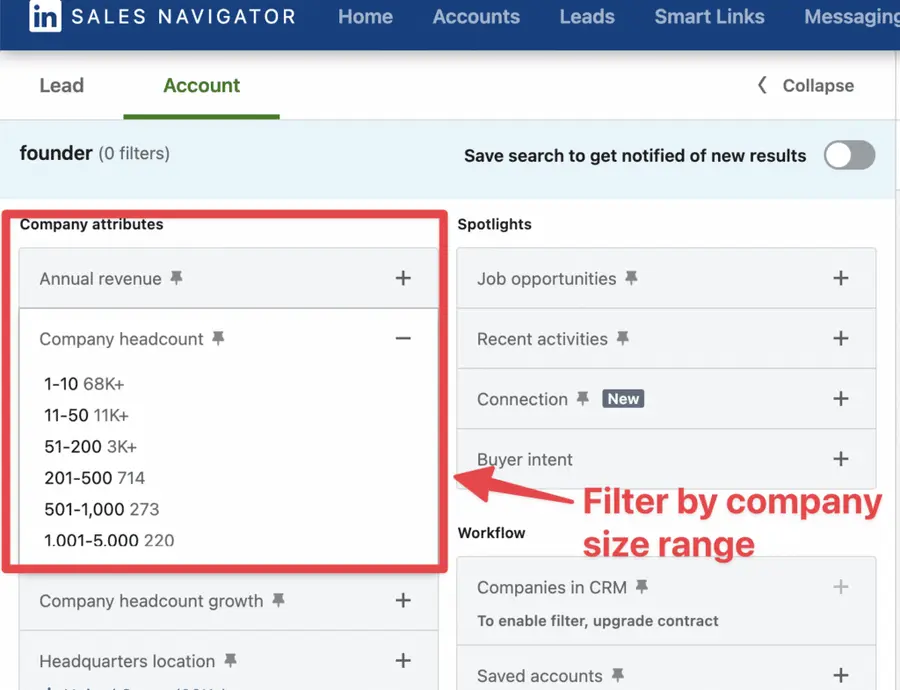
You can filter by:
- Company Size
- Location
- Industry
- Global headcount growth
- Department headcount growth
- Recent activities
- And much more…
The headcount growth and hiring filters allow you to target growing companies.
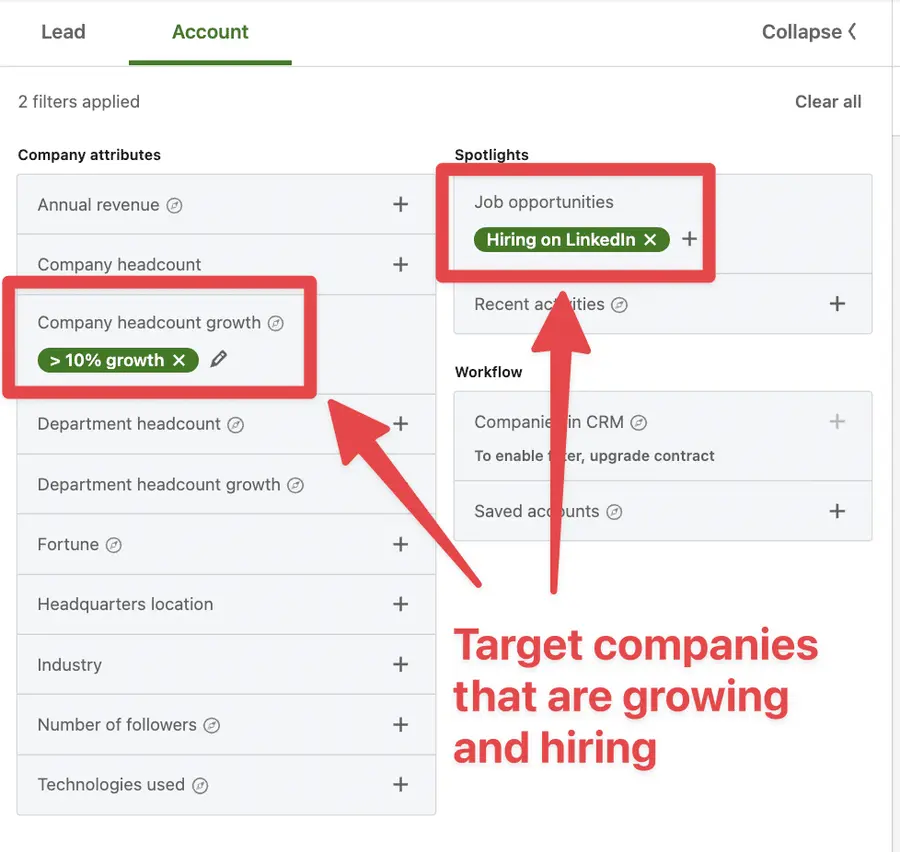
In terms of event detection, LinkedIn allows you to detect companies with recent funding events on Crunchbase.
LinkedIn also detects when they are a Senior Leadership change in the last 3 months in a company.
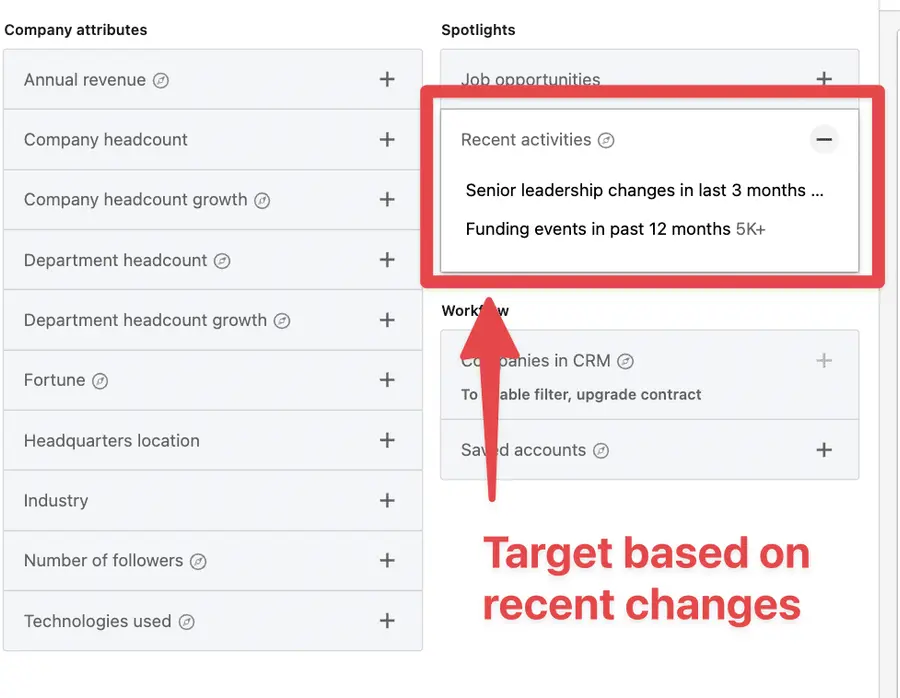
The arrival of a new top decision-makers is a great opportunity to launch a conversation with the account. Newcomers tend to come up with new ideas, requiring products and services.
The next step?
It’s to create account lists.
2. Create an account list
Once you have target companies, it’s time to find the right people.
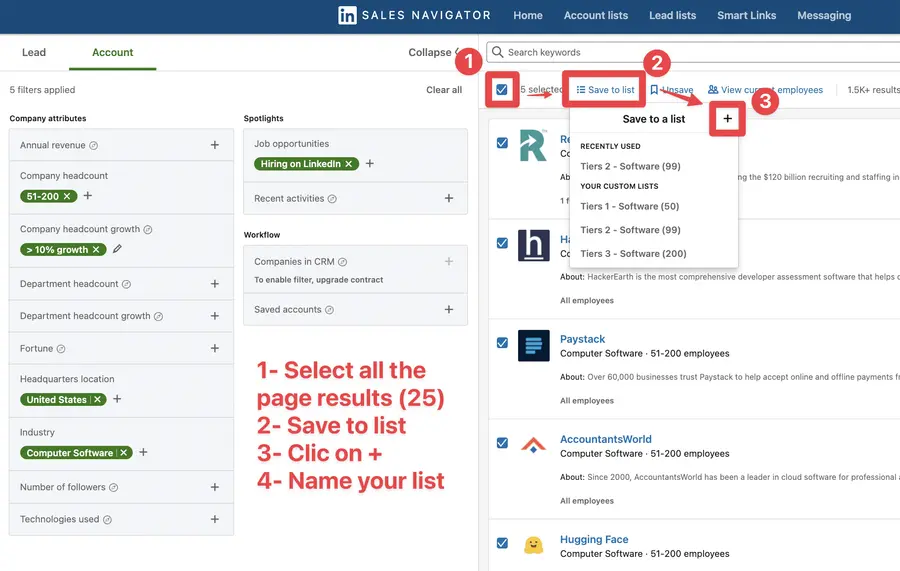
To create an account list on Sales Navigator:
- Tick the checkboxes
- Click “Save to list”
- Click +
- Give a name to your list
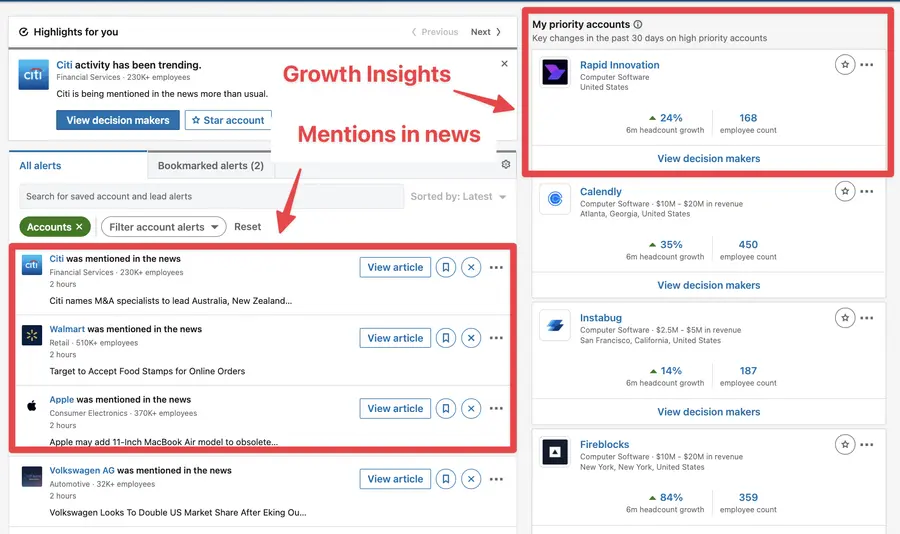
Once the account is added to your list, you will be notified when the company:
- Is mentioned in the news
- Publishes a post with a company page
- Has a senior leadership change
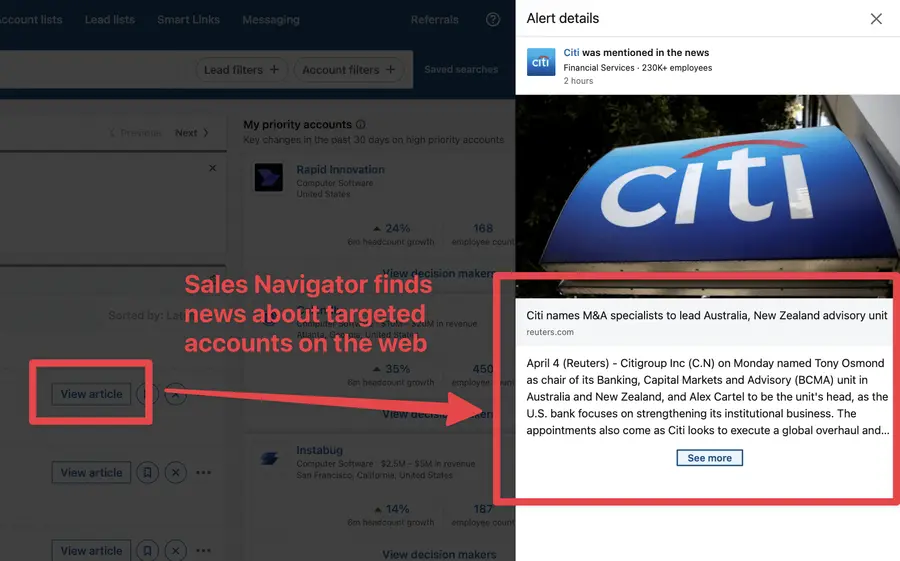
LinkedIn will also track your targeted companies online and send you a blog post mentioning them. If you click “View article”, you can see an abstract and read the post.
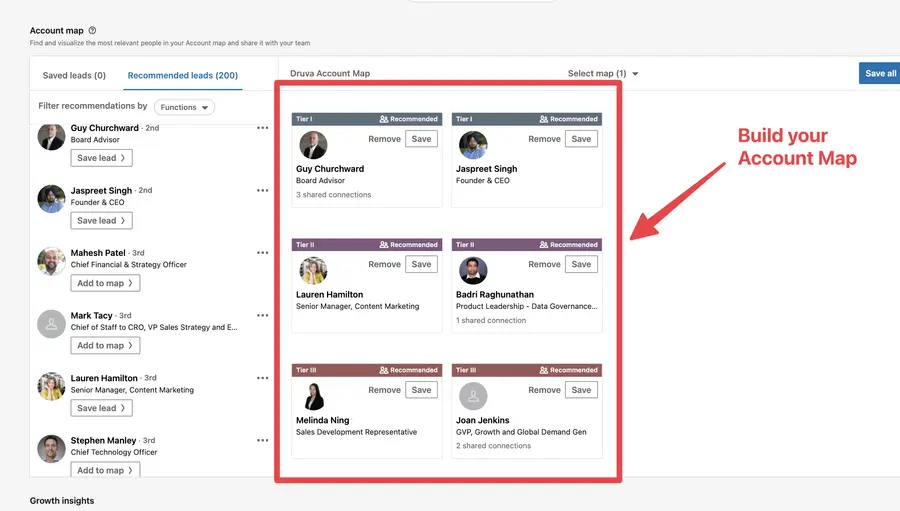
Another useful tool for is the LinkedIn company page.
You can build your relationship map there by dragging and dropping leads into several categories (Tiers 1, Tiers 2, Tiers 3).
On LinkedIn, you can get some insights about growth, the size of the department, the hires, and job openings.
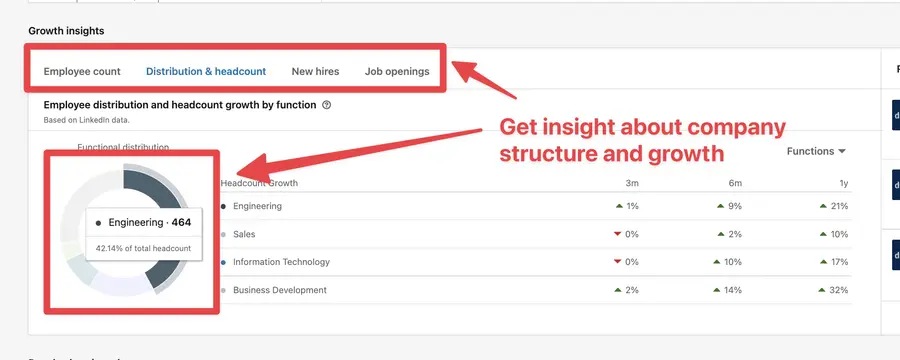
This is useful to get to know your account to write super personalized sales prospecting messages.
But to whom should you send the messages?
How do we find the decision-makers?
3. Find the right decision-makers
Here is how to find decision-makers within an account list using Sales Navigator:
- Go to the lead search
- Go to Workflow
- Open the filter Account List
- Select your account list
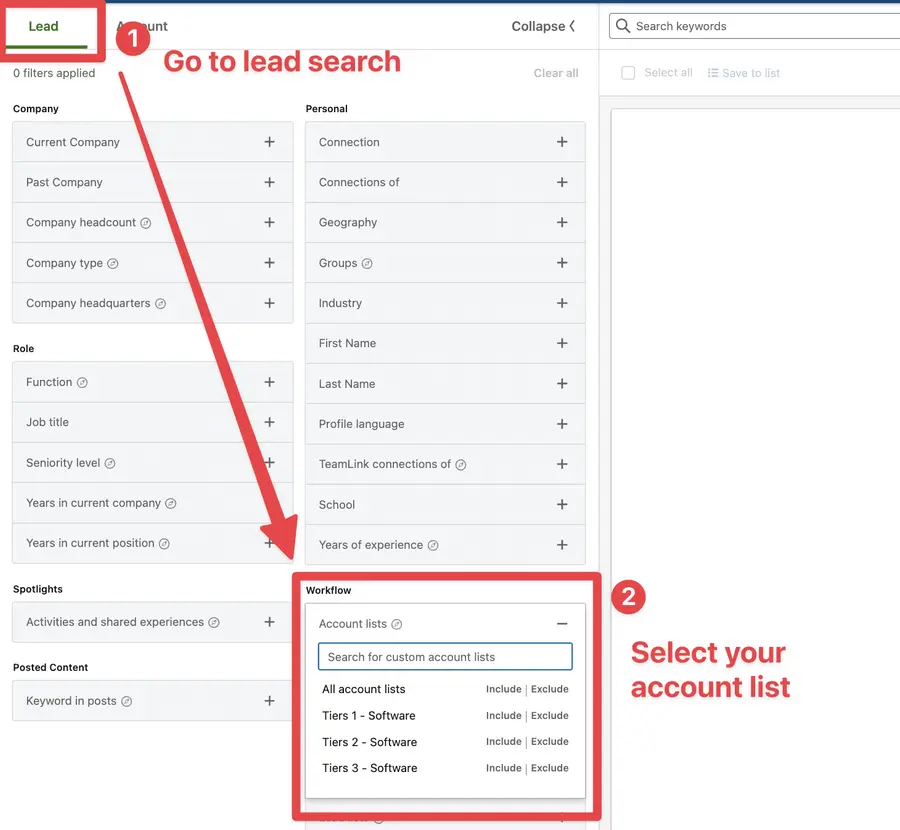
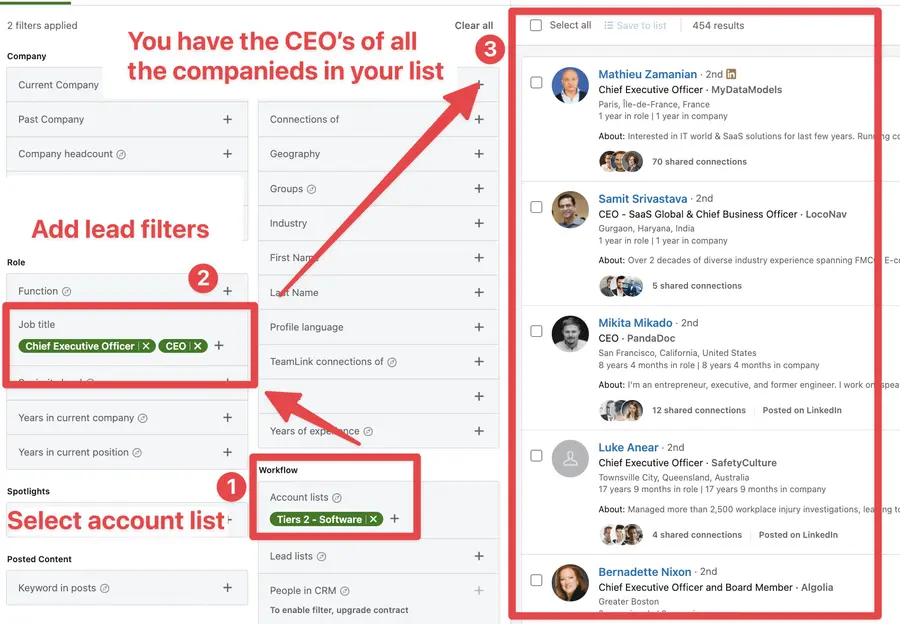
Once you have selected your account list, all the people working at these companies will appear in the search results.
Now you need to add filters to get the right decision-makers. The job title filter is a great way to do that.
4. Use Account IQ for Instant Company Insights
Once you’ve saved target companies in your account list, click into any company page to activate LinkedIn Account IQ — a powerful AI feature that summarizes everything you need to know before reaching out.
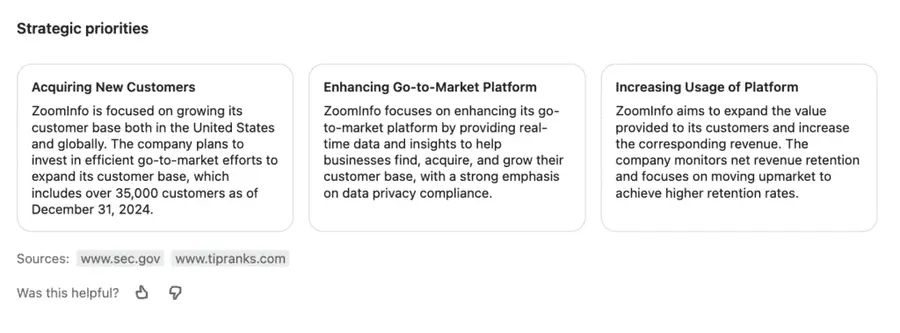
Here’s what you get in seconds:
- AI-generated pitch suggestions: Account IQ suggests different ways your product could help based on what you sell.
- Business model & revenue estimates: Understand how the company makes money, who they serve, and how big they are.
- Strategic priorities & business challenges: Get a snapshot of what’s keeping them up at night, and where your solution fits.
- Org chart & executive insights: Identify key decision-makers, recent job changes, and executive posts to reference in outreach.
- Hiring trends & growth signals: Spot departments with strong headcount growth — a key signal of need or pain.
- Competitive landscape: See how the company positions itself and who it’s up against.
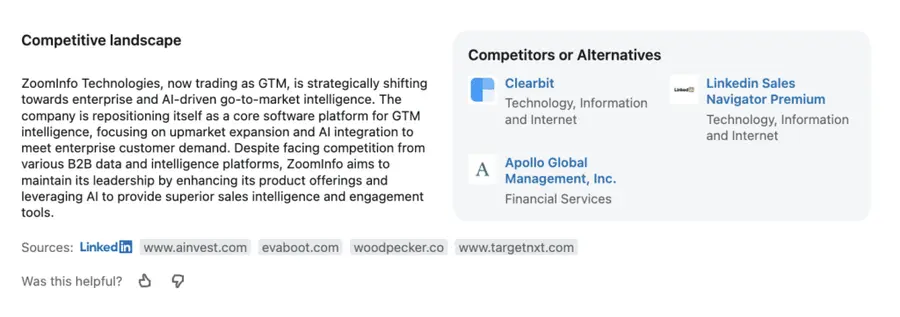
Pro tip: Use the AI-generated insights to write hyper-personalized cold emails with ChatGPT.
Simply click on “Generate insights” to see a detailed list of different ways you could help the company you’re targeting:
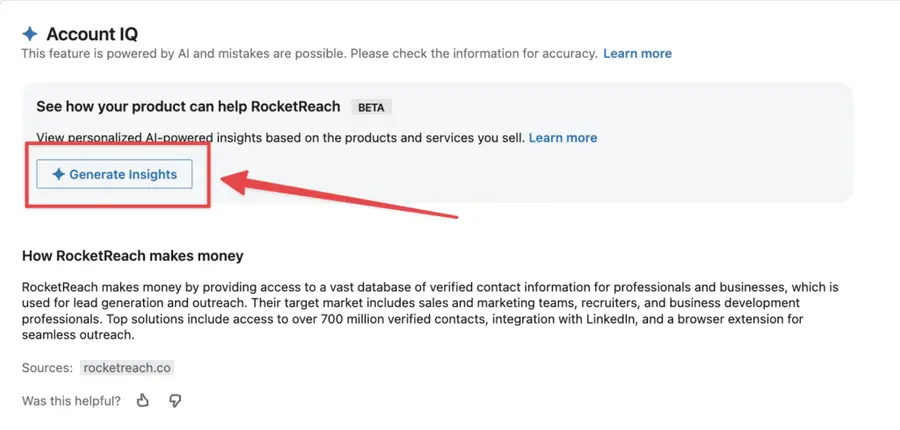
Copy the “3 ways your product can help” block…
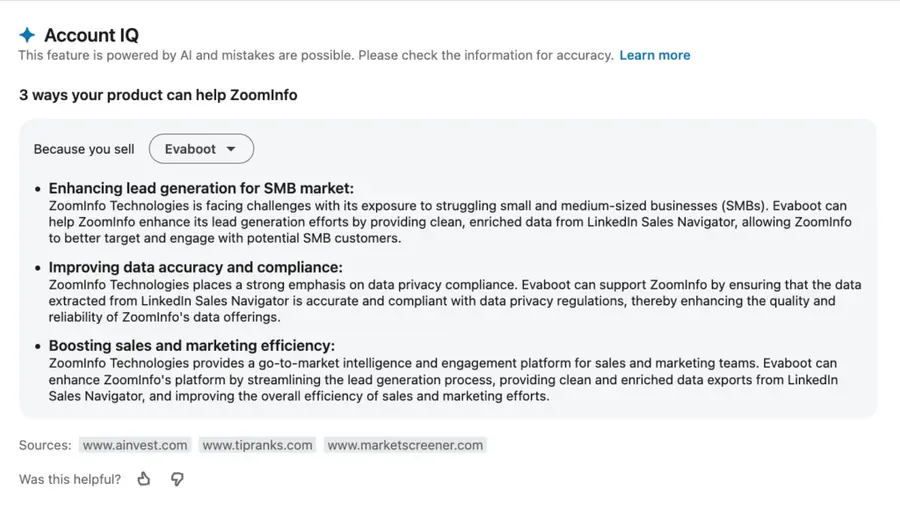
And prompt ChatGPT like this:
Write a short cold email to ZoomInfo, pitching Evaboot. Use the RABT framework:
Example output:
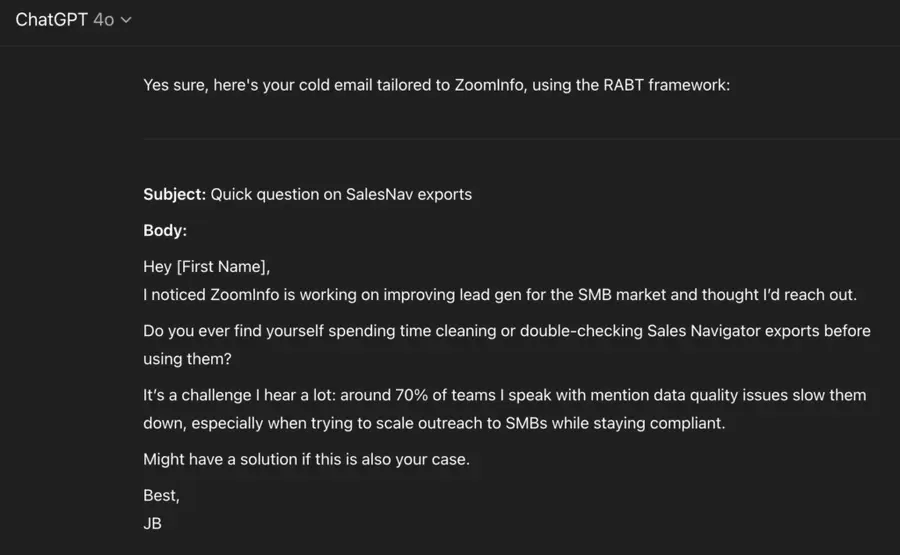
That’s how you turn AI insights into high-performing cold messages in seconds.
5. Combine Sales Navigator and LinkedIn Ads
The efficiency of your LinkedIn prospecting strategy can be boosted by LinkedIn marketing using LinkedIn Ads.
There’s a hack to create super-targeted LinkedIn ads with your Sales Navigator extractions.
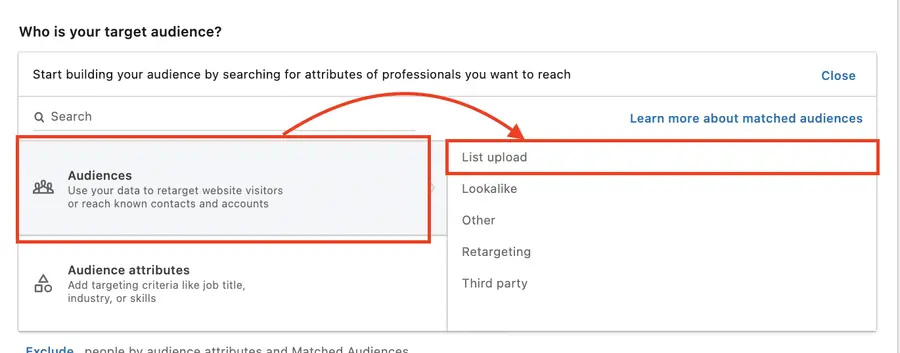
Instead of trusting the LinkedIn Algorithm, you provide LinkedIn with the exact list of people to target.
When choosing your audience, click List Upload > Contact List or Company List.
I’ve explained the entire process in this video:
By running ads to the people you are prospecting, you multiply the touchpoints your prospects have with your agency and increase the chances of getting a reply.
6. How to leverage alerts to follow up
Once you add a lead to a list, Sales Navigator alerts will track their activity on LinkedIn and send you updates like:
- the post they publish or share
- job change
This social selling feature is really valuable for sending personalized follow-up messages.
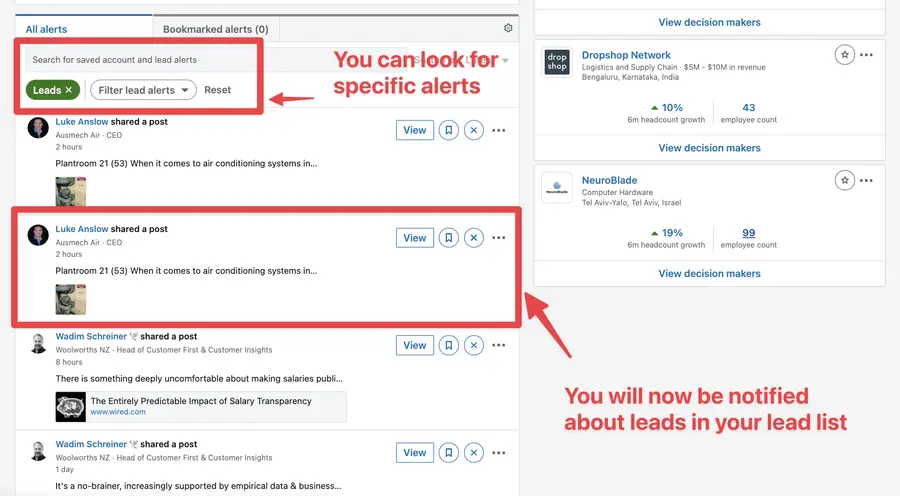
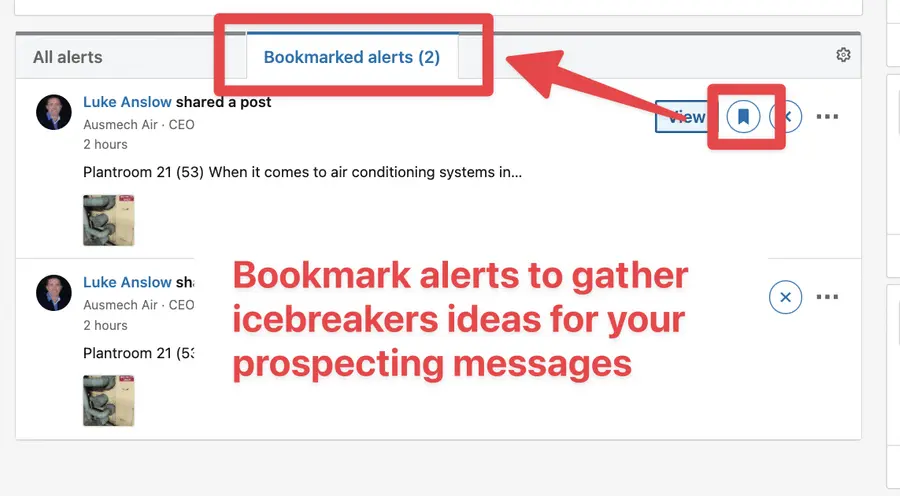
You can bookmark alerts to save them for later.
If you click View, the LinkedIn post will open on the left, and you can like and comment directly from LinkedIn Sales Navigator.
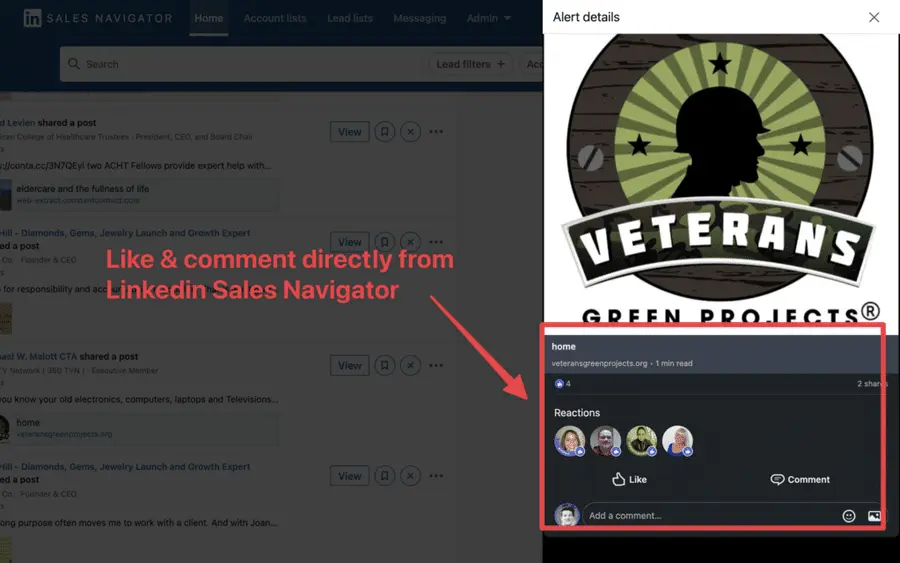
This is convenient for B2B sales if you want to break the ice or follow up with your prospect by commenting on the content they publish.
How To Export Lead Lists from LinkedIn Sales Navigator
Building lead lists lists is a significant step.
But the true value of using Linkedin Sales Navigator for your agency is unlocked when you export this data and integrate it with your broader sales prospecting workflow.
Comment byu/Neither-Raspberry-60 from discussion inagency
To export leads from Sales Navigator, follow this step-by-step guide:
- Create an Evaboot account
- Download the Chrome Extension
- Select your Sales Navigator lead or account lists
- Name and launch your export
- Download your cleaned list
1. Create an Evaboot account
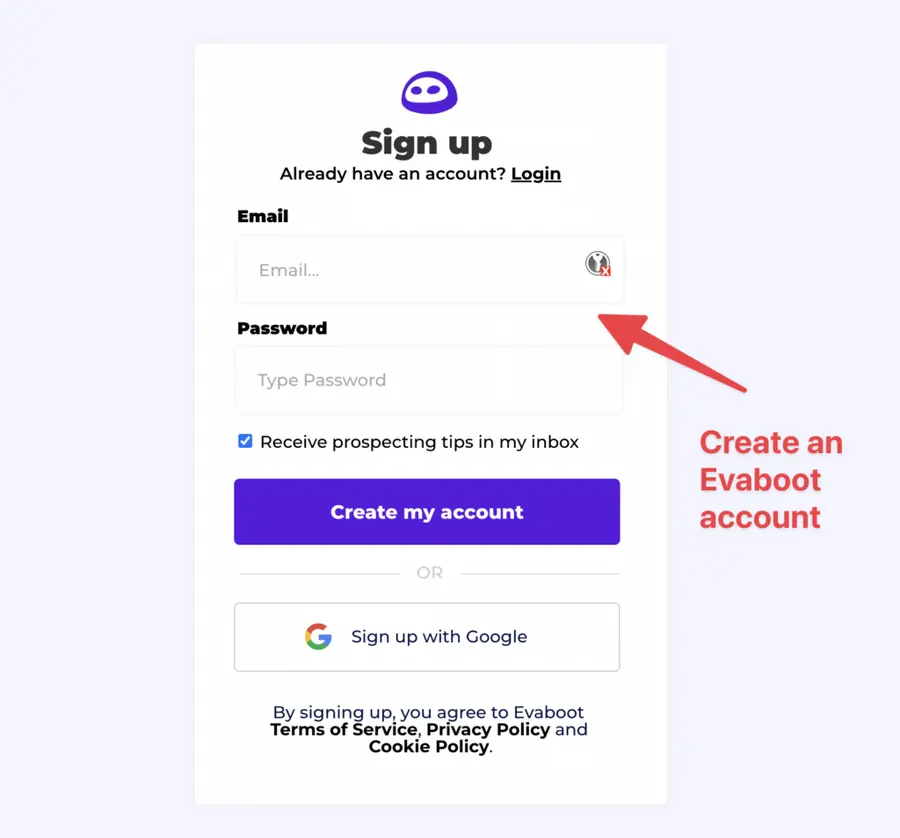
Step 1 is to go to Evaboot and click “Sign up”. Then, create an account.
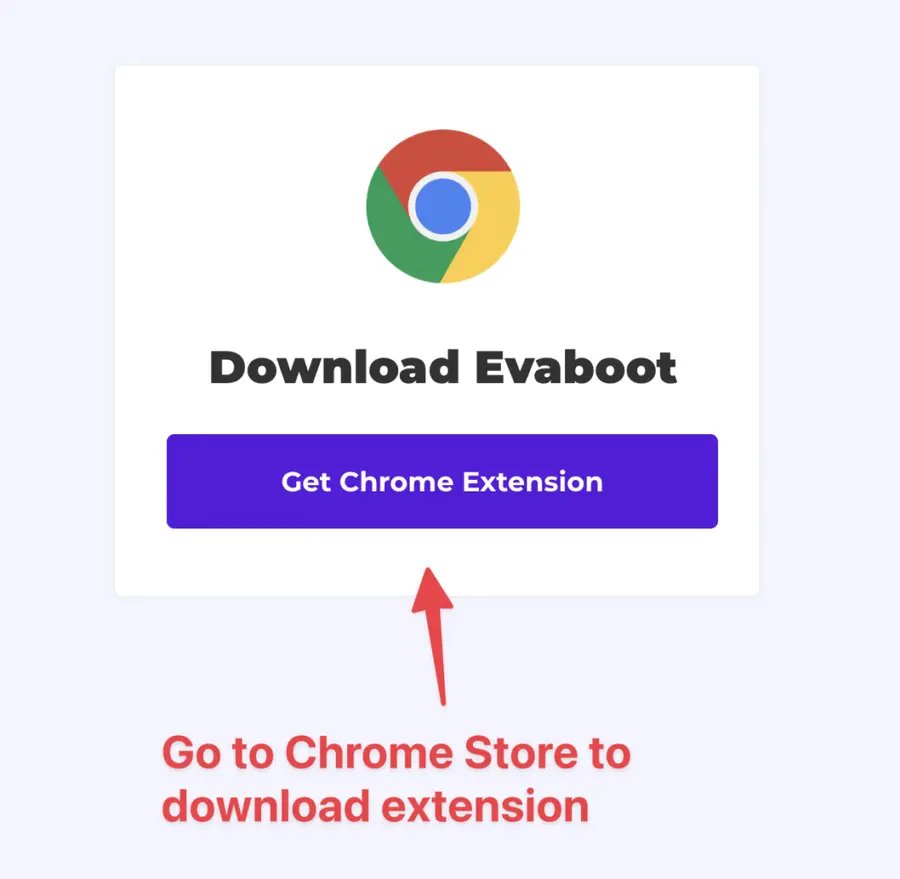
Once you’ve created your account, click on “Get Chrome Extension” to download it from the Chrome Web Store.
2. Download the Chrome Extension
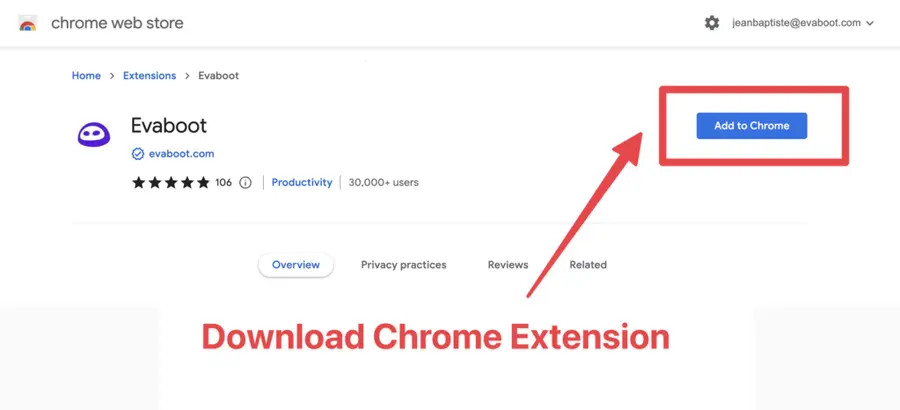
When on the Chrome Store page, click “Add to Chrome” to install the extension.
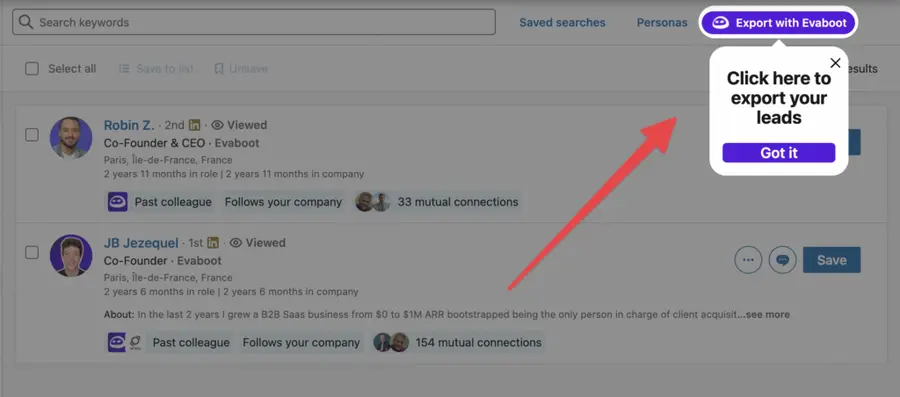
You’ll be automatically redirected to Sales Navigator. A popup will show you where the button is located.
3. Select your Sales Navigator lead or account list
Once the Chrome extension is installed, go to the list of leads or accounts you want to export. It can be:
- Lead Searches
- Lead Lists
- Account Searches
- Account Lists
- Saved Searches
Evaboot handles all the use cases.
The “Export with Evaboot” button is at the top of these LinkedIn Sales Navigator pages.
This is what it will look like for lead lists:
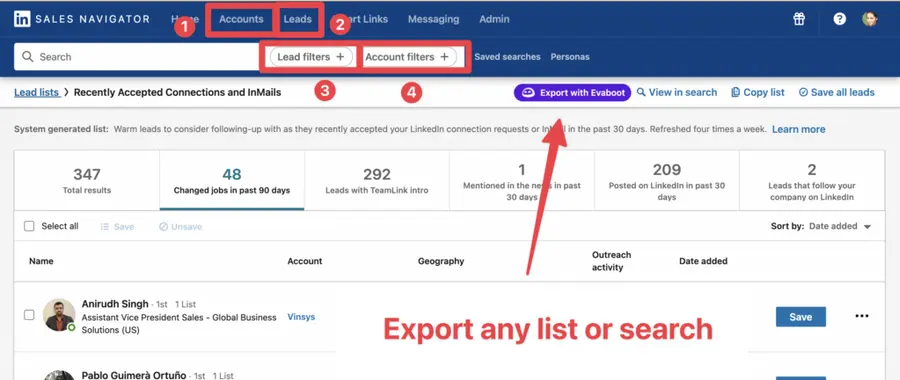
You can export specific tabs in your lead lists, such as “Changed jobs in the past 90 days.”
And this is what it will look like for account lists:
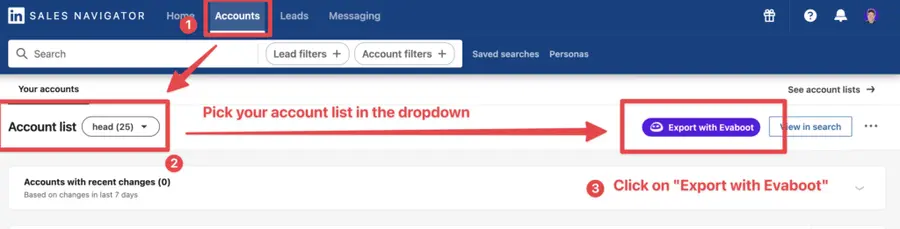
When you export account lists from the Sales Navigator with Evaboot, you get the following:
- Company Name
- Company Website
- Industry
- Specialties
- Employee Count
- Employee Range
- Location
- Company Linkedin URL
- Company Type
- Year Founded
- Company Profile Picture
- Company Description
Evaboot’s cleaning and filtering algorithms also clean and filter all this data.
4. Name and launch your export
When you click “Export with Evaboot” you will be redirected to the Evaboot app.
Choose whether you want to find emails for these leads.
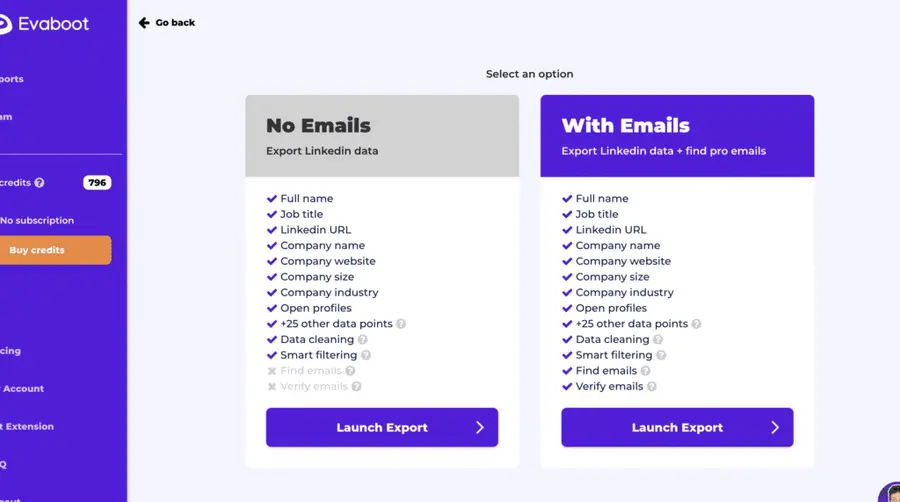
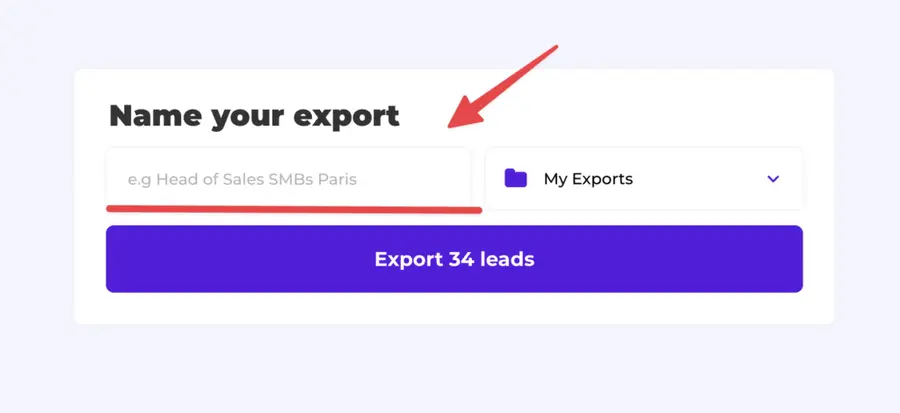
Give a name to your export and click on “Export leads”.
The estimated end date will appear on the left right after launching the export.
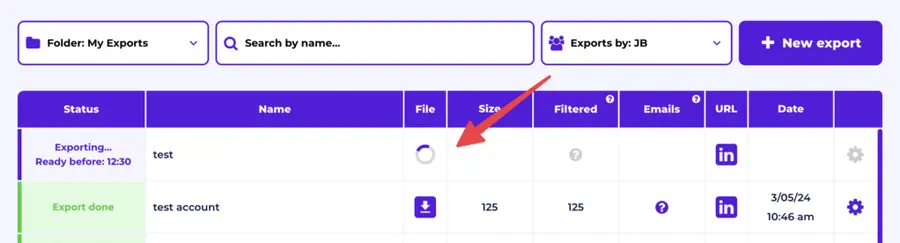
Evaboot will export all these leads in real-time.
That makes your lead generation process GDPR-compliant, in opposition to using databases.
5. Download your cleaned list
After the extraction is done, you will get an email. This email will have a link to download your lead list in a CSV file.
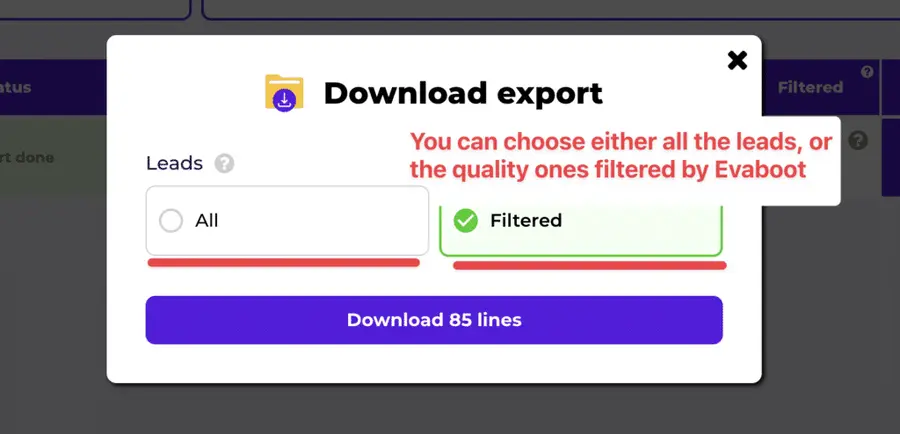
Choose the list type that you want to download. And you’re done.
Evaboot does much more than export your list. It also cleans all the names and company names of your LinkedIn contacts.
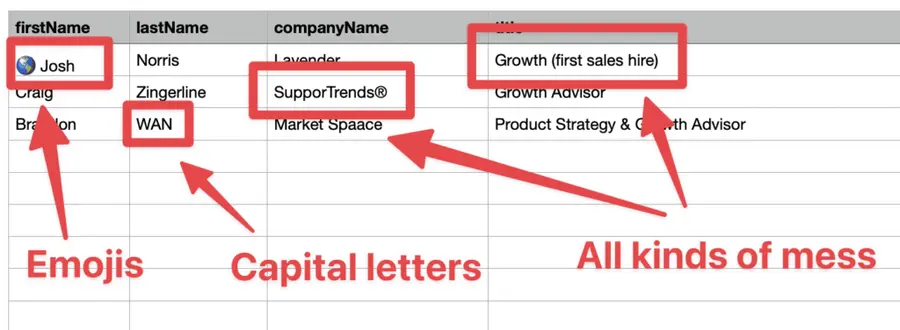
The data on LinkedIn is not clean.
Cleaning data from your sales navigator export can take hours if you do it manually.
Hopefully, the Evaboot cleaning algorithm takes care of all this work for you by automatically cleaning:
- First names
- Last names
- Company names
- Job titles
Nobody wants to spend hours cleaning Excel files. Better let robots do this boring job.
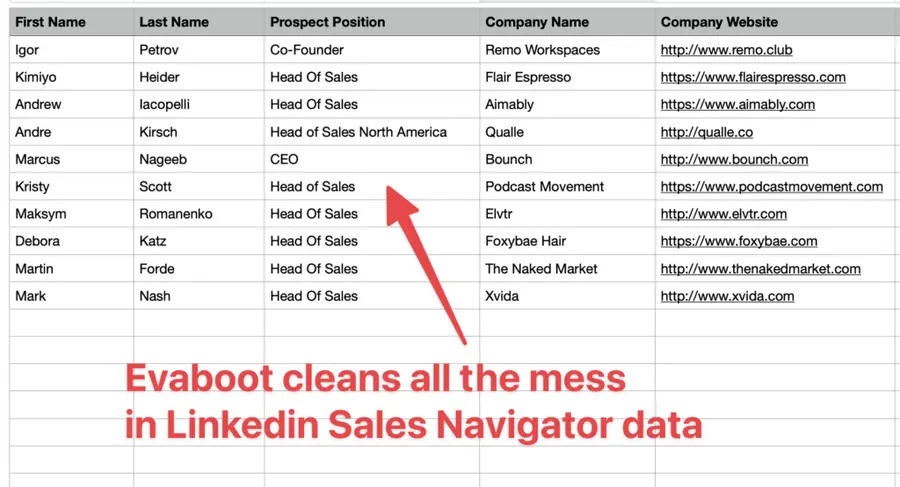
You will often find false positives in your LinkedIn Sales Navigator search results.
Even if you’re using super precise LinkedIn boolean search operators.

You will frequently find leads that don’t match the search filters you chose in the Sales Navigator search engine.
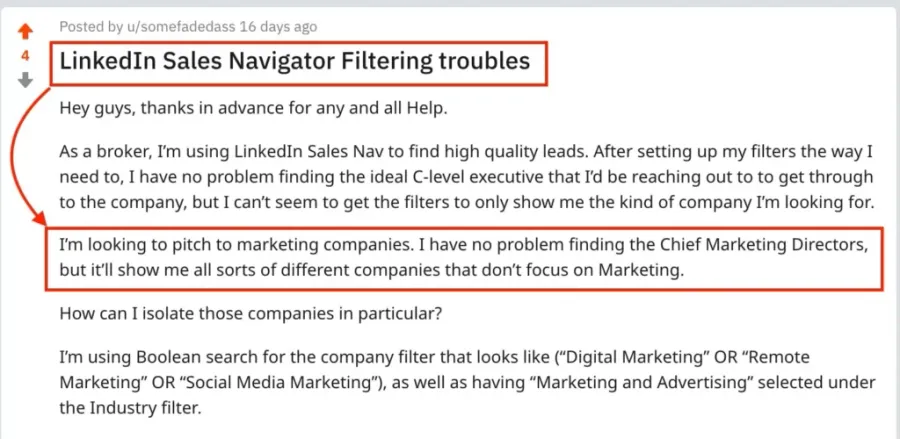
That’s why many people spend hours double-checking their search results manually.
This is a painful task, but it’s no problem.
Evaboot is the best Sales Navigator scraper.
Our algorithm checks your leads twice to make sure they fit your search filters.
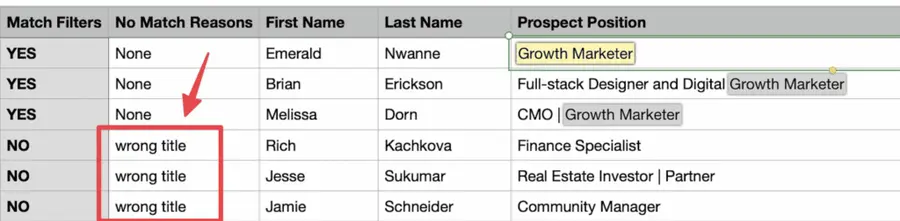
In this export, there’s a column named “No Match Reasons.” This column tells you if your leads really match your search filters.
If they don’t, we will explain why. In this example, the leads have the wrong title. The initial search was for growth marketers.
To reduce false positives in your Sales Navigator searches, check out our full Sales Navigator tutorial.
And here you go!
With this data, you can use multichannel outreach.
This will help you reach new prospects in many ways.
Outreach Strategies That Convert
Sales Navigator for agency owners provides the data. Your outreach strategy determines results.
Here’s how to write personalized LinkedIn messages that get you leads:
- Give a reason for outreach
- Ask a question
- Backup with data
- Tease a solution
- Follow-up
- Bonus Strategy: Use LinkedIn InMail

1. Give a reason for outreach
Before anything else, if you’re not already connected to your lead, send them a connection invite – with or without a personalized message.
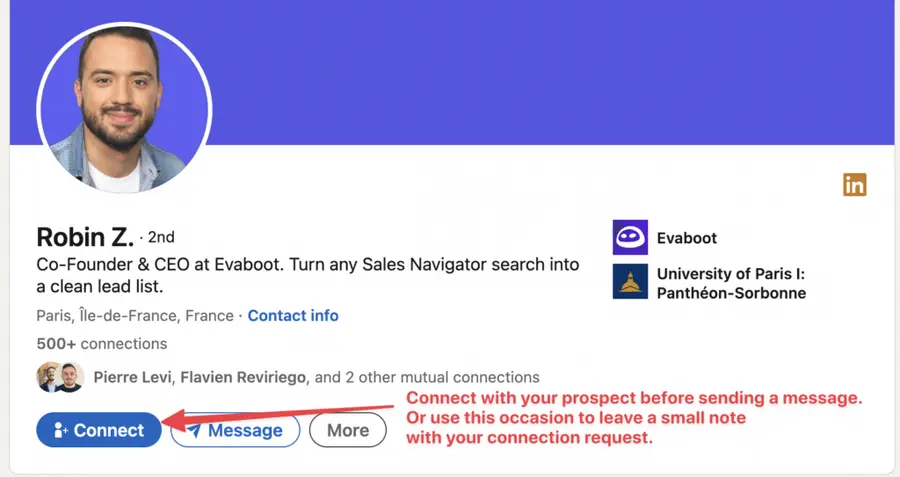
Expanding your network boosts the likelihood of accepted requests.
Make your approach intentional by referencing something specific and relevant to the prospect (custom visuals like gifs or tailored screenshots can help here).
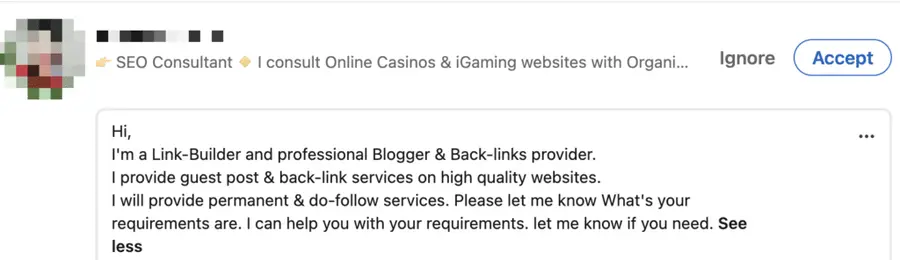
This shows you’re not spamming them with mass messages but are genuinely reaching out based on their context.
Your reason should connect directly to their job role, recent updates in their company, trends in their industry, or challenges they’re likely experiencing.

Then, you can start the conversation by mentioning a post they published, a shared professional interest, or a strategic opportunity that fits their business goals.
2. Ask a question
Keep the conversation going by asking a thoughtful question that encourages your lead to engage and share more about their objectives or pain points.
The best questions are open-ended, specific to your message, and encourage discussion.

You could ask about their opinion on a topical issue or their experiences, discuss a current dilemma, or explore their ambitions.
3. Backup with data
Add value by introducing data or proof points that illustrate your experience and the value you can offer.
Credibility and trust are established when you share relevant and impactful data.

Consider adding:
- Pertinent statistics
- A recent win you or your team achieved
- Feedback from a satisfied customer
- Concrete results achieved by your agency.
4. Tease a solution
Now it’s time to introduce how you could help, tailored to their business or goals.
Piquing their curiosity about your offer could motivate them to engage further.
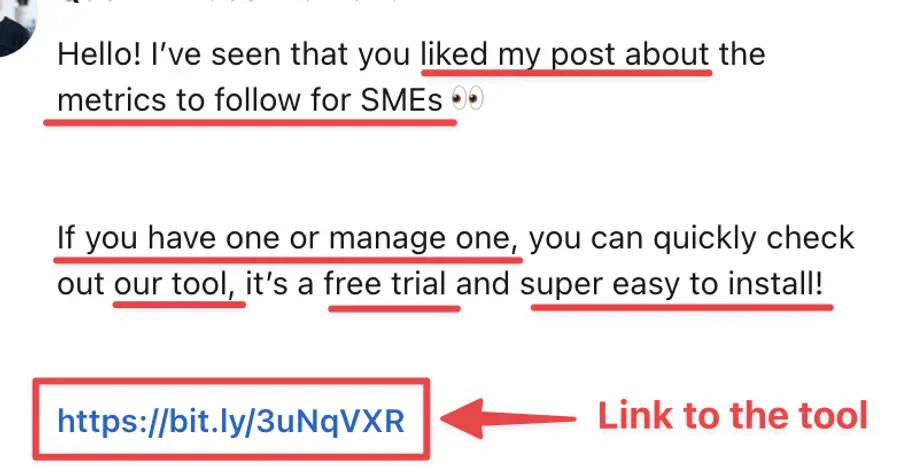
Ensure your suggested solution is directly linked to their needs and presents clear advantages.
You could:
- Introduce a product or service,
- Recommend a tool,
- A step-by-step guide or case study,
- Share a resource or a tutorial,
- Propose a strategic approach provided by you or your agency.
5. Follow-up
Completing our five-step framework is the crucial follow-up stage.
Your task is to keep in contact with your potential customer by consistently reaching out until you receive a response or secure a meeting.
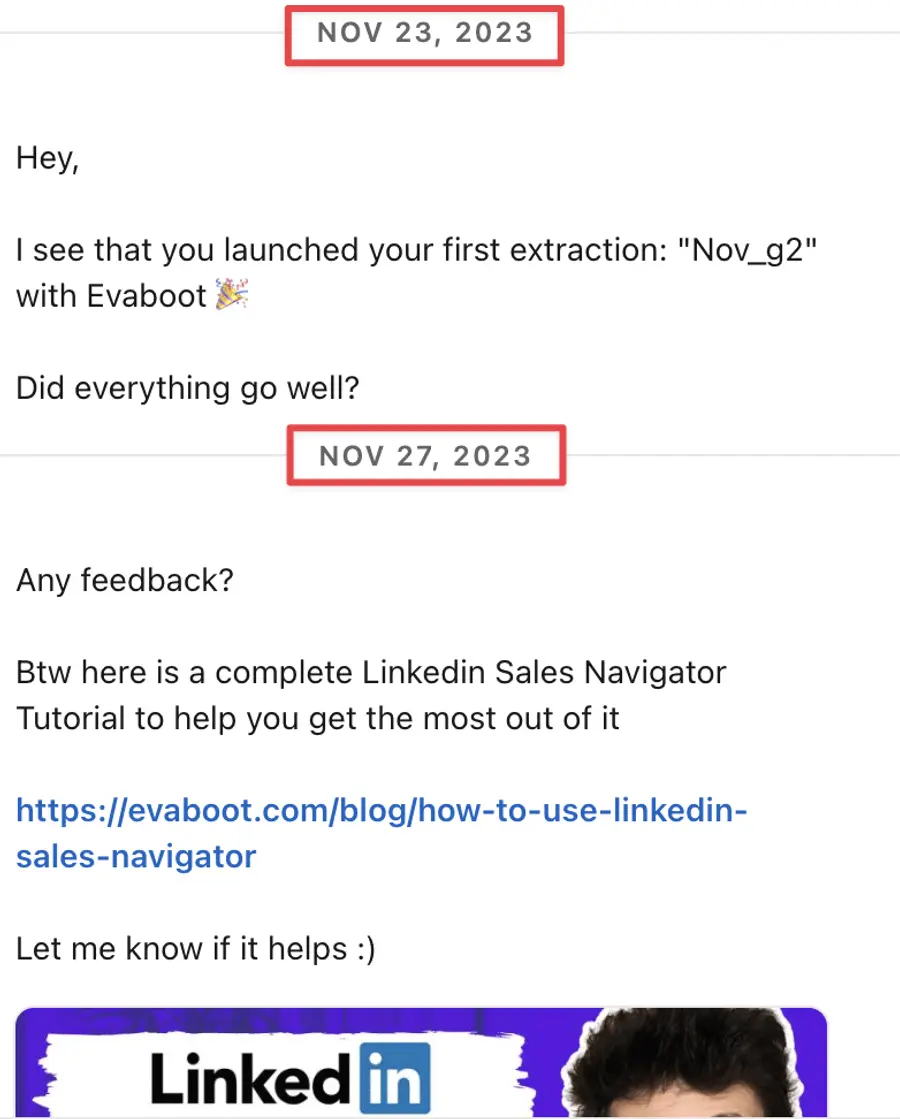
This tenacity keeps you fresh in their memory and demonstrates your dedication and professionalism.
An effective follow-up strategy is characterized by timeliness, courteousness, and customization.
For instance, if you haven’t heard back after several days, you might consider sending a thoughtfully crafted reminder, an enticing value proposition, compelling social proof, or an engaging call to action.
But here is another tip.
Bonus Strategy: Use LinkedIn InMail
To boost your response rates even further, don’t hesitate to send an InMail message, which is more effective than a simple cold message.
1. Keep your InMail messages under 400 characters, as shorter InMails achieve a 22% higher response rate.
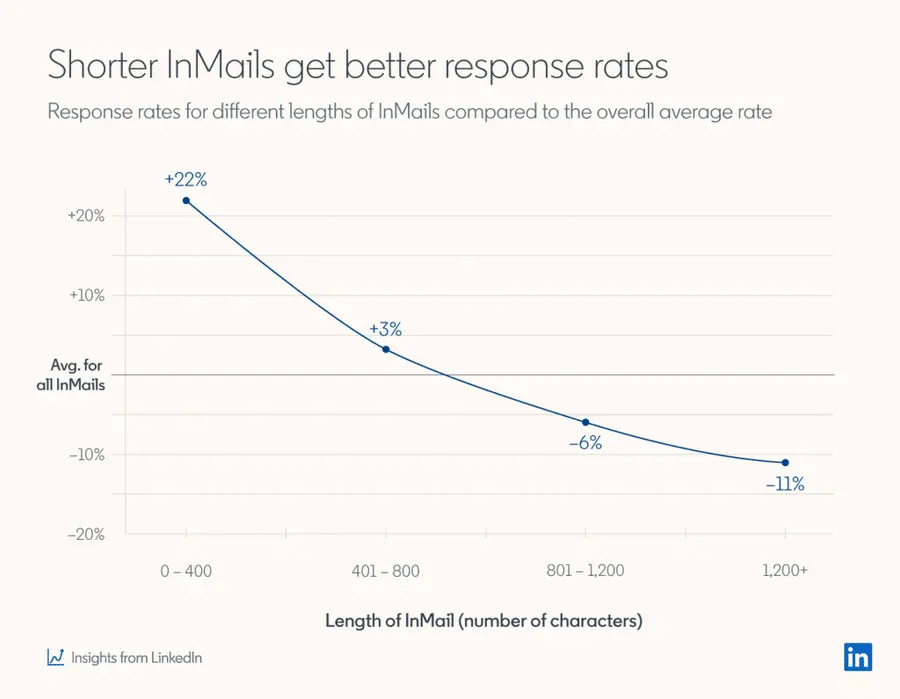
This is because today people are busy!
This way, you respect the recipient’s time and increase your chances of getting a reply.
2. Write short subject lines.
Your profile picture and InMail subject lines are the first things people see in your InMail.
The average email open rate is about 21.6%, and LinkedIn InMail has a 57.5% open rate, which can be further optimized with the right subject line strategy.
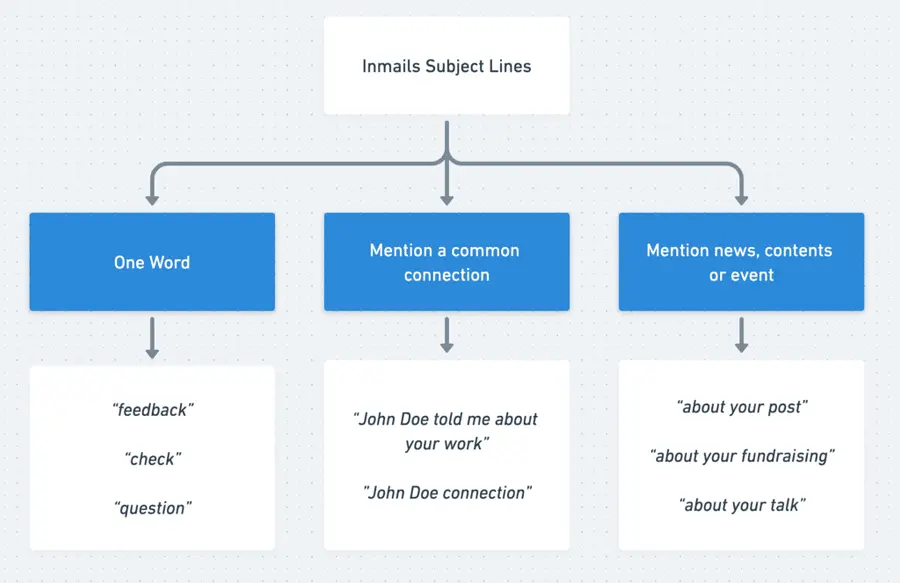
Here are a few tested angles:
- One-word subject: Creates intrigue and gives the recipient a reason to open the message.
- Mention a mutual connection: Uses existing relationships to build trust and rapport.
- Mention recent news: Shows that your message aligns with their interests or concerns.
3. Use InMails as your backup channel.
LinkedIn InMails should be your strategic option rather than your first choice when connecting with prospects.
Only send an InMail when your emails and LinkedIn messages don’t generate a response.
Here’s why: Sales Navigator accounts typically include just 50 InMail credits per month.
Meanwhile, you can send up to 200 emails and 150 LinkedIn messages daily.
Here’s an effective Multichannel outreach strategy to use:
- First, send 2-3 emails.
- If there’s no response, send a connection request.
- Follow up with 2-3 LinkedIn messages if your connection request is accepted.
- If these messages go unanswered, consider using an InMail.
Now you have a clear game plan for writing targeted LinkedIn messages, and boosting responses with a multichannel outreach strategy.
Conclusion
Sales Navigator for agency owners transforms how you find and connect with potential clients.
The platform gives you laser-focused targeting. Advanced search filters help you find companies that actually need your services.
Start with clear targeting criteria. Build organized prospect lists. Export your leads. And develop personalized outreach sequences.
Ready to scale your agency’s client acquisition?
Your next high-value client is waiting to be discovered on Sales Navigator.
FAQs
How much does Sales Navigator cost for agency owners?
- Sales Navigator Core (Professional) costs $79.99/month per user.
- Sales Navigator Advanced (Team) costs $139.99/month per user.
- Sales Navigator Advanced Plus (Enterprise) starts at $1600/year.
Most solo agency owners start with Core and upgrade as they scale.
How long does it take to see results from Sales Navigator?
Most agencies see initial responses within 1-2 weeks.
Qualified opportunities typically develop within 4-6 weeks.
Full ROI usually becomes apparent within 2-3 months of consistent use.
Should I connect with prospects or send InMails directly?
Start with connection requests for most prospects.
Use InMails for high-priority targets or when connection requests aren’t being accepted.
InMails have higher open rates but cost credits.
How do I avoid getting my LinkedIn account restricted?
Stay within LinkedIn’s limits: 100 connection requests per week, personalize all outreach, avoid automation tools that violate terms of service, and focus on building genuine relationships.
Can I export prospect data from Sales Navigator?
Sales Navigator doesn’t have native export functionality.
You’ll need third-party tools like Evaboot to extract prospect data and contact information for use in your CRM or email marketing tools.


