
LinkedIn Sales Navigator Relationship Mapping has revolutionized how sales professionals identify and leverage connections within target accounts.
Previously known as the Sales Navigator Account Map, this powerful feature helps you visualize relationships and find introduction paths to key decision-makers.
In today’s competitive B2B landscape, understanding the relationship dynamics within your target accounts can make the difference between a cold outreach and a warm introduction.
Relationship maps provide the strategic advantage you need to navigate complex organizational structures and accelerate your sales process.
This comprehensive guide will show you everything you need to know about using Relationship Maps in Sales Navigator:
- What is LinkedIn Sales Navigator Relationship Mapping?
- How to Access LinkedIn Sales Navigator Relationship Mapping
- Key Features Of The LinkedIn Relationship Map
- Benefits Of Using Relationship Maps In Sales Strategy
- How To Export Lead Lists from LinkedIn Sales Navigator
Ready to close more deals?
Let’s dive in.
What is LinkedIn Sales Navigator Relationship Mapping?
LinkedIn Sales Navigator relationship mapping is an advanced feature that visualizes the connections and relationships between people within your target accounts.
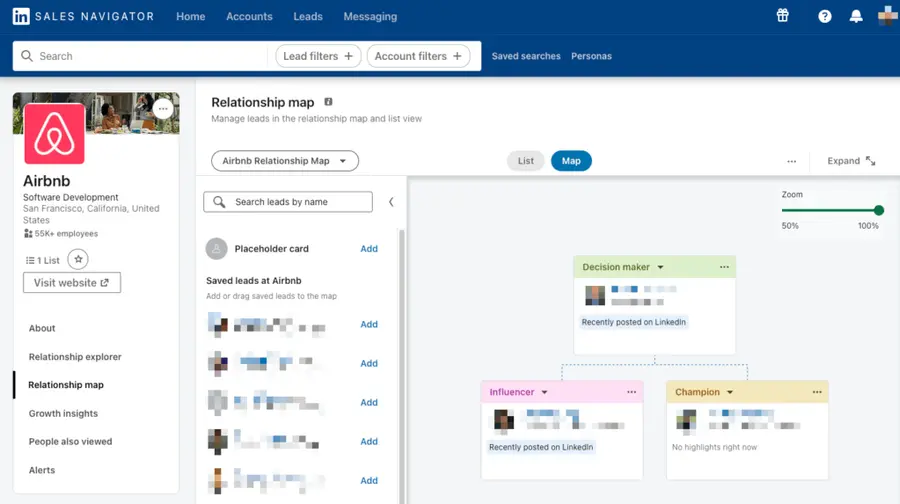
This powerful tool creates a visual map showing how prospects are connected to each other and to people in your network.
The relationship mapping feature transforms complex organizational hierarchies into clear, actionable insights.
Instead of guessing who knows whom, you can see exactly how people are connected and identify the best paths for warm introductions.
How to Access LinkedIn Sales Navigator Relationship Mapping
Accessing relationship maps is straightforward once you know where to look. It’s available to all Sales Navigator subscribers and can be found in the company Account pages.
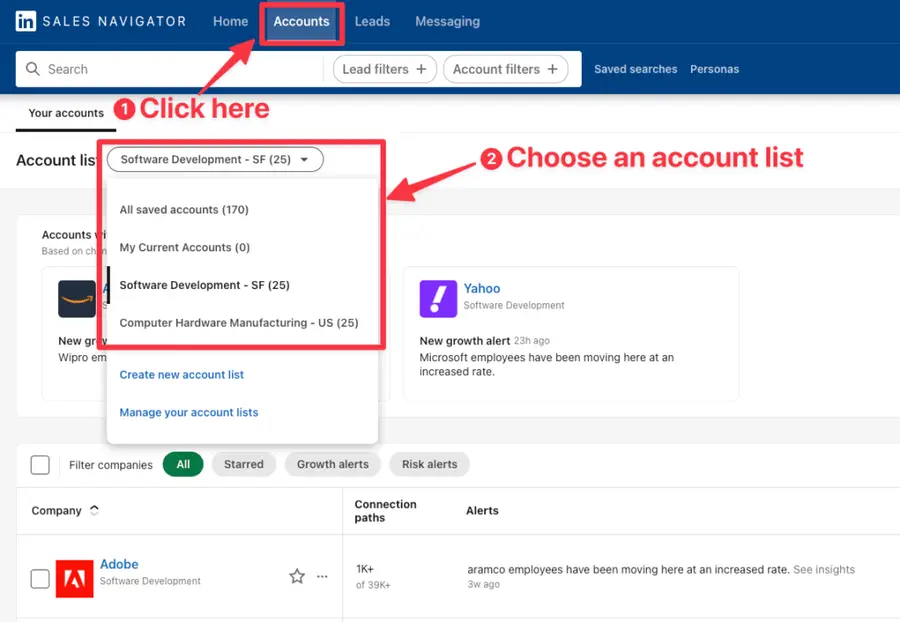
Step 1: Go to the Sales Navigator Accounts page and choose the account list you want to access from the drop-drown menu.
New to account lists? Check out this article to learn how to create an account list.
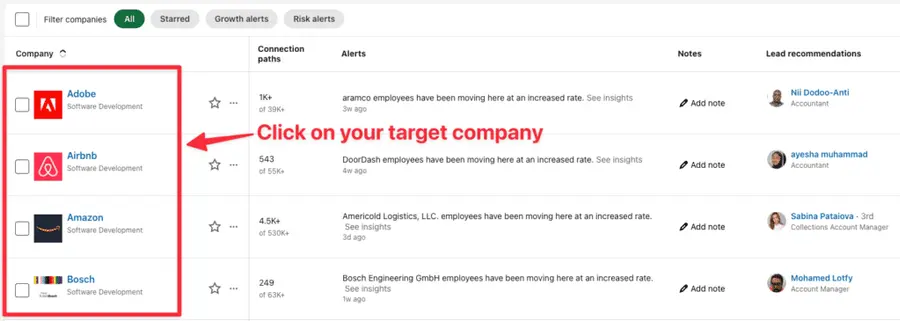
Step 2: Click on your target company’s LinkedIn page from your account list.
Step 3: Look for the “Relationship Map” tab in the company insights section.
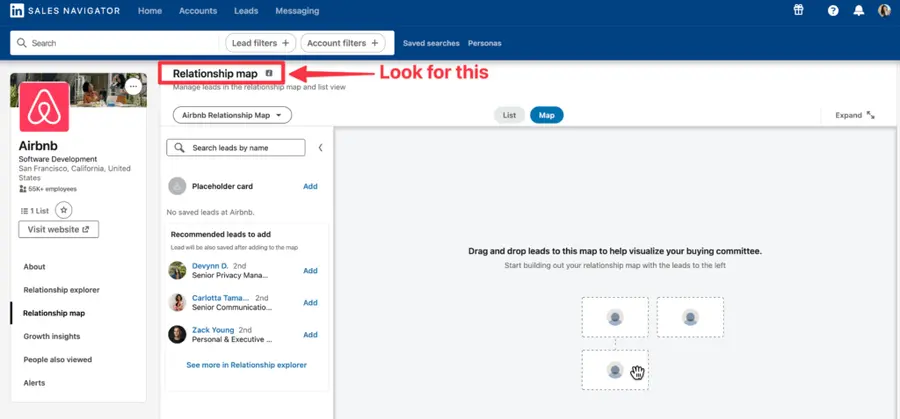
Step 4: You can now search your leads by name in the search bar, or add leads recommended by Sales Navigator directly in your map.
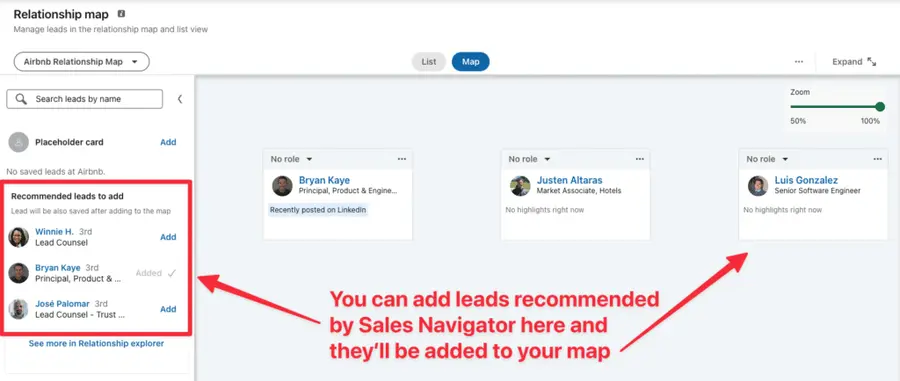
The relationship mapping interface is designed to be intuitive, with drag-and-drop functionality and interactive elements that make exploring connections engaging and productive.
Key Features Of The LinkedIn Relationship Map
Understanding the specific capabilities of LinkedIn’s relationship mapping tool will help you maximize its potential for your sales strategy.
Let’s explore the core features that make this tool essential for modern B2B sales teams:
- Map View vs. List View
- Real-Time Alerts And Updates
- CRM Integration And Data Synchronization
- Sharing And Collaboration Features
Map View vs. List View
The LinkedIn relationship map provides two distinct viewing options, each optimized for different aspects of account management.
1. Map View
The Map view provides a visual, org-chart-style representation of your target accounts.
You can see the complete organizational structure at a glance and understand decision-making hierarchies.
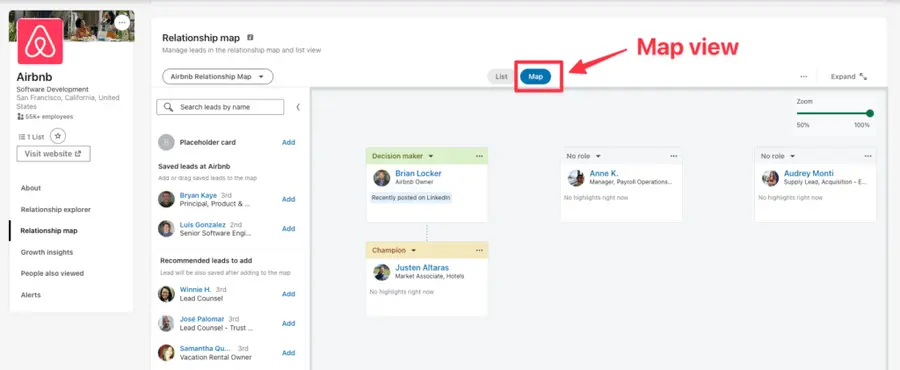
Key Map view capabilities:
- Visual hierarchy creation: See reporting relationships and influence patterns clearly
- Drag-and-drop functionality: Move contacts between positions to adjust organizational structure
- Zoom and expand controls: View detailed segments or the complete organizational landscape
- Role modification: Update contact roles using dropdown menus on contact cards
- Lead suggestions integration: See recommended contacts from your saved lists and Relationship Explorer
2. List View
The List view complements the visual Map view with detailed data insights and advanced functionality for relationship management.
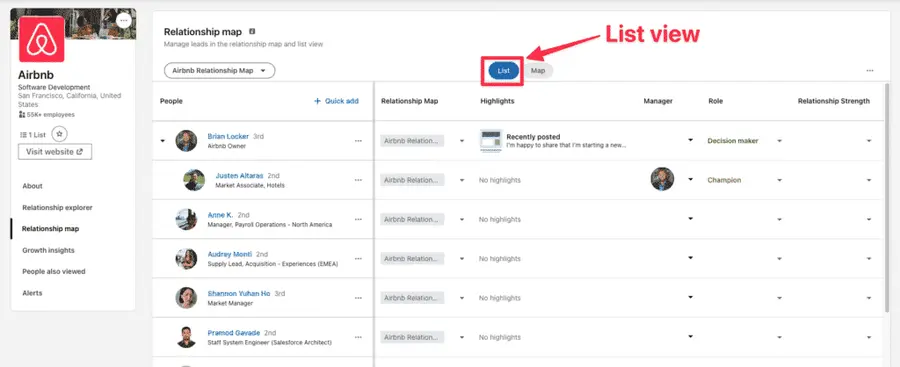
List view features include:
- Comprehensive lead data: View professional highlights, recent activities, and engagement history
- Relationship strength indicators: Prioritize outreach based on existing network connections
- Advanced note management: Add notes visible to your team and sync with CRM systems
- Team assignment features: Assign specific leads to team members for clear accountability
- CRM synchronization: Update your CRM directly from LinkedIn without switching platforms
Real-Time Alerts And Updates
LinkedIn’s relationship mapping includes alert systems that keep you informed about critical changes within your target accounts.
It continuously tracks your relationship maps and instantly notifies you of key updates — like role changes or employee departures.
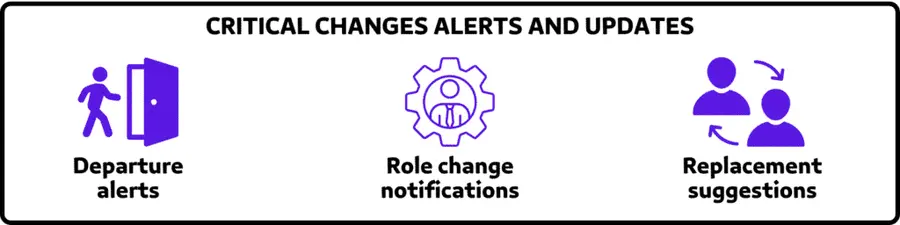
But LinkedIn’s intelligent system goes beyond identifying departures: it proactively recommends replacements to maintain your relationship map integrity.
You can then identify new potential contacts as organizations grow and evolve.
CRM Integration And Data Synchronization
The relationship mapping feature includes robust CRM integration to ensure seamless data flow between LinkedIn Sales Navigator and your existing sales management systems.
This integration empowers users to manage contacts, leads, and account intelligence directly from the relationship map.
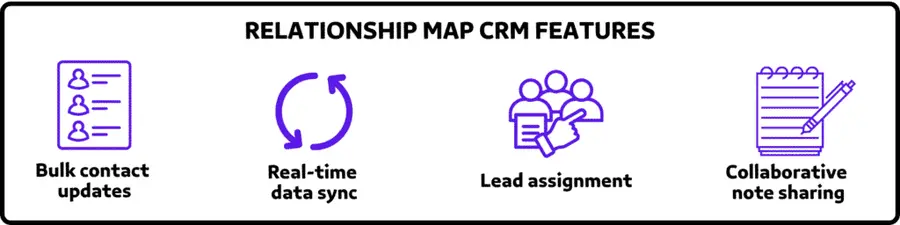
Key CRM-connected capabilities include:
- Bulk contact updates: Use the “Update CRM” feature to synchronize multiple contacts simultaneously
- Real-time data sync: Push changes from LinkedIn instantly to your connected CRM
- Lead assignment: Assign leads to teammates and automatically reflect updates in your CRM
- Collaborative note sharing: Add and sync notes across both LinkedIn and your CRM
Note: the Update CRM option is only available to Sales Navigator Advanced Plus users.
Sharing And Collaboration Features
LinkedIn’s relationship mapping includes powerful sharing and collaboration tools that support team-based selling.
Users can share maps with colleagues under the same Sales Navigator contract, transforming individual insights into collective strategic assets.

Key sharing and collaboration capabilities include:
- Collaborative ownership: All invited users gain full co-owner access for complete editing and visibility
- Real-time co-editing: Multiple users can work on the same map simultaneously
- Built-in communication: Comment directly within the map to align strategies and coordinate actions
This integrated feature set enables your sales team to operate more strategically in complex sales cycles by keeping everyone aligned around shared relationship intelligence.
Benefits Of Using Relationship Maps In Sales Strategy
Relationship maps transform how you approach complex B2B sales by providing strategic advantages that directly impact your deal success rates and sales efficiency.
- Identify Key Decision Makers
- Better Engagement Using Real-Time Insights
- Strengthen Internal Sales Coordination
Identify Key Decision Makers
Thanks to the role identification feature, relationship maps help you find the most influential people in a company among your target accounts.
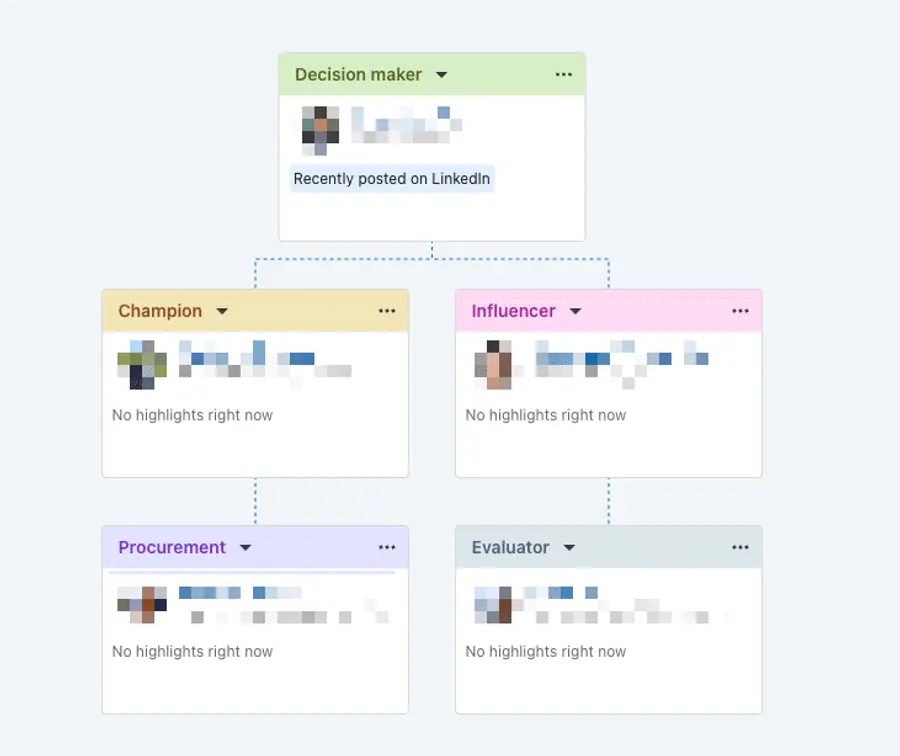
You can then categorize contacts based on their influence in the purchasing process:
- Decision Maker: Identify who has final approval authority for purchases
- Champion: Find internal advocates who support your solution
- Evaluator: Locate technical or functional evaluators who assess your offering
- Procurement: Connect with purchasing professionals who handle contract negotiations
- Influencer: Discover stakeholders who impact the decision-making process
This role clarity helps you tailor your messaging and approach for each contact type, increasing your chances of successful engagement.
Better Engagement Using Real-Time Insights
Relationship maps also provide real-time insights that create natural conversation opportunities:
- Recently Posted content: Use contacts’ recent LinkedIn posts as conversation starters for relevant, non-sales touchpoints
- Career changes: Leverage job promotions, role transitions, or company moves to congratulate contacts and re-establish connections
- Professional milestones: Engage around work anniversaries, achievements, or industry recognition to build stronger relationships
- Activity-based outreach: Time your outreach based on contacts’ professional activities for higher response rates
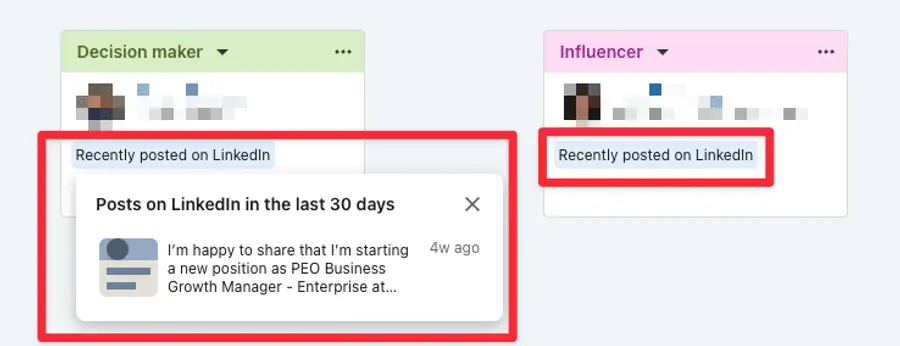
These engagement triggers help you move beyond generic sales pitches to meaningful, personalized interactions.
Strengthen Internal Sales Coordination
LinkedIn’s Relationship Map acts as a centralized hub for managing account details and coordinating team efforts.
By consolidating relationship insights, assignments, and organizational context in one place, teams can align their efforts, reduce miscommunication, and drive more effective account strategies.
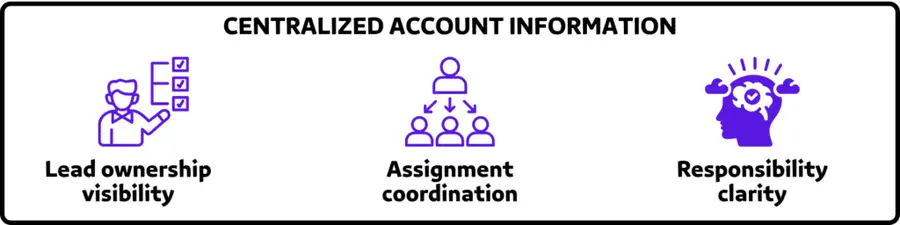
Key benefits of centralized coordination include:
- Lead ownership visibility: See which team member is responsible for each contact relationship
- Assignment coordination: Delegate leads strategically based on expertise or existing relationships
- Responsibility clarity: Avoid duplicate outreach and ensure clear communication paths
This shared workspace enhances visibility into who owns what, how stakeholders are connected, and what actions are underway — ensuring everyone on your sales team operates with clarity and consistency.
How To Export Lead Lists from LinkedIn Sales Navigator
With Relationship Maps, LinkedIn Sales Navigator gives you the strategic visibility you need.
But mapping relationships is just one part of the equation — you also need a clean list of leads to activate your outbound strategy.
That’s where Evaboot comes in.
Evaboot lets you export your LinkedIn Sales Navigator lead lists, making it easier to integrate with your CRM or outreach workflows.
Here’s how to export leads from Sales Navigator:
- Create an Evaboot account
- Download the Chrome Extension
- Select your Sales Navigator lead or account lists
- Name and launch your export
- Download your cleaned list
1. Create an Evaboot account
Step 1 is to go to Evaboot and click “Sign up”. Then, create an account.
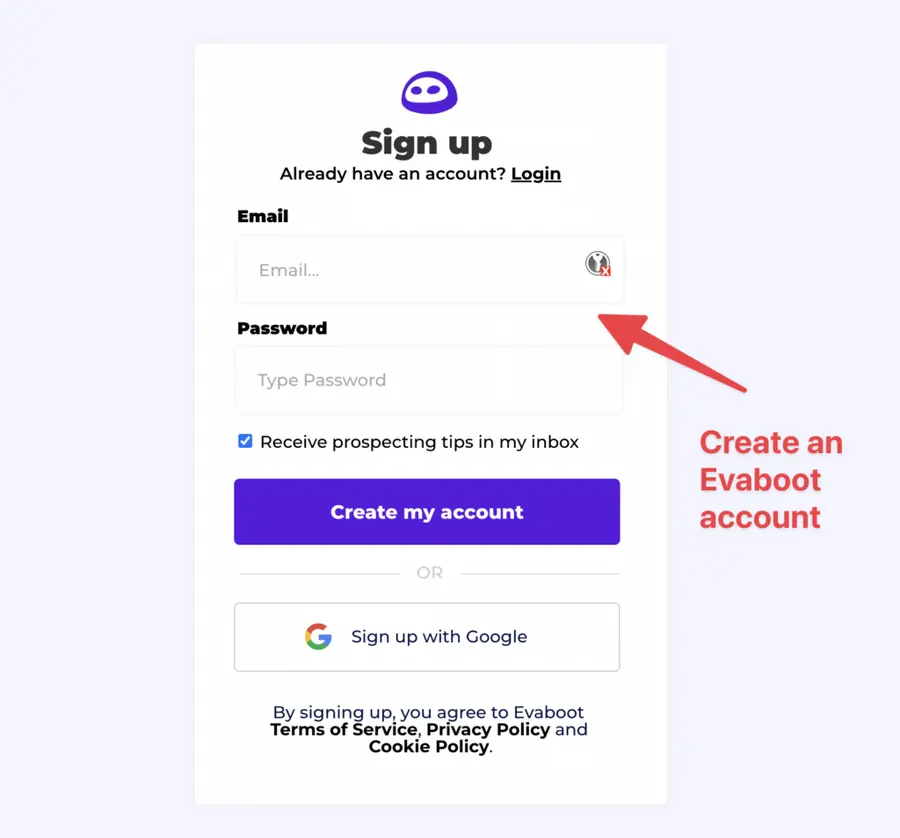
Once you’ve created your account, click on “Get Chrome Extension” to download it from the Chrome Web Store.
2. Download the Chrome Extension
When on the Chrome Store page, click “Add to Chrome” to install the extension.
You’ll be automatically redirected to Sales Navigator. A popup will show you where the button is located.
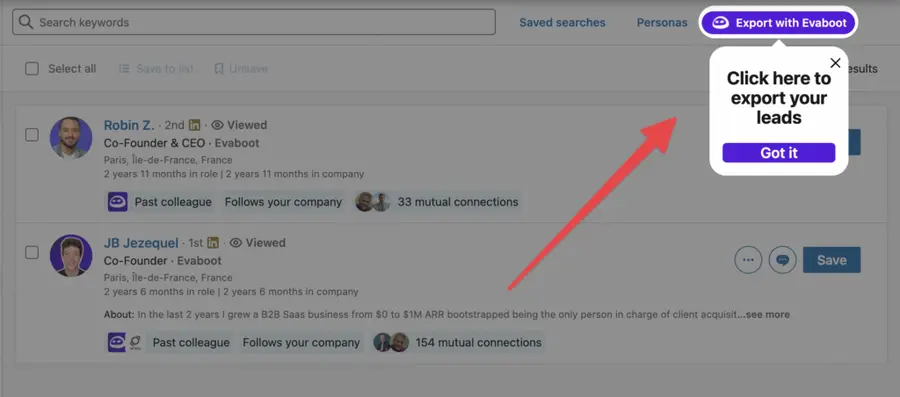
3. Select your Sales Navigator lead or account list
Once the Chrome extension is installed, go to the list of leads or accounts you want to export. It can be:
- Lead Searches
- Lead Lists
- Account Searches
- Account Lists
- Saved Searches
Evaboot handles all the use cases.
The “Export with Evaboot” button is at the top of these LinkedIn Sales Navigator pages.
This is what it will look like for lead lists:
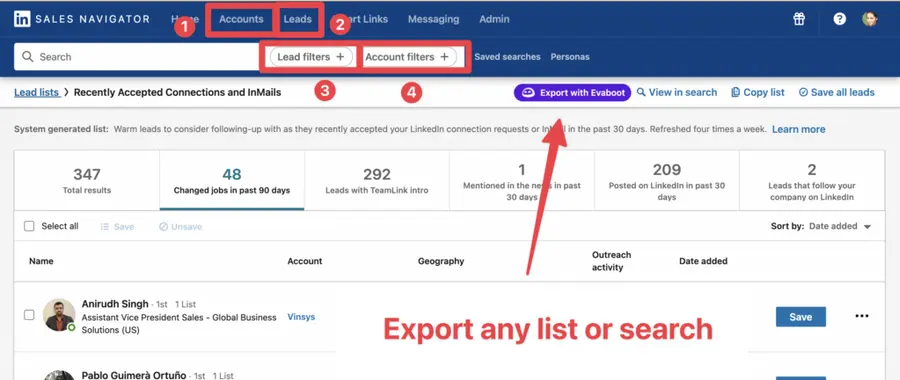
You can export specific tabs in your lead lists, such as “Changed jobs in the past 90 days.”
And this is what it will look like for account lists:
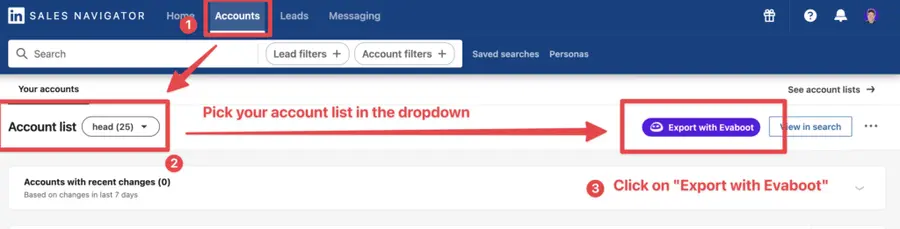
When you export account lists from the Sales Navigator with Evaboot, you get the following:
- Company Name
- Company Website
- Industry
- Specialties
- Employee Count
- Employee Range
- Location
- Company Linkedin URL
- Company Type
- Year Founded
- Company Profile Picture
- Company Description
Evaboot’s cleaning and filtering algorithms also clean and filter all this data.
4. Name and launch your export
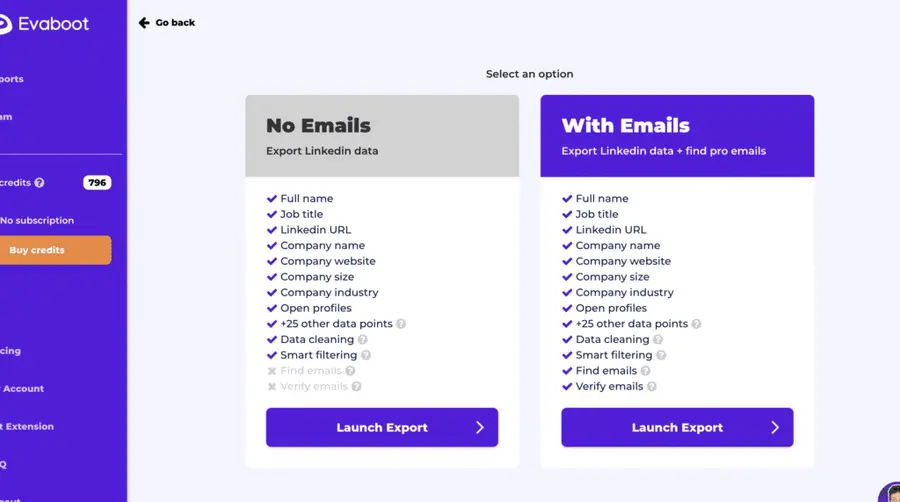
When you click “Export with Evaboot” you will be redirected to the Evaboot app.
Choose whether you want to find emails for these leads.
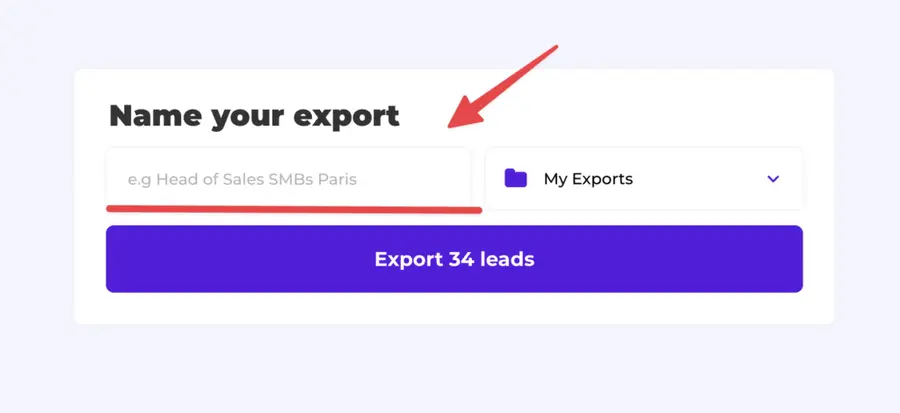
Give a name to your export and click on “Export leads”.
The estimated end date will appear on the left right after launching the export.
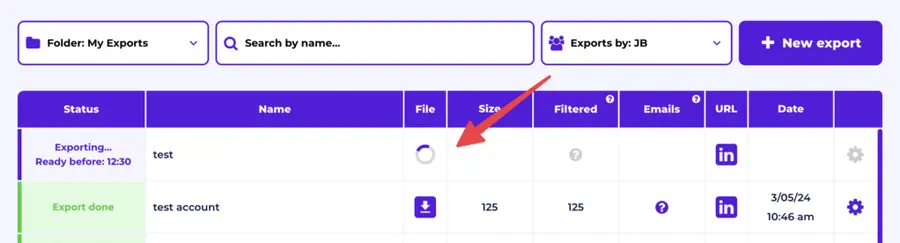
Evaboot will export all these leads in real-time.
That makes your lead generation process GDPR-compliant, in opposition to using databases.
5. Download your cleaned list
After the extraction is done, you will get an email. This email will have a link to download your lead list in a CSV file.
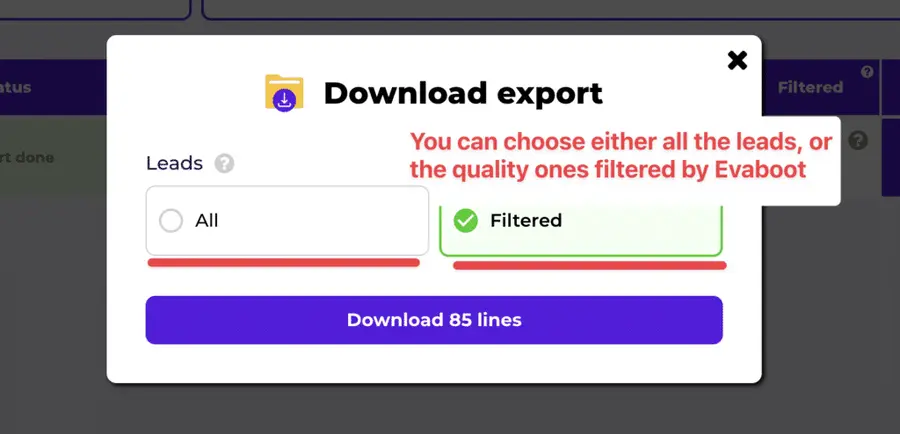
Choose the list type that you want to download. And you’re done.
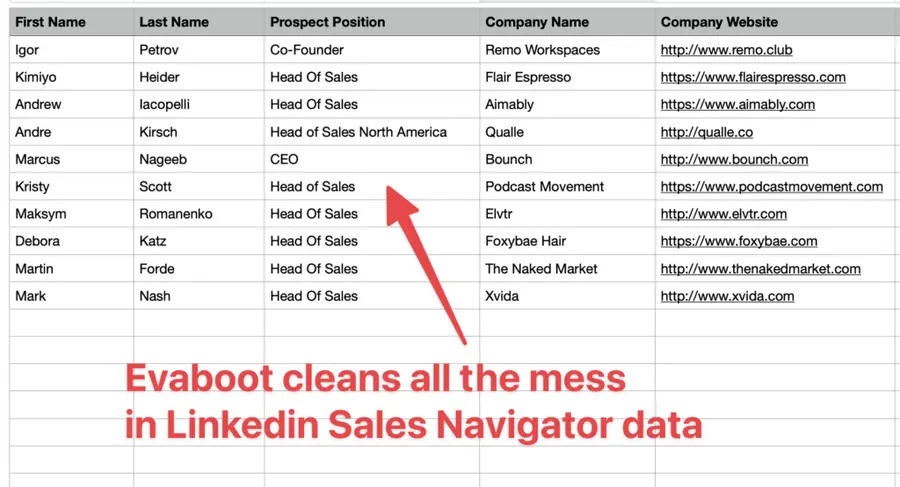
Evaboot does much more than export your list. It also cleans all the names and company names of your LinkedIn contacts.
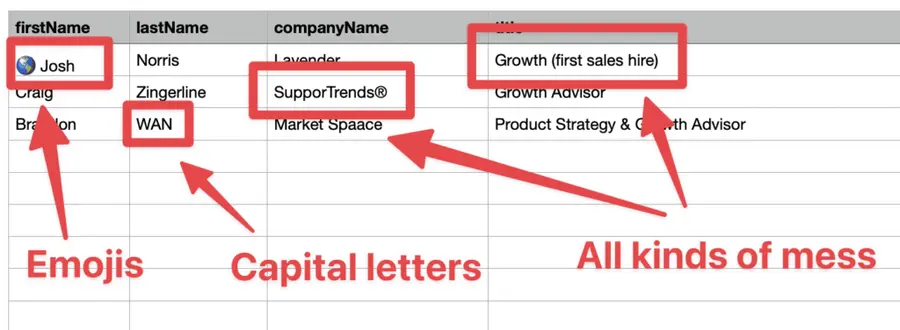
The data on LinkedIn is not clean.
Cleaning data from your sales navigator export can take hours if you do it manually.
Hopefully, the Evaboot cleaning algorithm takes care of all this work for you by automatically cleaning:
- First names
- Last names
- Company names
- Job titles
Nobody wants to spend hours cleaning Excel files. Better let robots do this boring job.
You will often find false positives in your LinkedIn Sales Navigator search results.
Even if you’re using super precise LinkedIn boolean search operators.

You will frequently find leads that don’t match the search filters you chose in the Sales Navigator search engine.
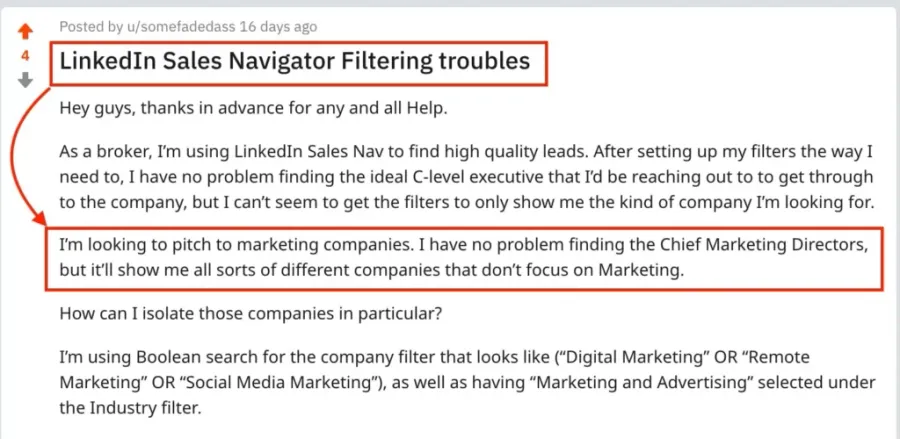
That’s why many people spend hours double-checking their search results manually.
This is a painful task, but it’s no problem.
Evaboot is the best Sales Navigator scraper.
Our algorithm checks your leads twice to make sure they fit your search filters.
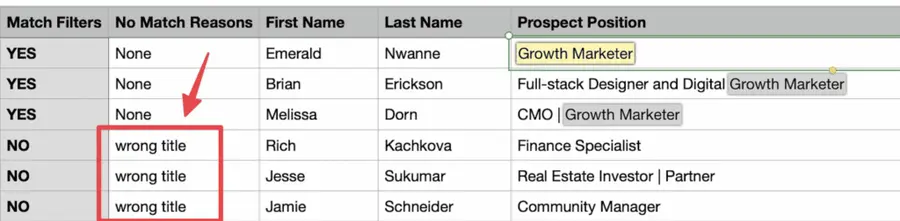
In this export, there’s a column named “No Match Reasons.” This column tells you if your leads really match your search filters.
If they don’t, we will explain why. In this example, the leads have the wrong title. The initial search was for growth marketers.
To reduce false positives in your Sales Navigator searches, check out our full Sales Navigator tutorial.
And here you go!
With this data, your sales team can now use multichannel outreach.
Conclusion
LinkedIn Sales Navigator relationship mapping isn’t just a visual feature — it’s a strategic asset for modern B2B sales teams.
By centralizing account knowledge, surfacing key insights, and enabling seamless collaboration, it helps turn scattered contacts into structured opportunities.
Whether you’re assigning leads, syncing with your CRM, or planning multi-threaded outreach, the Relationship Map keeps your team aligned and your pipeline moving.
Start using it today to transform how you sell into complex accounts.
FAQs
What Is A Relationship Map In Sales Navigator?
A relationship map in Sales Navigator is a visual tool that maps out decision makers and their roles within an organization.
This LinkedIn Sales Navigator relationship mapping feature allows sales professionals to see the complete organizational structure of their target accounts.
This makes it easier to identify key stakeholders and plan strategic outreach approaches.
What Does A Relationship Map Show?
The relationship map shows the hierarchy, influence levels, and recent activities of leads at a target account.
It displays how different contacts are connected within the organization, their roles in the decision-making process, and real-time updates about their professional activities.
This comprehensive view helps sales teams understand the complete buyer journey and identify the most effective entry points.
What Is The Difference Between Map View And List View?
Map View offers a visual layout that displays contacts in an organizational hierarchy format, allowing you to drag and drop leads into different positions and see relationships at a glance.
List View provides additional lead insights and CRM features, including detailed contact information, relationship strength indicators, interaction history, and direct CRM synchronization capabilities.
Both views complement each other for comprehensive account management.
Can I Share My Relationship Maps With Others?
Yes, you can share your relationship maps with anyone under the same Sales Navigator contract, including collaborative editing capabilities.
Team members can make real-time edits, add comments, and update contact information simultaneously.
This collaboration feature ensures that your entire sales team stays aligned on account strategy and maintains consistent communication with prospects.
What Happens If A Lead Leaves The Company?
When a lead leaves the company, you receive real-time alerts through Sales Navigator’s notification system.
The platform also provides suggested replacements to help you maintain your sales momentum and avoid disruptions in your sales process.
This proactive approach ensures that personnel changes don’t derail your ongoing sales efforts.


