
Did you know that LinkedIn’s platform categorizes businesses across more than 400 industries, influencing everything from visibility in Sales Navigator to how your company page appears in search?
Whether you’re a real estate agent, a marketing professional, or in health care, the LinkedIn industry list plays a crucial role in how your profile and business are positioned.
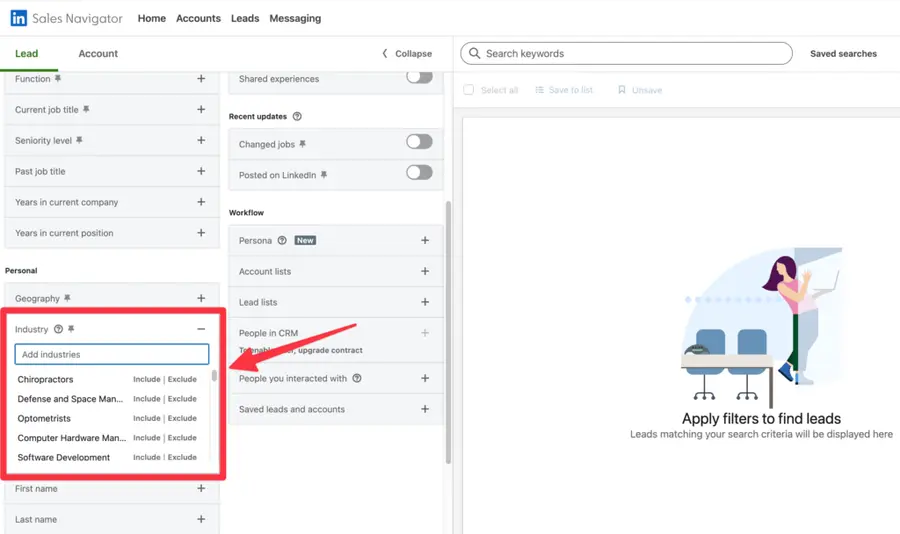
Yet, many users are unaware that selecting the wrong industry can limit your reach and networking potential.
Unlike generic dropdowns, LinkedIn’s industry list is a structured taxonomy—used to match profiles with relevant audiences, recruiter filters, and even content recommendations.
And if you’re using Sales Navigator, the industry selection becomes even more powerful, unlocking advanced filters that help you target companies, decision-makers, and even growth sectors more precisely.
In this guide, I’ll break down:
- Complete List of Industries on LinkedIn Sales Navigator
- How Sales Navigator categorizes industries
- How to Effectively Utilize Industry Filters in Sales Navigator
- Export Industry-Filtered Leads with Evaboot
Ready to uncover how LinkedIn’s industry categories affect your visibility, targeting, and results?
Let’s dive in.
Complete List of Industries on LinkedIn Sales Navigator
This section outlines the primary industry sectors available for targeting within LinkedIn Sales Navigator:
- Sector 1: Technology
- Sector 2: Healthcare & Pharmaceuticals
- Sector 3: Finance & Insurance
- Sector 4: Manufacturing & Industrial
- Sector 5: Consumer Goods & Retail
- Sector 6: Media & Entertainment
- Sector 7: Education & Training
- Sector 8: Professional Services
- Sector 9: Real Estate & Construction
- Sector 10: Transportation & Logistics
- Sector 11: Energy & Utilities
- Sector 12: Government & Public Administration
- Sector 13: Non-Profit & Social Services
Sector 1: Technology
This sector encompasses a wide array of sub-industries vital to the digital economy.
- Information Technology and Services
- Computer Software
- Internet
- Computer Hardware
- Semiconductors
- Telecommunications
- Cybersecurity
- Artificial Intelligence
- Machine Learning
- Cloud Computing
- Data Analytics
- Biotechnology (often cross-listed with Healthcare)
- FinTech (often cross-listed with Finance)
Sector 2: Healthcare & Pharmaceuticals
This sector covers all aspects of health, medicine, and wellness.
- Hospital & Health Care
- Pharmaceuticals
- Medical Device
- Biotechnology
- Mental Health Care
- Wellness and Fitness Services
- Veterinary Services
- Research
Sector 3: Finance & Insurance
This sector includes institutions and services related to money management and risk mitigation.
- Financial Services
- Banking
- Insurance
- Investment Banking
- Venture Capital & Private Equity
- Accounting
- Capital Markets
- FinTech
Sector 4: Manufacturing & Industrial
This sector focuses on the production of goods and industrial services.
- Machinery
- Industrial Automation
- Automotive
- Aviation & Aerospace
- Defense & Space
- Chemicals
- Plastics
- Textiles
- Paper & Forest Products
- Building Materials
- Mining & Metals
- Food & Beverage Manufacturing
Sector 5: Consumer Goods & Retail
This sector involves the creation and sale of products directly to consumers.
- Retail
- Consumer Goods
- Luxury Goods & Jewelry
- Apparel & Fashion
- Food & Beverages
- Sporting Goods
- Cosmetics
- Supermarkets
- Wholesale
Sector 6: Media & Entertainment
This sector covers content creation, distribution, and entertainment services.
- Media Production
- Broadcast Media
- Motion Pictures and Film
- Entertainment
- Music
- Publishing
- Newspapers
- Gambling & Casinos
- Recreational Facilities & Services
Sector 7: Education & Training
This sector includes all forms of learning and professional development.
- Higher Education
- Primary/Secondary Education
- E-Learning
- Professional Training & Coaching
- Libraries
- Research
Sector 8: Professional Services
This sector encompasses services provided by professionals to businesses and individuals.
- Management Consulting
- Marketing & Advertising
- Public Relations & Communications
- Legal Services
- Staffing & Recruiting
- Human Resources
- Design
- Architecture & Planning
- Business Consulting
- Environmental Services
Sector 9: Real Estate & Construction
This sector covers property development, management, and building.
- Real Estate
- Construction
- Commercial Real Estate
- Facilities Services
Sector 10: Transportation & Logistics
This sector involves the movement of goods and people, and supply chain management.
- Logistics & Supply Chain
- Transportation
- Warehousing
- Airlines/Aviation
- Maritime Transportation
- Railroad Manufacture
- Package/Freight Delivery
Sector 11: Energy & Utilities
This sector focuses on power generation, distribution, and natural resources.
- Oil & Gas
- Utilities
- Renewable Energy
- Environmental Services
- Mining & Metals
Sector 12: Government & Public Administration
This sector includes various governmental bodies and public services.
- Government Administration
- International Affairs
- Law Enforcement
- Military
- Public Policy
- Defense & Space
Sector 13: Non-Profit & Social Services
This sector comprises organizations focused on social good and community support.
- Non-Profit Organization Management
- Civic & Social Organization
- Fundraising
- Individual & Family Services
- Religious Institutions
How Sales Navigator categorizes industries
LinkedIn Sales Navigator organizes industries into a comprehensive, hierarchical structure.
These categories are derived from LinkedIn’s vast database of member profiles and company pages, ensuring a robust and dynamic classification system.
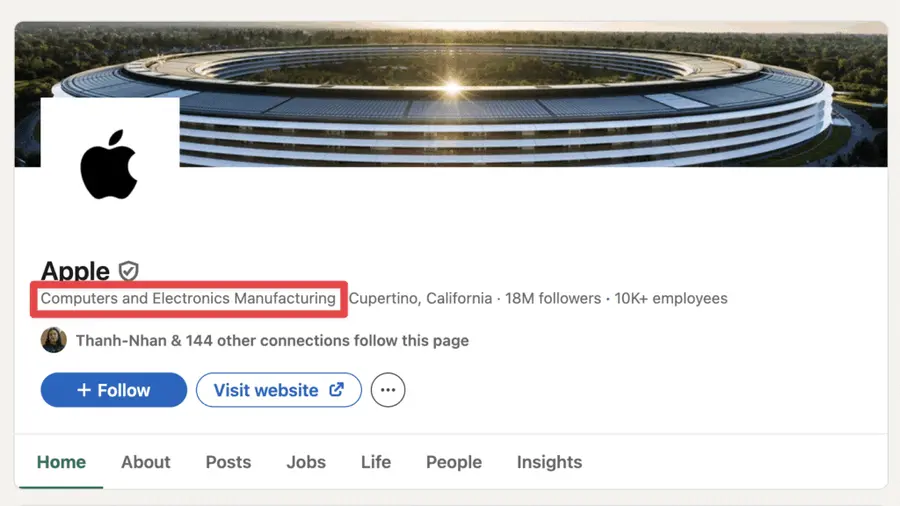
Each company listed on LinkedIn is associated with one or more industry categories, allowing Sales Navigator to filter and segment effectively.
This categorization is continuously refined to reflect global economic shifts and emerging sectors.
How to Effectively Utilize Industry Filters in Sales Navigator
Mastering industry filters is fundamental to effective lead generation. How can you leverage these filters for maximum impact?
Step-by-step guide to applying industry filters
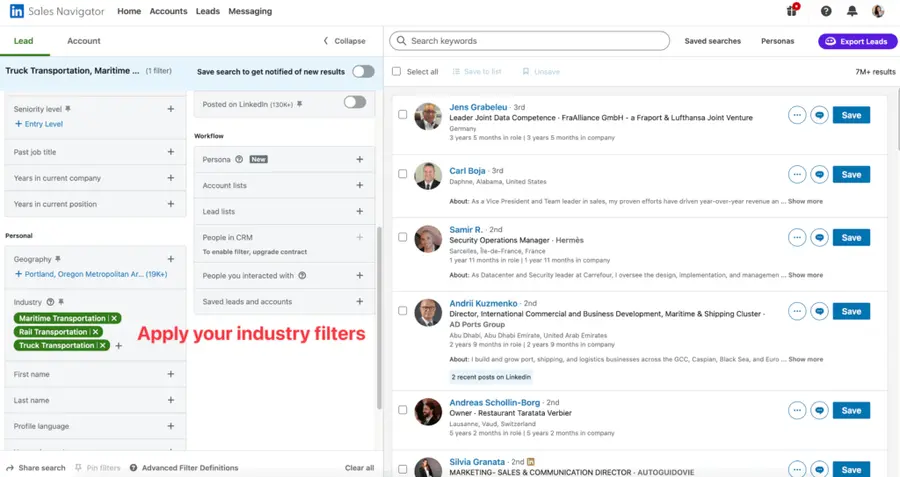
1. Access Sales Navigator: Log in to your LinkedIn Sales Navigator account.
2. Initiate a Lead Search or Account Search: Click on “Lead filters” or “Account filters” to begin a new search.
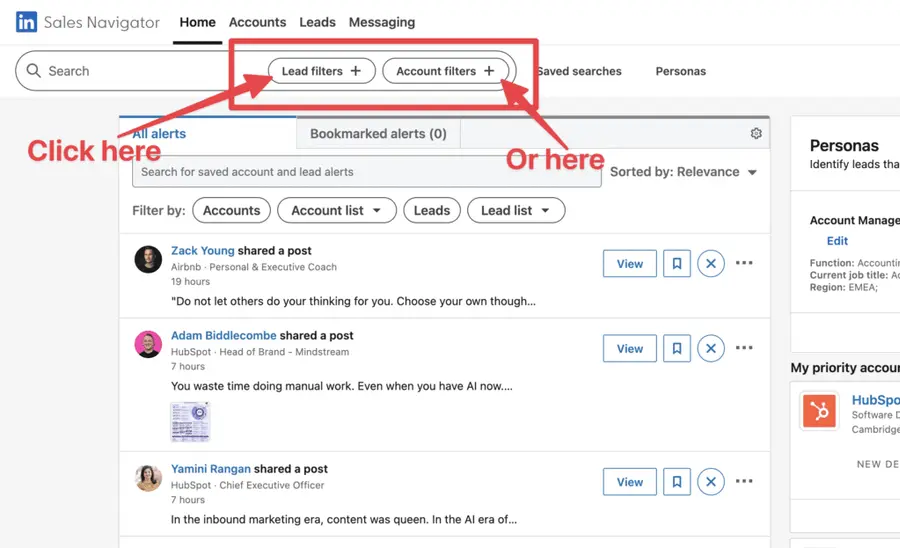
3. Locate the “Industry” Filter: Scroll down the filter options until you find “Industry.”
4. Select Target Industries: Click on the “Industry” filter. A drop-down list will display a list of categories. You can search for specific industries by typing in the search bar or browse the hierarchical list.
Sales Navigator allows you to select multiple industries.
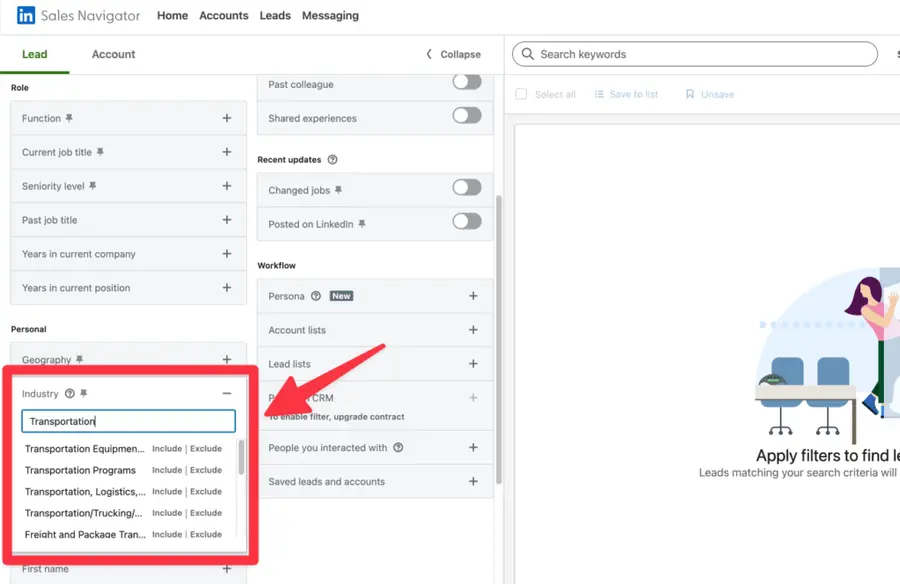
5. Apply Filters: After making your selections, click “Apply” or “Add” to implement the filters into your search results.
Combining industry filters with other search criteria
Industry filters are most powerful when combined with other search parameters.
Consider augmenting your industry selection with:
- Job Title/Seniority: Target specific roles within your chosen industries (e.g., “VP of Sales” in “Software”).
- Company Headcount: Focus on companies of a particular size (e.g., 500-1000 employees in “Financial Services”).
- Geography: Restrict your search to specific regions or countries.
- Keywords: Use keywords to find individuals or companies with specific skills, interests, or technologies (e.g., “AI implementation” within “Healthcare”).
- Growth Rate: Identify rapidly expanding companies within your target industries.
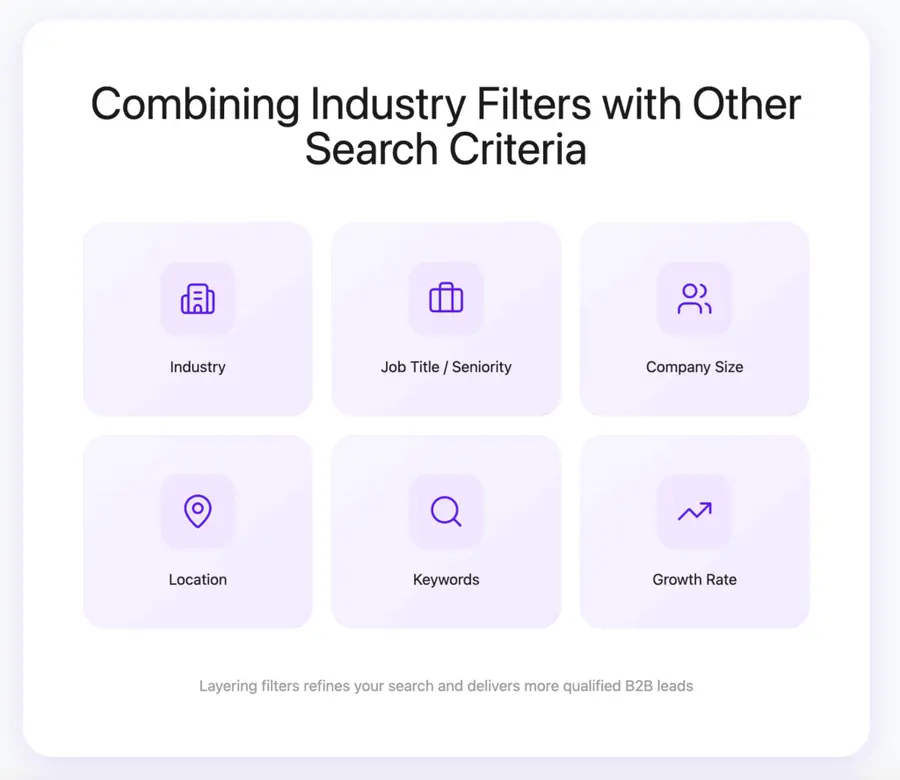
This layered approach refines your search, delivering highly qualified leads directly to your pipeline.
Export Industry-Filtered Leads with Evaboot
Once you’ve mastered how to filter prospects by industry in Sales Navigator, the next step is turning those search results into actionable outreach lists.
That’s where Evaboot comes in.
Evaboot is a Chrome extension that lets you export your filtered leads from Sales Navigator in one click—complete with verified emails and enriched company data.
Let’s say you’ve narrowed your search to decision-makers in the “Professional Services” industry with 11–50 employees in the U.S.
Instead of manually copying profiles or using basic CSV exports, Evaboot lets you export up to 2500 leads daily from LinkedIn Sales Navigator.
Here is how to extract all your leads from Sales Navigator.
1. Install the Evaboot Chrome extension.
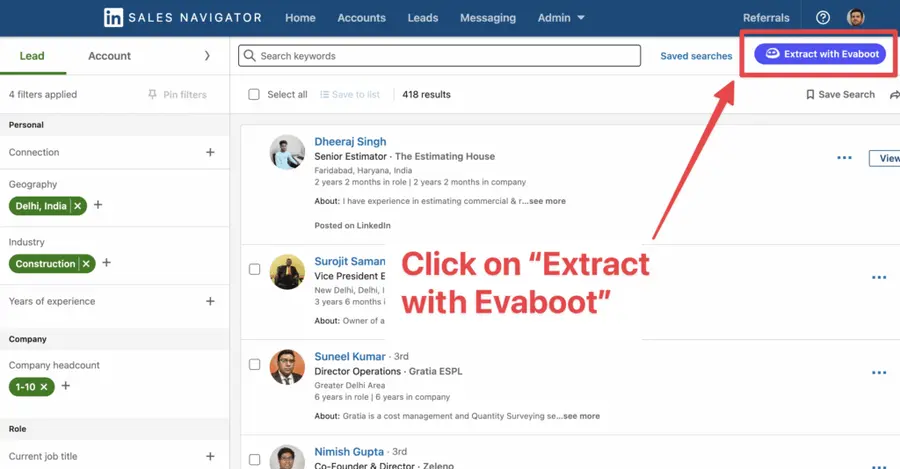
2. Click on the “Extract with Evaboot” button
3. Choose to export with or without email lists, and hit “Launch export”.
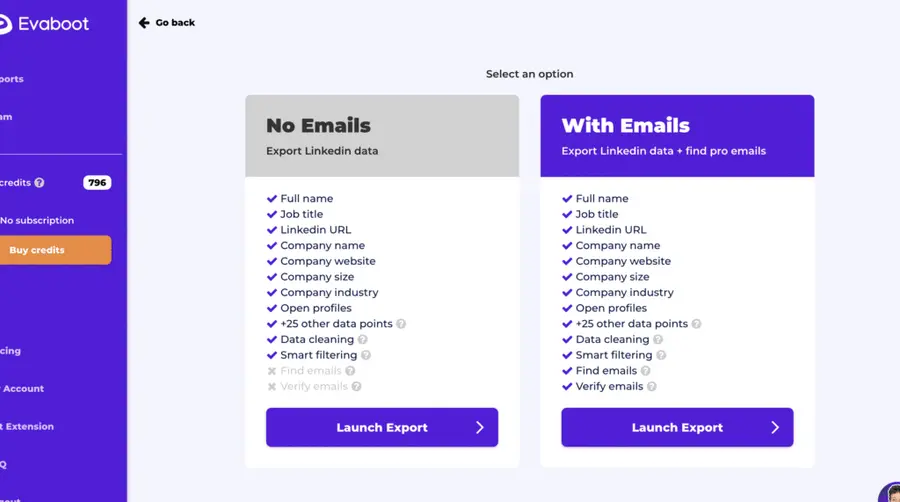
This way, Evaboot becomes an email finder tool that enriches the lead list with quality data.
4. Name your export list.
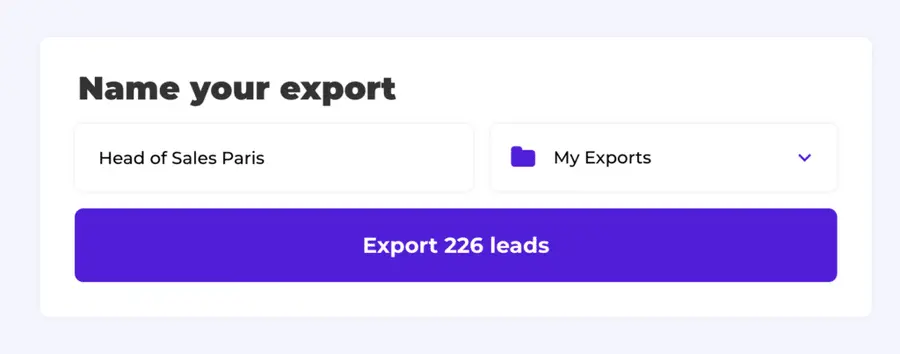
5. Hit export your leads and wait for the result.
Once the extraction is over, you can download the CSV by clicking the download icon.
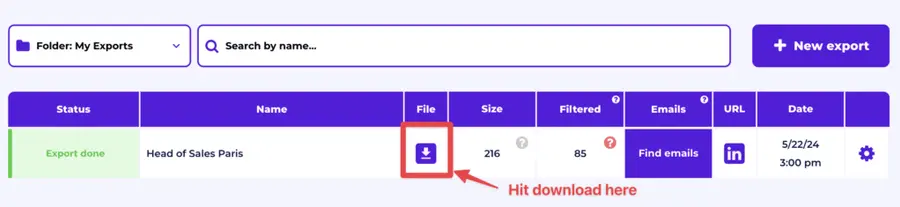
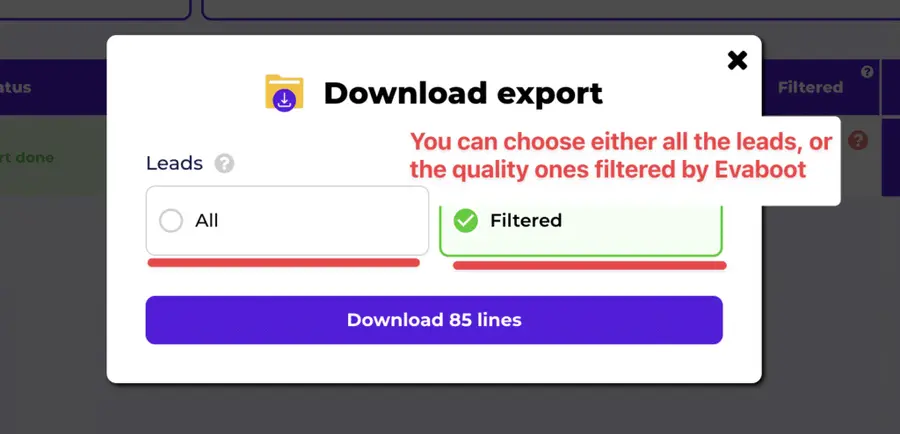
6. Choose the list type that you want to download. And you’re done.
7. You get a CSV file with all the necessary data information.
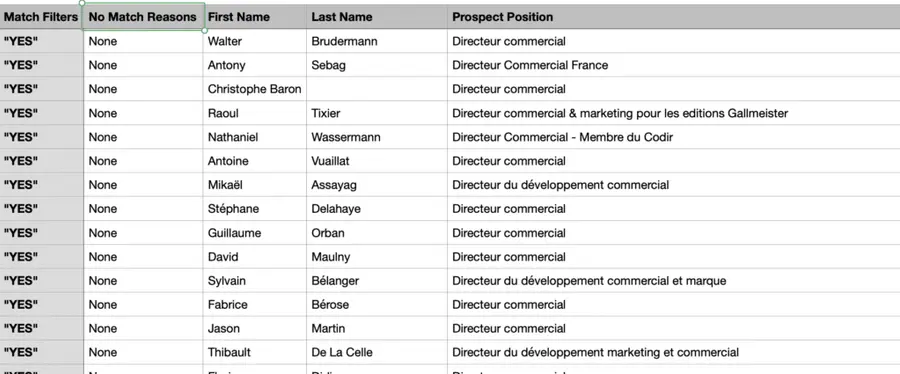
This is an excellent feature for using cold emails or conducting multichannel outreach campaigns for better results.
That being said, lead data is not static.
B2B data decays by 2.1% per month, meaning 22.5% of your exported leads could be outdated within a year. Job titles change, companies evolve, and outdated information leads to wasted outreach efforts.
To solve this, Evaboot offers LinkedIn profile URL Enrichment: a tool allowing you to upload Linkedin URLs stored in your CRM to enrich your LinkedIn contacts with Sales Navigator data.
How it works:
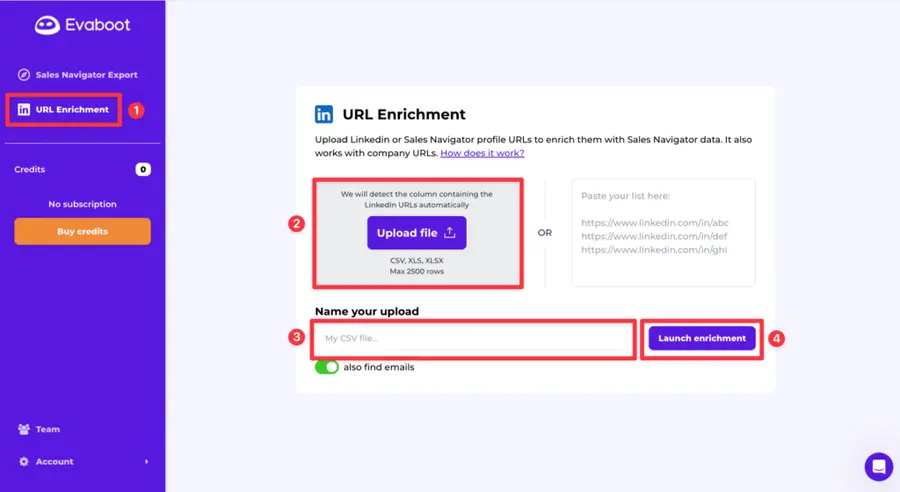
- Log in to your Evaboot account and go to the “URL Enrichment” feature.
- Upload an old list of LinkedIn or Sales Navigator URLs.
- Name your CSV file
- Launch enrichment.
- Wait a few minutes while the data updates, then download your refreshed list as a CSV file.
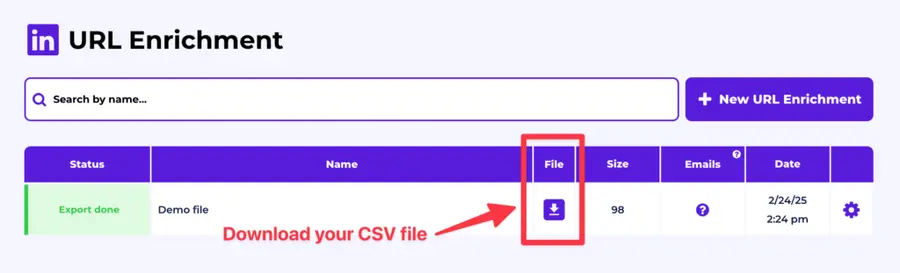
And here you go!
We recommend updating your lead lists every 3-6 months to maintain accuracy. This ensures your database stays fresh, relevant, and effective—so your sales efforts never go to waste.
For a visual step-by-step guide, check out the video tutorial:
Conclusion
Choosing the right industry filters on LinkedIn isn’t just a detail: it’s a growth lever.
It determines who sees your profile, who you can reach, and how relevant your leads are.
And with Evaboot, you can turn those perfectly filtered searches into clean, exportable lead lists in just a few clicks.
Start targeting smarter, not harder.
FAQs
How often is the industry list updated on LinkedIn Sales Navigator?
LinkedIn regularly updates its industry classifications to reflect market changes, new sectors, and evolving business models.
While there isn’t a fixed schedule for public announcements of these updates, you can expect refinements and additions to occur periodically throughout the year.
It is advisable to review the filter options occasionally for new categories.
Can I suggest a new industry category to LinkedIn?
Currently, LinkedIn does not provide a direct mechanism for users to suggest new industry categories for Sales Navigator.
Industry classifications are determined by LinkedIn’s internal data analysis and economic research teams.
If you find a significant gap, precise keyword targeting is the most effective interim solution.
Are there limitations to the number of industries I can target?
LinkedIn Sales Navigator allows you to select multiple industries in your search filters.
There is no hard limit on the number of industries you can select in a single search, providing flexibility to target broad sectors or a combination of niche markets.
However, selecting too many diverse industries may dilute the specificity of your outreach efforts.
What if my target industry isn’t explicitly listed?
If your precise target industry is not explicitly listed, employ a combination of strategies:
1. Select broader related industries: Choose the closest overarching categories.
2. Utilize keyword searches: Supplement your industry filters with specific keywords relevant to your niche (e.g., “sustainable packaging” within “Manufacturing”).
3. Filter by company size and geography: Further refine your search within the broader industry by applying additional firmographic criteria.
How does industry targeting impact my lead generation efforts?
Industry targeting dramatically improves lead generation efficiency by focusing your efforts on the most relevant prospects. It leads to:
• Higher Quality Leads: Prospects from target industries are more likely to have a need for your solution.
• Increased Personalization: Enables tailored messaging that resonates with specific industry pain points.
• Improved Conversion Rates: Relevant outreach results in higher engagement and conversion.
• Reduced Wasted Effort: Avoids spending time on leads unlikely to convert, optimizing sales resources.


