
Are you having trouble using Sales Navigator’s search filters to find leads that match your prospect criteria?
Then, give LinkedIn Sales Navigator Boolean Search a try.
This technique can transform your LinkedIn lead generation process, making it more efficient and accurate.
In this guide, you will learn:
- What are LinkedIn Boolean Logic Searches?
- How to use LinkedIn Sales Navigator Boolean Search?
- How to Search For Keywords On Sales Navigator?
- How to export LinkedIn Sales Navigator Boolean Search Results?
- How To Build Advanced Sales Navigator Boolean Search with AI?
Let’s see how to use LinkedIn Sales Navigator for the maximum results.
What Are LinkedIn Boolean Logic Searches?
LinkedIn Boolean Logic searches is a query technique that combines words and phrases with Boolean operators.
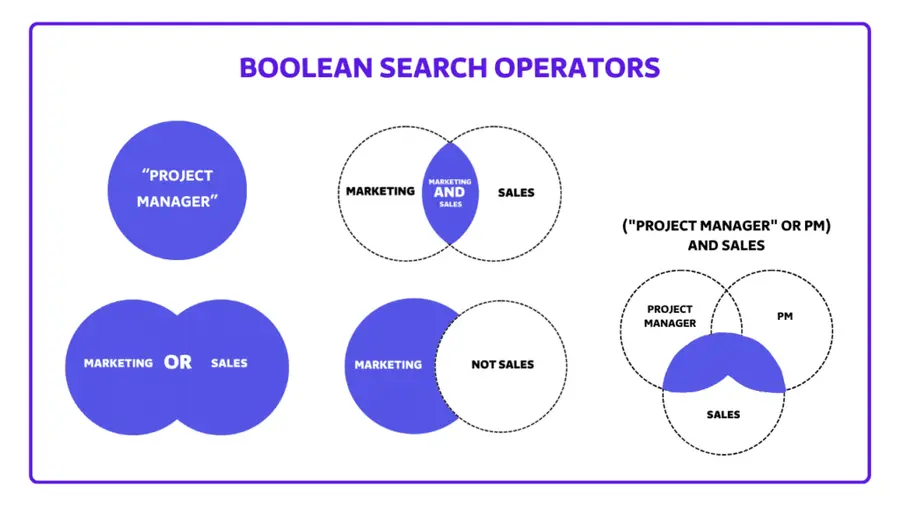
Boolean Operators are the following 5 logical connectors:
- AND
- OR
- NOT
- Parentheses ()
- Quotation marks “”
LinkedIn Boolean searches limit, narrow, or expand your keyword searches to find your prospects with better accuracy.
Better Accuracy with LinkedIn Boolean Searches byu/koolrooler insalestechniques
They reduce the number of unqualified leads in your search results.
Boolean Search is compatible with all LinkedIn search engines:
- Use LinkedIn Boolean search to find decision-makers
- Use LinkedIn Sales Navigator Boolean search for lead generation
- Use LinkedIn Recruiter Boolean search to find quality LinkedIn profiles
How To Use LinkedIn Sales Navigator Boolean Search?
To use Sales Navigator Boolean search efficiently, you need to master all the 5 Boolean modifiers:
- Search for expressions with quotation marks
- Search several keywords with AND
- Search at least one keyword with OR
- Exclude keywords with NOT
- Combine Boolean queries with parentheses
1. Search for expressions with quotation marks
Quotation marks allow you to search for an exact phrase or search terms that contain:
- Multiple words
- Punctuation marks
To search for a phrase of several words, enclose the phrase in quotation marks.
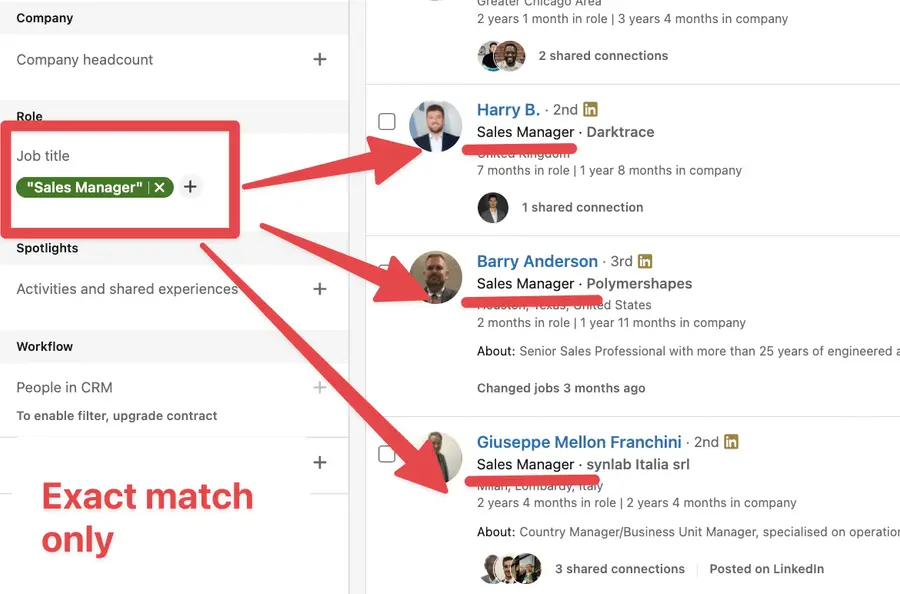
You can use these in addition to other modifiers. For example:
- “sales manager”
- “V.P”
- “account representative”
- “human resources manager”
If you forgot to add the quotes to sales manager, LinkedIn will understand “sales AND manager“
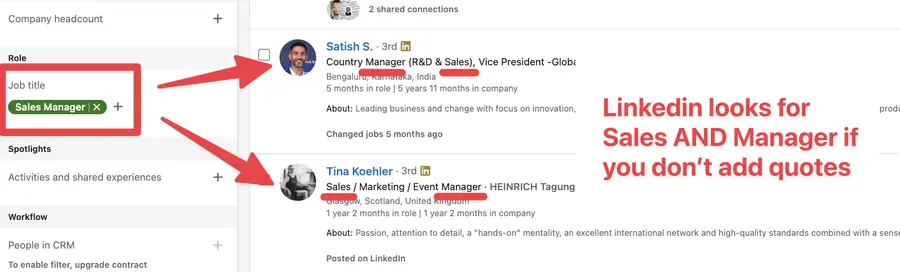
You can see that some search results are not relevant in the screenshot above.
However, the results were much better in the first screenshot, where I searched “sales manager” in the search area.
This is important to consider if you want to build qualified lead lists and avoid contacting people outside your target.
2. Search several keywords with AND
If you want to search for profiles that include two terms, you can separate those terms with AND.
Always written in uppercase letters, the AND operator helps refine your search to include results containing all specified terms.
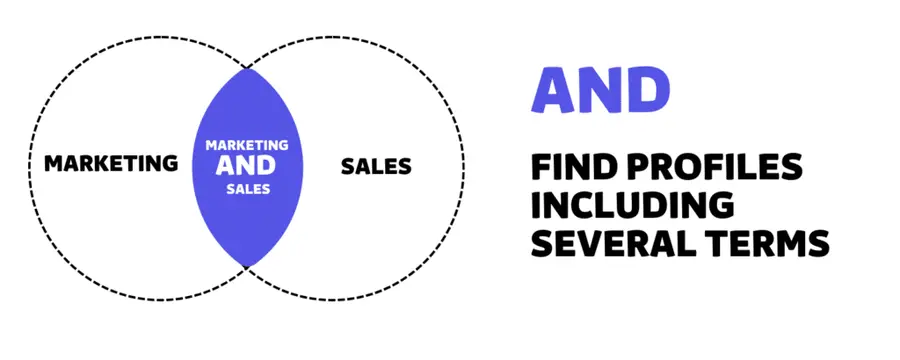
Here are two examples of the searches that I’ve done myself:
- Sales AND Director
- “Sales manager” AND “Sales director”
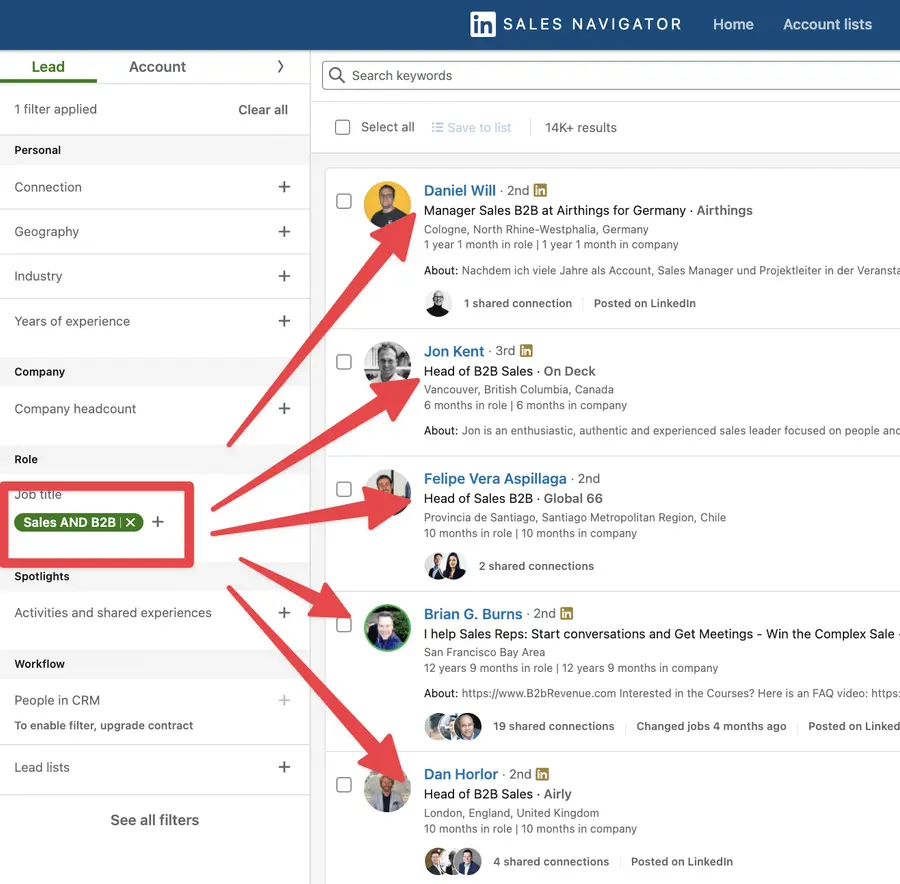
With the first two terms, the search engine assumes that there is an AND between them anyway. So you’ll get the same results even without the AND.
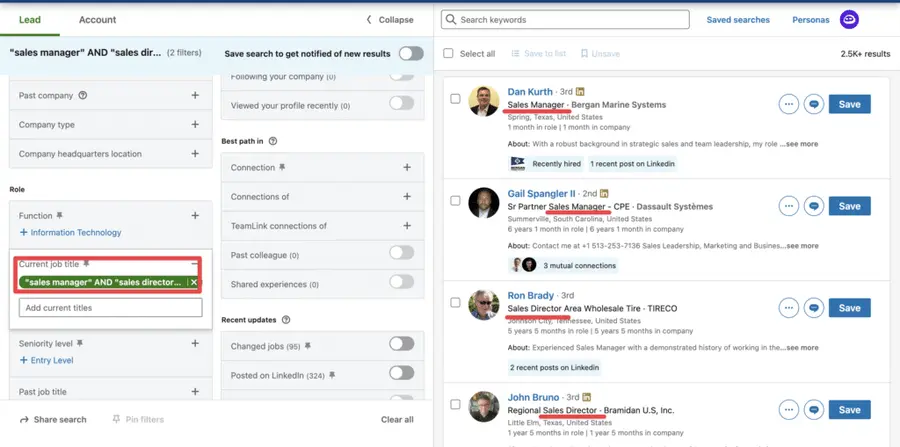
For the second search, I typed “sales manager” AND “sales director,” and got profiles featuring the sales manager and sales director.
That is exactly what I was looking for.
3. Search at least one keyword with OR
If you want to broaden your search to find profiles that include one or more terms, you can separate those terms with OR.

OR is often used to search for alternate spellings or terms that mean the same thing.
For example:
- “Sales Operations” OR “Sales Ops”
- “Vice President” OR “VP” OR “V.P.” OR “SVP” OR “EVP”
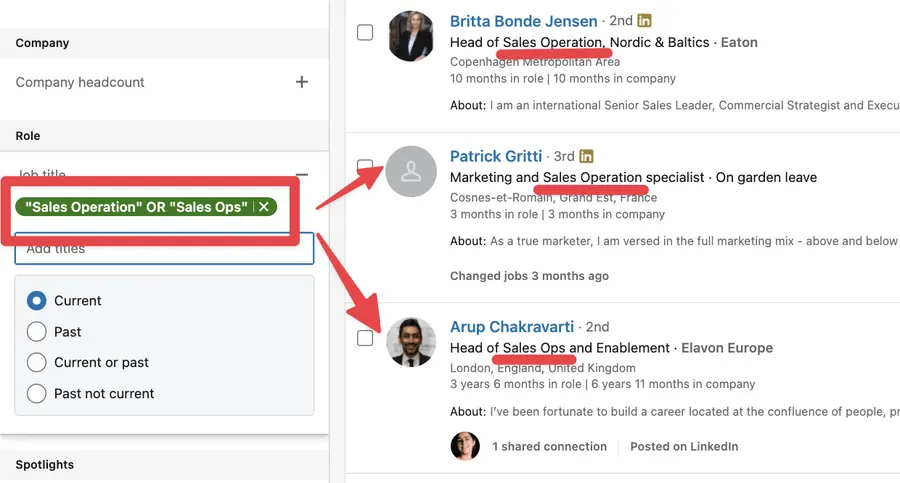
This operator is especially useful for encompassing various phrases in one search, like “content writer” OR “content marketer” OR “copywriter”.
4. Exclude keywords with NOT
If you want to exclude a particular term from your search, type that term with the NOT operator before it.
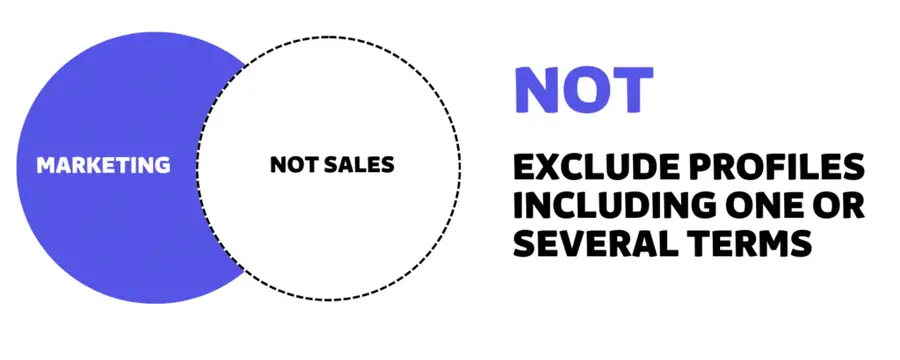
Your search results will exclude any profile containing that term.
Let’s see a live example.
Here, I added the keyword “CEO” in the title filter
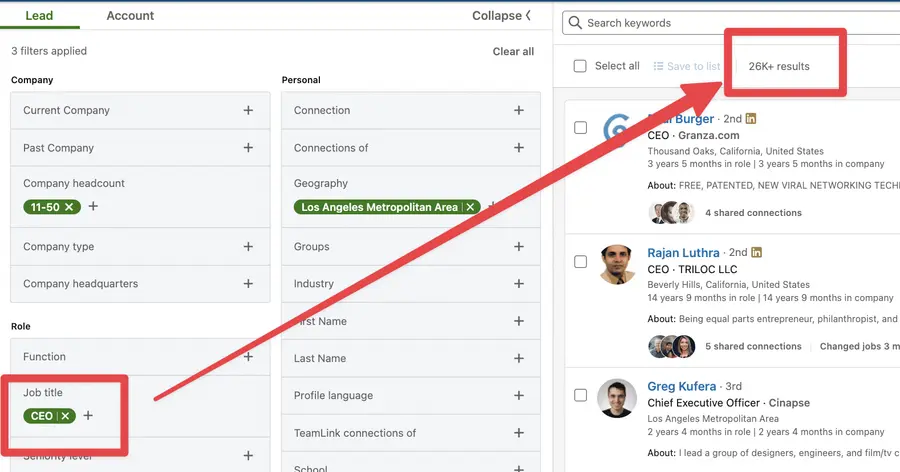
You can see that I have more than 26K results.
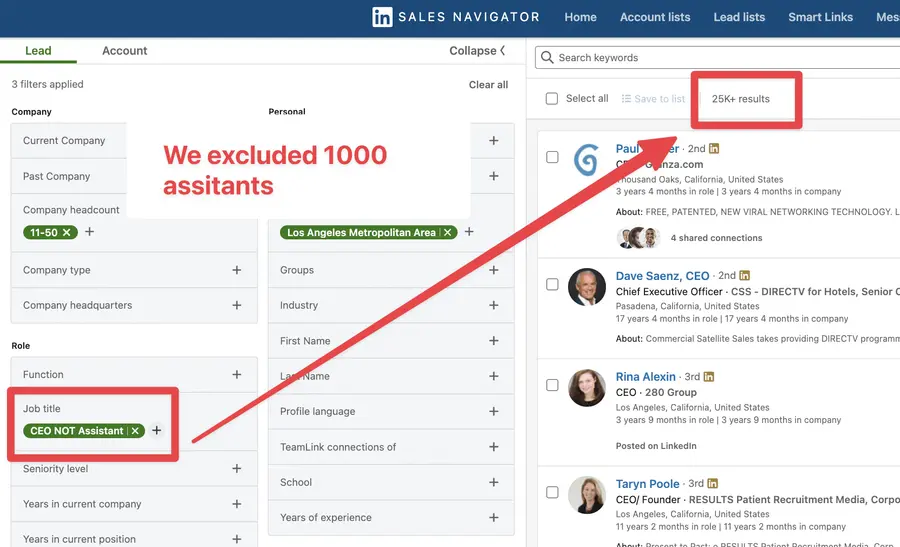
If I change it to CEO NOT Assistant, you can see that I excluded 1000 “CEO assistants” from my search.
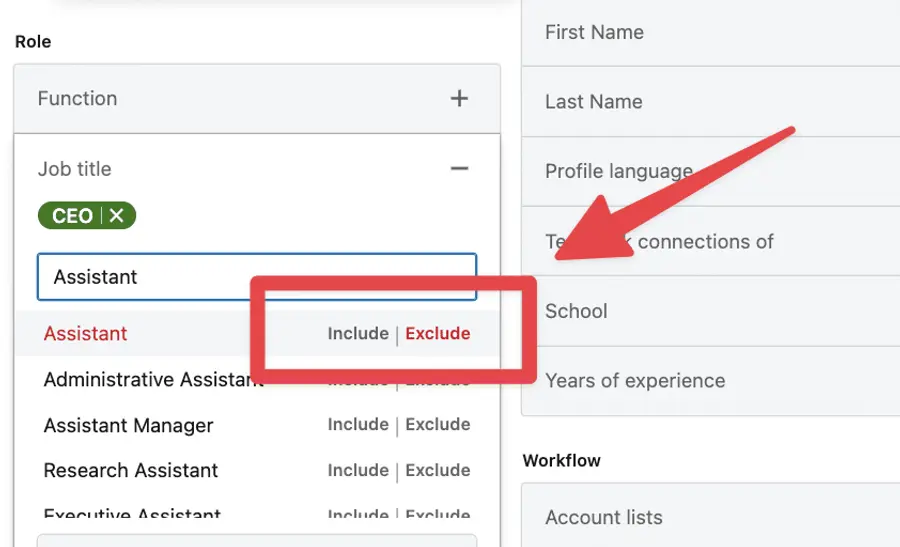
I can do the same thing by adding the keyword and clicking the exclusion button.
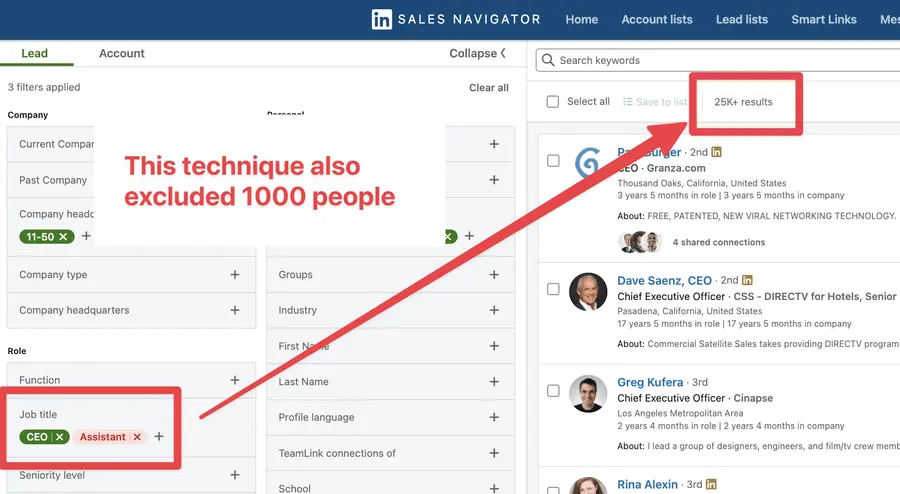
Once you click, the button will appear in red, and the exclusion will work exactly as if you had put a NOT Boolean operator.
5. Combine Boolean queries with Parentheses
Parentheses are important tools used to combine terms and phrases together, enabling the creation of more complex search queries.
For example:
- Marketing AND (B2B OR B2C)
This will look for a profile containing Marketing AND B2B OR Marketing AND B2B.
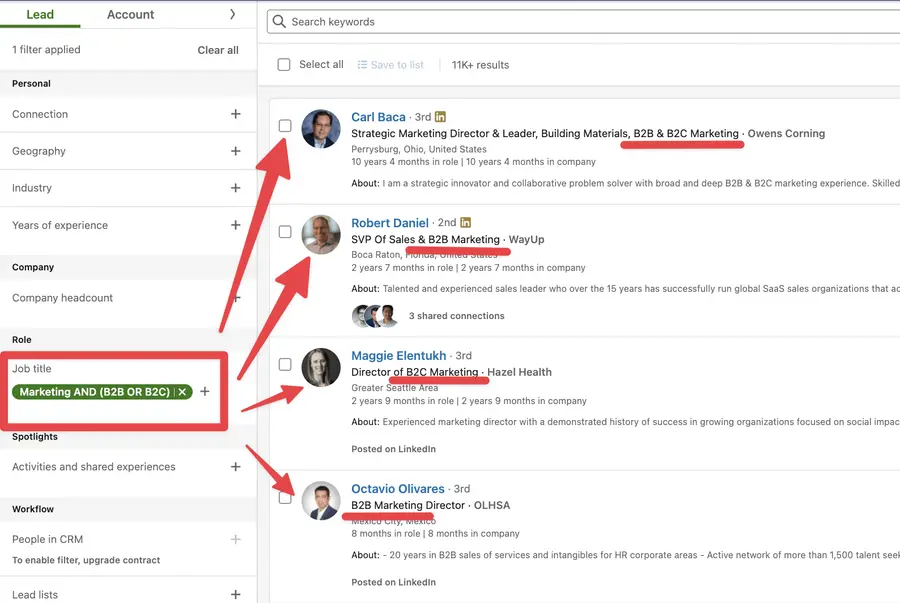
Once you know how to use Parentheses, you can take your LinkedIn Search Navigator lead generation strategies to the next level with Boolean searches.
How To Search For Keywords On Sales Navigator?
There are two places where you search for keywords on LinkedIn Sales Navigator:
- The global keyword search
- The current job title search
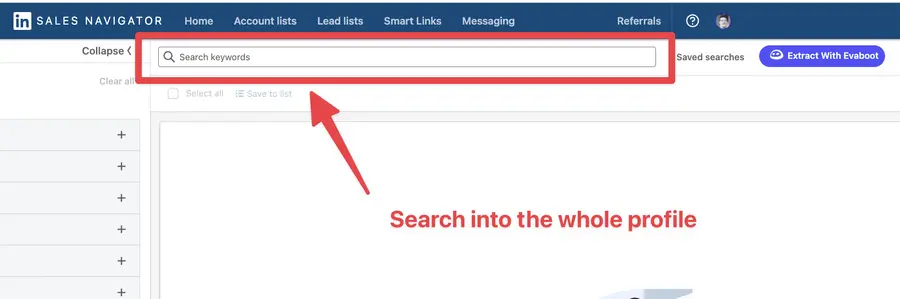
1. The global keyword search
The global keyword you put in the search bar will look for them everywhere in the profiles of all the prospects:
- Description
- About Section
- Job experiences
- Education
- Skills
- Recommendation
- Etc…
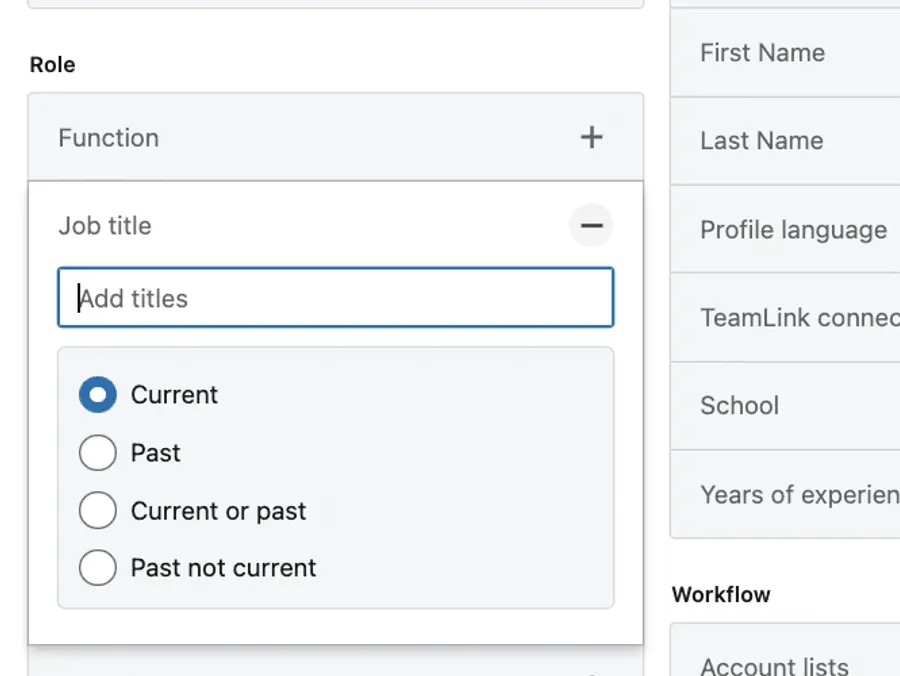
2. The current job title search
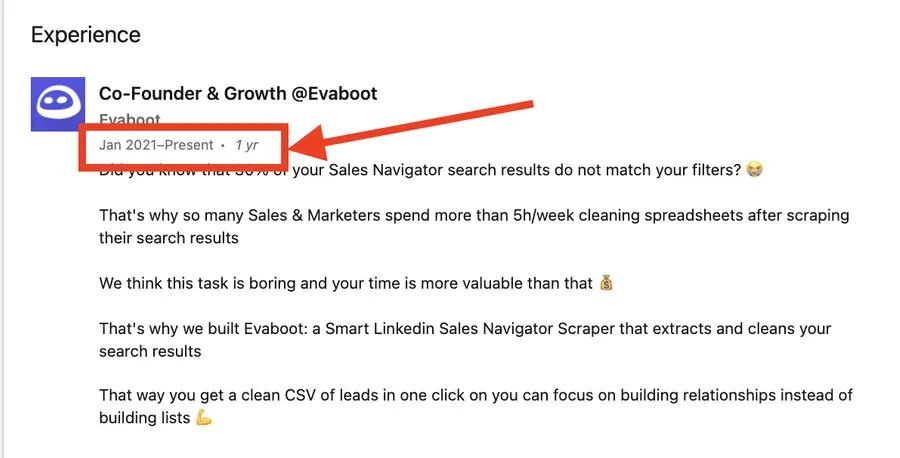
The current job title search will only look for keywords in the current job title of your prospects.
That is all the experience with the “Present” tag.
This is how I search for most of my leads on LinkedIn Sales Navigator.
How To Export Sales Navigator Boolean Search Results?
Once you complete your Boolean search on LinkedIn Sales Navigator and have your list of prospects, you can export the lead lists from Sales Navigator to a CSV with Evaboot.
Evaboot will also:
- Double-check every profile to see if Sales Navigator correctly applied your Boolean Search filters.
- Clean the names of your prospects. People love to add emojis or capital letters to their names. Evaboot cleans the rubbish in the data so that you get clean names for your CRM and cold outreach campaigns.
Combining Sales Navigator advanced search filters and Evaboot is a great combo to start getting results with LinkedIn prospecting.
After this, you can use these lead data as you wish. Send inmails, emails, or cold calls. You can even merge all these tactics into a multichannel outreach campaign.
How To Build Advanced Sales Navigator Boolean Search with AI?
Crafting effective Boolean search queries in LinkedIn Sales Navigator can be tedious. It often takes several tries before landing on the right formula.
AI can significantly streamline this process and enhance the quality of your results.
Here’s how to use AI to generate sophisticated Boolean search strings.
- Using ChatGPT to Generate Advanced Boolean Search Strings
- Example of a Conversation with ChatGPT
- Key Benefits of AI-Generated Boolean Searches
1. Using ChatGPT to Generate Advanced Boolean Search Strings
While Boolean searches are powerful, many users find the syntax challenging.
ChatGPT can bridge this knowledge gap by translating your prospect requirements into properly formatted search strings.
Here’s a simple framework to follow:
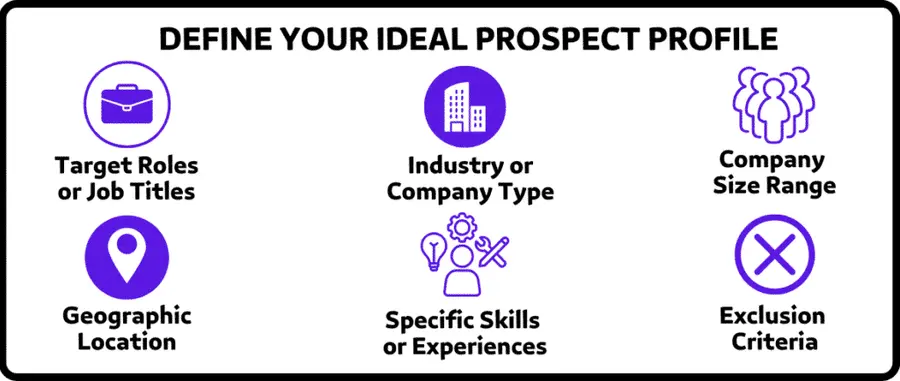
Step 1: Define your ideal prospect profile
Before engaging with AI, identify:
- Target roles or job titles
- Industry or company type
- Company size range
- Geographic location
- Specific skills or experiences
- Exclusion criteria
Step 2: Create an effective AI prompt
Use this template to get the best results from ChatGPT:
Create 3 LinkedIn Sales Navigator Boolean search strings to find [target_role] at [company_type] companies who [specific_criteria].

Include these parameters:
- Must include job titles: [list relevant titles]
- Must be at companies with: [company criteria]
- Must have skills/experience in: [relevant skills]
- Must exclude: [roles or companies to exclude]
- Location: [target geography]

For each search string:
1. Optimize for seniority level
2. Provide a brief explanation of what the search targets
3. Suggest 1-2 variations to test
Step 3: Implement and iterate
After receiving ChatGPT’s suggestions:
- Test each search string in Sales Navigator
- Note which strings produce the most relevant results
- If needed, ask ChatGPT to refine based on actual results

2. Example of a Conversation with ChatGPT
Imagine you’re targeting financial advisors who work with high-net-worth clients.
Here’s how you might use ChatGPT:
Your prompt:
Help me create 3 advanced Boolean search strings for LinkedIn Sales Navigator to find financial advisors who work with high-net-worth individuals.

My target prospects have these characteristics:
- Primary titles: Financial Advisor, Wealth Manager, Investment Consultant
- Alternative titles: Portfolio Manager, Private Banker, Wealth Consultant
- Industry focus: Financial Services, Banking, Wealth Management
- Company attributes: Established firms, not startups, 100+ employees
- Key skills: Estate planning, Tax optimization, Alternative investments
- Exclusions: Insurance agents, Mortgage brokers
- Geography: United States, specifically Northeast and West Coast

For each search string:
1. Focus on a different aspect of my targeting criteria
2. Explain the logic behind the operators used
3. Suggest 1-2 variations to test
ChatGPT’s response might include:
Boolean Search String #1:
("Wealth Manager" OR "Private Banker") AND ("high net worth" OR "HNWI" OR "affluent clients") AND ("estate planning" OR "wealth transfer") AND (NOT "insurance agent") AND ("New York" OR "Massachusetts" OR "Connecticut" OR "California" OR "Washington")

Logic: This string targets wealth management professionals specifically mentioning high-net-worth clients and estate planning services, while excluding insurance agents and focusing on Northeast and West Coast states.

Variations:
- Add "High Net Worth" or "HNW" to the skill section for more precise targeting.
- Use ("Private Wealth" OR "Wealth Planning") to broaden the skill targeting.
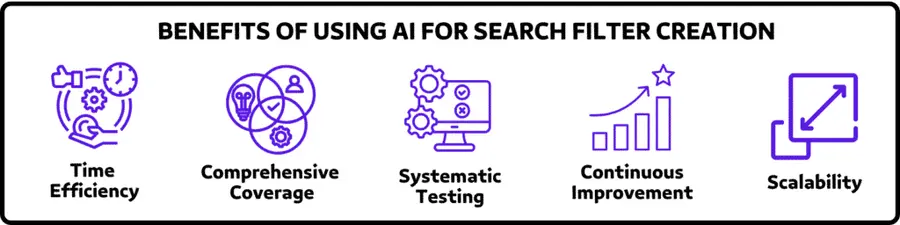
3. Key Benefits of AI-Generated Boolean Searches
Using AI to generate your LinkedIn Sales Navigator search filters offers several advantages:
- Time efficiency: Generate multiple complex search variations in minutes instead of hours of manual trial and error
- Comprehensive coverage: AI can suggest combinations of keywords and filters you might not have considered
- Systematic testing: Generate multiple variations to test and optimize your search results
- Continuous improvement: Feed results back to the AI to refine searches based on what’s working
- Scalability: Quickly create targeted search strings for different prospect segments or territories
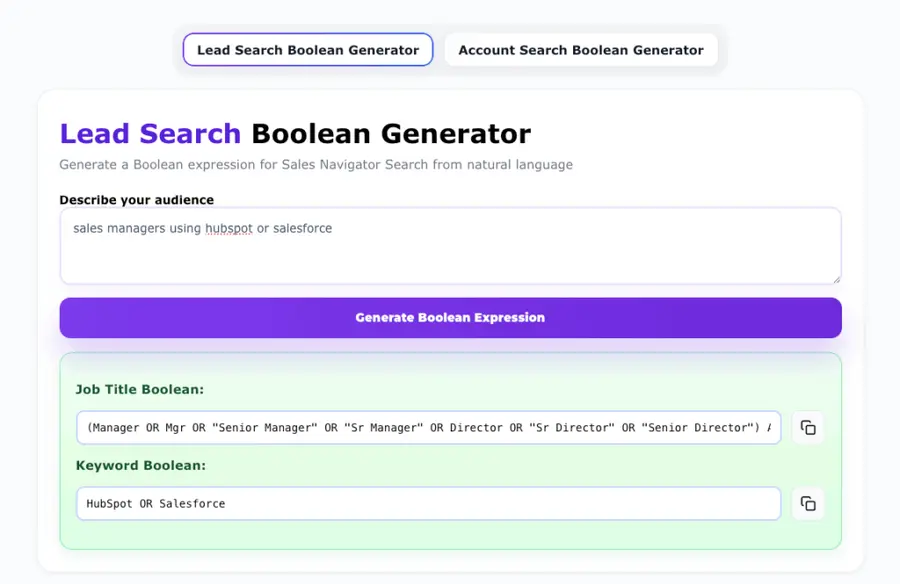
And if you want to put this into practice now without any manual work…
Try our LinkedIn Boolean Search Generator to create perfectly structured queries in seconds with AI.
Conclusion
Boolean search is a powerful tool that helps you target and find decision-makers and leads faster.
Combining Boolean search, exclusion, and other advanced filters will make your prospecting even more effective.
Remember to follow these tips and experiment with different search strings to see what works best for your needs.
FAQ
Can you use Boolean searches in LinkedIn Sales Navigator?
Yes, LinkedIn supports Boolean search. You can use Boolean operators in the global keyword search, the current job title search, and the company field in the Sales Navigator.
How does Boolean search work on LinkedIn Sales Navigator?
You can perform a Boolean search in Sales Navigator by combining keywords with operators such as AND, NOT, OR, parenthesis, and quotation marks.
And note that Sales Navigator ignores words such as “by,” “in,” and “with” to optimize performance.
What are Boolean search benefits on LinkedIn Sales Navigator?
Boolean search in LinkedIn Sales Navigator helps you narrow search results and find specific Sales Navigator leads.
Combining keywords with Boolean operators (like AND, OR, NOT) helps you create complex queries that return prospects that match your exact criteria.
What are the disadvantages of Boolean search on Sales Navigator?
The biggest drawback to Boolean search is that it can be complex and time-consuming.
Even with a basic understanding, they’re not perfect. You can spend hours refining your search only to get poor results.
A small error in your terms can drastically affect both your results and searches.


