
If you’re not checking your recommended leads in LinkedIn Sales Navigator every week, you’re leaving money on the table.
This feature gives you personalized prospect suggestions based on your activity and saved leads.
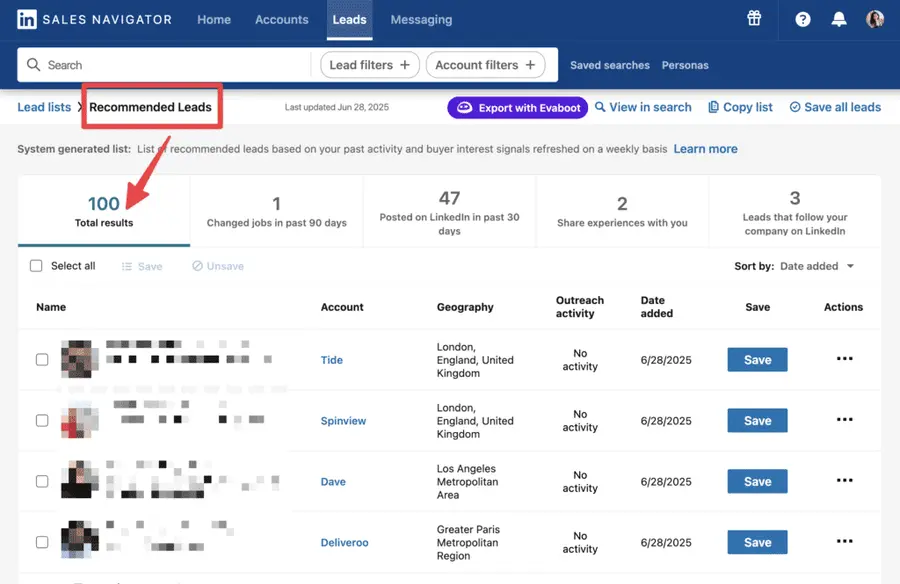
It’s one of the easiest ways to fill your pipeline with relevant leads. No manual search. No guesswork.
In this guide, you’ll learn:
- What Are Lead Recommendations in Sales Navigator?
- Where To Find Lead Recommendations In Sales Navigator
- Why You Should Use Lead Recommendations For Prospecting
- How LinkedIn’s Lead Recommendation Algorithm Works
- 4 Ways to Optimize Your Lead Recommendations
- How to Export Lead Lists from LinkedIn Sales Navigator
Let’s dive in.
What Are Lead Recommendations in Sales Navigator?
Lead recommendations in Sales Navigator are prospect suggestions based on your search history, saved leads, and engagement patterns.
This intelligent system learns from your behavior to surface relevant prospects you might have missed.
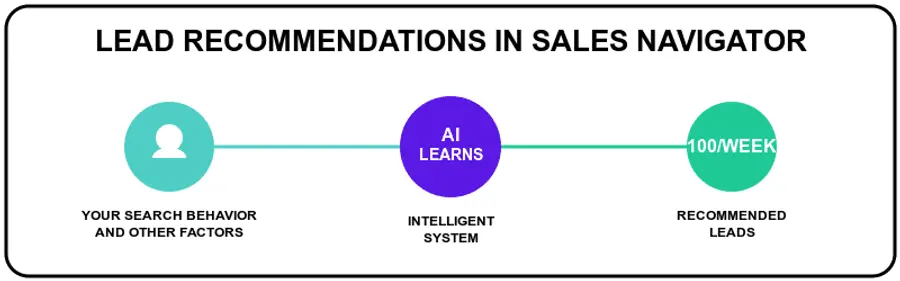
Instead of manually sifting through countless profiles, the platform curates a list of up to 100 recommended leads each week, helping sales professionals focus their efforts on the right people.
Where To Find Lead Recommendations In Sales Navigator?
The Sales Navigator’s lead recommendation feature appears in two locations:
- Company Account Pages
- Recommended Leads Tab
1. Company Account Pages
To find lead recommendations for a specific company, go to that company’s Account Details page in Sales Navigator.
Scroll down to the Relationship Map section. There, you’ll see a list of recommended leads based on your targeting criteria and existing saved leads.
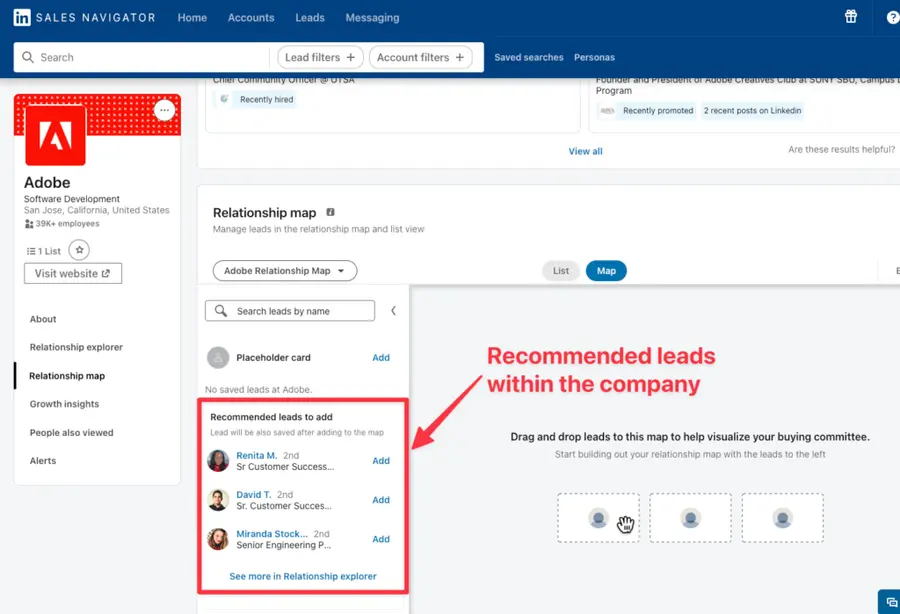
These suggestions help you identify key people within the account.
You can save these leads directly from this section and add them to your Sales Navigator Relationship Map to visualize key contacts and decision-makers.
This makes it easier to build multi-threaded connections and plan your outreach.
2. Recommended Leads Tab
To access your system-generated lead recommendations, click on Leads in the top menu of Sales Navigator, then select Recommended Leads.
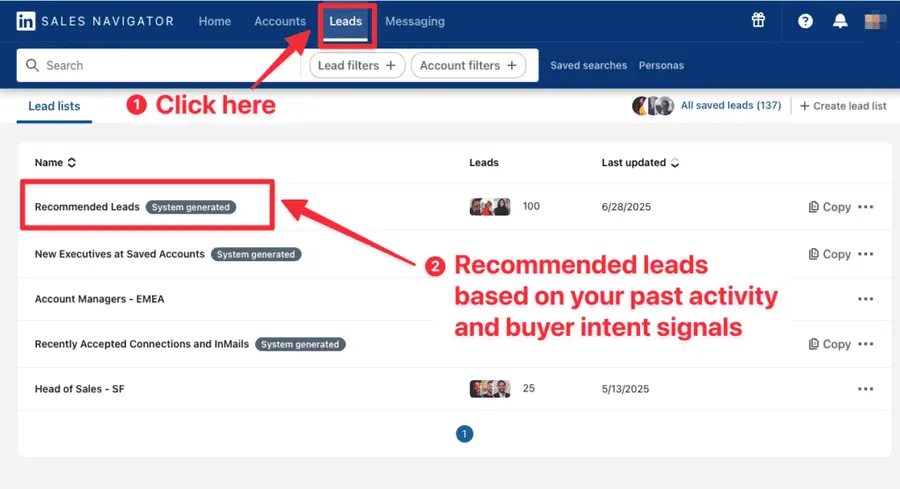
The list is refreshed weekly and is based on your past activity—such as searches, saved leads, and profile interactions—as well as buyer intent signals.
It’s a fast way to discover new prospects you may have missed through manual searches.
Simply review the list, save the most relevant leads, and add them to your lead lists for outreach.
Why You Should Use Lead Recommendations For Prospecting
Using Sales Navigator’s lead recommendations is one of the most efficient ways to improve your LinkedIn prospecting workflow.
Here’s why these recommendations are a must-use feature for sales professionals:
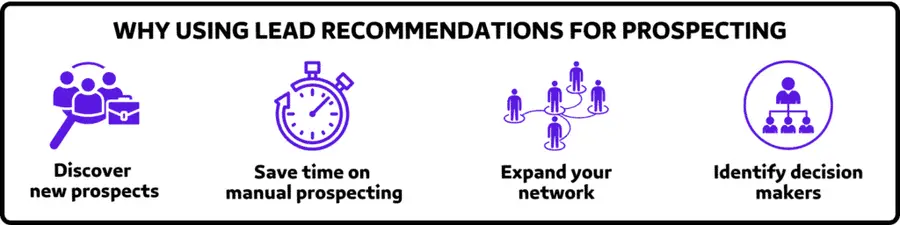
- Discover new prospects in your target market: The algorithm finds people that match your ideal customer profile.
- Save time on manual prospecting: No more building filters from scratch. Just open the list and start reaching out.
- Expand your network beyond obvious connections: LinkedIn shows you people outside your usual circles.
- Identify decision makers you haven’t considered: The tool suggests prospects who hold influence.
Instead of spending hours filtering leads, you can focus on starting conversations.
Simple. Fast. And smart.
How LinkedIn’s Lead Recommendation Algorithm Works
LinkedIn’s recommendation engine uses machine learning to analyze multiple data points and suggest relevant prospects.
The algorithm considers:
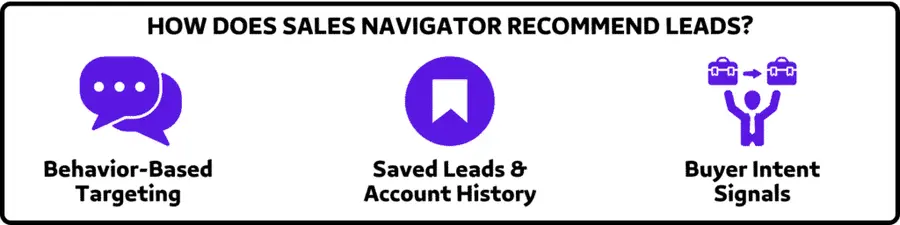
- Behavior-Based Targeting: LinkedIn tracks how you engage on the platform (such as the leads you view, save, or message), and uses this data to predict the types of prospects you’re likely to pursue.
- Saved Leads & Account History: The AI evaluates your saved leads and accounts, identifies patterns among them (like industry, seniority level, or location), and uses those characteristics to suggest similar profiles.
- Buyer Intent Signals: Sales Navigator incorporates intent data (such as profile views, content engagement, and job changes), to flag which prospects might be actively considering solutions like yours.
Every Monday, Sales Navigator refreshes your recommended leads list with up to 100 prospects.
The more you use Sales Navigator, the smarter your recommendations become.
4 Ways to Optimize Your Recommended Leads in Sales Navigator
LinkedIn provides four key actions to improve your lead recommendation in Sales Navigator:
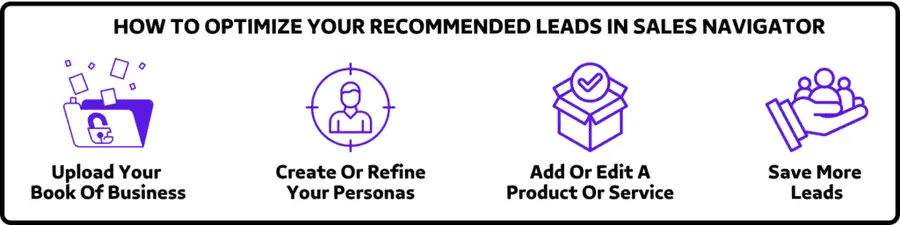
1. Upload Your Book Of Business: Import your existing customer data into Sales Navigator. This helps LinkedIn suggest leads similar to your current clients.
2. Create Or Refine Your Personas: Use the Personas feature in Sales Navigator to define your ideal customer profiles based on job title, seniority, function, and location. This guides the AI to recommend leads that match these personas.
3. Add Or Edit A Product Or Service: Specify the products or services you offer in your Sales Navigator profile. This allows LinkedIn to align lead suggestions with your offerings.
4. Save More Leads: Actively saving leads signals to LinkedIn what types of prospects you’re interested in. Over time, this refines the quality of your recommendations.
By taking these steps, you help LinkedIn’s algorithm provide more relevant and high-quality lead suggestions, making your prospecting efforts more effective.
How to Export Lead Lists from LinkedIn Sales Navigator
Once you’ve identified valuable leads through recommendations, you’ll want to export them for further analysis and outreach.
That’s where Evaboot comes in.
This Sales Navigator scraper lets you export your lead lists from the tool, making it easier to integrate with your CRM or outreach workflows.
Here’s how to export leads from Sales Navigator:
- Create an Evaboot account
- Download the Chrome Extension
- Select your Sales Navigator lead or account lists
- Name and launch your export
- Download your cleaned list
1. Create an Evaboot account
Step 1 is to go to Evaboot and click “Sign up”. Then, create an account.
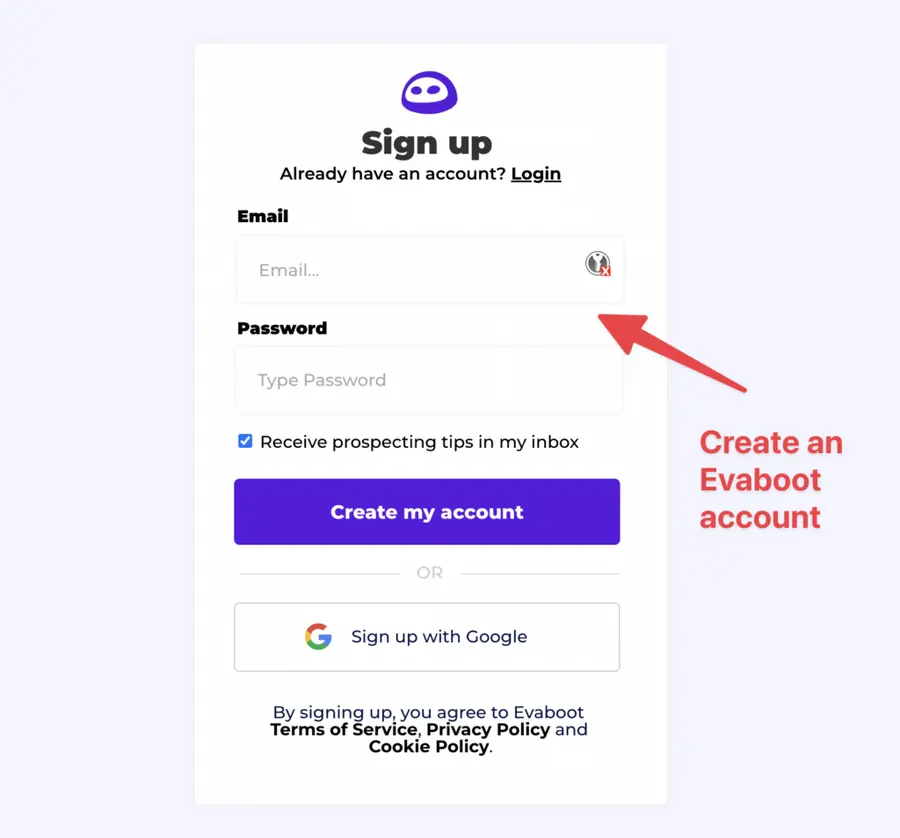
Once you’ve created your account, click on “Get Chrome Extension” to download it from the Chrome Web Store.
2. Download the Chrome Extension
When on the Chrome Store page, click “Add to Chrome” to install the extension.
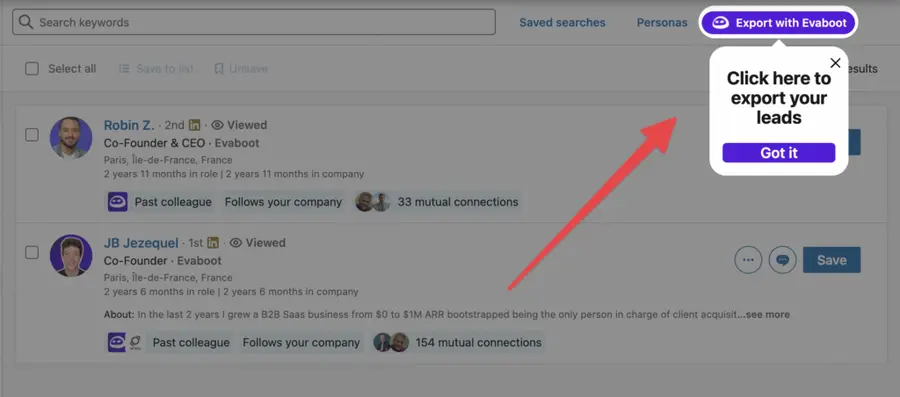
You’ll be automatically redirected to Sales Navigator. A popup will show you where the button is located.
3. Select your Sales Navigator lead or account list
Once the Chrome extension is installed, go to the list of leads or accounts you want to export. It can be:
- Lead Searches
- Lead Lists
- Account Searches
- Account Lists
- Saved Searches
Evaboot handles all the use cases.
The “Export with Evaboot” button is at the top of these LinkedIn Sales Navigator pages.
This is what it will look like for lead lists:
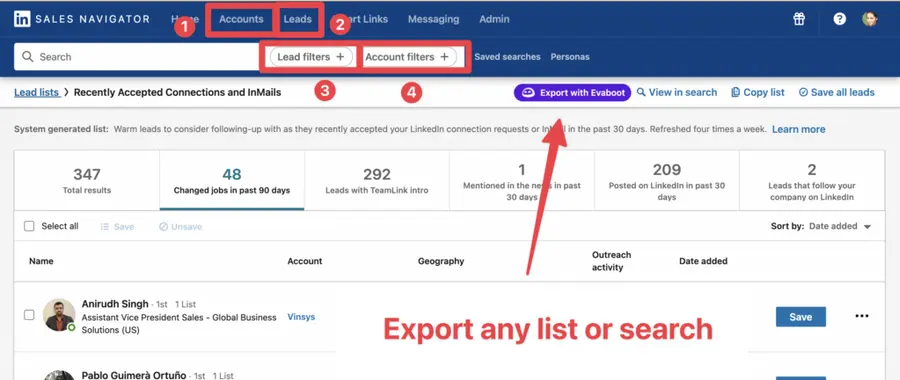
You can export specific tabs in your lead lists, such as “Changed jobs in the past 90 days.”
And this is what it will look like for account lists:
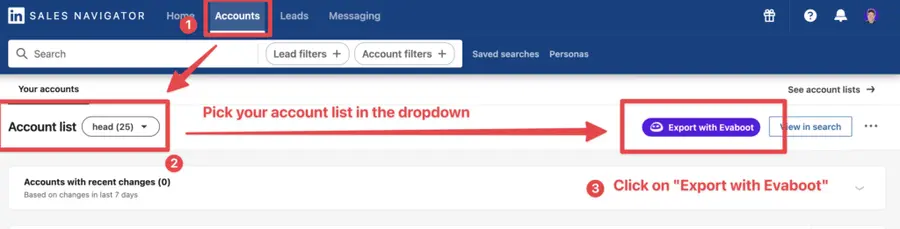
When you export account lists from the Sales Navigator with Evaboot, you get the following:
- Company Name
- Company Website
- Industry
- Specialties
- Employee Count
- Employee Range
- Location
- Company Linkedin URL
- Company Type
- Year Founded
- Company Profile Picture
- Company Description
Evaboot’s cleaning and filtering algorithms also clean and filter all this data.
4. Name and launch your export
When you click “Export with Evaboot” you will be redirected to the Evaboot app.
Choose whether you want to find emails for these leads.
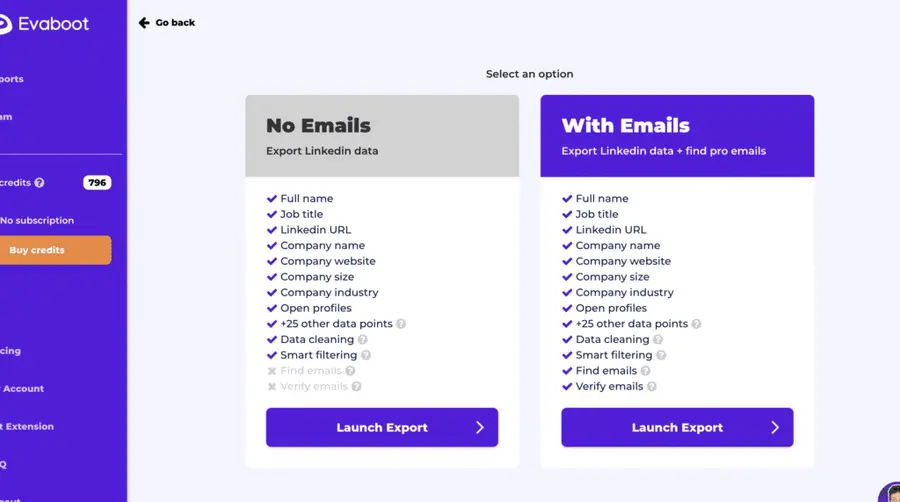
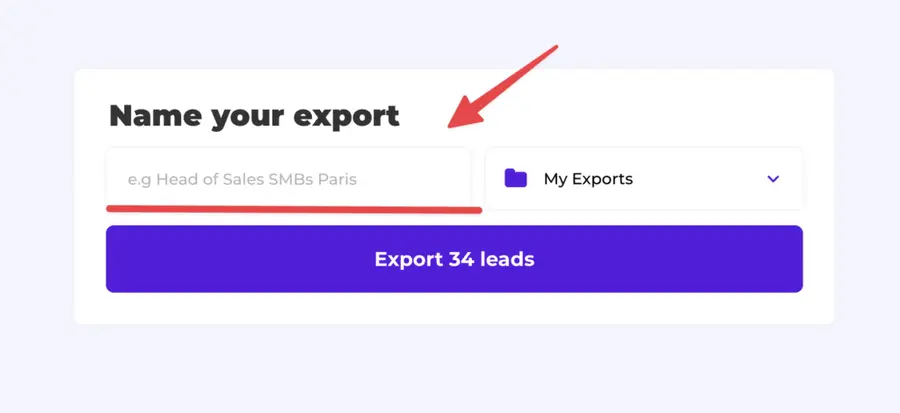
Give a name to your export and click on “Export leads”.
The estimated end date will appear on the left right after launching the export.
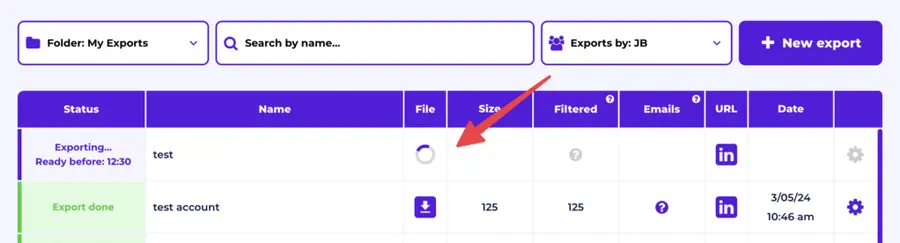
Evaboot will export all these leads in real-time.
That makes your lead generation process GDPR-compliant, in opposition to using databases.
5. Download your cleaned list
After the extraction is done, you will get an email. This email will have a link to download your lead list in a CSV file.
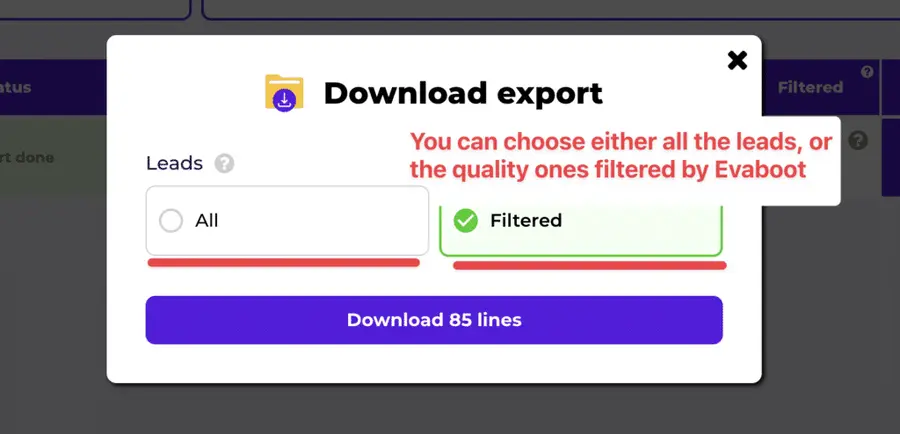
Choose the list type that you want to download. And you’re done.
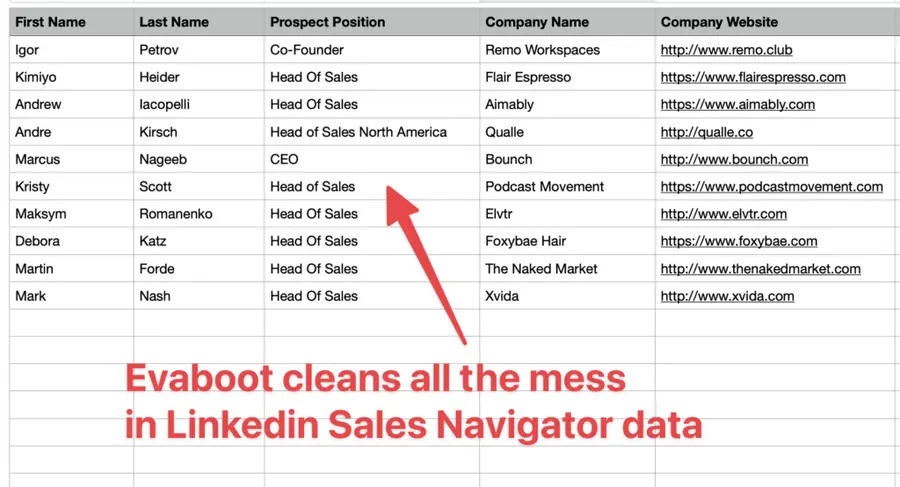
Evaboot does much more than export your list. It also cleans all the names and company names of your LinkedIn contacts.
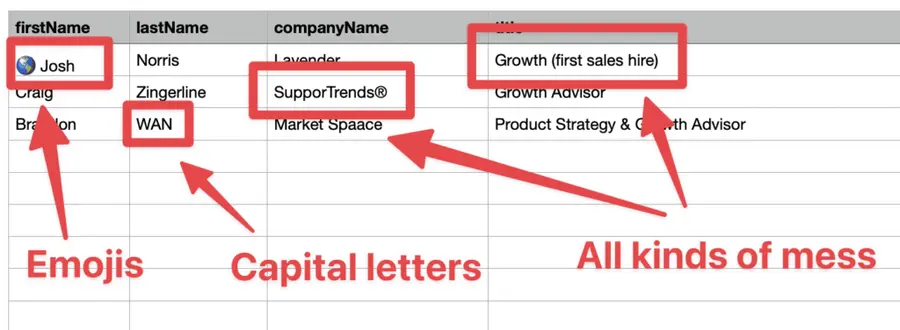
The data on LinkedIn is not clean.
Cleaning data from your sales navigator export can take hours if you do it manually.
Hopefully, the Evaboot cleaning algorithm takes care of all this work for you by automatically cleaning:
- First names
- Last names
- Company names
- Job titles
Nobody wants to spend hours cleaning Excel files. Better let robots do this boring job.
You will often find false positives in your LinkedIn Sales Navigator search results.
Even if you’re using super precise LinkedIn boolean search operators.

You will frequently find leads that don’t match the search filters you chose in the Sales Navigator search engine.
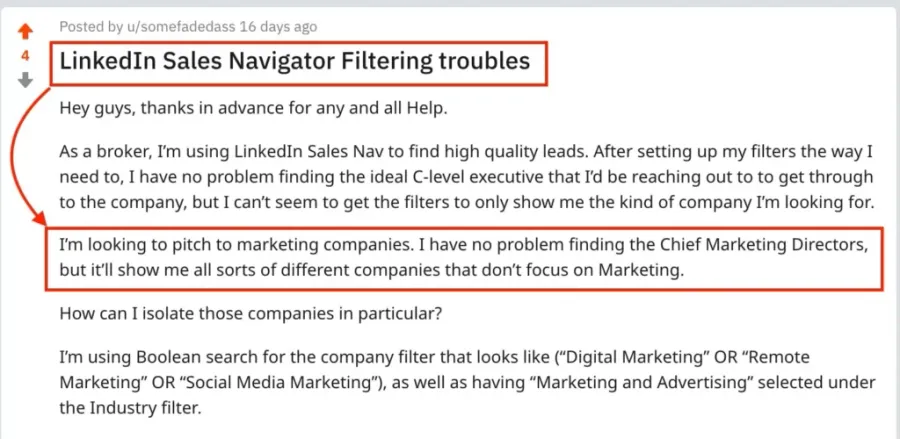
That’s why many people spend hours double-checking their search results manually.
This is a painful task, but it’s no problem.
Evaboot is the best Sales Navigator scraper.
Our algorithm checks your leads twice to make sure they fit your search filters.
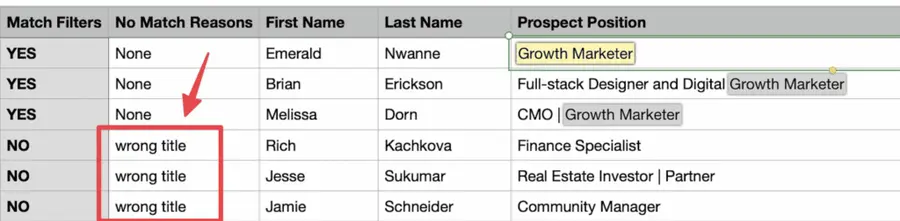
In this export, there’s a column named “No Match Reasons.” This column tells you if your leads really match your search filters.
If they don’t, we will explain why. In this example, the leads have the wrong title. The initial search was for growth marketers.
To reduce false positives in your Sales Navigator searches, check out our full Sales Navigator tutorial.
And here you go!
With this data, your sales team can now use multichannel outreach.
Conclusion
Lead recommendations in Sales Navigator represent a powerful evolution in B2B prospecting.
By understanding how the algorithm works and consistently optimizing your inputs, you can transform these suggestions into a reliable source of high-quality prospects.
Remember that successful lead generation extends beyond discovery.
Once you’ve identified promising leads, tools like Evaboot can help you extract the contact information needed to convert prospects into customers.
Start implementing these strategies today to maximize your recommended leads results and accelerate your sales success.
FAQs
Why Am I Seeing Irrelevant Lead Recommendations?
Irrelevant recommendations usually indicate insufficient data.
To improve this, try uploading your book of business, refining your personas, saving more qualified leads, and defining the products or services you sell.
These actions will help LinkedIn better understand who you’re targeting and generate more accurate recommendations.
How Often Does Sales Navigator Update Lead Recommendations?
LinkedIn refreshes the recommended leads list every Monday.
These updates are powered by the AI engine, which takes into account your recent searches, saved leads, and engagement activity to deliver up to 100 new relevant lead suggestions each week.
How To Share Lead Lists From Sales Navigator?
You can share custom lead or account lists if you have a Sales Navigator Advanced or Advanced Plus account (this feature isn’t available on Core).
- Start by clicking the Lists tab at the top of your Sales Navigator homepage.
- From there, choose either Lead Lists or Account Lists.
- On the list page, click the Share button next to the list you want to send, or use the Share button in the top right corner after opening the list.
Only users on your team dashboard can access shared lists. You can also use the Notes section to collaborate, with the option to mark notes as Public or Private.


