
Want to build laser-targeted lead and account lists in Sales Navigator?
Learning how to create a lead list and an account list in Sales Navigator is the first step to filling your pipeline with qualified prospects.
With just a few filters and smart search tactics, you can turn LinkedIn into your best prospecting channel.
In this guide, I’ll show you:
- How To Create A Lead List On Sales Navigator
- How To Create An Account List On Sales Navigator
- Best Practices to Create Lead and Account Lists
- How To Export Lead and Account Lists from LinkedIn Sales Navigator
- The Difference Between Lead Lists and Account Lists
Let’s get into it and make Sales Navigator work for you.
How To Create A Lead List On Sales Navigator
Here is the detailed step by step process to create a lead list on Sales Navigator.
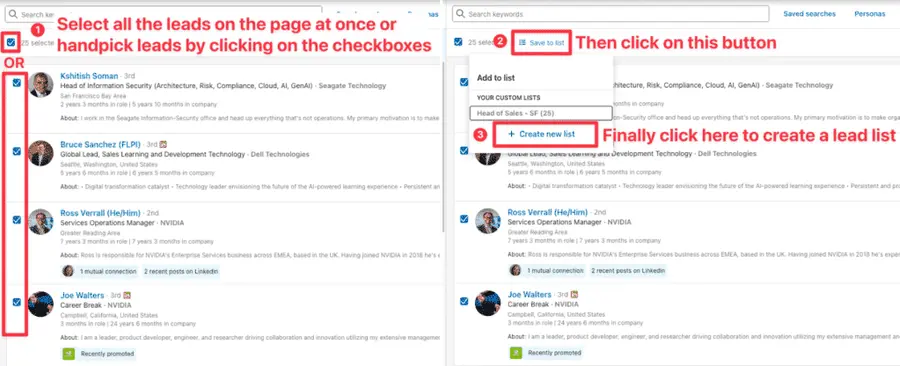
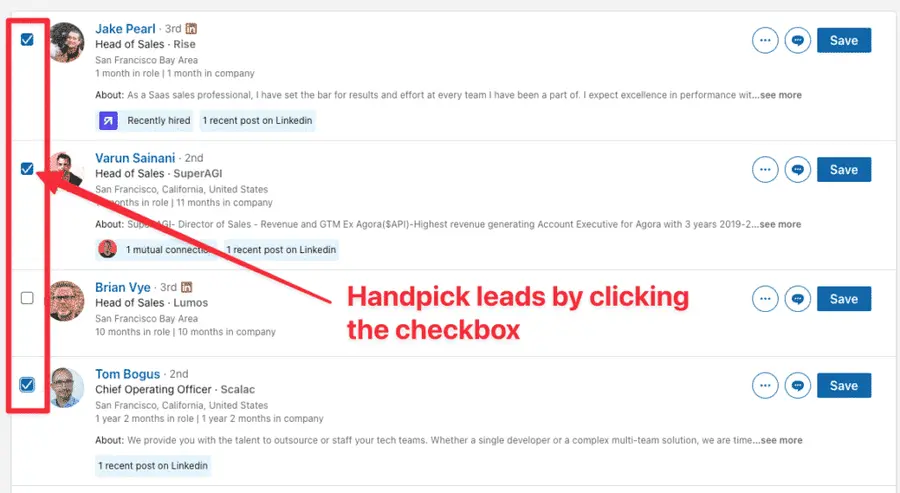
When you are on the lead search page, you can handpick leads by clicking the checkboxes next to each LinkedIn profile.
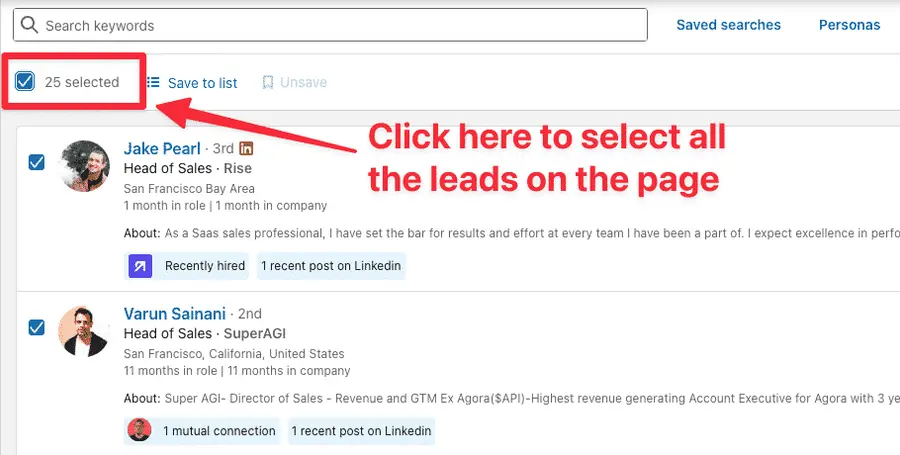
Or you can select all the leads on the page by clicking on the “Select all” checkbox at the top.
After that, click on “Save to list” and then on “Create new list”.
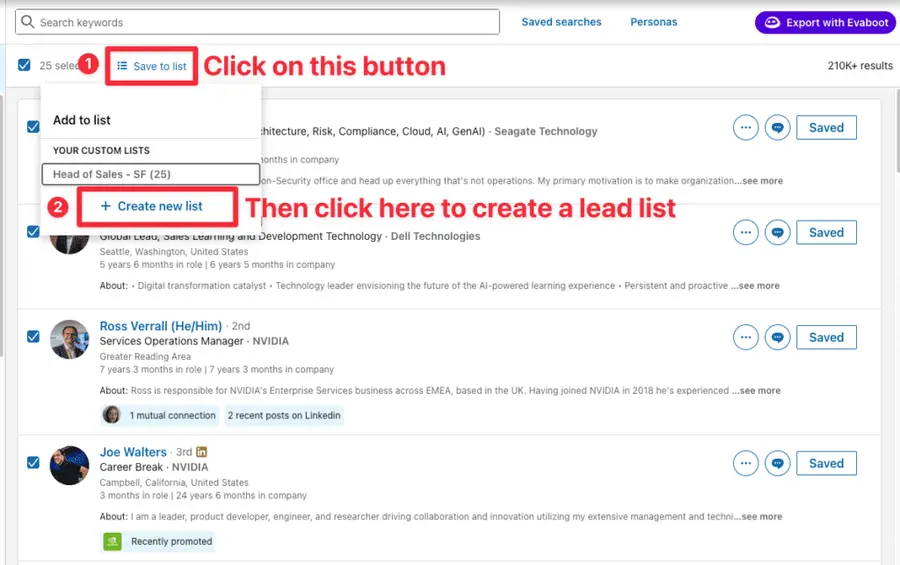
A popup will open where you can name your list, and add a list description (optional).
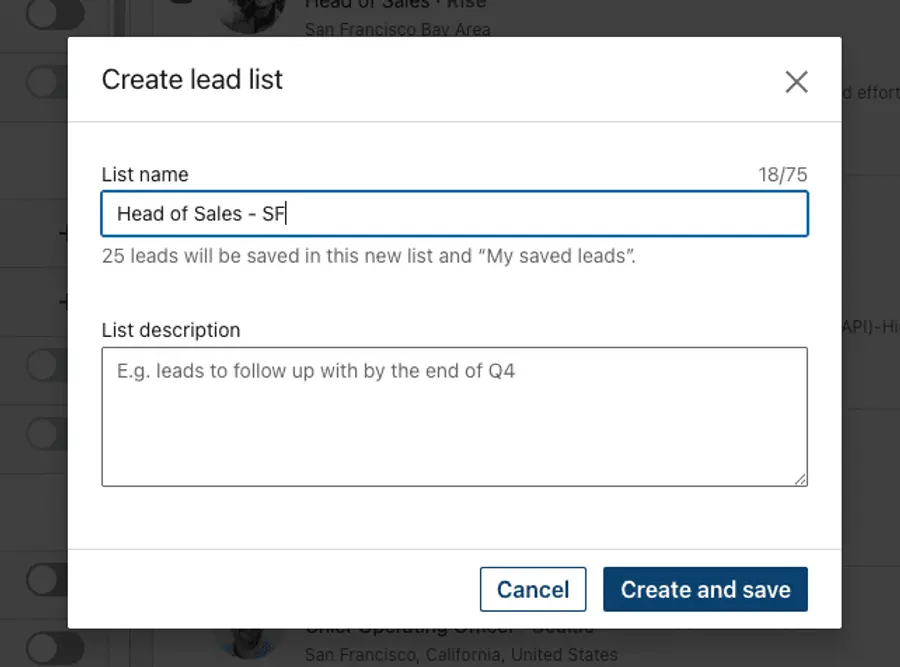
When creating a new list, give it a descriptive name that reflects the type of leads it contains (e.g., “Marketing Managers – SaaS – EMEA” or “Potential Clients – Q3 Campaign”).
These saved leads will then be accessible from your main lead lists page in Sales Navigator.
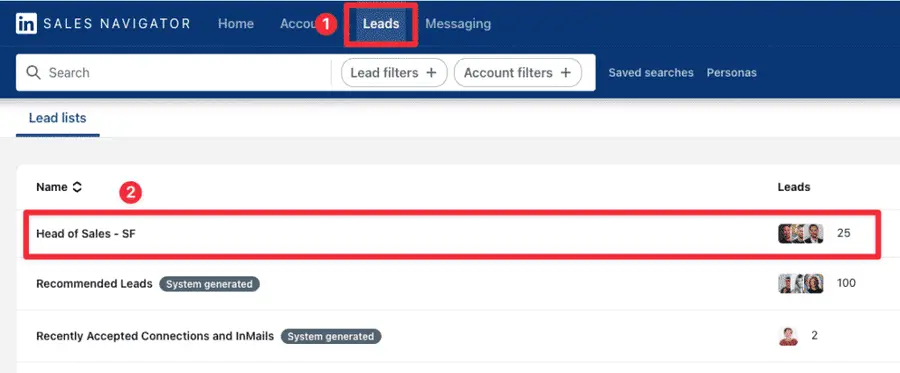
In my example, if I click on “Head of Sales – SF”, you can see that all the LinkedIn Profiles I selected are stored here in this lead list:
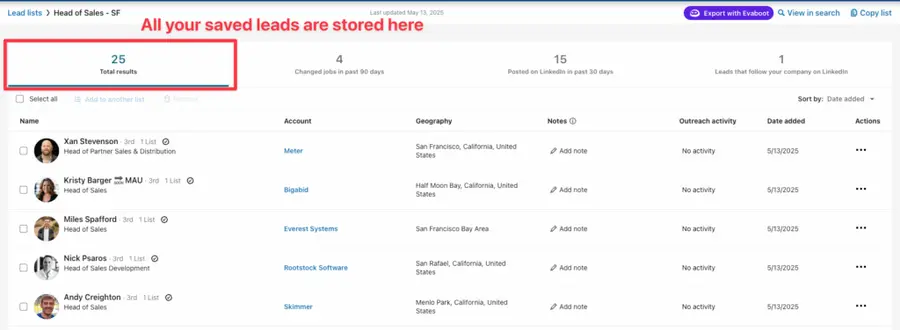
There are three filters you can apply to your lead list:
- Changed jobs in past 90 days
- Posted on LinkedIn in pats 30 days
- Share experiences with you
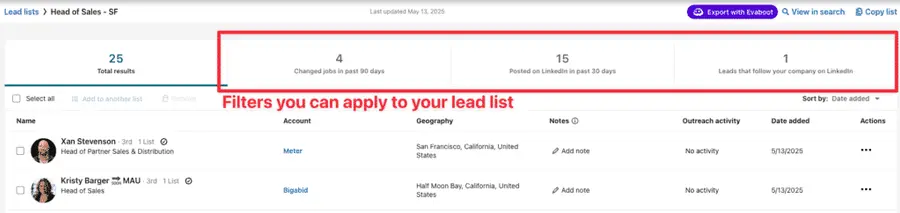
Right from this saved lead list, you can visit the profile of your lead, visit his company page, add some notes on the leads, and also send connection request and InMails.
How To Create An Account List On Sales Navigator
Creating well-defined account lists helps you understand your target organizations better and identify key decision-makers within them.
Heres are the steps to build an account list on Sales Navigator.
Similar to saving leads, you can handpick accounts by clicking the checkbox next to each company profile, or select all the companies on the page at once.
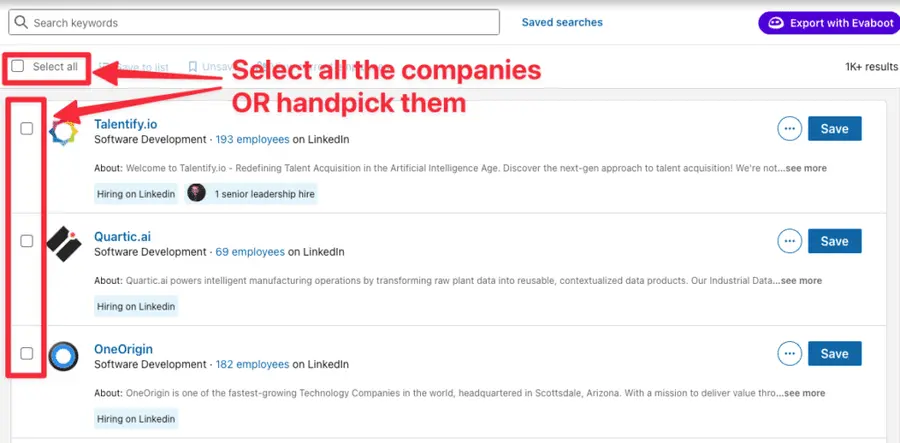
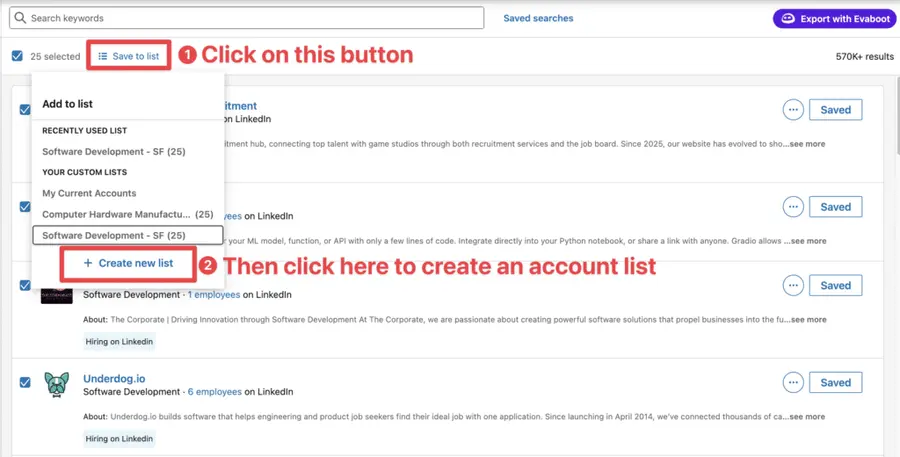
Once done, click on “Save to list” at the top and then “Create new list”.
A popup will open where you can name your list, and add a list description (optional).
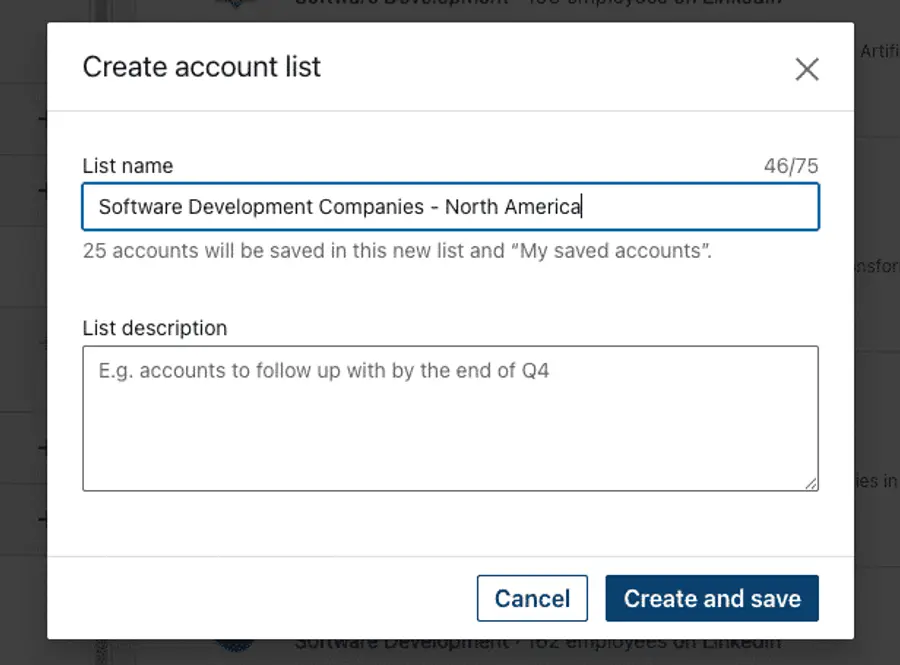
When creating a new list, use a clear and descriptive name (e.g., “Target SaaS Companies – Series A” or “Key Accounts – Manufacturing EMEA”).
These saved accounts are accessible from the “Accounts” tab in the main navigation:
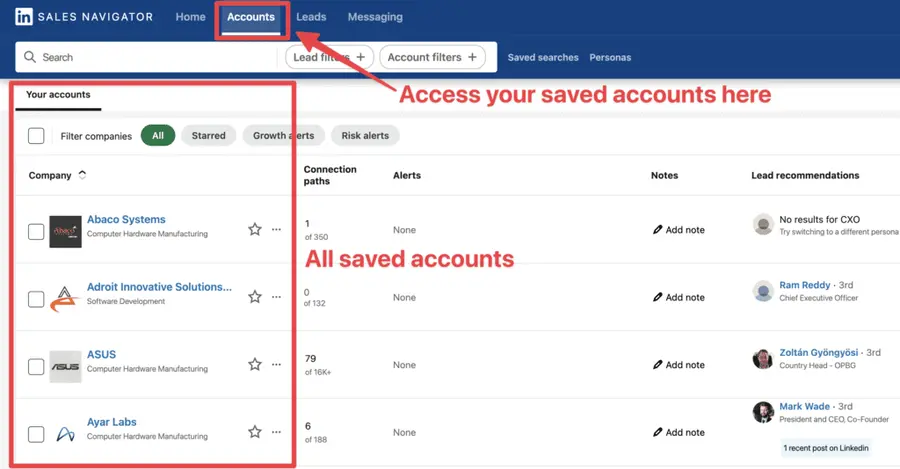
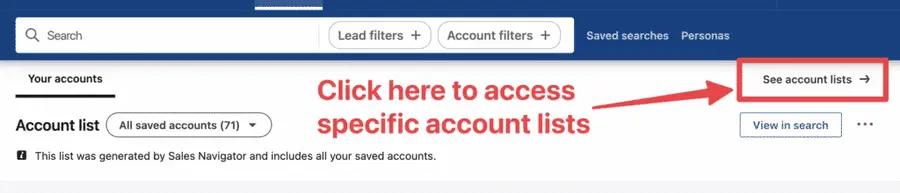
Your entire list of saved accounts are displayed on the main Accounts page, but you can access specific lists by clicking on “See account lists” at the top:
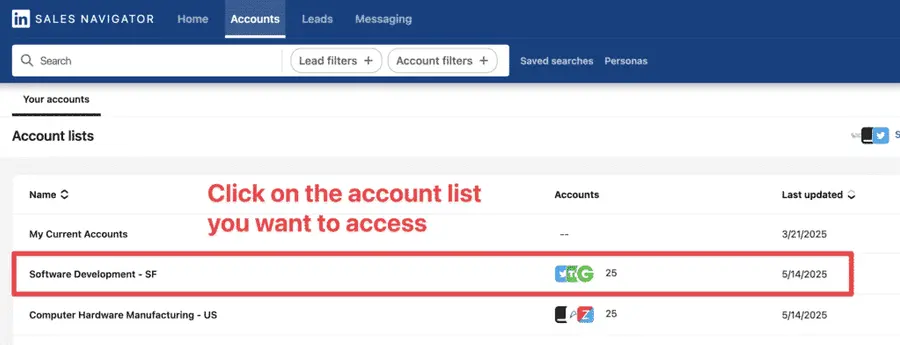
From there, you can choose the account list you want:
And you’re done!
Best Practices to Create Lead and Account Lists
Now that you know how to build your lead and account lists, it’s time to move one step further.
In this section, I’ll show you how to:
- Identify your Ideal Customer Profile
- Use Saved Searches For Automation
1. Identify your Ideal Customer Profile
The accounts you saved become the foundation of your ABM strategies, enabling you to track company updates and identify potential customers within them.
So now, let’s find your buyer personas in these companies.
- Go to “Lead” search category
- Go to the Workflow filter
- Click on “Account Lists”
- Pick the list you just created
All the people working in these companies will appear on the right.
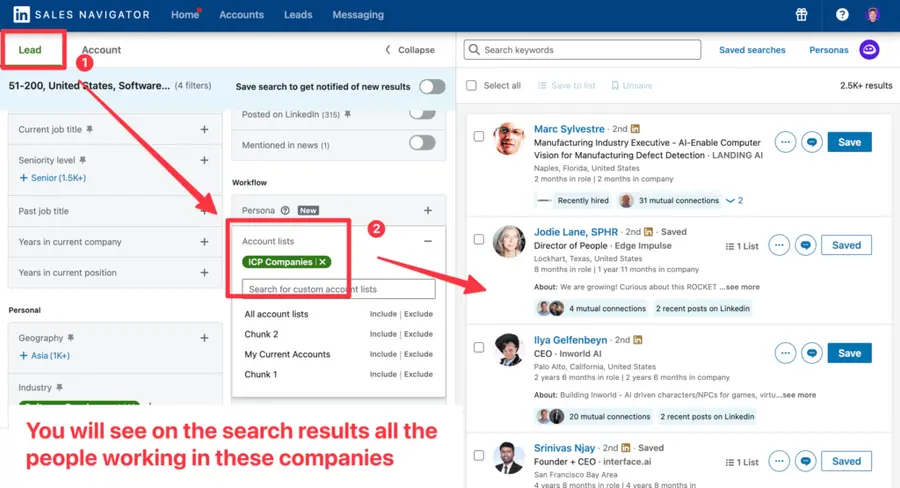
Obviously, we don’t want to reach out to everybody. We must find our buyer persona inside that list.
For that, we are going to use lead filters like:
- job title
- years in current position
- keywords search
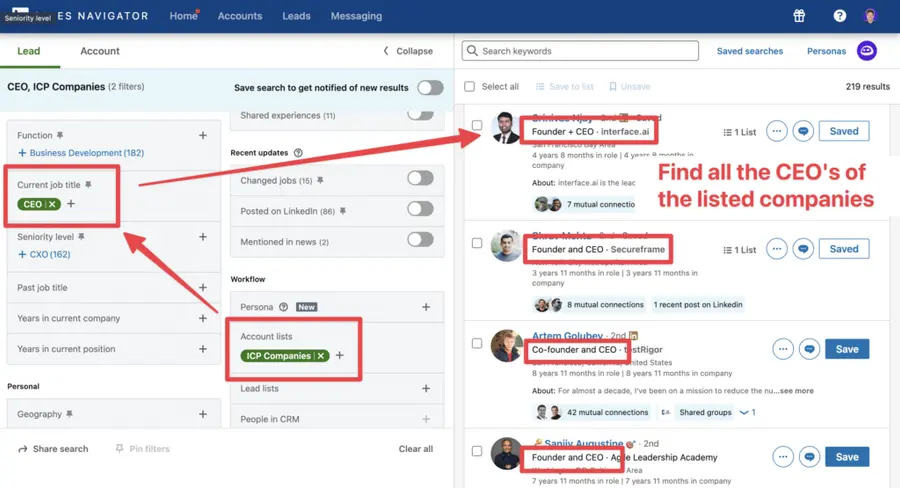
Here, I added “CEO” to the job title filter, and LinkedIn gave me all the CEOs of the companies on my list.
This is an easy and efficient way to quickly identify the right buyer persona inside companies.
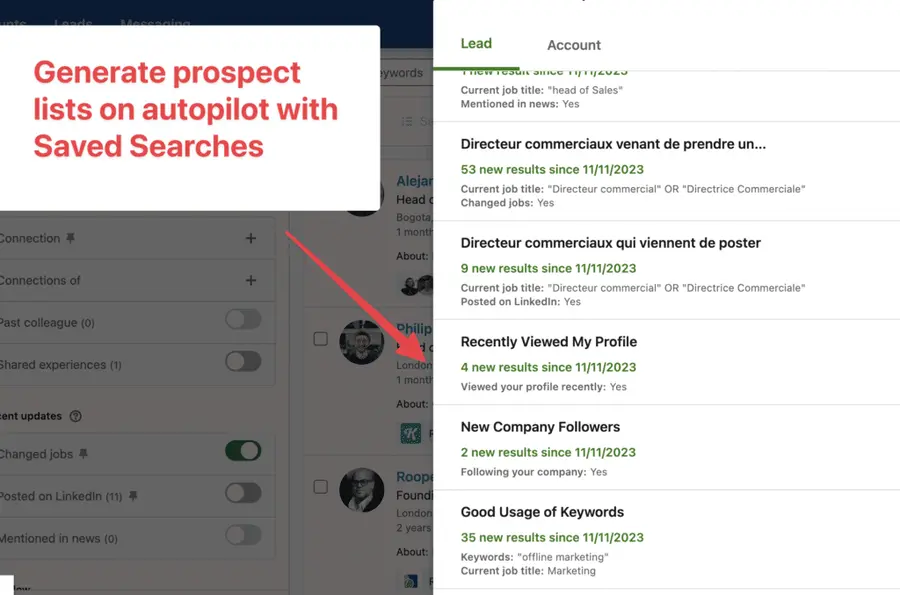
Once you are happy with a search, you can save it. LinkedIn will alert new leads matching your search criteria every week.
And here’s a useful tip: You can create a Persona in Sales Navigator by function, seniority, job title, and geography to quickly find the right leads and stop wasting time rebuilding searches.
2. Use Saved Searches For Automation
To further streamline your lead generation and ensure you don’t miss out on new leads that match your criteria, Sales Navigator offers a feature called saved searches.
Once you have a set of search filters that yield good results, you can save the entire search query by clicking on “Saves searches”.
Sales Navigator will automatically monitor LinkedIn for new leads that fit your saved search criteria.
You’ll then receive weekly emails when new leads are found.
This automation aspect of saved searches means your lead lists can continuously grow with fresh prospects without you having to manually re-run searches every day.
This is an excellent way to keep your pipeline full and discover emerging decision-makers in real-time.
And now that you have a list of qualified prospects, the next step is to export the data with a LinkedIn scraping tool.
How To Export Lead and Account Lists from LinkedIn Sales Navigator
Building lead lists and account lists is a significant step, but the true value is unlocked when you export this data and integrate it with your broader sales prospecting workflow, including your outreach tools and CRM systems.
To export Sales Navigator lead and account lists, follow this step-by-step guide:
- Create an Evaboot account
- Download the Chrome Extension
- Select your Sales Navigator lead or account lists
- Name and launch your export
- Download your cleaned list
1. Create an Evaboot account
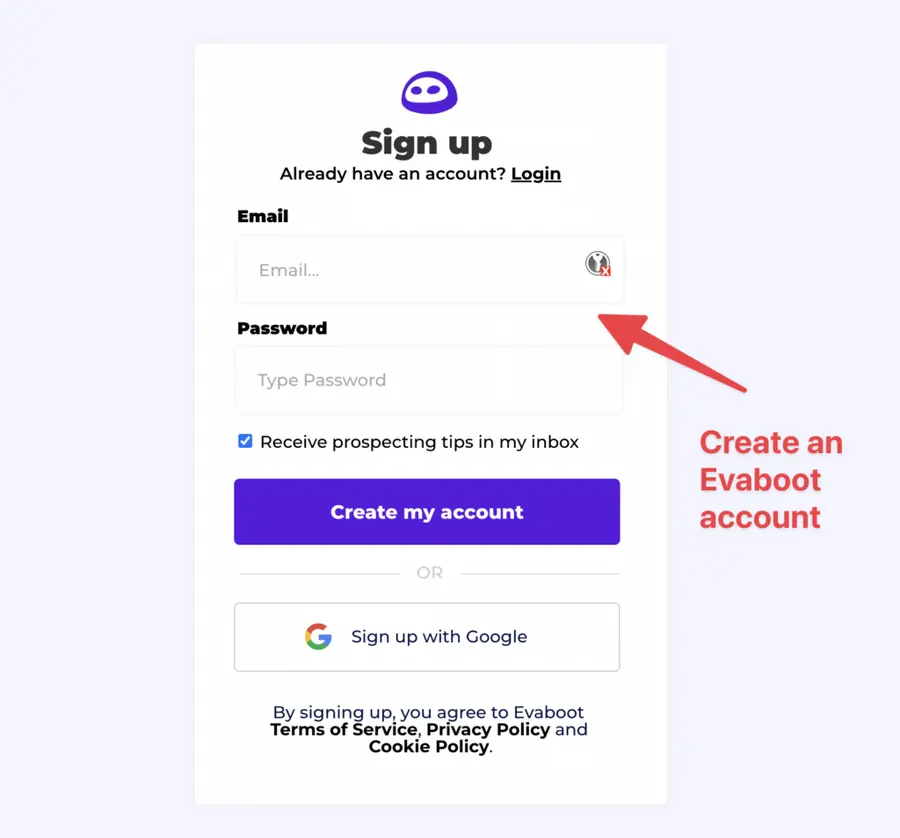
Step 1 is to go to Evaboot and click “Sign up”. Then, create an account.
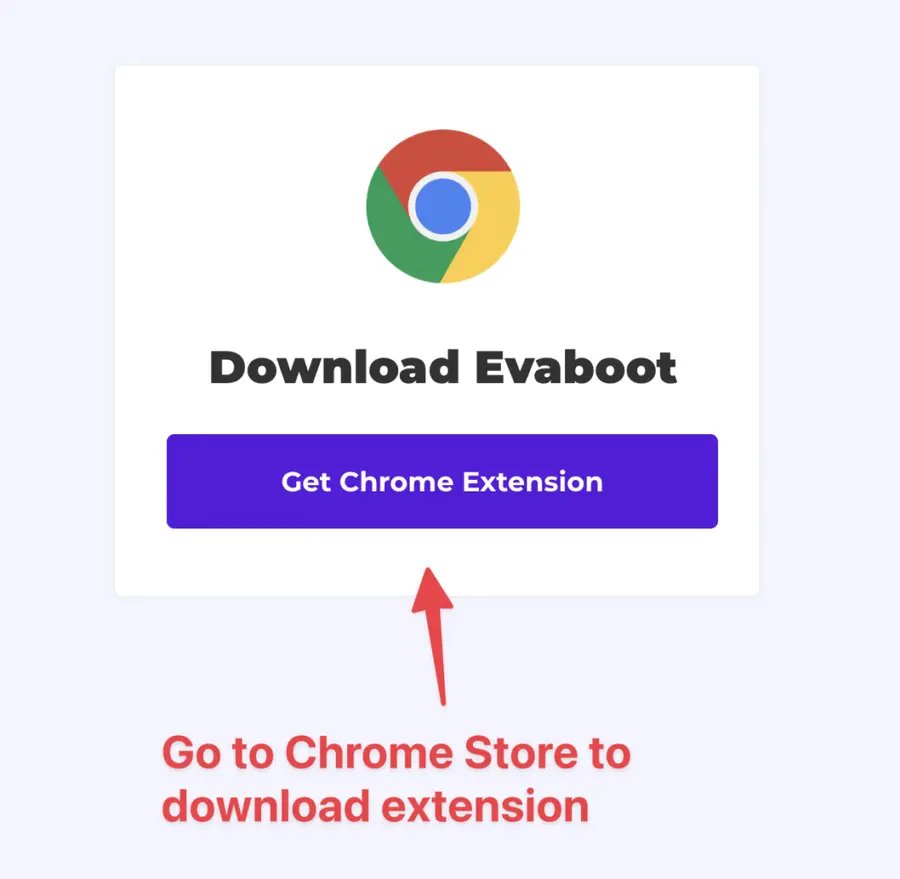
Once you’ve created your account, click on “Get Chrome Extension” to download it from the Chrome Web Store.
2. Download the Chrome Extension
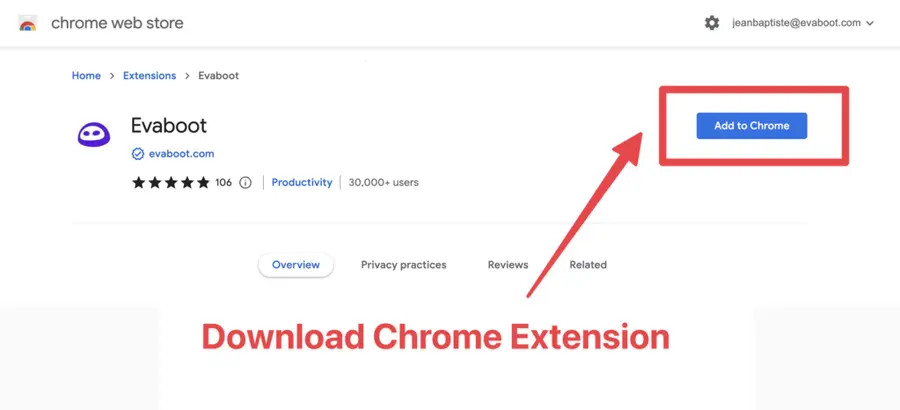
When on the Chrome Store page, click “Add to Chrome” to install the extension.
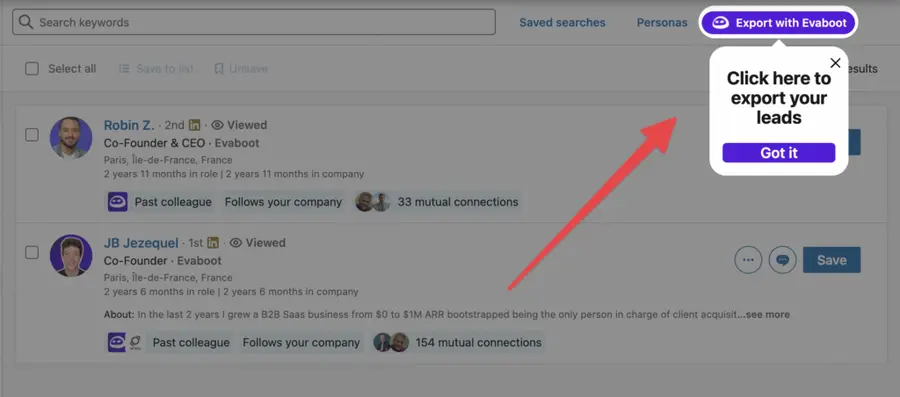
You’ll be automatically redirected to Sales Navigator. A popup will show you where the button is located.
3. Select your Sales Navigator lead or account list
Once the Chrome extension is installed, go to the list of leads or accounts you want to export. It can be:
- Lead Searches
- Lead Lists
- Account Searches
- Account Lists
- Saved Searches
Evaboot handles all the use cases.
The “Export with Evaboot” button is at the top of these LinkedIn Sales Navigator pages.
This is what it will look like for lead lists:
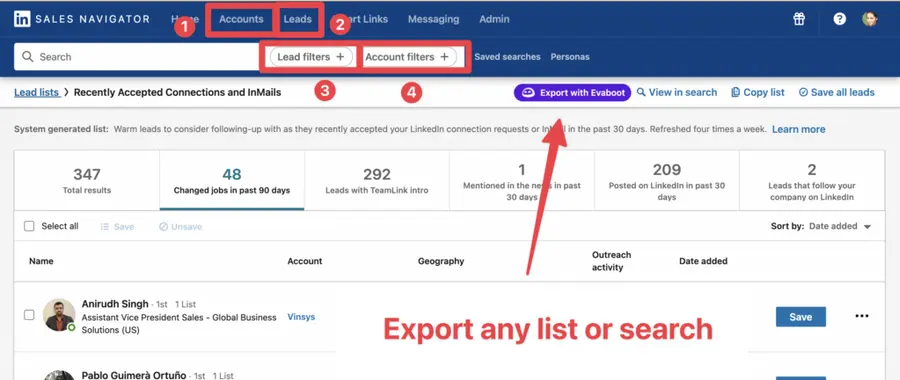
You can export specific tabs in your lead lists, such as “Changed jobs in the past 90 days.”
And this is what it will look like for account lists:
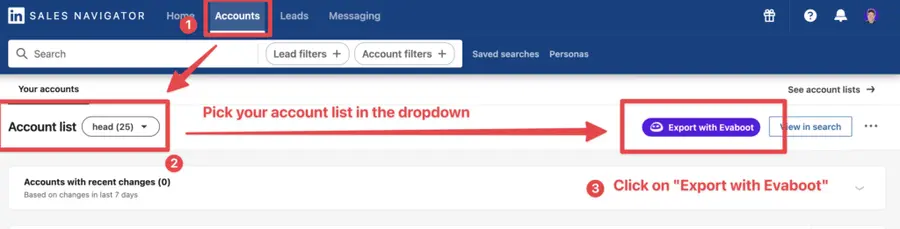
When you export account lists from the Sales Navigator with Evaboot, you get the following:
- Company Name
- Company Website
- Industry
- Specialties
- Employee Count
- Employee Range
- Location
- Company Linkedin URL
- Company Type
- Year Founded
- Company Profile Picture
- Company Description
Evaboot’s cleaning and filtering algorithms also clean and filter all this data.
4. Name and launch your export
When you click “Export with Evaboot” you will be redirected to the Evaboot app.
Choose whether you want to find emails for these leads.
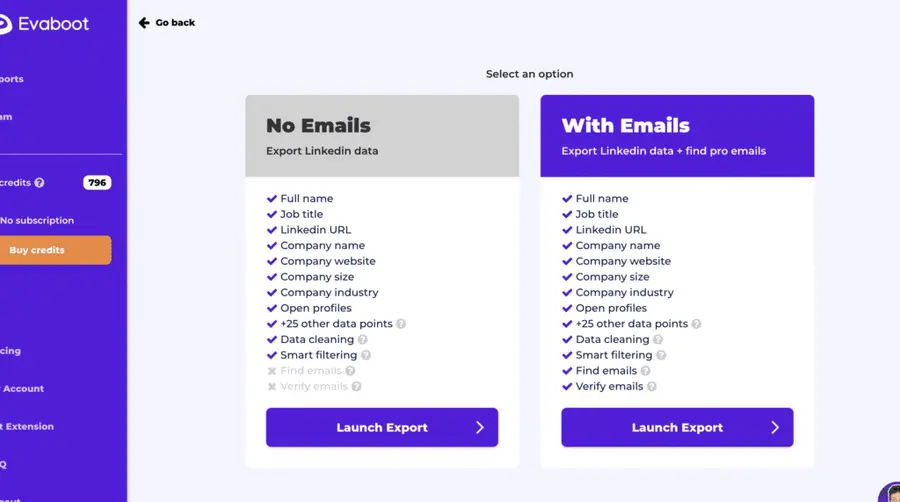
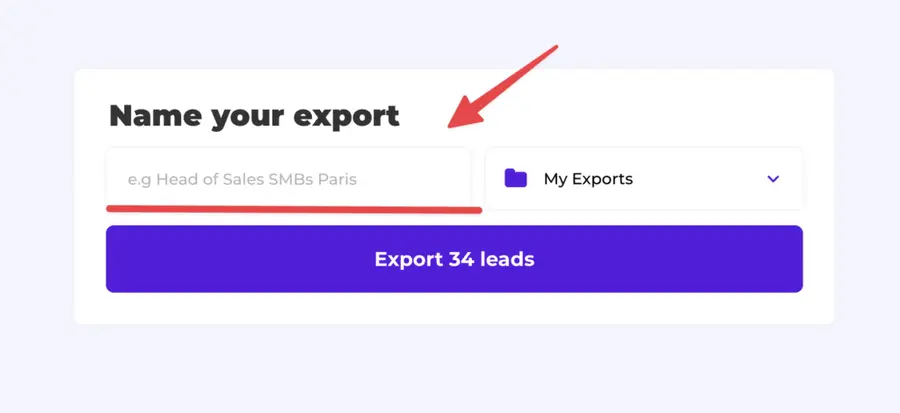
Give a name to your export and click on “Export leads”.
The estimated end date will appear on the left right after launching the export.
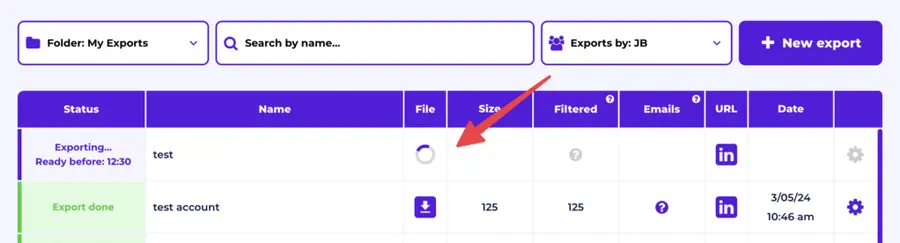
Evaboot will export all these leads in real-time.
That makes your lead generation process GDPR-compliant, in opposition to using databases.
5. Download your cleaned list
After the extraction is done, you will get an email. This email will have a link to download your lead list in a CSV file.
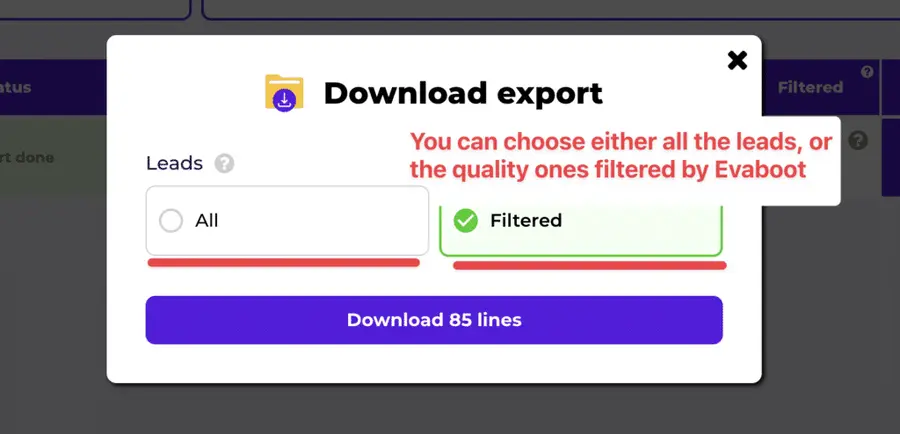
Choose the list type that you want to download. And you’re done.
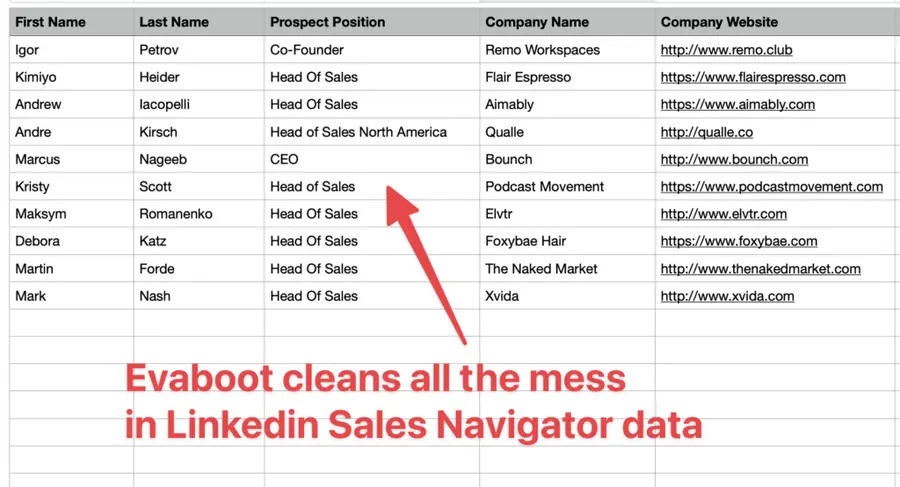
Evaboot does much more than export your list. It also cleans all the names and company names of your LinkedIn contacts.
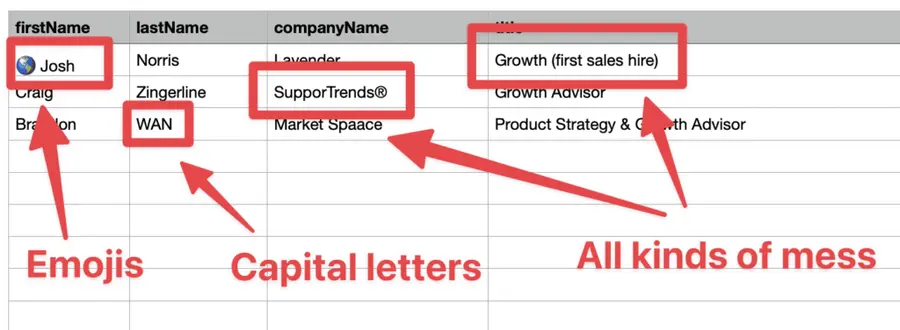
The data on LinkedIn is not clean.
Cleaning data from your sales navigator export can take hours if you do it manually.
Hopefully, the Evaboot cleaning algorithm takes care of all this work for you by automatically cleaning:
- First names
- Last names
- Company names
- Job titles
Nobody wants to spend hours cleaning Excel files. Better let robots do this boring job.
You will often find false positives in your LinkedIn Sales Navigator search results.
Even if you’re using super precise LinkedIn boolean search operators.

You will frequently find leads that don’t match the search filters you chose in the Sales Navigator search engine.
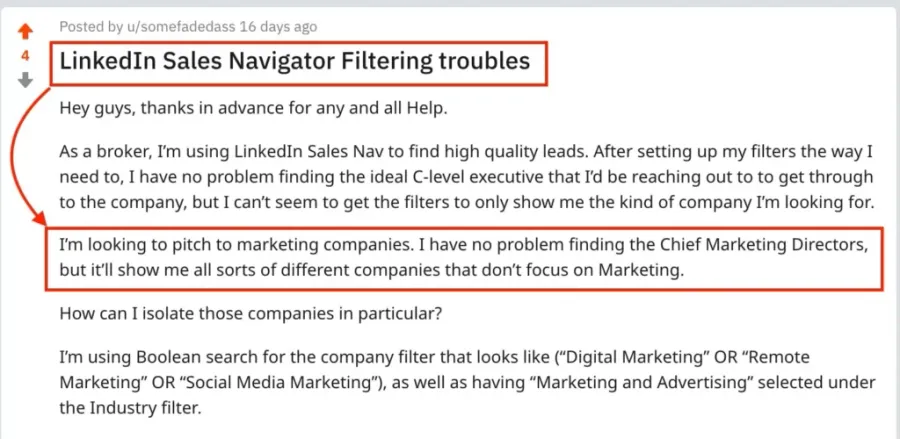
That’s why many people spend hours double-checking their search results manually.
This is a painful task, but it’s no problem.
Evaboot is the best Sales Navigator scraper.
Our algorithm checks your leads twice to make sure they fit your search filters.
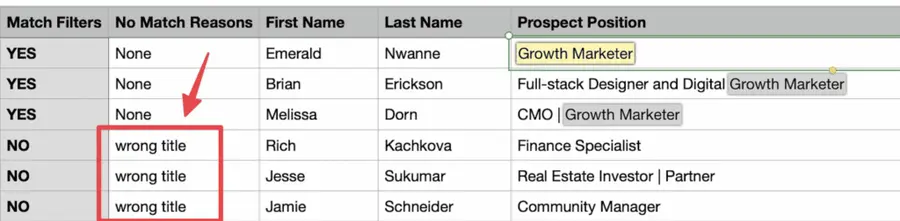
In this export, there’s a column named “No Match Reasons.” This column tells you if your leads really match your search filters.
If they don’t, we will explain why. In this example, the leads have the wrong title. The initial search was for growth marketers.
To reduce false positives in your Sales Navigator searches, check out our full Sales Navigator tutorial.
And here you go!
With this data, you can use multichannel outreach.
This will help you reach new prospects in many ways.
The Difference Between Lead Lists and Account Lists
A lead list focuses on individual people, while an account list centers on companies.
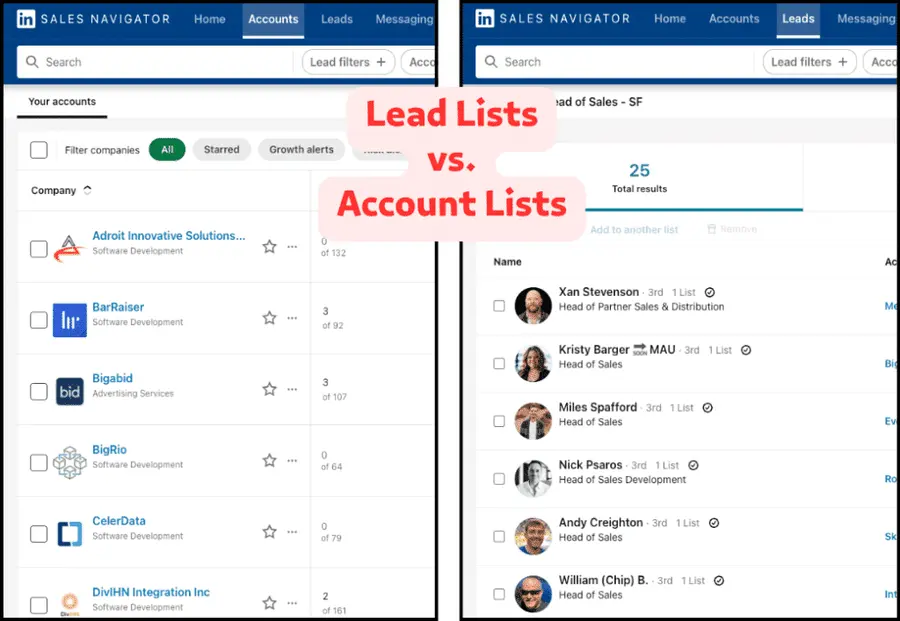
Choosing which type of list to create depends heavily on your sales strategy, whether you’re targeting specific decision-makers or focusing on an account-based marketing (ABM) approach.
What Are Lead Lists?
A lead list in Sales Navigator is essentially a curated collection of individual LinkedIn profiles that you’ve identified as potential prospects.
The primary use of a lead list is for tracking specific individuals who you believe could be valuable connections or customers. This is ideal for targeting roles or decision-makers across companies.
For example, you might create a lead list of all Marketing Managers in the software industry in a specific region.
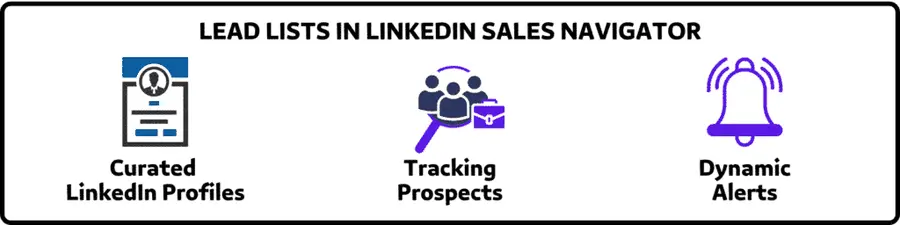
These lead lists are dynamic; Sales Navigator can provide alerts when individuals on your saved leads change jobs, post content, or are mentioned in the news.
This information is invaluable for crafting a timely and relevant outreach strategy.
What Are Account Lists?
In contrast, account lists in Sales Navigator are collections of company profiles that you want to target.
This approach is best suited for an account-based marketing (ABM) strategy, where your sales and marketing efforts are coordinated to target specific high-value companies.
For instance, you might create an account list of Fortune 500 companies in the technology sector or a list of fast-growing startups in a particular niche.
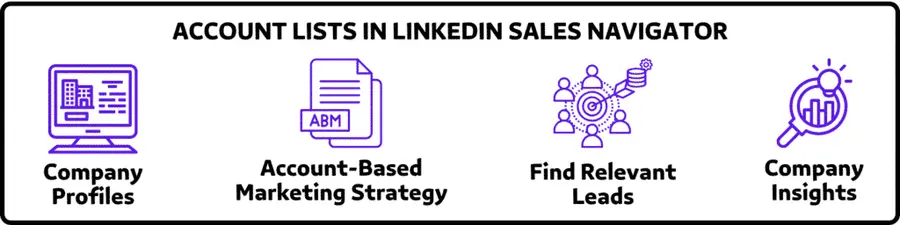
Once you have an account list, Sales Navigator helps you find relevant leads within those saved accounts.
You can explore the employee structure, identify key decision-makers, and receive updates on company news, growth signals, and hiring trends.
This makes account lists incredibly powerful for understanding the broader context of a target company before initiating outreach.
Conclusion
Creating lead and account lists in Sales Navigator is the foundation of targeted, scalable prospecting.
By mastering filters, saving smart searches, and exporting clean data with tools like Evaboot, you can streamline your workflow and focus on what matters most—closing deals.
Stay consistent, keep refining your lists, and let Sales Navigator work as your prospecting engine.
FAQ
How Do I Share A Lead List From Sales Navigator?
Sharing a lead list or account list directly within Sales Navigator is primarily a feature available with team-based subscriptions like Sales Navigator Advanced (Team) or Sales Navigator Advanced Plus.
These versions often include functionalities for team collaboration, allowing you to share lists with colleagues who also have a Sales Navigator seat within the same contract.
For users on an individual Core plan, direct sharing of lists within the platform is typically not available.
In such cases, the common workaround is to export your lead list data (often using a third-party tool like Evaboot to get a CSV file) and then share that file externally with your team members.
They can then use this information or potentially upload it if they have the appropriate Sales Navigator account features.
How Do I Create A Lead List From An Account List?
Once you have an account list (a list of target companies) in Sales Navigator, creating a lead list from it involves finding the relevant individuals within those saved accounts. Here’s a general step-by-step approach:
- Go to the Lead Search in Sales Navigator and select your account list in the “Account lists” filter.
- You can then apply lead filters (like job title, seniority level, department, keywords) to narrow down the employees to your target decision-makers or contacts.
- As you identify suitable individuals, you can save them to a new or existing lead list. This process allows you to systematically build a lead list of key people within your target account lists.
How Do I Edit A Custom List In Sales Navigator?
Editing custom lists (both lead lists and account lists) in Sales Navigator is generally straightforward. To manage your lists:
- Navigate to the section where your lead lists or account lists are stored (accessible from the Sales Navigator homepage or main navigation).
- Select the specific custom list you wish to edit.
- Once the list is open, you will find options to manage it. This typically includes the ability to rename the list, remove individual leads or accounts from the list, and add notes or tags to entries.
Regularly editing and maintaining your custom lists is important to keep them relevant and effective for your sales prospecting workflow.
How Do I Upload A Lead List In Sales Navigator?
To upload a lead list in Sales Navigator, you need to:
- Go to the Account Lists tab
- Upload your CSV file
- Map the data inputs
- Let LinkedIn do the matching
Your CSV should include company names and websites or LinkedIn URLs for better matching.
After mapping the columns, LinkedIn will process and match the data—available only with the Advanced plan.


