
Finding someone’s professional email address on LinkedIn doesn’t have to be a daunting task.
With the right methods and tools, you can simplify the process, save time, and enhance accuracy.
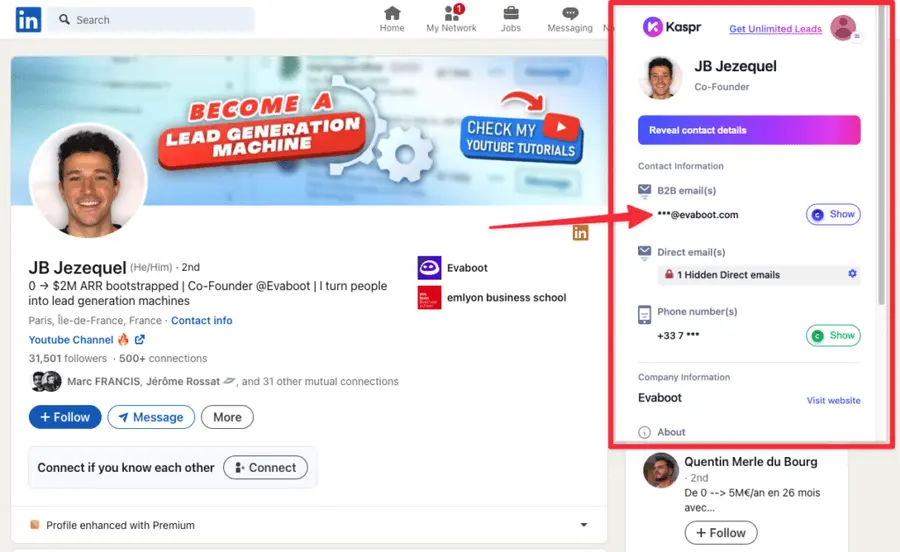
In this article, we’ll cover the following ways to find a professional email on LinkedIn:
- Use Email Finder Chrome Extensions
- Search Into Contact Info
- Search Into About Section
- Combine LinkedIn And Google Searches
- Export Emails From Your First Degree Connections
- Export Emails From Linkedin Search Results
- Export Emails From LinkedIn Sales Navigator
- Find and Verify Emails in Bulk From a List of Leads
- Ask for Emails on Linkedin
This guide will help you navigate the best strategies and tools for sourcing emails on LinkedIn efficiently.
Let’s dive in!
1. Use Email Finder Chrome Extensions
Chrome extensions streamline LinkedIn prospecting by simplifying email address sourcing and verification, helping you build contact lists and run cold email campaigns efficiently.
Here’s how to do it:
- Install a specialized Chrome extension.
- Visit the LinkedIn profile of your target prospect.
- Activate the extension to extract contact details.
1. Install a specialized Chrome extension
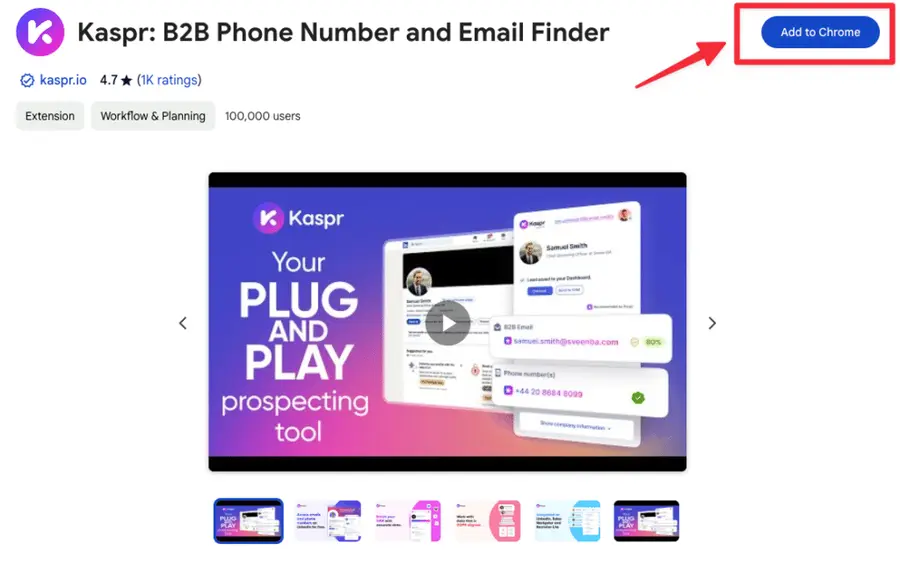
Go to the Google Chrome Web Store.
Search for Kaspr, Lusha or Apollo in the search bar.
And click on the “Add to Chrome” button.
2. Visit the LinkedIn profile of your target prospect
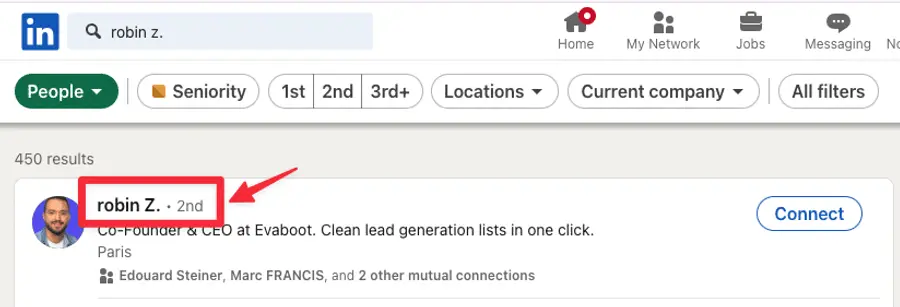
Log in to LinkedIn, search for your prospect, and visit his LinkedIn profile.
3. Activate the extension to extract contact details
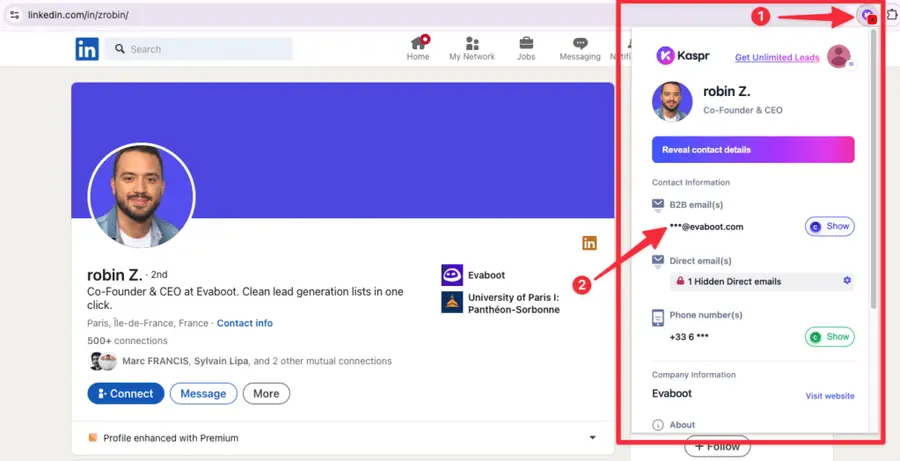
Click on the extension in the upper right corner of Google Chrome.
A new box will appear with your prospect email address.
Some tools display emails directly on the profile, while others require clicking a “More” button or additional steps.
2. Search Into Contact Info
One of the simplest ways to find someone’s email address on LinkedIn is through their Contact Info section. This method works if the person has chosen to make their email address visible.
Here’s how to do it:
- Visit the individual’s LinkedIn profile.
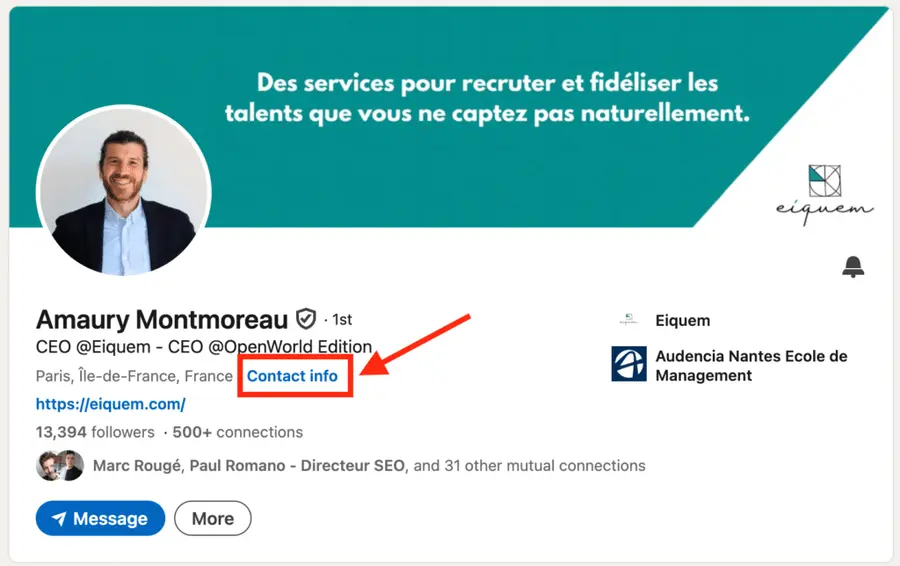
- Click on “Contact info” located under their name and headline.
- If their email address is listed, you’ll find it here.
3. Search Into About Section
Another simple way to find someone’s email address on LinkedIn is by checking their About section. Some users include their contact details here to make it easier for professionals to reach out.
Here’s how to do it:
- Visit the individual’s LinkedIn profile.
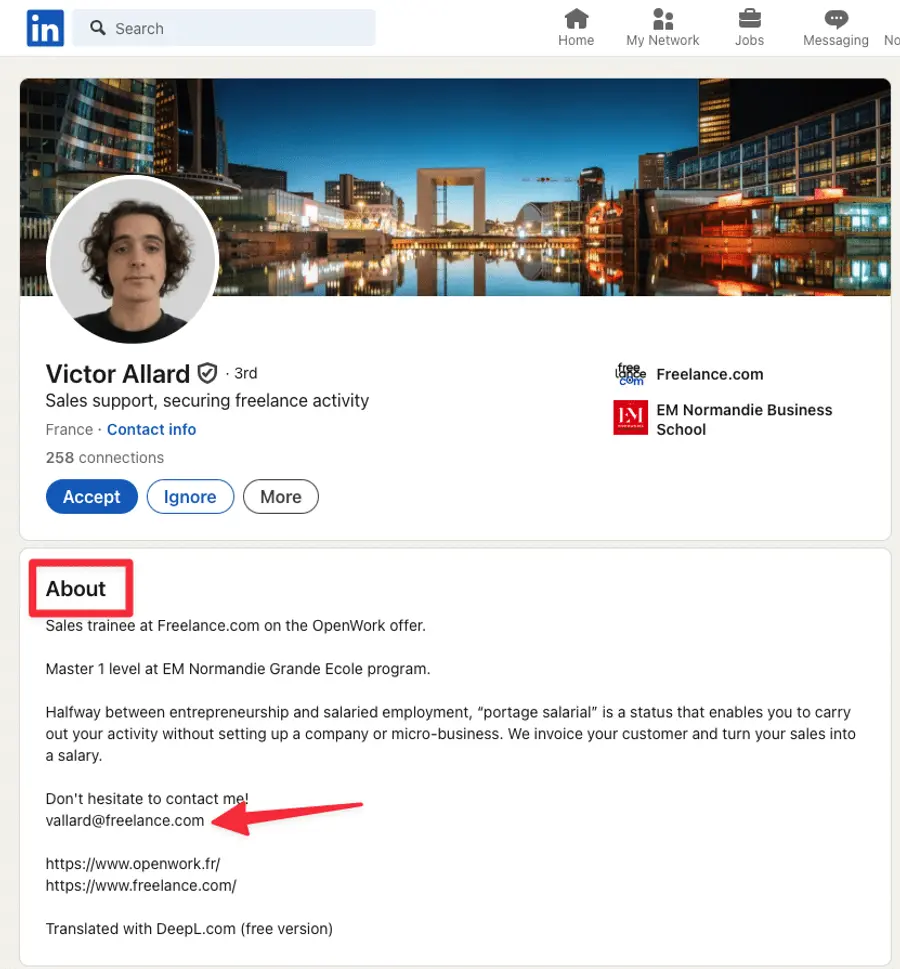
- Scroll down to the About section below their headline.
- Look for any email address they might have shared.
4. Combine LinkedIn And Google Searches
If you’re struggling to find a prospect’s email address directly on LinkedIn, combining it with Google searches can help uncover contact information. Here’s how to do it effectively:
1. Start with LinkedIn
Use LinkedIn’s search filters to identify the right people. Narrow your results by criteria like industry, job title, location, or current company to build a list of prospects.
2. Gather Key Details
Once you’ve identified your target, note their full name and the company they work for. This basic information is enough to proceed with Google.
3. Search Using Google Operators
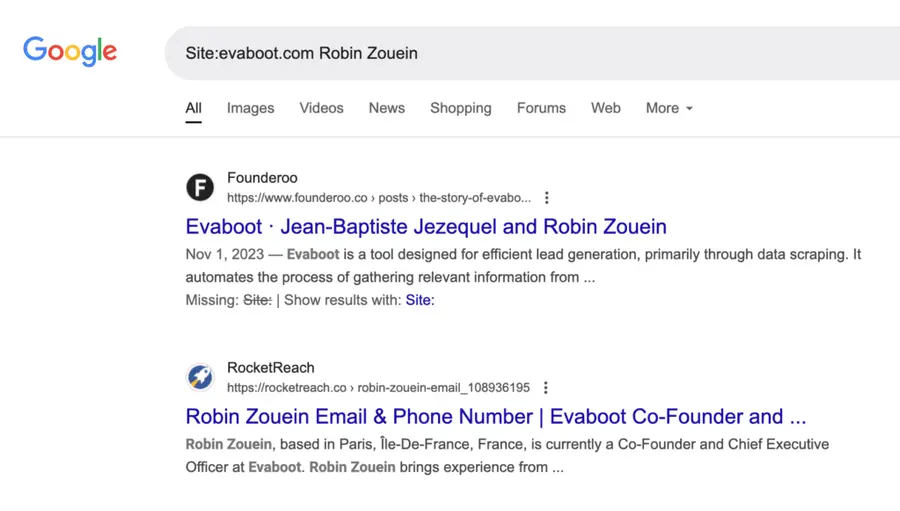
Use Google search commands to locate email addresses associated with your target. For example:
"Site:companywebsite.com [First Name] [Last Name]""Site:companydomain.com contact [Person's Name]"
These queries often lead to contact pages, press releases, or team directories listing email addresses.
4. Guess Email Patterns
If direct results aren’t available, use the company domain to guess possible email formats. Examples include:
- firstname.lastname@company.com
- firstname@company.com
- firstinitial.lastname@company.com
To simplify this process, you can use an email finder tool like Anymail Finder. These tools take the first name, last name, and company domain as input and generate potential email addresses for you. They often verify the guesses to ensure accuracy.
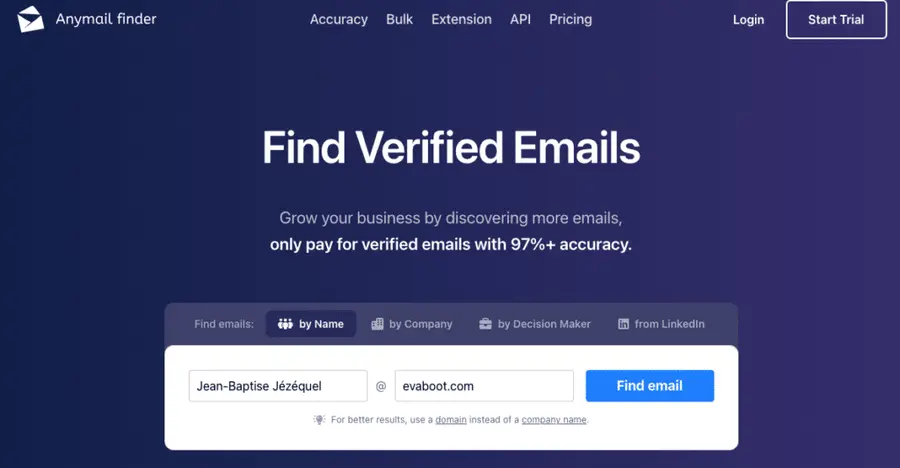
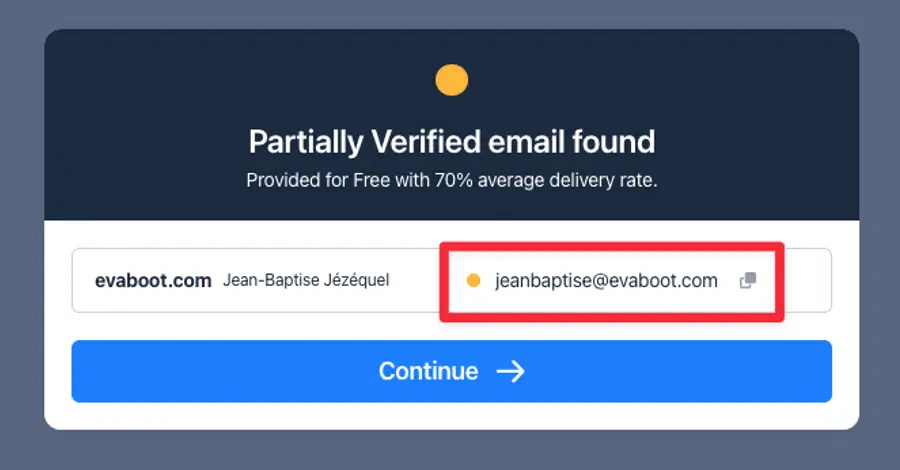
Combine these guesses with a Google search to verify if they appear on public web pages.
5. Verify Emails
Run any email address you find through a verification tool to confirm its accuracy. This step minimizes bounce rates and ensures better email deliverability for your outreach campaigns.
For example, go to Hunter.io, create an account and enter the email you want to verify:
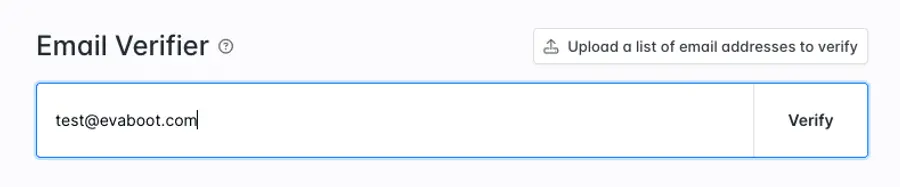
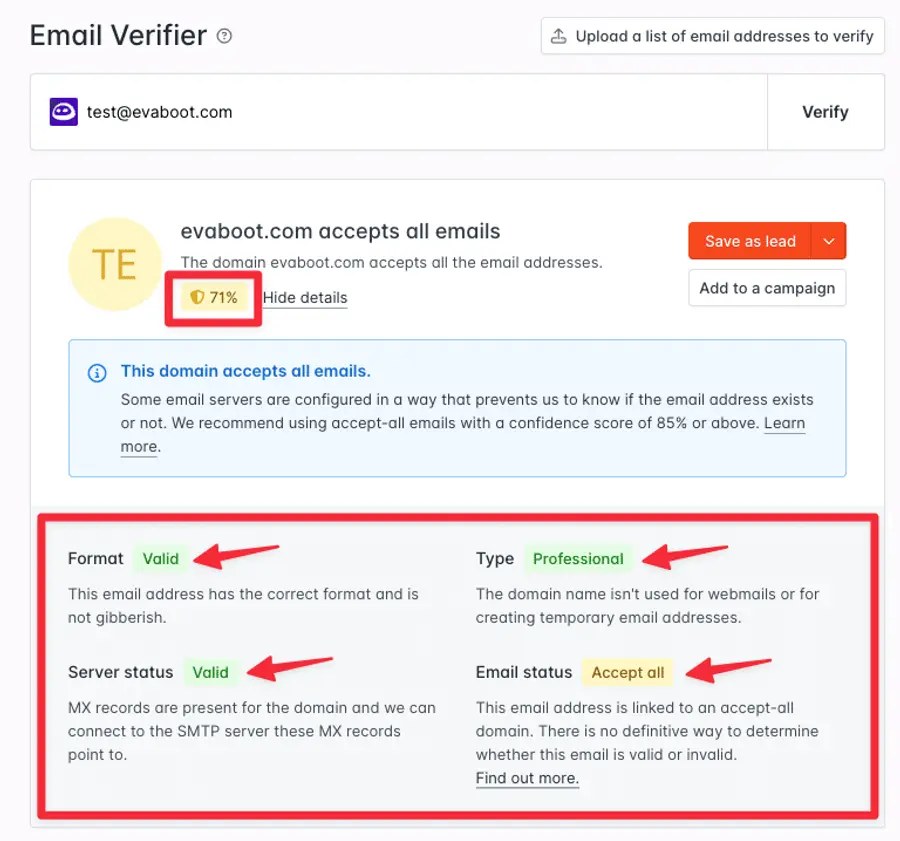
The tool will provide a confidence score indicating the likelihood that the email is valid. It will also offer additional details, such as whether the email format is correct and if the domain is active.
Disclaimer: This method works best for companies with publicly listed emails, such as small businesses, agencies, or individuals in certain industries like legal or media. However, it may not work universally, as many organizations keep employee contact information private.
By combining LinkedIn’s professional insights with Google’s indexing power, you can expand your prospecting efforts and locate reliable contact details for effective outreach.
Limitations of the 4 methods we’ve explored so far:
- Not everyone chooses to share their email address on LinkedIn or on the web.
- It’s a time-consuming process if you need to find emails for multiple profiles.
- The displayed email may not always be up-to-date.
While these methods are easy and straightforward, it’s best suited for finding emails from a small number of profiles.
If you want to find email addresses in bulk, using tools designed for email discovery can save time and improve accuracy.
5. Export Email from 1st-Degree Connections
One simple way to get email addresses from LinkedIn is by using the platform’s Export Connections feature.
This allows you to download a file containing the data of your 1st-degree connections, including their email addresses—if they’ve chosen to make them accessible.
Here’s how to use the feature:
- Click on the “Me” icon in the top right corner of LinkedIn.
- Select “Settings & Privacy” from the dropdown menu.
- Navigate to “Data Privacy” on the left-hand side.
- Under “How LinkedIn uses your data”, click on “Get a copy of your data”.
- Choose the “Connections” and click “Request Archive”.
- Click the download link in the email.
- Click “Download archive”.
- Open the CSV file to get your contacts.
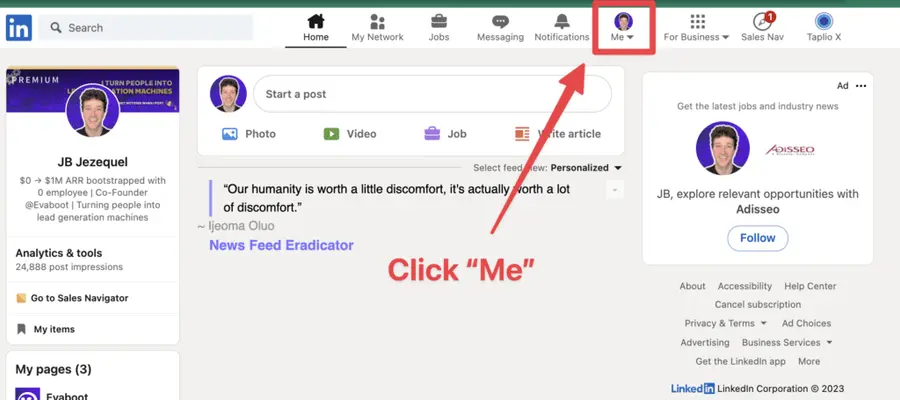
1. Click “Me”
Go to your LinkedIn account.
Click the “Me” icon with your profile picture in the top of your LinkedIn homepage.
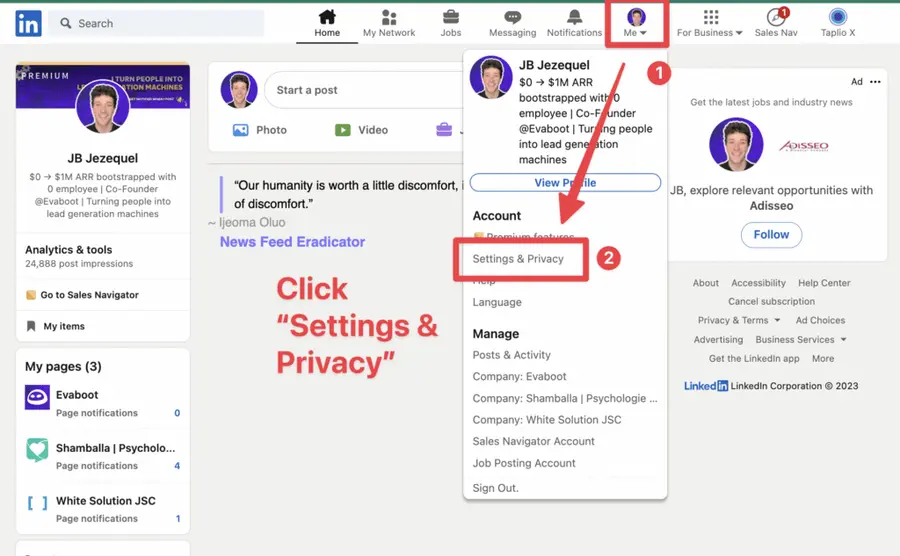
2. Click “Settings & Privacy”
Select “Settings & Privacy” in the dropdown menu.
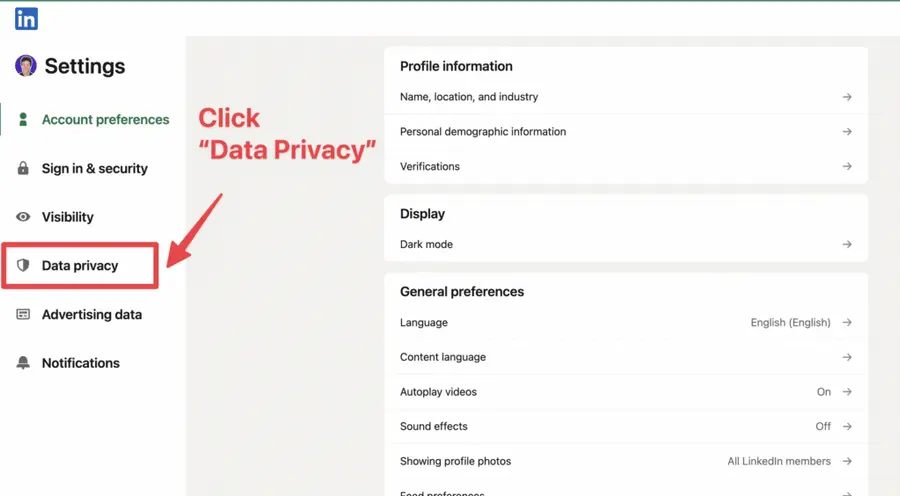
3. Click “Data Privacy”
Select “Data Privacy” in the sidebar menu.
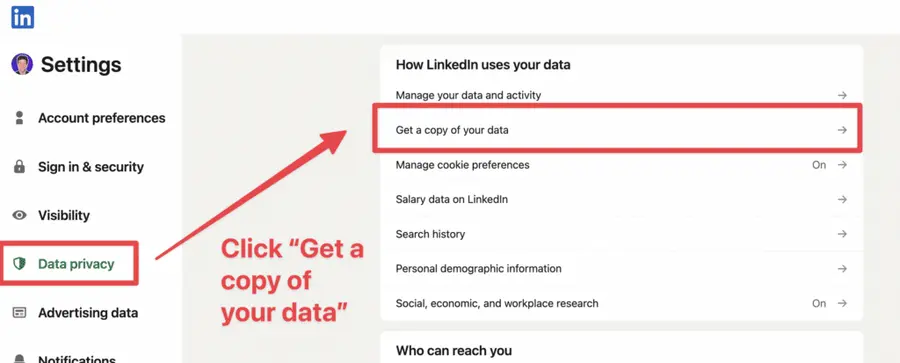
4. Click on “Get a copy of your data”
Click on “Get a copy of your data” below “How LinkedIn uses your data”.
5. Select “Connections”
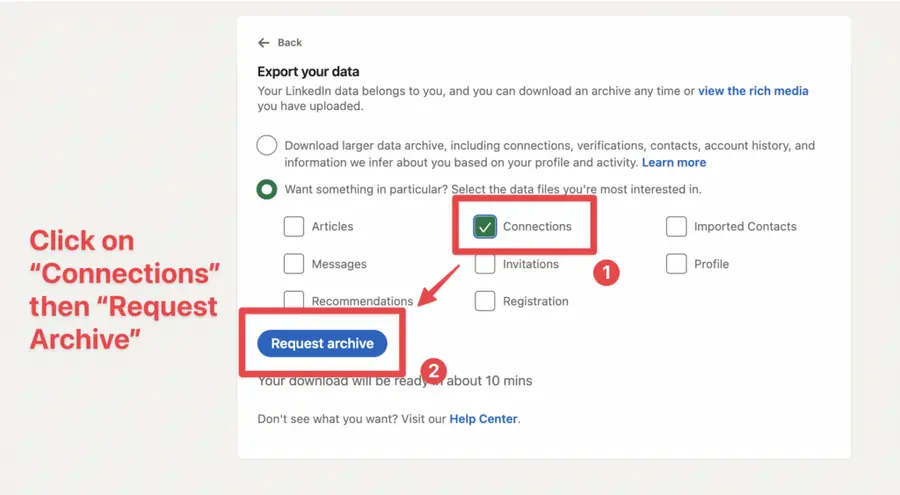
Click on “Wants something in particular” then “Connections” and “Request Archive”.
6. Click the download link in the email
You will then receive an email from LinkedIn with the subject line: “Your LinkedIn data archive is ready!”
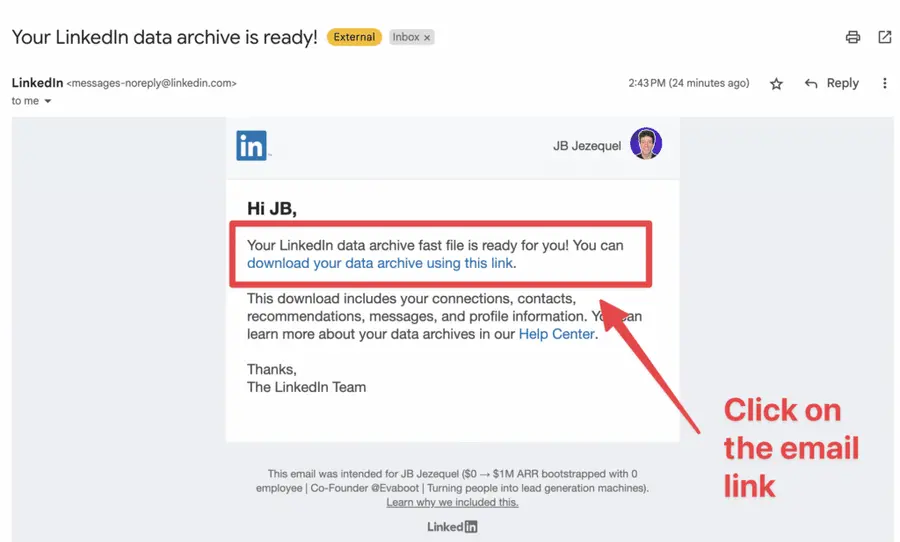
Click on the link in this email.
7. Click “Download archive”
The link in the email will redirect you to the LinkedIn page where you requested the data.
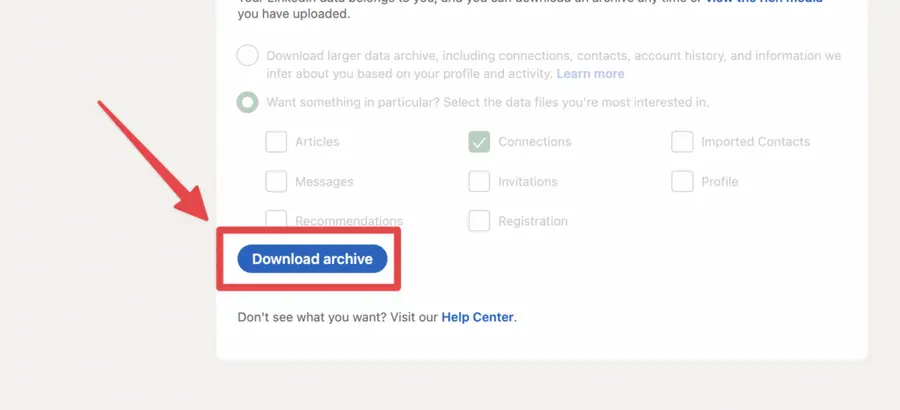
You will see that the button is different.
Click “Download archive” to get your list of connections into an Excel file.
8. Open the CSV file to get your contacts
The data is in CSV format.
You will find 7 data points in it:
- First Name
- Last Name
- URL
- Email Address
- Company
- Position
- Date of Connection
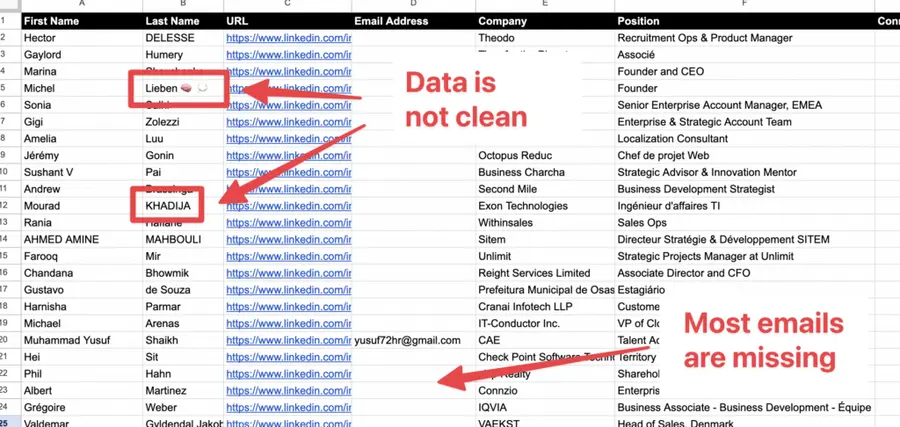
Limitations of this method:
- You can only access the email addresses of connections who have opted to share them.
- The feature is limited to 1st-degree connections, so it won’t help for outreach beyond your immediate network.
- Organizing the exported data might require extra effort, especially if you’re working with a large dataset.
6. Export Emails From Linkedin Search Results
To export LinkedIn search results, you need to:
- Select 1st Degree Connection filter
- Split your search into several chunks
- Copy and paste the URL of your search
- Paste into a LinkedIn scraping tool
- Download your CSV file.
1. Select 1st Degree Connection Filter
Go to the basic LinkedIn search engine and click “1st”.
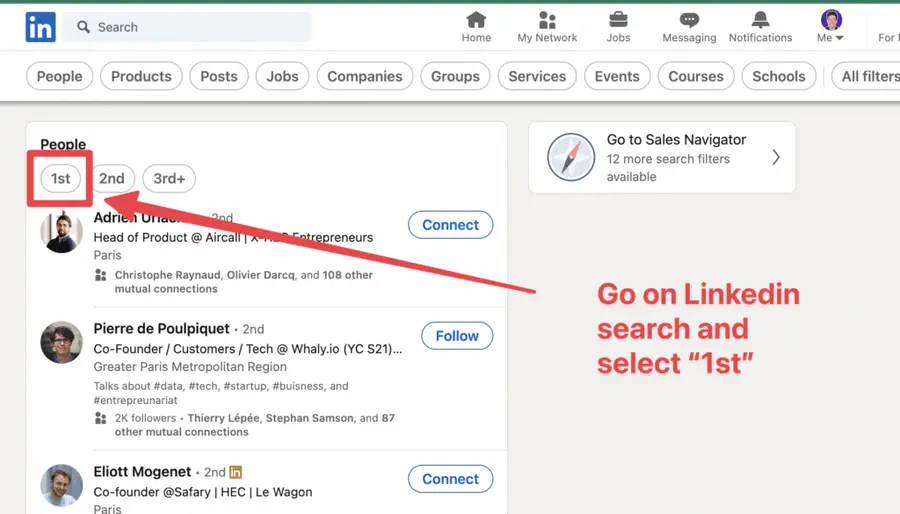
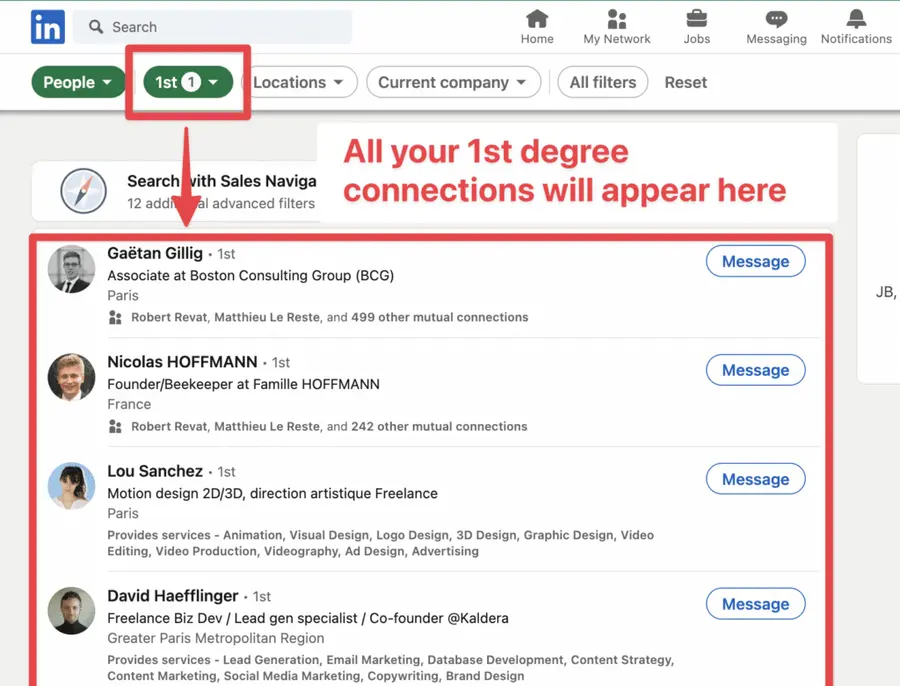
It will display all your LinkedIn contacts in the search results.
2. Split your search into several chunks
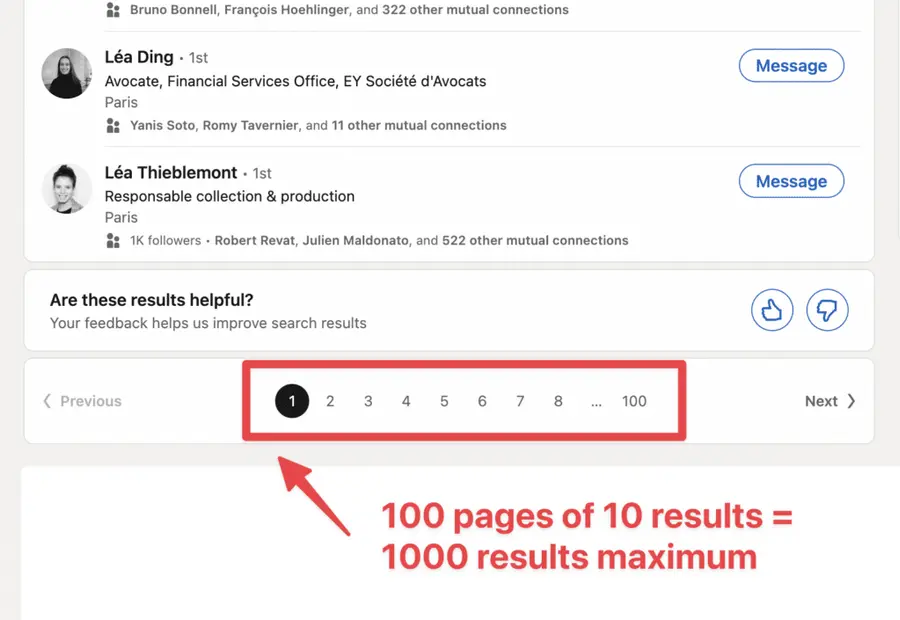
LinkedIn basic search engine is limited to 1000 search results.
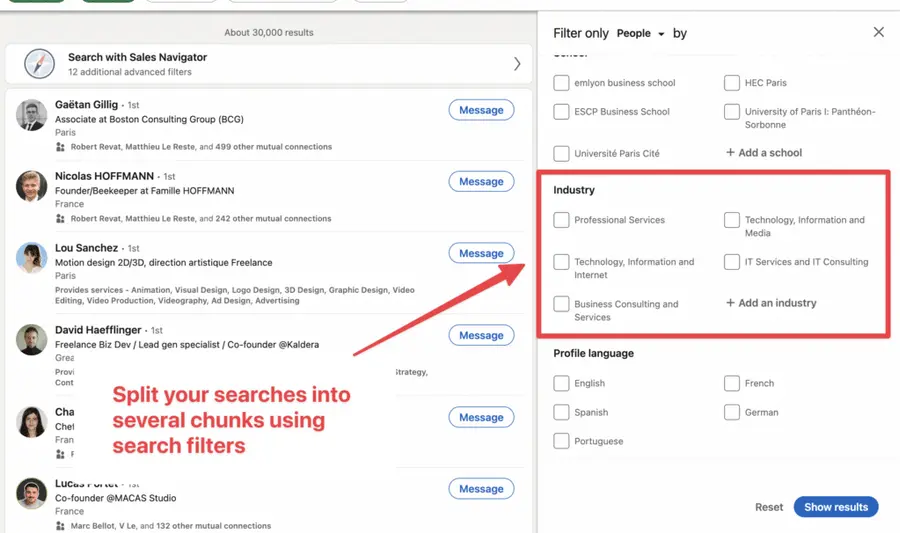
So, if you have more than 1000 connections, go split your search into several categories using the search filters.
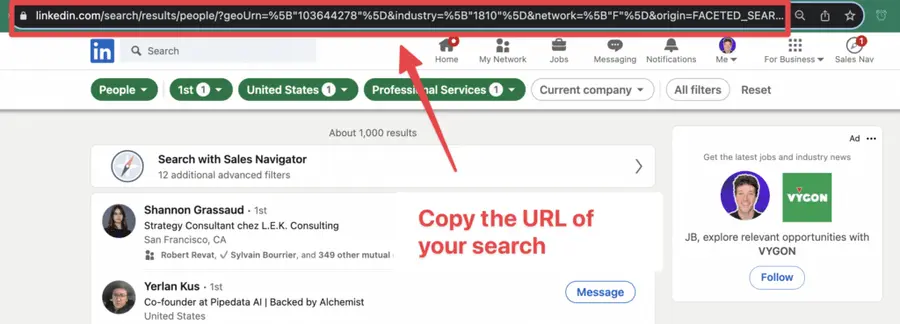
3. Copy the URL of your search
Once you are happy with your search results, you can copy the URL.
4. Paste it into a LinkedIn scraping tool
You can then paste the URL into a LinkedIn scraping tool.
You can use:
- Phantombuster
- TexAu
- Captain Data
They all work the same way.
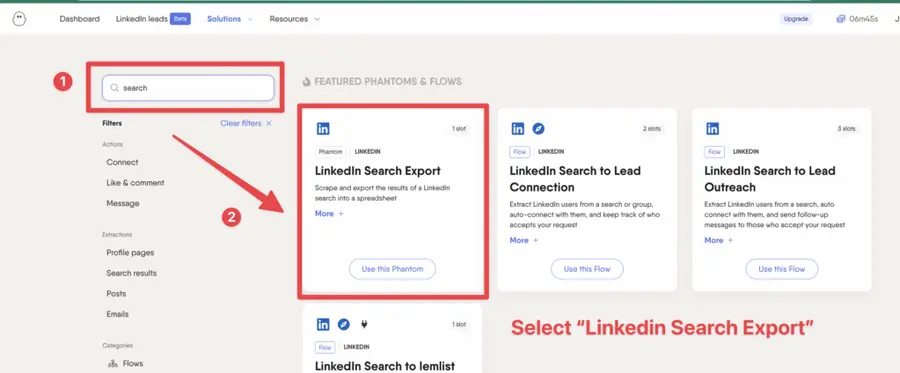
Using Phantombuster, you can search their library for the “LinkedIn Search Export” Phantom.
They will ask you to paste the URL and get their Chrome extension for downloading your search results.
5. Download your CSV file
A few minutes after you launch your extraction, your file will be available for download on their platform.
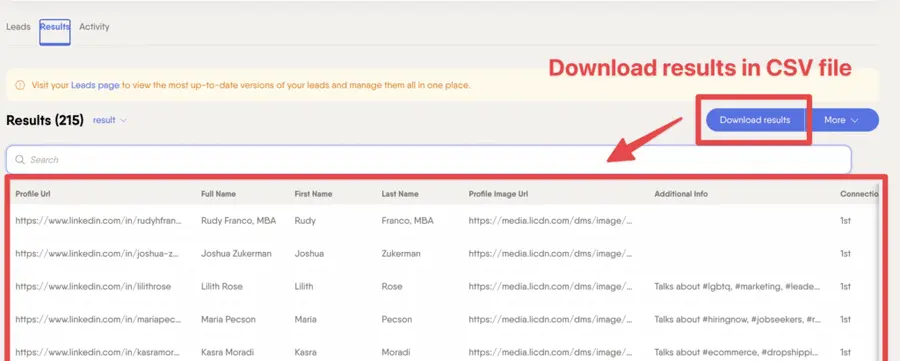
Here’s the data you can access:
- LinkedIn URL
- First name
- Last name
- Profile picture URL
- Current Job
- Connection Degree
- Location
- Share Connections
Limitations of this method:
- The search results are capped at 1000 profiles, restricting the number of prospects you can identify.
- The data available is less detailed compared to what you can extract with Sales Navigator and tools like Evaboot.
- Enriching profiles with professional emails is limited to 80 profiles per day, which can be insufficient for large-scale prospecting.
7. Export Emails from LinkedIn Sales Navigator
For comprehensive data, including email addresses, switching to Sales Navigator combined with Evaboot is a game-changer.
Follow these simple steps:
- Select 1st Degree Connection Filter
- Split your search into several chunks
- Export your search with Evaboot
- Download your CSV
- Find the emails of your contacts
Here is a video tutorial describing the process:
1. Select 1st Degree Connection Filter
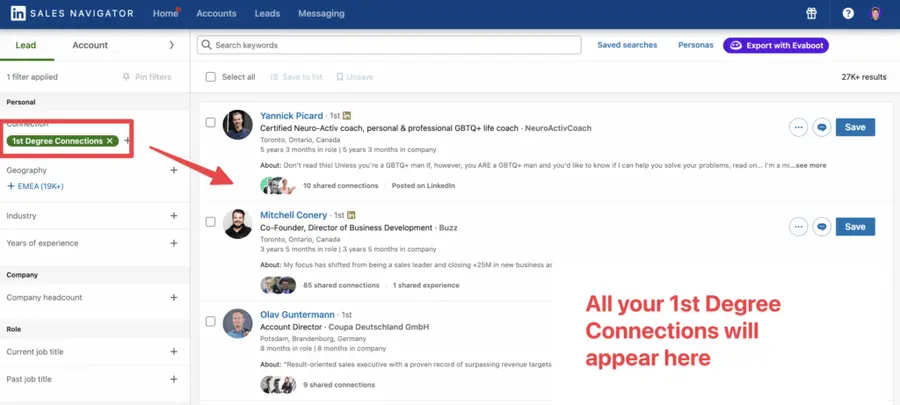
Look for “Connections” and “1st-degree connections” in the Sales Navigator search filters.
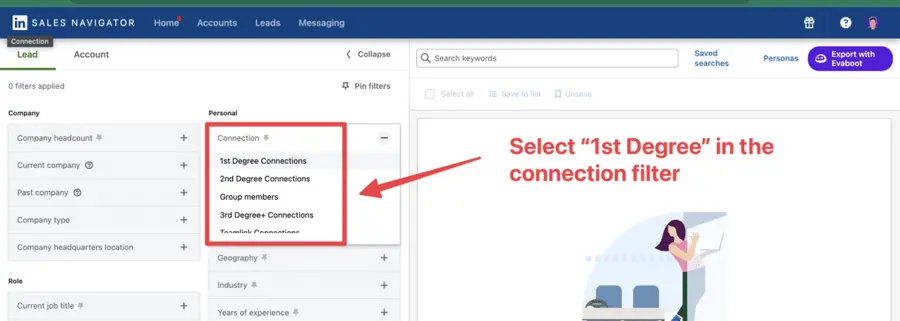
All your 1st-degree connections will appear on the right.
2. Split your search into several chunks
Sales Navigator only displays 100 pages of 25 results.
So, if you have more than 2500 results, you must split your search into several chunks.
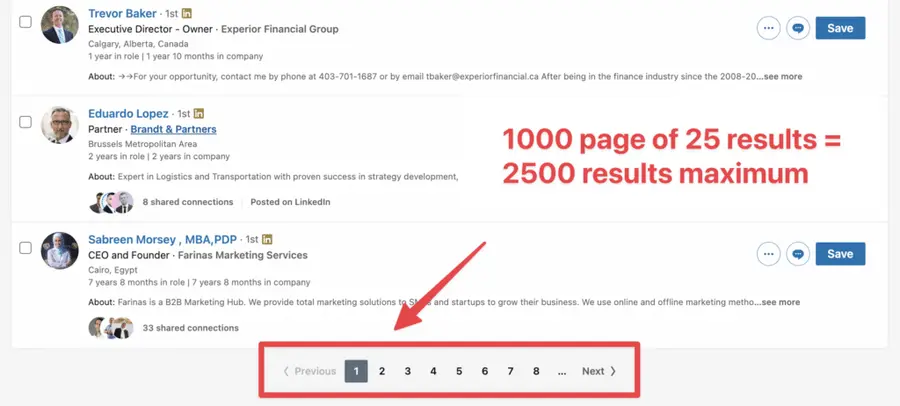
For that, you can use the search filters or create lead lists.
3. Export your search with Evaboot
Once you are happy with your search results, go export them into a CSV file.
For that, you can install the Evaboot Chrome Extension.
It’s a LinkedIn automation tool that makes your lead-generation process easier.
After you download it, the “Export with Evaboot” button will appear at the top right corner of the Sales Navigator page.
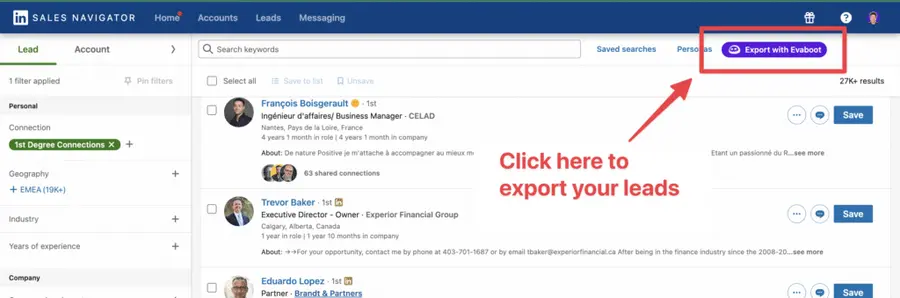
Click on it to open Evaboot and export your LinkedIn connections.
4. Download your CSV
Once your export is ready, you will receive an email.
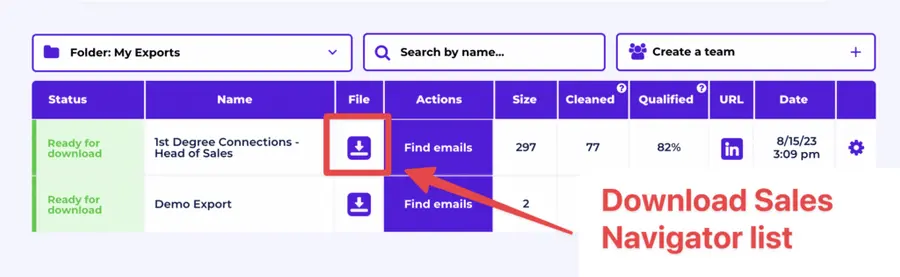
Go back to the Evaboot platform to download your file.
In the file, you will find:
- LinkedIn Profile URL
- Job title
- Job description
- Company Website
- Company LinkedIn URL
- First name, Last name
- Lead Location
- Company Location
- Company Industry
- Company Size
- The exact number of employees in the company
- Years in position
- Number of connection
- Company Type
- Company creation date
- Company description
- Company Specialities (Keywords describing what the company is doing)
- If the profile is open or not
- Profile Picture
- Company Logo
More information than with the classic LinkedIn export.
5. Find the emails of your contacts
If you want to get emails from your Sales Navigator export, click “Find Emails” next to the name of your export.
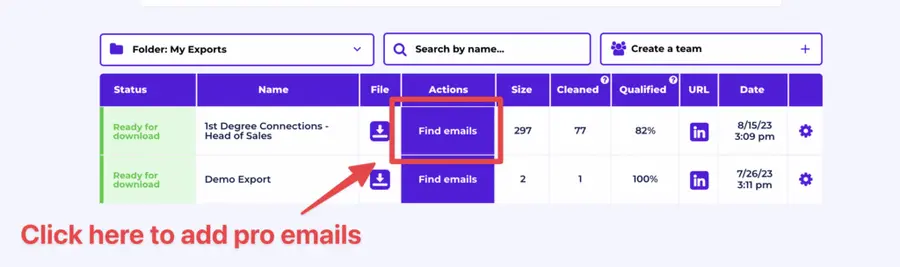
With Evaboot, you can export up to 2500 leads per day and enrich an unlimited number of profiles with verified professional emails.
So, if you aim to get pro emails, you will go much faster with LinkedIn Sales Navigator.
If you don’t yet have a license yet, take advantage of the Sales Navigator free trial.
The last method may seem obvious, but it’s useful when none of the approaches discussed in this article yield the desired results.
8. Find and Verify Emails in Bulk From a List of Leads
If you already have a list of leads—whether from LinkedIn exports or other sources—you can use a bulk email finder tool such as Evaboot Email Finder.
This feature finds and verifies the professional email addresses of your leads automatically, without the need to manually search profiles.
Here’s how it works:
- Prepare Your CSV File
- Upload to Evaboot
- Automated Search & Verification
- Download Your Clean List
1. Prepare Your CSV File
Create a spreadsheet with First Name, Last Name, and either Company Domain or Company Name as columns.
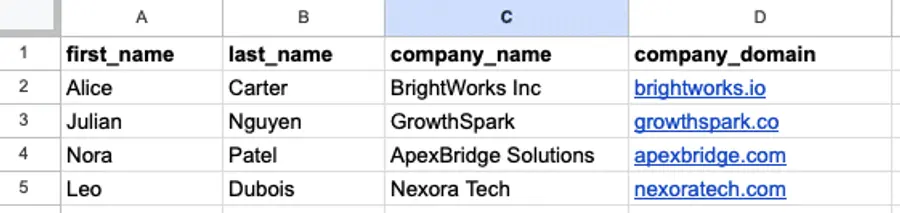
This is all Evaboot needs to start searching for the correct email addresses.
2. Upload to Evaboot
Log in to Evaboot, select the Email Finder tool, and upload your CSV file.
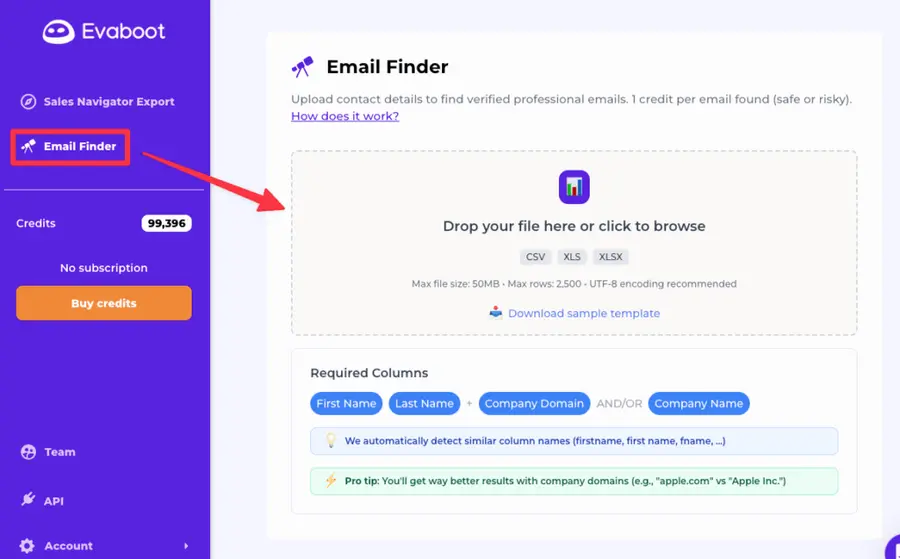
The platform supports lists of up to 2,500 rows per upload for efficient batch processing.
3. Automated Search & Verification
Evaboot finds matching email addresses using a combination of patterns, LinkedIn scraping and web scraping.
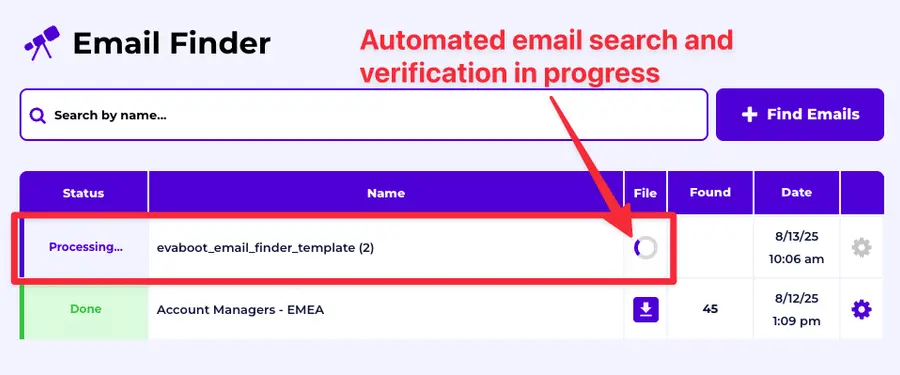
Every email is then verified to check its deliverability.
4. Download Your Clean List
Once the process is complete, download a fully enriched CSV with verified emails, ready to import into your CRM or outreach tool.
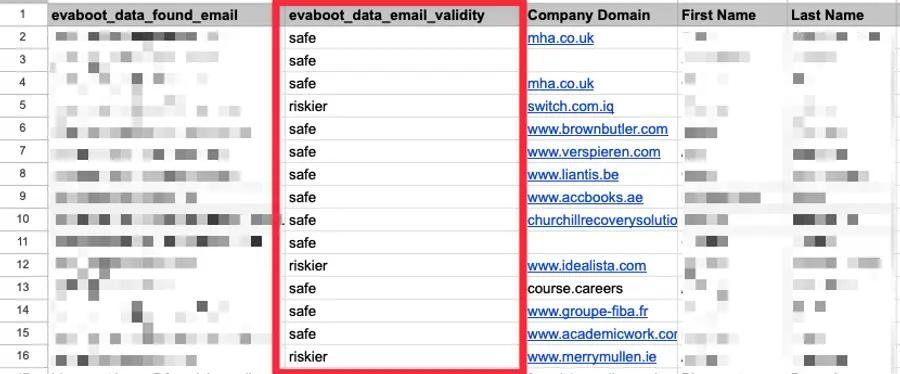
Each email is labeled as either Safe (low bounce risk) or Riskier (higher bounce likelihood, up to 25%). This lets you decide which addresses to use in campaigns.
This method saves time if you’re prospecting beyond LinkedIn or want to enrich existing datasets without relying on Sales Navigator searches.
Plus, built-in verification means fewer bounced emails and better deliverability.
9. Ask For Emails Directly On LinkedIn
Sometimes, the simplest approach is best—just ask for it. If the prospect has accepted your connection request or InMail and shown interest in your conversation, it’s worth asking for their email address directly.
Here are tips for crafting a professional message:
- Be clear and polite.
- Highlight the reason for your request.
- Explain how they’ll benefit.
- Keep it short and within LinkedIn’s 300-character limit.
Example Templates for Outreach:
For a warm prospect:
“Hi [Name], I’d love to send you a resource that addresses [specific pain point]. Could I get your email to share it?”
When requesting a connection:
“Hi [Name], I’d like to connect and continue this conversation. Could we move to email? I believe I have valuable insights to share regarding [topic].”
What if you don’t get the email? Not having it doesn’t mean you should give up on the lead.
Focus on continuing the conversation on LinkedIn and use LinkedIn outreach to achieve your goals. Additionally, incorporating multichannel outreach—using cold calling, X and other platforms—can improve your chances of connecting with the lead.
Conclusion
Sourcing professional emails from LinkedIn doesn’t have to be a complex or time-consuming process. With the right tools, you can streamline your workflow, save time, and focus on building valuable connections.
Tools like Evaboot simplify lead generation by combining the power of LinkedIn Sales Navigator with efficient data extraction and organization. This allows you to target the right prospects while staying compliant with platform guidelines and ethical standards.
Work smarter, not harder. Embrace these tools to elevate your outreach strategies and drive business growth.
FAQ
How Do I Find Professional Email Addresses Using LinkedIn?
You can find professional email addresses on LinkedIn by:
- Checking the Contact Info section of profiles (if shared).
- Using Chrome extensions like Kaspr or Saleshandy Connect for automated email extraction.
- Leveraging bulk email finder tools like Cognism for processing large datasets.
- Requesting emails directly through LinkedIn messages.
- Combining Sales Navigator with Evaboot to export leads and enrich them with verified emails.
- Guessing email patterns and verifying them with tools.
- Searching on company websites or using Google search operators.
For large-scale prospecting, Sales Navigator with Evaboot offers unmatched efficiency in exporting and managing leads.
Is It Legal To Scrape Emails From LinkedIn?
Scraping emails from LinkedIn without consent violates the platform’s terms of service and may lead to account suspension or legal action.
For a compliant approach, tools like Evaboot work within LinkedIn’s policies to export and manage Sales Navigator data ethically, supporting legal and responsible data use.
What Are The Best LinkedIn Email Finder Chrome Extensions?
Top LinkedIn email finder Chrome extensions include:
- Evaboot: Ideal for exporting leads from Sales Navigator into clean spreadsheets for further use.
- Kaspr: Fetches emails directly from LinkedIn profiles, perfect for quick retrieval.
- Cognism: Offers advanced sales intelligence for larger enterprises.
- Skrapp: Simplifies single and bulk email retrieval.
- AeroLeads: Extracts emails and data from multiple platforms, including LinkedIn.
- Hunter.io and ContactOut: Known for verified databases and personal/work email discovery.
Other options like Apollo.io, Voila Norbert, and GetProspect specialize in CRM integration and automated outreach, catering to different business needs. Choose based on your scale, budget, and features required for lead generation.
How Do LinkedIn Sales Navigator And Evaboot Work Together?
LinkedIn Sales Navigator offers advanced search features to identify and target high-quality leads, using filters like role, industry, and location.
Evaboot enhances this process by exporting leads from Sales Navigator into clean, organized spreadsheets. It removes irrelevant data, refines search results, and prepares the leads for immediate use in marketing campaigns or CRM systems.
Together, they streamline lead generation, improve workflow efficiency, and help sales professionals focus on high-value prospects, boosting the effectiveness of outreach efforts.


