
With its vast professional network, LinkedIn has become the go-to platform for professional networking and career advancement.
But as in real life, successfully introducing people on LinkedIn can open doors to new opportunities and partnerships.
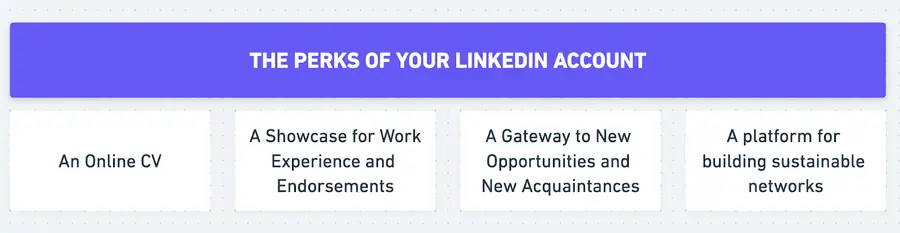
Your LinkedIn profile serves you as:
- Your online CV
- Your work portfolio
- Your gateway to new opportunities, new acquaintances
- A platform for building sustainable networks
A well-crafted LinkedIn profile introduction can open doors, whether you’re a recruiter looking for the perfect candidate for open positions or a job seeker hoping to catch the eye of a potential hiring manager.
So, learning how to leverage mutual connections and crafting compelling messages will help you better network on LinkedIn and unlock new opportunities.
In this article we’ll cover:
- 5 tips on how to introduce people on LinkedIn?
- 4 LinkedIn Introduction Message Templates
- How To Find Mutual Connections On LinkedIn Sales Navigator?

Without further ado, let’s get into it.
5 Tips On How To Introduce People on LinkedIn?
Today, successful LinkedIn introductions involve engaging with your introducer, introducing yourself and the other person, explaining the reason for the introduction, and moving them to the next step.
So here are 5 tips on how to effectively introduce people on LinkedIn.
Following these tips, you will expand your professional network and become a valuable and credible element in your network.
- Address the person you introduce by starting your message with a friendly greeting and using their name. This will make your message more personal and respectful.
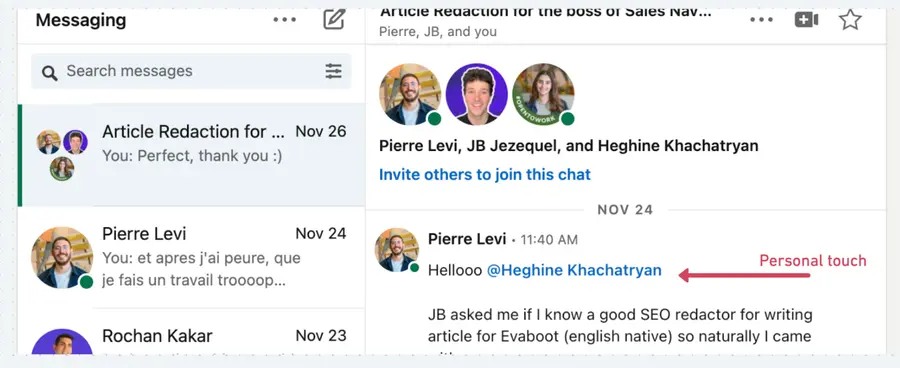
- Introduce yourself. If you do not have a first-degree connection with the person you are introducing, briefly explain who you are, how you know them, your mutual connection with them, etc.
This will establish your credibility and relevance.
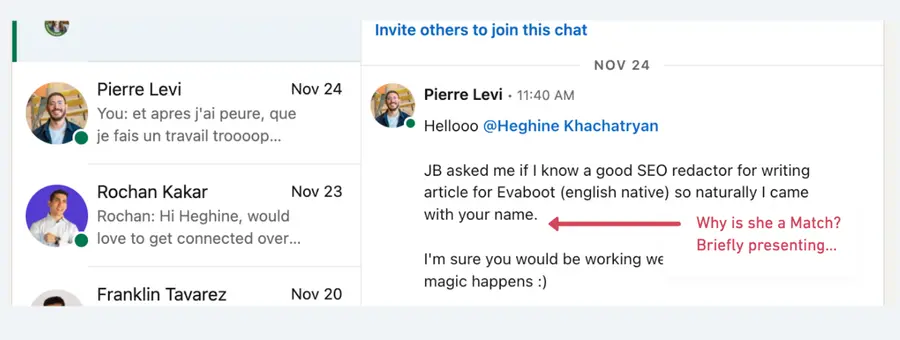
- Introduce the other person you want to connect with your first connection.
Mention their name, title, company, relevant skill set, and something interesting and insightful about them. This will spark their curiosity and interest.
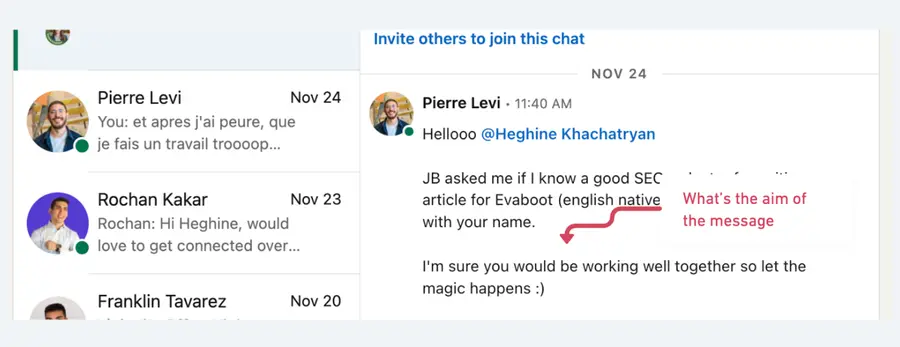
- Explain the reason for the introduction. Then, explain why you think these two people should connect and what value they can offer each other. This will show your intention and purpose for the introduction.
- Push them to the next step. Finally, encourage the two people to take action, send LinkedIn connection requests, and follow up with each other, schedule a call, join a webinar, or try a product.
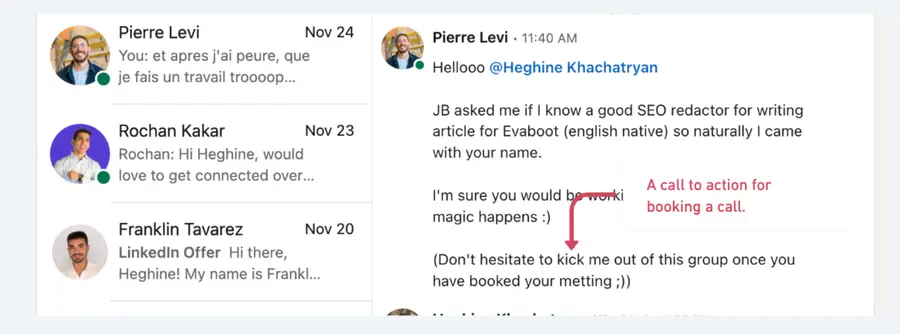
Moreover, providing their contact information or sharing profile links will make it easier for them to connect, continue the conversation, and establish professional relationships.
Here is a customizable template of an introduction message on LinkedIn:
First introduction message
4 Message Templates To Introduce Two People On LinkedIn
Good! Now that you know how to write an introduction message on LinkedIn, let’s see 4 hyper-personalized message templates based on different scenarios and the “specific industry” you’re addressing:
- Service Offer
- Invitation to Podcast
- Strategic Networking
- Product Testing Requests
Template 1: Personal Connection to a Hiring Manager
If you want to introduce a freelancer who did a good job for you to one of your business partners who might need their services, check out this next message template:
Personal connection to a hiring manager
Template 2: Invited Podcast Speaker to Podcast Coordinator
If you want to introduce someone to participate in a podcast that you host or produce, here is an example of how to do it:
Invitation to join a podcast
Template 3: Previous Co-worker to Current Employer
To build a bridge between your personal connection and a more experienced industry leader for mentorship or advice, follow this approach:
Strategic networking with an industry leader
Template 4: Product User to Product Manager
If you want to introduce a potential product user to the product owner by offering them a free trial, here is how to introduce them:
Request for product testing
How To Find Mutual Connections On LinkedIn Sales Navigator?
If you’ve made it this far in the article, it’s clear that you’re hungry for some more networking strategies.
To satisfy your knowledge quest, here’s one more useful tip.
I’m not hiding that LinkedIn’s Sales Navigator is one of my favorite software.
It’s a premium tool designed to enhance your ability to find and engage with prospects and customers.
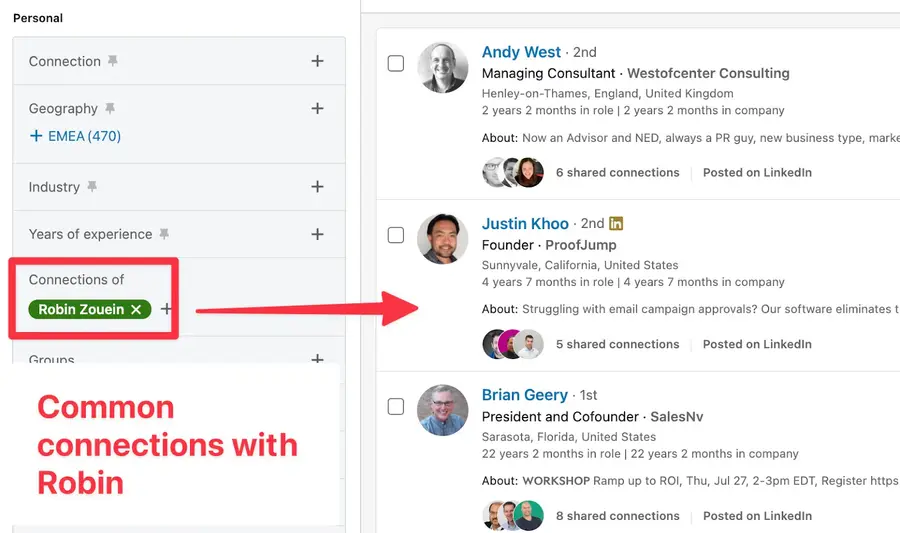
One of Sales Navigator’s features is the “Connections of” filter. This filter allows you to see who your connections are connected to.
Follow these steps to get the best out of the “Connections of” filter on Sales Navigator:
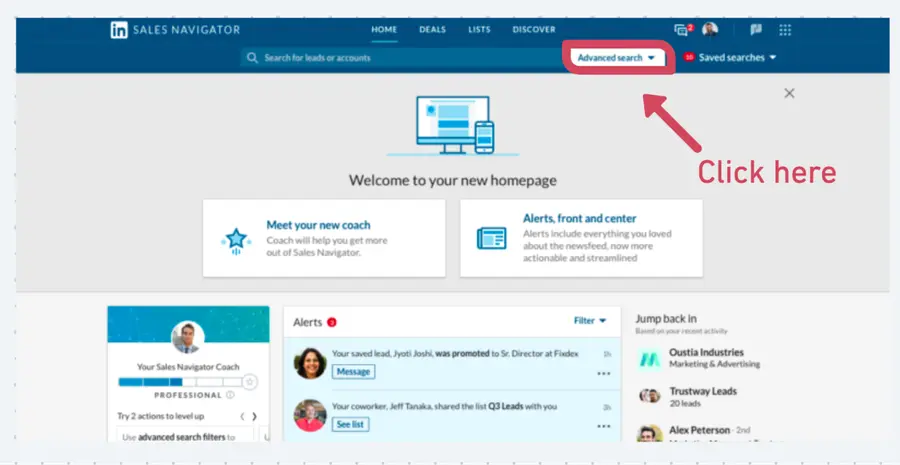
- Go to your Sales Navigator home page and click “Advanced” in the top right corner.
- On the left sidebar, under “Relationship,” click “Connections of” and type in the name of one of your connections whose connections you want to see.
- Use other filters, such as industry, location, title, company size, etc., to narrow down your results (don’t forget to select English as the primary language).
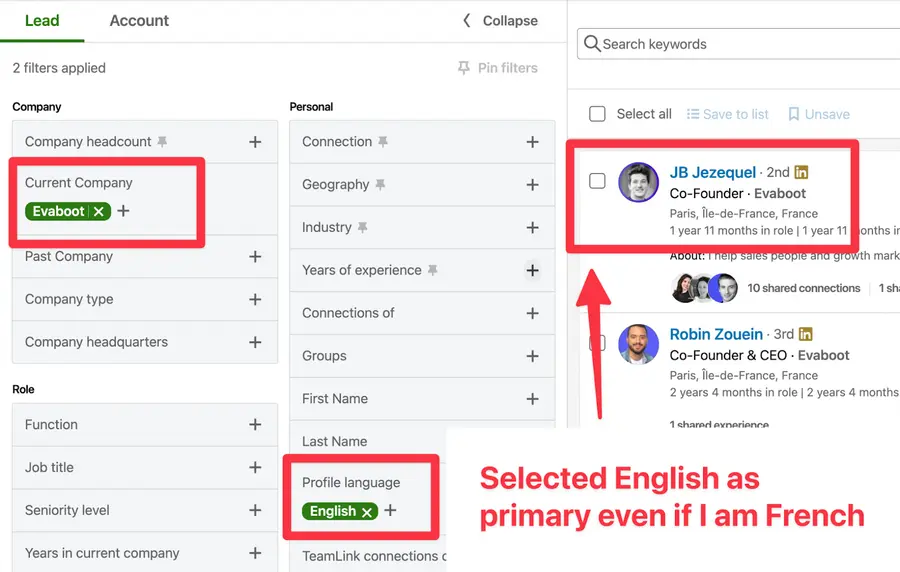
- Click “Search” to see the people connected to your connection.
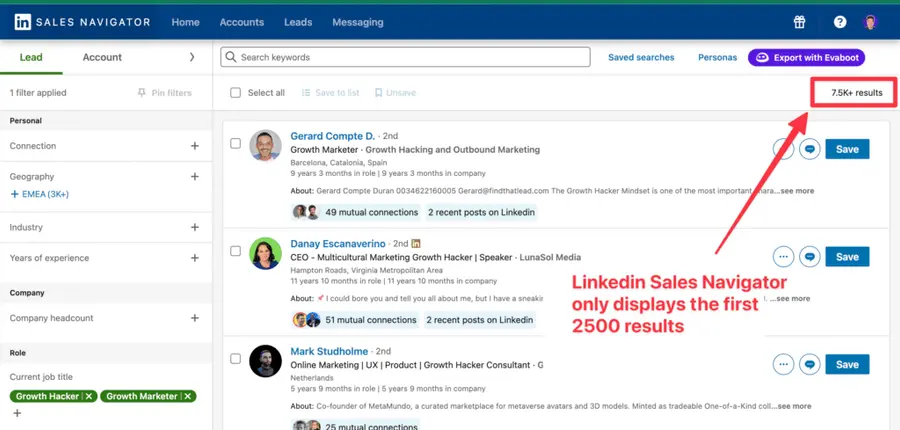
- You can then browse their profiles and see if anyone might benefit from your introduction.
Opting for the “connections of” and other advanced filters on Sales Navigator helps you discover new opportunities for LinkedIn introductions. This is an effective way to grow your network.
What are your key takeaways?
Mastering LinkedIn introductions is more than a skill – it’s the pathway to becoming a network leader.
Now it’s your turn to:
- Apply the 5-step guide for crafting effective introduction messages on LinkedIn
- Help yourself to our message templates and personalize them for your target
- Elevate your networking strategy by leveraging LinkedIn’s Sales Navigator
P.S. If you need more assistance writing introduction messages on LinkedIn or any other type of content, you can use TextCortex.
TextCortex is an AI-powered content generator that can create high-quality content for any topic in minutes. It saves you time, money, and effort while boosting your content marketing results.
This content was partly written by AI (ChatGPT 4), I added my own perspective, fact-checked it and made sure it is helpful for you.


![LinkedIn Character Limit: All You Need To Know [2026 Tips]](https://cdn.sanity.io/images/c7r5pqu4/production/c5bfd5e35bcb93e7de9a70b083cfc9f3be37a024-2030x1140.png?rect=9,0,2012,1140&w=600&h=340&fm=webp&fit=crop)